
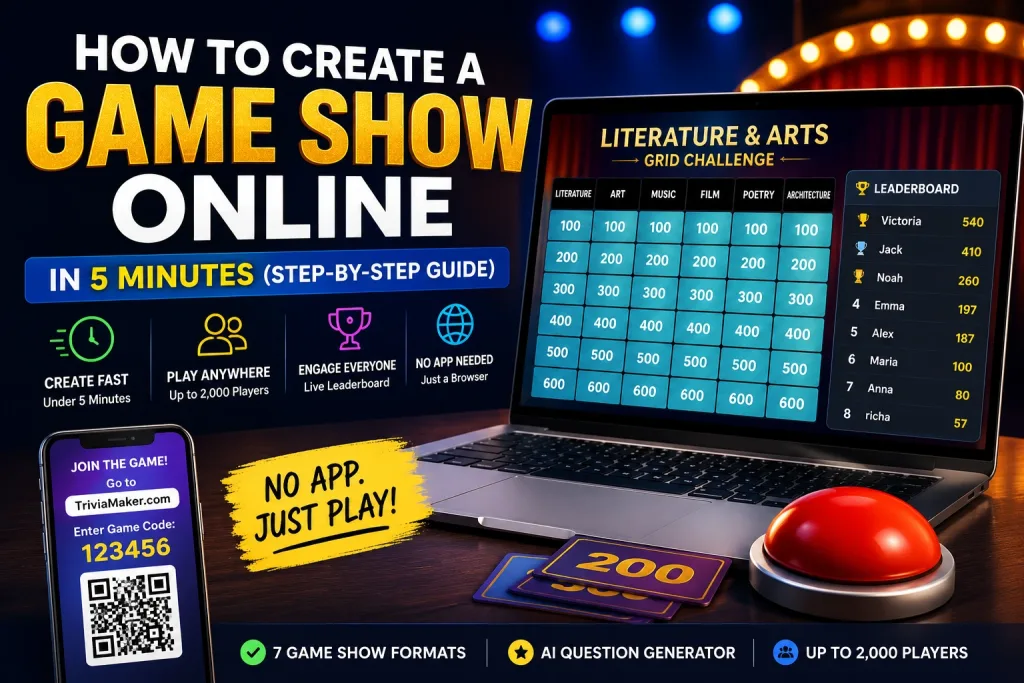

Ask ten people what “hosting a game show” takes, and nine of them will picture a TV studio, a production crew, and a budget you don’t have. The truth is simpler: you can build and launch a real, TV-style game show – with a scoreboard, a spinning wheel, and a live leaderboard – in about five minutes, using nothing but your laptop and a browser tab. Whether you’re a teacher looking for an interactive quiz tool for your classroom, a corporate trainer planning a team building session, or an event host who needs a free trivia game maker that actually works, this guide has you covered.
This guide walks through exactly how, using TriviaMaker, the online game show maker built for teachers, corporate teams, and event hosts who need something that works the first time, on any device, with zero setup headaches. If you’re comparing multiple platforms, our best online game show makers review covers 10 tools side-by-side.
To create a game show online, pick a game show format (Grid, Wheel, List, Trivia, TicTac, Hangman, or Fusion), add your questions manually or with an AI question generator, then launch and share a join code – players enter it on any phone or laptop with no app download. Most hosts go from blank page to live game in under five minutes.
Skip the reading. Build your first game show right now.
Free forever plan. No credit card. Live in under 2 minutes.
Create Your Game Show Free →What Is a Game Show Maker?
A game show maker is software that lets you create and host interactive, TV-style game shows for a live audience. Unlike a basic quiz tool that simply displays questions on a screen, a game show maker includes visual game boards, spinning wheels, live scoreboards, buzzers, and team competition features that recreate the energy of a real game show – not just a list of questions on a slide. Think of it as the difference between reading a worksheet out loud and running a full interactive quiz experience that keeps everyone locked in from start to finish.
TriviaMaker is built specifically for this: 7 interactive game formats, an AI quiz generator that writes questions for you, and support for up to 2,000 live players – all running from a browser with no app required. Over 200,000 educators, corporate trainers, and event hosts use it as their go-to interactive quiz tool for classrooms, training sessions, and live events.
What You Need Before You Start
Nothing fancy. Here’s the entire list:
- A laptop, tablet, or desktop with an internet connection
- A free TriviaMaker account (no credit card needed)
- A topic – company values, exam review, holiday trivia, whatever you’re covering
- A screen to project or share (Zoom, Teams, a TV, or a classroom projector)
That’s it. Players don’t need anything except a phone. No app, no login, no account. Students join instantly without any friction – no extra apps, no sign-up forms, no barriers.
How to Create a Game Show Online: 5 Steps in 5 Minutes
⏱ 60-Second Version
- Pick a format – Grid, Wheel, Trivia, or 4 others (30 sec)
- Add questions – type a topic and let AI generate them (60 sec)
- Customize – add your logo and colors, or skip this (30 sec)
- Choose a mode – Crowd, Presenter, Buzz, or 3 others (15 sec)
- Launch – share the QR code, players join instantly (15 sec)
Total: under 2 minutes for a basic game, under 5 minutes for a fully branded one.
Step 1: Pick a Game Show Format (30 Seconds)
Every TriviaMaker game starts with a format. Each one maps to a game show style people already know, so your audience understands the rules instantly:
- Grid – a category board game where teams pick questions by point value. Think of a quiz show board with columns and rows – the most recognizable game show format.
- Wheel – spin to reveal a category or question, adding a moment of chance and suspense. Great for high-energy events and parties.
- List – a “survey says” style game where players guess the most popular answers. Perfect for icebreakers and team building activities.
- Trivia – classic timed multiple choice quiz format. Perfect for fast reviews and large remote audiences.
- TicTac – trivia meets tic-tac-toe strategy. Players answer questions to claim squares – great for competitive teams.
- Hangman – word-guessing with letter reveals. Ideal for vocabulary, spelling, and language learning.
- Fusion – combine several formats into one multi-round tournament. Perfect for long events and conferences.
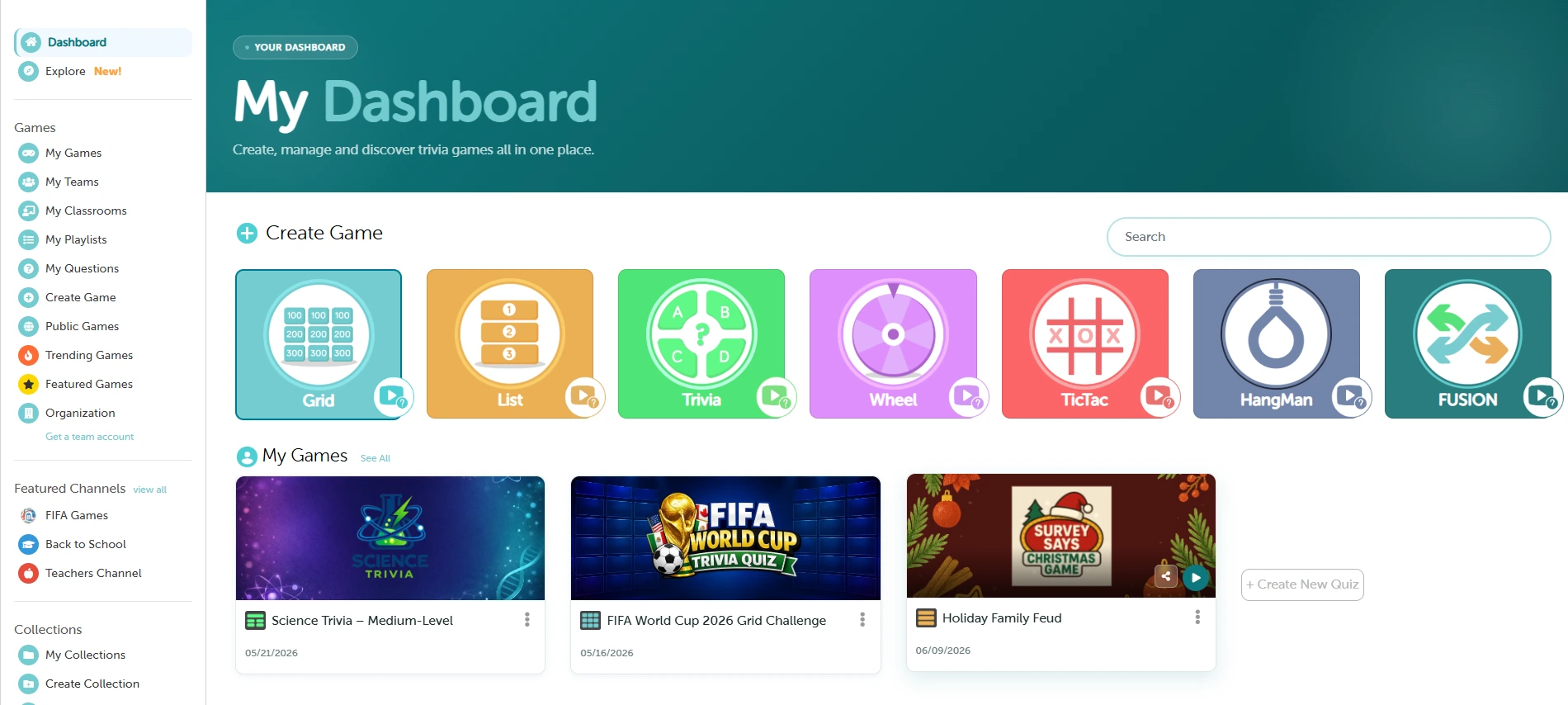
Not sure which one? Grid is the safest first choice – it’s the most recognizable category board game format and works for almost any topic or audience size.
Step 2: Add Your Questions (60 Seconds)
This is normally the slow part of building a quiz – and it’s the step TriviaMaker compresses the most. You have three ways to fill your game show with content:
- Type them manually if you already know exactly what you want to ask
- Import from a spreadsheet if you have an existing question bank – TriviaMaker accepts CSV uploads for bulk question import
- Use the AI quiz generator – type a topic, or upload a PDF or document, and a full set of game show questions appears in seconds. This is the fastest way to create a quiz from scratch.
Most hosts using the AI generator go from a blank screen to a finished 20-question game show in under a minute. Type “Q3 sales onboarding” or “American history: 1900–1950” and the questions write themselves – you just review and tweak. It works with any topic, so you never have to write a single question by hand.
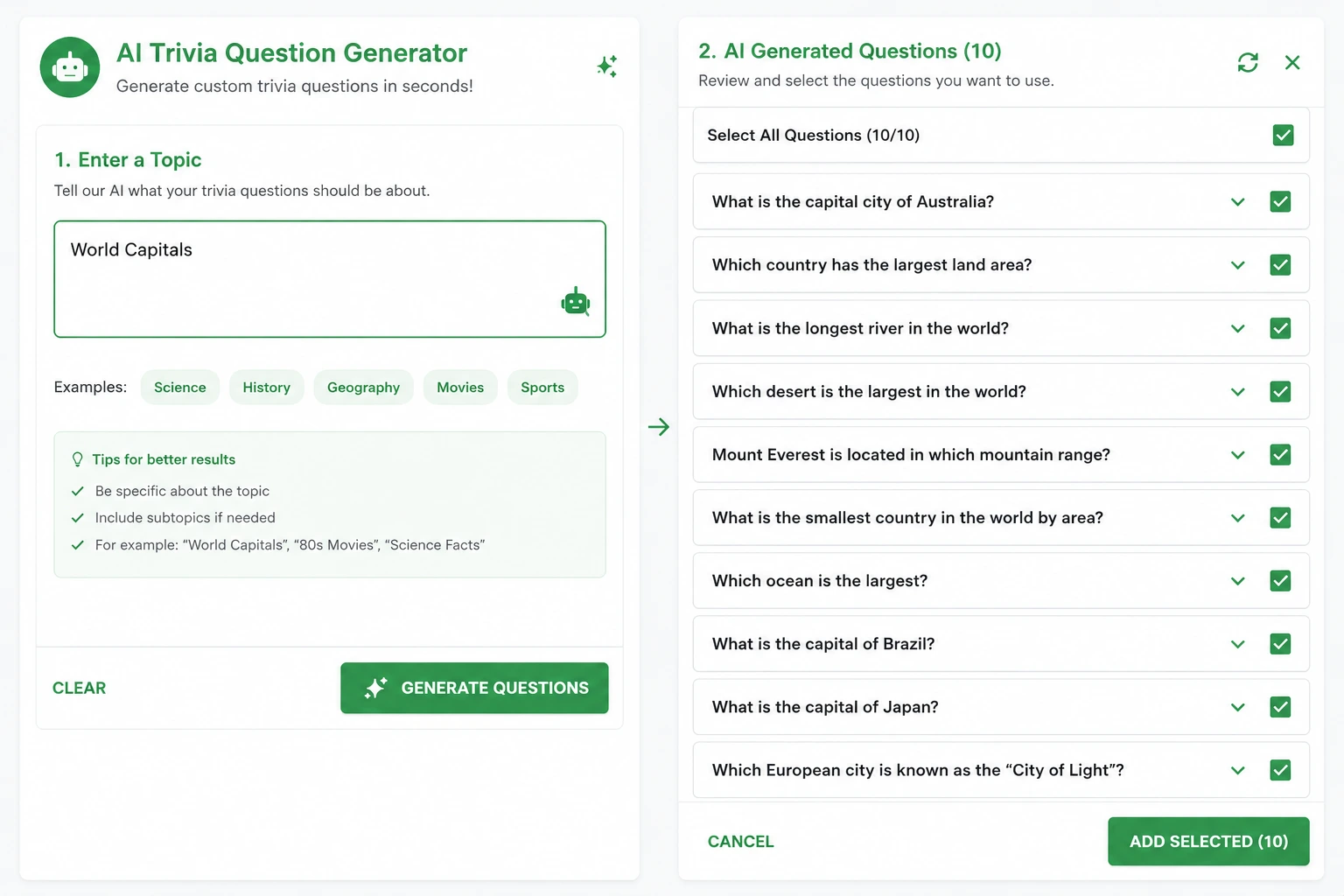
Let AI write your game show questions for you.
Try the AI Question Generator →Step 3: Customize the Look (Optional – 30–60 Seconds)
Want your game show to match your brand? Add your logo, brand colors, a background image, or theme music. Completely optional – plenty of hosts skip this and launch with the default look.
Creating a company or client-facing game? Premium unlocks full branding – logos, colors, backgrounds, music – plus higher participant limits. It’s the difference between “a trivia game” and “our trivia game.”
🎨 Premium unlocks full branding and higher participant limits.
Compare Premium Plans →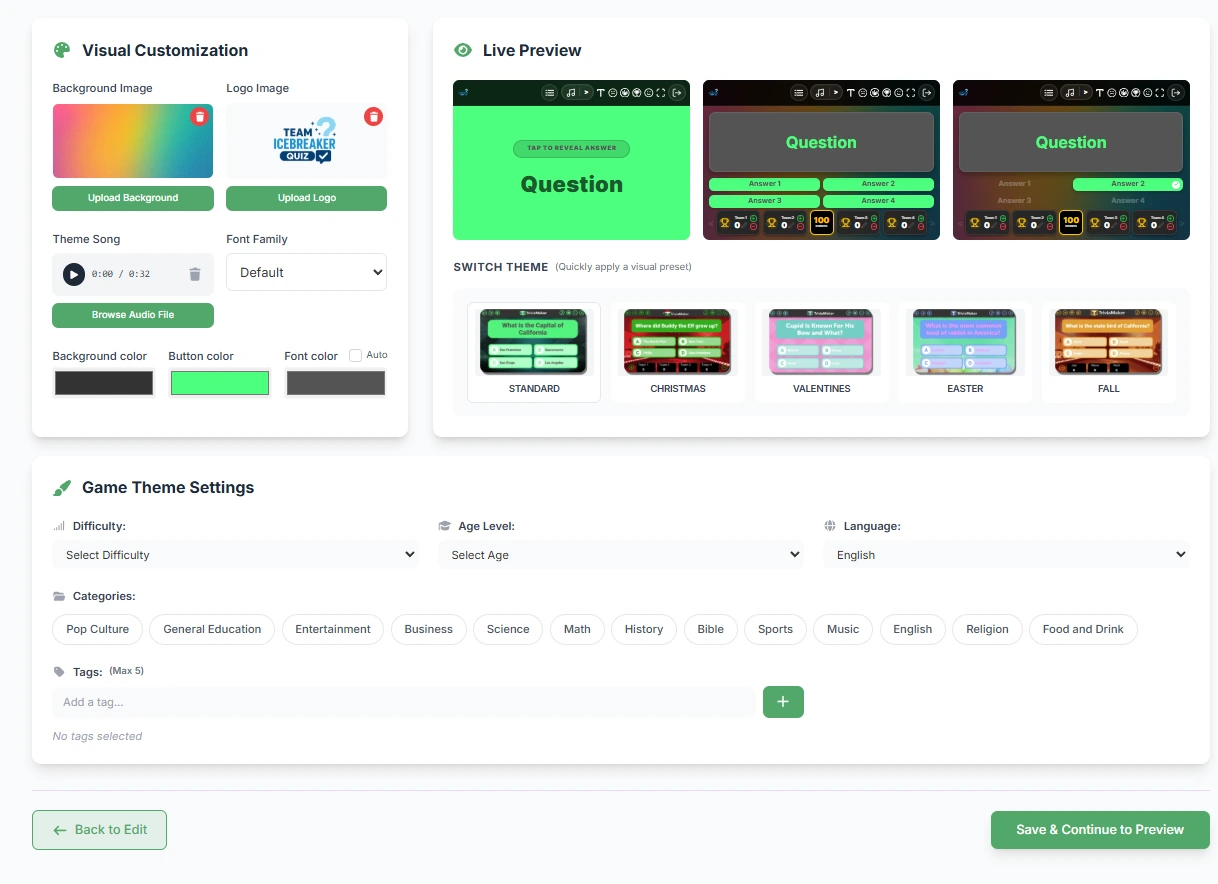
Step 4: Choose How Players Will Join (15 Seconds)
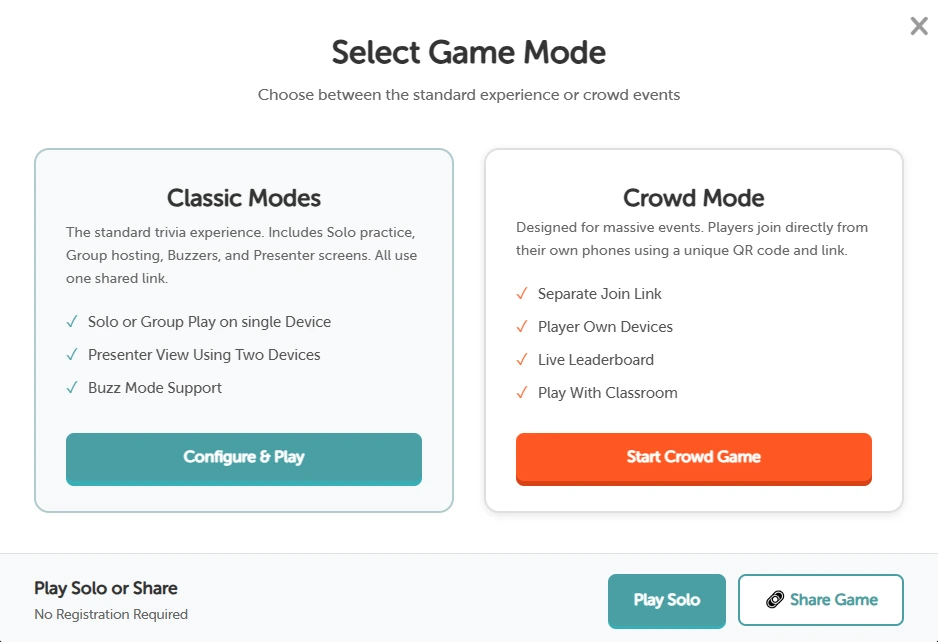
Pick the mode that fits your room. TriviaMaker offers six ways to play – each designed for a different type of interactive quiz experience:
- Basic Mode – simple, no-frills setup for small groups and quick sessions
- Presenter Mode – you control the screen, teams answer out loud or as a group. Ideal for classroom quiz sessions.
- Crowd Mode – everyone plays individually on their own phone, live scores update in real time, up to 2,000 players. The best mode for large events and conferences.
- Buzz Mode – speed-based competition where the first team to buzz in answers. Adds buzzer-style urgency to your game show.
- Solo Mode – one player at a time, great for practice or self-paced review
- Assignment Mode – players complete it on their own time, no live host needed. Perfect for homework, remote training, or self-paced learning.
Step 5: Launch and Share the Code (15 Seconds)
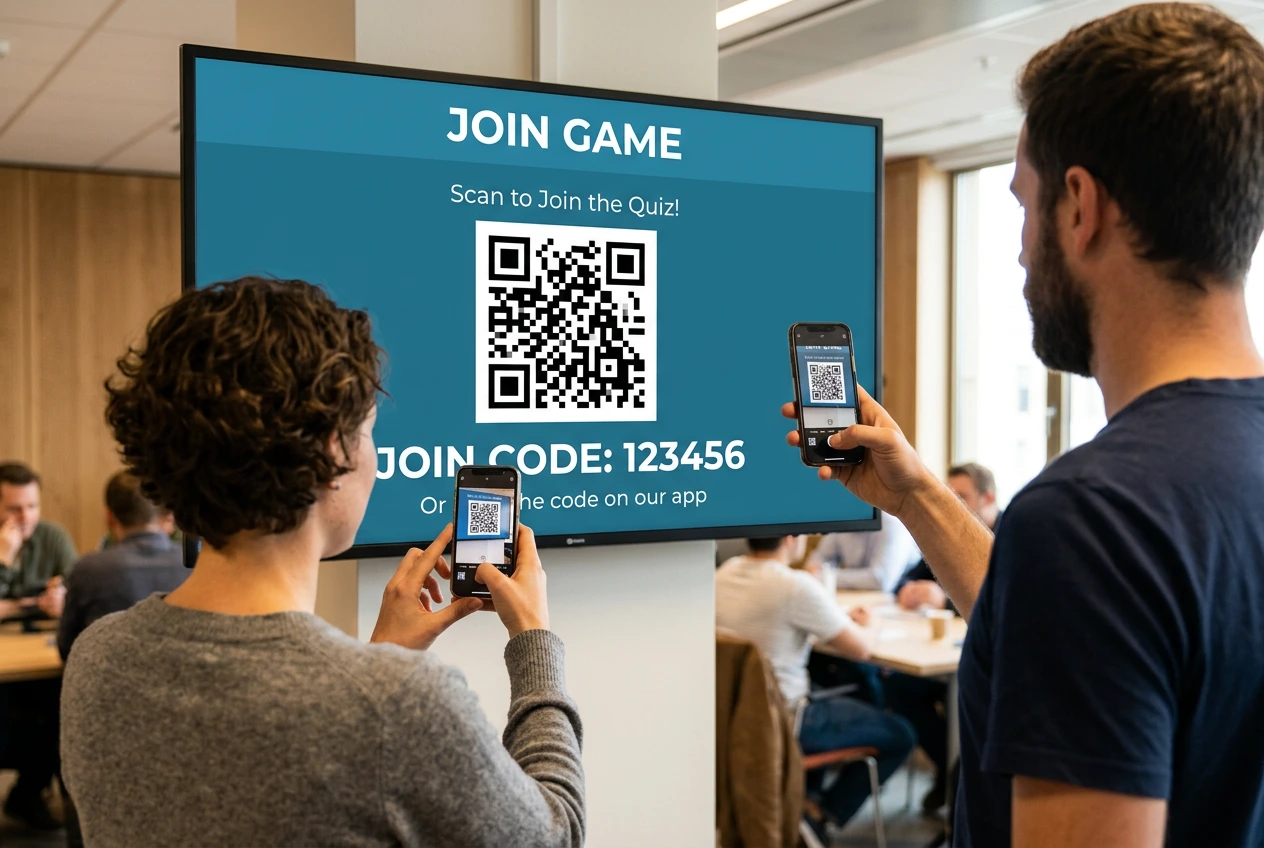
Click Launch. A 6-digit join code and QR code appear on screen. Players scan the code or type it into their browser – no app store, no download, no account. They’re in the lobby within seconds, and you’re ready to start. This zero-friction join process is what makes TriviaMaker work as a live trivia app for events of any size.
Total time: under 2 minutes for a simple game, under 5 minutes for a fully branded, AI-generated one.
Which Game Show Format Should You Use?
If you’re building your first game show and aren’t sure which format fits, use this as a quick reference. Each format serves a different purpose – from classroom quiz reviews to corporate team building games:
| Format | Feels Like | Best For |
|---|---|---|
| Grid | Category board game | Classroom review, corporate knowledge checks, trivia nights |
| Wheel | Spin-to-reveal game | Parties, fundraisers, high-energy events |
| List | “Survey says” style game | Icebreakers, team building activities, party games |
| Trivia | Classic timed quiz show | Fast reviews, large remote audiences, online quizzes |
| TicTac | Strategy game show | Younger groups, competitive teams, classroom engagement |
| Hangman | Word-guessing show | Vocabulary, spelling, language learning |
| Fusion | Multi-round tournament | Long events, conferences, multi-topic sessions |
Tips for a Smoother Live Game Show
- Test your join code before players arrive. Load it on your own phone to make sure the projected screen is readable across the room.
- Keep question count reasonable. 15–25 questions holds attention better than 50. For classroom quiz sessions, 10–15 questions works well for a single class period.
- Use Crowd Mode for anything over 15 people. It keeps everyone actively playing instead of watching one screen. This is especially important for corporate training and team building events.
- Mix up difficulty. Open with easy questions to build confidence, then raise the stakes. The leaderboard does the rest.
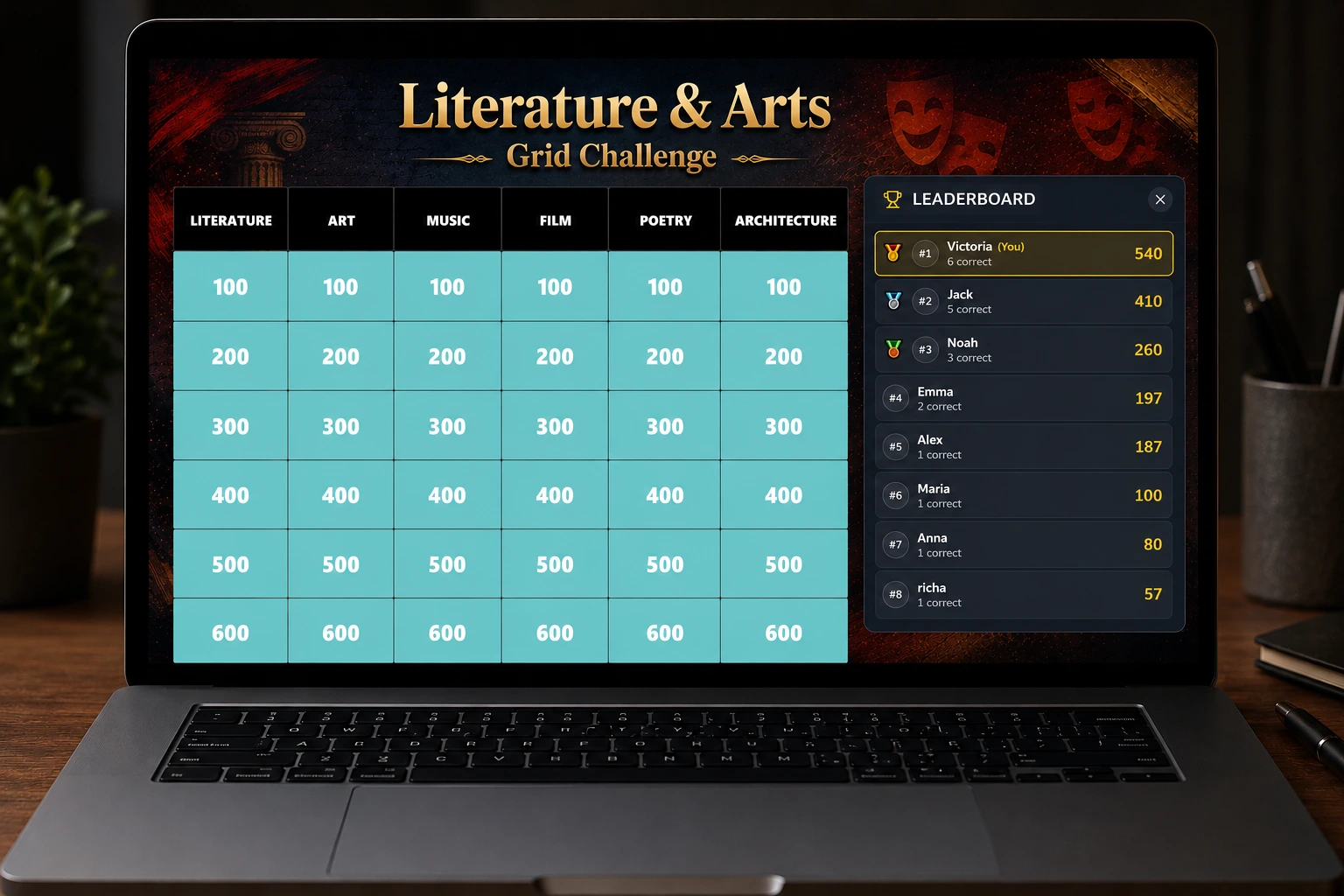
- Let the leaderboard do the work. The live leaderboard reveal after each round is what generates the energy – don’t skip it. It’s the single feature that separates a game show from a basic quiz.
Game Show Maker vs. Quiz Maker: What’s the Difference?
A basic quiz tool gives you a form with questions and answers – functional, but forgettable. A game show maker gives you the presentation layer that makes people care: visual game boards, spinning wheels, team competition, a live leaderboard, and buzzer-style urgency. If you’ve ever run a plain multiple-choice quiz and watched engagement fade by question ten, this is the fix – the format itself does the work of keeping people locked in.
Want to see how different game show platforms compare on features, pricing, and AI tools? Check our best online game show makers comparison. This is also why TriviaMaker works across such different settings – classrooms, corporate onboarding, and team building sessions all use the same underlying formats, just pointed at different content. A teacher might use the Grid format for science review, while an HR manager uses the same format for company values training – same interactive quiz tool, different context.
Your first game show can be live in the next 5 minutes.
200,000+ hosts already use TriviaMaker. Join free – no credit card required.
Create Your Game Show Free →Frequently Asked Questions
How do I create a game show online?
You can create a game show online in under 5 minutes with TriviaMaker. Sign up for free, choose a format such as Grid, Wheel, List, Trivia, TicTac, Hangman, or Fusion, then add questions manually, import a spreadsheet, or use the AI question generator. Launch the game and share the 6-digit join code or QR code so players can join from their phones or computers.
Is it really possible to make a game show in 5 minutes?
Yes, you can create a basic game in about 2.5 minutes and a customized game in under 5 minutes. Choosing a format takes about 30 seconds, generating questions with AI about 60 seconds, customization 30–60 seconds, selecting a game mode about 15 seconds, and launching about 15 seconds. Reviewing and editing AI-generated questions may add additional time.
Do players need to download an app?
No, players do not need to download an app to join a TriviaMaker game. They can scan a QR code or enter a 6-digit join code using a phone or computer browser. Players do not need to create an account or log in. The browser-based joining process works across iOS, Android, Windows, Mac, and Chromebooks.
Is the game show maker free?
Yes, TriviaMaker has a free plan that supports up to 20 players. The free plan includes Grid, Trivia, and List formats, with no time limits on games and no ads shown to players. Paid plans start at $6.99/month and add features such as additional formats, larger player limits, AI question generation, custom branding, and assignment mode.
Can I use this for a large group?
Yes, TriviaMaker can support large groups of up to 2,000 simultaneous players with Crowd Mode. Players join using a QR code or 6-digit code on their own devices, while the live leaderboard updates as answers are submitted. Crowd Mode is suited to conferences, company-wide meetings, large training sessions, and school-wide events.
Stop planning. Start playing. Your game show is 5 minutes away.
Get Started Free →Free forever plan • No credit card • Setup in under 2 minutes