
Interactive quizzes turn a passive audience into an active one. Instead of listening, students, trainees, or event guests answer questions, get feedback, and see their scores update in real time. That small shift changes how much people pay attention and how much they remember.
This guide walks through how to create an interactive quiz from scratch – whether you teach a class, run corporate training, or host events. You will find question design tips, format choices, and the steps to launch your first quiz.
Want to skip ahead and just start building?
Try the Free Online Quiz Maker →What Is an Interactive Quiz?
An interactive quiz is a quiz where participants actively respond and get immediate feedback, rather than passively reading or listening. In practice, that means the person taking the quiz answers in real time, sees whether they are right or wrong right away, and often competes against others for a score.
The key ingredients are:
- Active response — participants answer as the quiz runs, live or self-paced.
- Immediate feedback — they see right or wrong as soon as they answer.
- Progress tracking — scores update, so learners see how they are doing.
- Engagement elements — timers, leaderboards, images, or audio that hold attention.
Interactive quizzes show up in more places than people realize. In a classroom, a teacher might run a quick review game before a test. At a company training, a facilitator might use a live quiz to check whether a compliance module actually landed. At an event, a host might run a trivia night where guests answer on their phones. Different settings, same structure.
Interactive Quiz vs. Traditional Quiz
A traditional quiz is usually taken on paper, in silence, and scored afterward. The person taking it finds out weeks later what they got wrong. An interactive quiz flips that. The feedback is instant, the pace is faster, and the quiz is often taken together rather than alone.
Three practical differences define the format:
- Timing of feedback: Traditional quizzes give feedback later. Interactive quizzes give it immediately.
- Mode of participation: Traditional quizzes are usually solo. Interactive quizzes often involve teams, competitors, or a live audience.
- Tools required: Traditional quizzes need paper. Interactive quizzes need a screen, a participant device, or both.
That difference matters. Research backs it up. A study from Iowa State University found that students who took regular quizzes scored higher on exams. Another study published via ResearchGate found that online quizzes gave students fast feedback, which helped them study more effectively. The speed of feedback is the key variable — the sooner a learner knows what they got wrong, the sooner they can correct it.
Interactive quizzes are not just for students. Corporate trainers use them to test knowledge retention after onboarding. Event hosts use them to fill dead time at parties. Teachers use them as bell-ringers, exit tickets, and review sessions. The format scales from a small classroom to a conference hall.
Types of Interactive Quizzes
Not all quizzes serve the same purpose. Before you build one, choose the format that matches your goal.
Multiple Choice
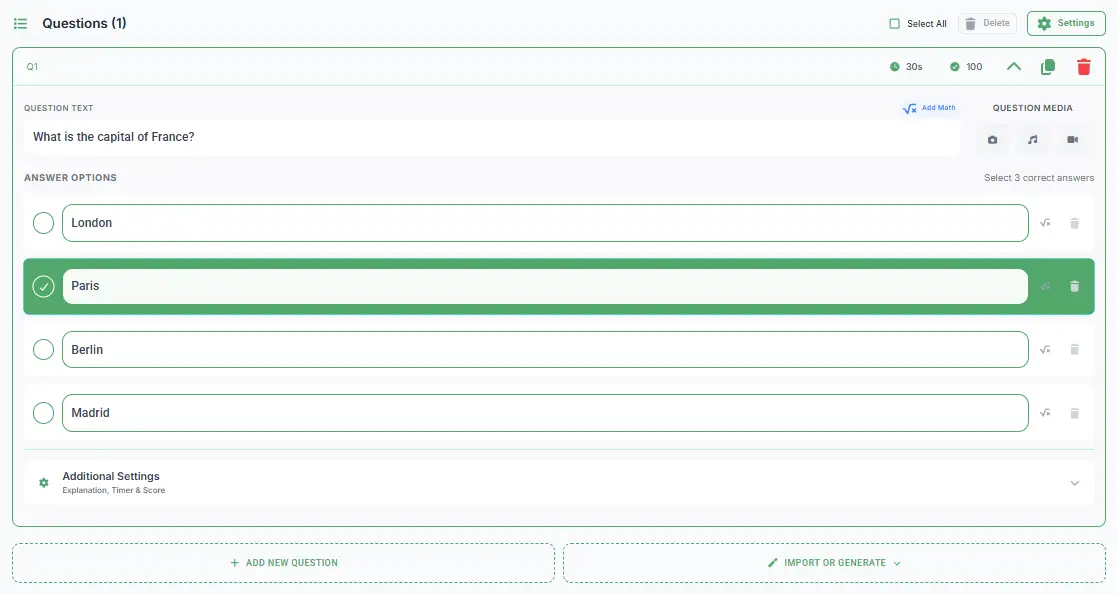
Best for broad knowledge checks and review. One question, three to four answers, one correct option. Fast to answer and easy to score. This format works well when you want to test a wide range of topics in a short session.
Single Answer
Best for precise recall. Participants type a specific word, number, or short phrase. Useful when guessing is not the goal and you need to check real understanding.
List Format
Best for sequences, groups, and ordered answers. Participants provide several related items – the steps in a process, the elements of a category, or a ranked list. This format suits topics where order or completeness matters.
Step 1: Plan Your Quiz
Identify Learning Objectives
Before writing a single question, decide what you want people to walk away knowing. A quiz on “World War II” is too broad. A quiz on “the causes of World War II” is testable.
Know Your Audience
The same topic works differently for a 5th grade class, a corporate onboarding group, and a trivia night crowd. Match the language, pace, and difficulty to the people in the room.
Decide What Success Looks Like
A quiz that is meant to review material before a test needs different questions than a quiz meant to entertain a party. Naming the goal first makes every later decision easier.
Step 2: Design Questions That Work
Write Clear and Concise Questions
Good questions are easy to read on first pass. Avoid double negatives, unnecessary detail, and wording that could be read two different ways. If a participant has to reread the question, it is too complicated.
Create Believable Distractors
The wrong answers are as important as the right one. Weak distractors – obviously incorrect options – make questions easier than they should be. Good distractors are plausible answers that force participants to actually think.
Use Real-Life Scenarios
Where you can, tie questions to situations people recognize. “A customer asks for a refund after 45 days. What is the policy?” is more memorable than “What is the refund window?” Scenario-based questions stick because they connect to real decisions.
Add Images and Multimedia When They Help
Images, audio clips, and short videos can make a quiz more engaging and open up question types that text alone cannot support – identifying a flag, naming a song, labeling a diagram. TriviaMaker supports adding images and video to questions.
Adding a visual? Keep it inside the safe area of the screen so it does not get cut off on smaller displays.
Step 3: Choose the Right Format
The question type is one decision. The game format is another. TriviaMaker offers 7 game styles that change the feel of the same set of questions:
- Trivia – classic multiple choice, quiz show pace
- Grid – Jeopardy-style board with categories and point values
- Wheel – spin for a category or a surprise question
- Tic-Tac – teams compete to claim squares by answering correctly
- List – survey-style ranked answers
- Hangman – word-guessing for vocabulary and terminology
- Fusion – mix multiple styles into a single session
Match the format to the moment. A quick review before a test works well as Trivia. A longer, more strategic session works well as Grid. Team-based competitive settings often run best as Tic-Tac.
Step 4: Add Interactivity
Use Gamification Elements
Points, badges, and leaderboards motivate participants without extra effort. Points for correct answers, badges for completing a round, and a live leaderboard that updates after every question – these small layers turn a quiz into a game. Learn more about gamification in learning.
Add Timers for Pace
A short time limit per question keeps momentum up. Timers work well for competitive groups and create natural tension. TriviaMaker supports per-question timers, so you can set different times for different questions.
Build In Immediate Feedback
Showing the correct answer right away reinforces learning. Participants see what they got wrong and why, while the question is still fresh. This is one of the biggest advantages interactive quizzes have over traditional tests.
Step 5: Pick Your Tool
You can build interactive quizzes in a few different ways:
- Slide software with interactivity – works for single-device presentations, but no live scoring or leaderboards.
- Form builders – good for collecting answers, less good for live group participation.
- Dedicated quiz platforms – built specifically for interactive quizzes, live play, and group participation.
For most classrooms, training sessions, and events, a dedicated platform works best because it handles live scoring, participant joining, and leaderboards automatically. TriviaMaker is one option – participants join with a code on any device, no app or account required, and you can build a quiz manually or with AI question generation.
If you are comparing tools, our full comparison of the best quiz makers walks through options across Kahoot, Quizizz, Google Forms, and others. If you are deciding between simpler tools like Canva or Google Forms, this head-to-head breakdown of Canva Quiz Maker vs Google Forms vs TriviaMaker walks through which one fits which use case.
If you already know you want a dedicated tool and just need to compare options, start with the best quiz makers guide. That page compares platforms side by side, including participant limits, free plans, and which tools work best for live vs. self-paced quizzes.
Ready to build your first interactive quiz?
Create a Free Quiz →Free Basic plan, 20 live participants, no credit card required.
Step 6: Test, Launch, and Improve
Beta Test With a Small Group
Run your quiz with two or three people first. Watch where they hesitate, which questions take longer, and whether anything reads confusingly. Small tests catch most issues before they matter.
Collect Feedback
After the quiz, ask participants three questions: what worked, what was confusing, and what would they change. Their answers are more useful than any analytics at this stage.
Refine and Reuse
Rephrase awkward questions. Adjust timers if some questions felt rushed. Save your question bank so you can reuse and improve it next time instead of starting from scratch.
Interactive Quiz Examples by Audience
For Classrooms
Quick review quizzes before a test, vocabulary checks, exit tickets at the end of a lesson. See more classroom review game ideas and interactive classroom games.
For Year 6 classrooms, the same principles apply — questions usually align with curriculum topics that map to Key Stage assessments, and quizzes often run as quick check-ins before a longer unit.
For Corporate Training
Knowledge checks after compliance training, product quizzes for sales teams, onboarding icebreakers. See quiz tools for corporate training.
For Events and Parties
Trivia nights, holiday parties, fundraisers, and team-building sessions. See online game show maker for event-specific formats.
If you want a shortcut, TriviaMaker has ready-made quiz templates you can clone and customize.

Frequently Asked Questions
What is an interactive quiz?
An interactive quiz is a quiz where participants actively respond and get immediate feedback, rather than passively reading or listening. Interactive quizzes usually include live scoring, timers, images or video, and a leaderboard.
How do I create an interactive quiz for free?
You can create an interactive quiz for free using tools like TriviaMaker’s Free Basic plan. It supports up to 20 live participants and lets you build quizzes manually, add images, and run them live or self-paced.
How long should an interactive quiz be?
For classroom use, 5 to 15 minutes works best. For training sessions, 5 to 10 minutes at the end of each module. Shorter quizzes keep attention high and fit naturally into a lesson or meeting.
What makes a quiz interactive rather than just a test?
A quiz becomes interactive when participants receive immediate feedback, when scoring happens in real time, when the format includes live or self-paced play, and when visual or competitive elements are used to hold attention.
Can I create an interactive quiz in PowerPoint?
Yes, but PowerPoint quizzes are limited to one device and one participant at a time. For group participation, live scoring, or a leaderboard, a dedicated quiz platform gives you more options.
Next Steps
You now have everything you need to build your first interactive quiz: the plan, the question design, the format, the engagement elements, and the launch process. The fastest way to learn is to build one.