
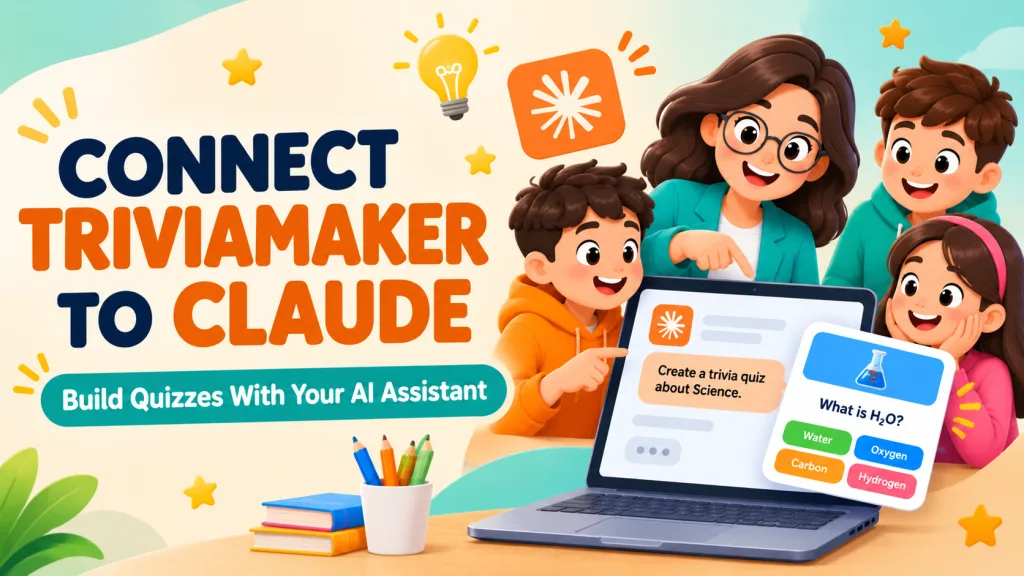

Want to build quiz games without typing every question yourself? With TriviaMaker connected to Claude, you can simply describe the game you want, and Claude will create it and save it to your TriviaMaker account.
This guide walks you through the whole process in a few minutes: connecting TriviaMaker to Claude, creating your first game, and playing it. No technical experience is needed.
What You Can Do With This Integration
Once TriviaMaker is connected, you can ask Claude to:
- Create a new game on any topic, for any audience, in the format you like (Trivia, Grid, Wheel, List, TicTac, Hangman, or Fusion).
- Show you the questions and correct answers so you can review them.
- Save the finished game directly to your TriviaMaker account.
- Give you a link to open and play the game right away.
How It Works
The setup is quick, and you only do it once. After that, creating games is as easy as chatting.
- Connect TriviaMaker in Claude. You open the Connectors page and click Connect.
- Sign in to TriviaMaker. This tells Claude which account to save your games to.
- Start creating. Describe your game, choose a format, and Claude saves it for you.
Before You Begin
Make sure you have:
- A Claude account. Sign in at claude.ai. Connector availability can depend on your Claude plan.
- A TriviaMaker account. Don’t have one yet? Sign up for free.
Connect TriviaMaker to Claude
In this part, you add TriviaMaker as a connector in Claude. You only need to do this once.
- Open Claude in your web browser and sign in.
- Click your profile name at the bottom left, then click Settings.

- In the Settings window, click Customize, then click Connectors.
- Find TriviaMaker in the connector list and click Connect.

https://triviamaker.com/claude/mcp/index.php as the server URL, and save it. Then click Connect next to TriviaMaker. The menu names may look slightly different as Claude updates its interface.
Sign In to Your TriviaMaker Account
Next, you tell Claude which TriviaMaker account to use. Any games you create will be saved to this account, so choose the one you normally use.
- After you click Connect, you are taken to the TriviaMaker login page.
- Enter your Email Address and Password, then click Log In Now. You can also sign in with Apple, Facebook, or Google. If you don’t have an account yet, click Register Free.

- You will be returned to Claude, and a message confirms Connected to TriviaMaker.

You’re connected! You can disconnect or reconnect at any time from the same Connectors page.
Create a Game in Claude
This is the fun part. Start a new chat and tell Claude what you’d like to create. The more details you give (topic, number of questions, audience, difficulty), the better the result.
- Click New chat and type a request, for example: create science quiz.

- Claude uses the TriviaMaker connector and asks you to choose a game format: Trivia, Grid, Wheel, List, TicTac, Hangman, or Fusion. Claude may also recommend the formats that fit your topic best.
- Reply with the format you want, for example, 1 for Trivia.

- Claude generates your quiz and shows every question with its answer choices and the correct answer, so you can review them.

- Not happy with a question? Just tell Claude, for example: “Make question 4 easier” or “Replace question 7 with one about planets.”
- When the quiz is ready, Claude confirms Saved to your TriviaMaker account and shows a Play Game link.

Find and Play Your Game
Your game is now saved in your TriviaMaker account, ready to play.
- Click the Play Game link in Claude. Your game opens on TriviaMaker, where you can check the title, number of questions, and sample questions.

- Click Play and choose a game mode. Classic Modes (click Configure & Play) are for the standard experience, including solo practice, group hosting, buzzers, and presenter screens. Crowd Mode (click Start Crowd Game) lets players join from their own phones with a QR code and link. For a quick test, click Play Solo, which needs no registration.

- The game loads and your first question appears. Check that the questions and answer options look as expected.

That’s it! You can now use Claude to create and save TriviaMaker games directly to your account.
More Example Prompts
Not sure what to ask? Copy any of these and change the topic to suit you.
- Trivia game: Create a 15-question general knowledge Trivia game for adults. Use medium difficulty and show me the questions and correct answers before saving.
- Grid game: Create a Grid game about world geography with categories and questions suitable for a classroom activity.
- Wheel game: Create a Wheel game about company team-building topics. Include a variety of fun and engaging prompts.
- Hangman game: Create a Hangman game using 20 vocabulary words about science. Keep the words suitable for middle-school students.
- Revise a game: Update the game you just created: replace questions 3 and 7, keep the remaining questions unchanged, and show me the updated content before saving.
Frequently Asked Questions
Do I need to set this up every time?
No. You only connect TriviaMaker once. After that, just start a new chat and ask Claude to create a game.
Does Claude see my TriviaMaker password?
No. You sign in on the TriviaMaker login page, so your password is entered on TriviaMaker and not shared with Claude.
Can I disconnect my account later?
Yes. Go to Settings > Customize > Connectors, open TriviaMaker, and disconnect it. You can reconnect anytime by following the steps above.
Where are my games saved?
Games are saved to the TriviaMaker account you signed in with, so you can open, edit, and play them from your usual TriviaMaker dashboard.
Troubleshooting
- I can’t find TriviaMaker in Connectors: Add it as a custom connector using the server URL in the Tip above, and check that your Claude plan supports connectors.
- The login page does not appear or does not complete: Try again, make sure you’re using the correct TriviaMaker account, and check that your browser is not blocking pop-ups.
- Claude doesn’t use TriviaMaker: Click the + button in the chat box, open Connectors, and make sure TriviaMaker is turned on. Then start a new chat.
- My game isn’t in my account: Make sure you signed in to the same TriviaMaker account you’re checking, and that Claude showed the “Saved to your TriviaMaker account” message.
- My game link doesn’t open: Sign in to the correct TriviaMaker account and make sure the full link was copied.
Need Help?
Stuck on a step, or something doesn’t look like the screenshots? Our team is happy to help.
Email us at support@triviamaker.com.
To help us solve it faster, please include:
- The email address of your TriviaMaker account
- The step where you got stuck
- A screenshot of any error message you see