
You ask a question. Silence. Two hands shoot up. The rest of the room stares at their desks, hoping they won’t be called on. In a corporate meeting, it’s the same three voices dominating the conversation while everyone else stays on mute. And in a conference hall, hundreds of attendees scroll through their phones, disengaged, while the speaker presses forward.
It’s not that people don’t have opinions – they’re just afraid of being wrong, or they simply don’t have the energy to speak up. That silence isn’t an indicator of understanding; it’s a missed opportunity to connect, to learn, and to pivot your teaching or pitch in real time.
Now, imagine a different scene. You ask a question, and instantly, every single person in the room answers. Their phones or laptops become their voice. On your screen, you don’t just see a leaderboard – you see a living, breathing map of your audience’s thoughts. You can see exactly who understands, who’s confused, and who’s just guessing.
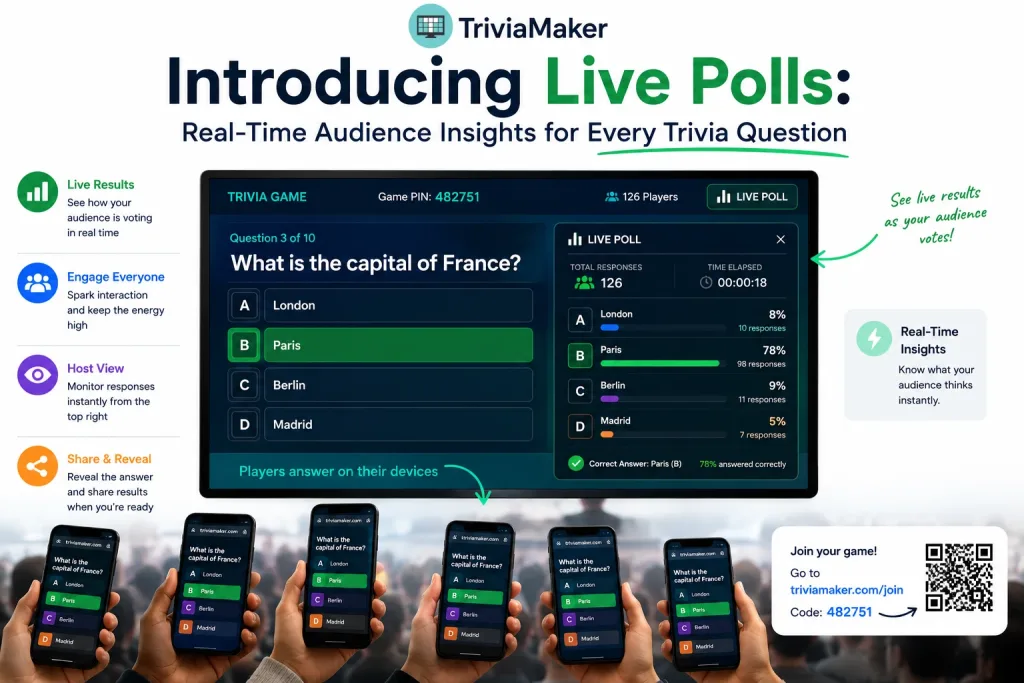
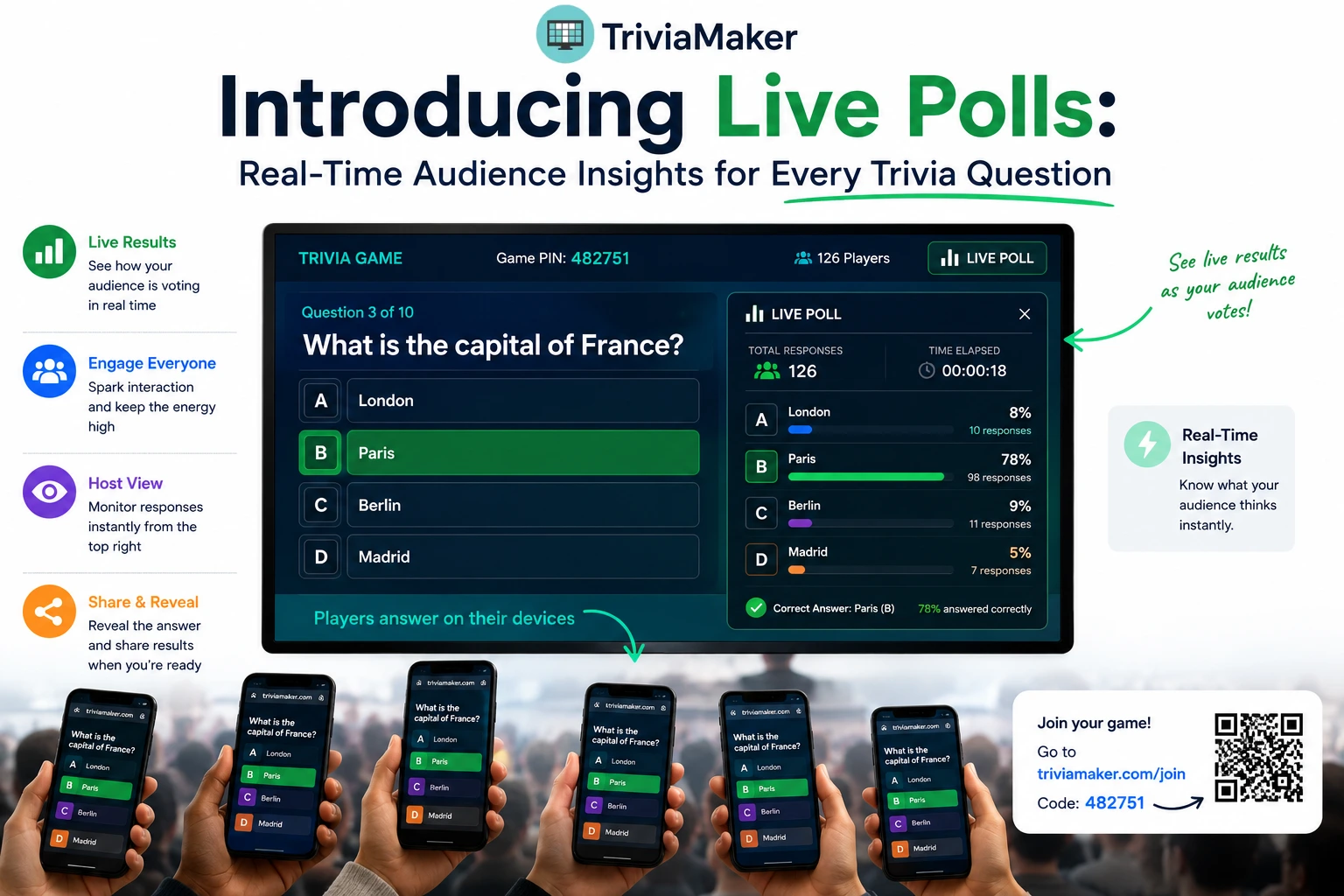
This is the Live Poll feature in TriviaMaker. It turns every routine trivia question into a real‑time audience poll – showing you live response percentages, participation rates, and correct‑answer data as it happens. No more guessing if your class is with you. No more waiting for the extroverts to speak up. No separate poll questions to create. Just start your trivia game and watch the silence transform into a wave of genuine engagement. Free to start; premium plans from $6.99/month.
The Live Poll feature is not a separate poll you create. Instead, it automatically turns every trivia question into a live audience poll. As players answer each trivia question on their devices, the host sees real‑time response percentages, participation rates, and correct‑answer data. No extra poll questions are needed – the trivia question is the poll.
See Live Results for Your Trivia Questions – Free, No Credit Card
What Is a Live Poll in a Trivia Game?
A live poll in a trivia game is a real‑time visualization showing how participants are answering the current trivia question. In TriviaMaker, every trivia question automatically becomes a live audience poll – showing response percentages, participation rates, and correct‑answer data as players vote on their devices. This works in the Trivia, Grid, and List game styles when running in Classroom mode or Crowd mode, and supports up to 2,000 players with no app download required.
Think of it as a real‑time audience visualization tool built into an interactive trivia platform. Hosts access the Live Poll from the top‑right corner of the game screen, where a compact popup shows the current response count and a shortcut to the full results page for the current trivia question. Participants join via a 6‑digit code or QR code on any device – no app download, no student accounts.
The distinction matters because most polling tools and most quiz tools treat these as separate products. A standalone poll tool like Mentimeter asks a question and shows a chart. A standalone trivia tool like Kahoot runs a quiz and shows a leaderboard. Neither does both in the same session. TriviaMaker’s Live Poll bridges that gap by overlaying real‑time analytics onto your existing trivia questions – no extra steps, no switching tools.
A live poll inside a trivia game lets you gather opinions or run a quick survey mid‑session without interrupting the game flow – the same participants who are already playing your trivia game vote simply by answering a trivia question, and results appear instantly on the host screen.
Common Misconception: This Is Not a Separate Polling Tool
Unlike Slido, Mentimeter, or Poll Everywhere, TriviaMaker’s Live Poll feature does not require creating separate poll questions. Instead, every trivia question automatically becomes a live poll. The host simply starts a normal trivia game, players answer normally, and the Live Poll button shows real‑time response percentages for the current question. No extra setup, no separate poll creation, no switching between tools.
Live Poll vs Survey vs Quiz – What’s the Difference?
| Characteristic | Trivia Question + Live Poll Visualization | Survey | Quiz |
|---|---|---|---|
| Timing | Real‑time, during a live trivia session; responses visualized as they come in | Async, over hours or days | Real‑time or self‑paced |
| Results visible | Yes – instantly, on the host screen (percentages, counts, correctness) | No – private to organizer | Sometimes – after submission |
| Scoring | Optional – can be scored (correct answer) or unscored (opinion) | Not scored | Always scored |
| Engagement style | Active, competitive, gamified; combined with live analytics | Reflective, individual | Test‑like, individual |
| Typical use | Classroom check‑ins, training knowledge checks, conference Q&A | Feedback, course eval, market research | Assessment, certification, exam prep |
| Works inside a trivia game | Yes – TriviaMaker embeds live polling in Trivia, Grid, and List styles | No | Yes – but rarely combined with real‑time opinion visualization |
You can run a scored trivia question to test product knowledge, then immediately run an unscored trivia question (opinion poll) to ask which feature the same audience finds hardest to sell. Two different types of insight, one session – and the Live Poll visualization works identically for both.
How TriviaMaker’s Live Poll Feature Works
From sign‑up to first poll visualization: under two minutes. The host enables the Live Poll option in Game Settings before launching, then clicks the Live Poll button mid‑game from the top‑right corner to view real‑time responses for the current trivia question. Available in Classroom mode (for in‑person or virtual classes) and Crowd mode (for large audiences up to 2,000).
How to Use the Live Poll Feature in TriviaMaker
Step 1 – Set Up Your Trivia Game & Enable the Live Poll Setting
- Pick a game style that supports live polls: Trivia, Grid, or List.
- Choose a game mode: Classroom Mode or Crowd Mode.
- Add your trivia questions manually, import a spreadsheet, or use the AI Question Generator.
- Before starting the game, open Game Settings and enable Live Poll. This setting must be turned on before launching the game.
Step 2 – Launch the Game & Share the Join Code
- Click Start Game. TriviaMaker generates a 6-digit join code and QR code.
- Share the QR code or join code with participants.
- Players join instantly using any web browser – no app download or account required.
Step 3 – View Live Poll Data from the Top-Right Corner
- While the game is running, click the Live Poll button in the top-right corner.
- A compact popup displays the number of responses received for the current trivia question.
- Select View Full Poll to open the complete analytics dashboard.
- As participants answer the trivia question, response counts and percentages update automatically in real time.
- No separate poll needs to be created – the current trivia question automatically becomes the live poll.
Step 4 – Analyze Live Poll Results
- Open the View Full Poll page.
- See the current trivia question, answer options, live percentages, and progress bars.
- Review question type, total participants, total responses, correct answer, correct-answer percentage, and elapsed time.
- Watch the dashboard update instantly as additional players submit answers.
Step 5 – Share Results & Improve Engagement
- Click Share Results after the question is complete.
- Use the live response data to identify misconceptions, spark discussion, or review difficult questions before moving on.
Start Engaging Your Class in Under 2 Minutes
Live Poll Best Practices
Using the Live Poll visualization is straightforward. Using it to actually drive engagement and surface useful data takes a bit of design thinking. These eight practices come from how the highest‑performing TriviaMaker hosts structure their sessions – and they apply whether you’re teaching 4th‑grade science or running a 500‑person sales kickoff.
- Keep questions clear and concise. One complete idea per question, under 20 words where possible. Long, multi‑clause questions cause participants to skim – and skimmed questions produce noisy data. If a question needs context, deliver the context verbally before starting the trivia question, not inside the question text.
- Set the right time limit. For knowledge‑check trivia: 20–30 seconds. For opinion‑based questions (no right/wrong answer) where you want considered responses: 45–60 seconds. Too short and people guess; too long and the room loses momentum.
- Share the join code early. Put the QR code or 6‑digit code on a slide at the start of your session, not when the first question appears. Participants who join in the first few minutes are far more likely to vote on every subsequent question than those who join mid‑session.
- Start easy, then build difficulty. The first trivia question should be answerable by everyone in the room. This builds confidence and sets the norm that “we answer every question.” Once that norm is set, later questions can be harder without losing participation.
- Use the leaderboard strategically. Leaderboards add energy but can also discourage slower participants. For formative assessment, consider hiding the leaderboard on the first few questions so participants focus on the concept, not the score.
- Discuss results immediately. The moment a question closes (or the timer runs out), talk about what the room just said. A 10‑second interpretation – “I notice 40% of you picked B, which is actually a common misconception because…” – turns the data from a novelty into a teaching moment.
- Space interactive questions throughout longer sessions. If you are mixing lecture with trivia, one question every 8–12 minutes keeps attention spiked without making the session feel like a constant quiz. However, if you are running a dedicated trivia game (e.g., a 20‑question review), running them back‑to‑back is perfectly fine – the Live Poll visualization adapts to your pace.
- Test before going live. Launch the game on your own device, join from a second device, answer one question before participants arrive. This catches typos, broken questions, and timer issues before they happen in front of an audience.
Build Your First Game With Live Polls – Free Forever
Get instant access to 3 free game styles – Trivia, Grid, and List. Host up to 20 players with no credit card required. Just a game and active learners.
Build Your First Game With Live Polls →TriviaMaker vs Other Live Polling Tools
Most live polling tools fall into one of two camps: presentation‑side poll tools (Mentimeter, Slido, Poll Everywhere) that live inside a slide deck, and game‑based quiz tools (Kahoot, Blooket, Gimkit) that gamify the quiz format. TriviaMaker is the only platform in this comparison that does both – opinion polls and scored trivia in the same session, with AI question generation built in. Crucially, TriviaMaker’s Live Poll is not a separate poll activity – it’s a real‑time visualization of the trivia question itself, eliminating the need for extra steps or switching tools.
| Feature | TriviaMaker | Kahoot | Mentimeter | Poll Everywhere |
|---|---|---|---|---|
| Live polling | Yes – real‑time visualization of trivia responses; no separate poll creation | Yes – quiz format only | Yes – slide‑based polls | Yes – slide‑based polls |
| Game style variety | 7 styles (Grid, Trivia, Wheel, List, Tic‑Tac, Hangman, Fusion) | Primarily quiz‑based | Single presentation format | Single presentation format |
| AI question generation | Yes – type a topic or upload a PDF | Limited | No | No |
| Max participants | Up to 2,000 (Enterprise) | Up to 2,000 (Kahoot 360) | Varies by plan | Varies by plan |
| Participant accounts required | No – join with code, no app | No | No | No |
| Works on Zoom / Teams / Meet | Yes | Yes | Yes | Yes |
| Starting paid price | $6.99/month | Higher | Higher | Higher |
| Polls + trivia in one session | Yes – trivia questions are the polls | No – quiz only | No – polls only | No – polls only |
| Response analytics | Yes – vote %, participation, correctness, duration | Limited | Yes | Yes |
| Positioned as affordable alternative | Yes – 83% less than Kahoot | – | – | – |
For a deeper dive, see our full Kahoot alternative comparison and our Mentimeter alternative breakdown. If you’re evaluating classroom‑focused alternatives, our Blooket alternatives and Gimkit alternatives pages cover those head‑to‑head.
Live Poll Analytics – What the Data Tells You
TriviaMaker’s poll analytics live on the View Full Poll page, accessible from the top‑right popup during any active poll. The page shows the question number (e.g., Question 1 of 10), the current trivia question with up to four answer options and live response progress bars, and a details panel with everything a host needs to read the room.
- Question type – scored or opinion, so you instantly know whether the results reflect knowledge or preference.
- Total participants – how many people are connected to the session.
- Total responses – how many actually voted on this question. A drop between total participants and total responses is a signal that the question was too hard, the timer was too short, or attention is drifting.
- Response percentage per option – the share of votes each of the four answer choices received. A flat distribution usually means the question was ambiguous; a sharp distribution means the room either knew the answer or unanimously held an opinion.
- Correct answer & correct‑answer percentage – for scored polls, the correct option is highlighted and the percentage who got it right is shown. If 70% of the class gets it right, move on; if 30% get it right, reteach.
- Poll duration / time elapsed – how long the question stayed open. Comparing duration across questions reveals which ones slowed the room down, which often correlates with confusion or debate.
- Share Results – once the poll completes, send the final breakdown to participants with one click.
Used together, these data points let a teacher or trainer diagnose a session in real time and adjust on the fly – something a static slide deck or end‑of‑session survey simply cannot do.
Pricing – Live Polls on Every Plan
Live polling is available on every TriviaMaker plan, including the Free Basic plan. The difference between plans is the number of participants, the number of game styles available, and access to the AI Question Generator. All paid plans include a 7‑day money‑back guarantee. Cancel anytime.
| Plan | Price | Participants | Game Styles | AI Generator | Crowd Mode |
|---|---|---|---|---|---|
| Free Basic | $0 – no credit card | Up to 20 | 3 (Trivia, Grid, List) | No | No |
| Premium | $6.99/month | Up to 50 | All 7 | Yes | No |
| Premium Plus | $39.99/year | Up to 200 | All 7 | Yes | No |
| Enterprise | Custom | Up to 2,000 | All 7 + custom branding | Yes | Yes |
Every plan includes a 7‑day money‑back guarantee. Cancel anytime – there is no long‑term commitment required to try the platform. For full details and a side‑by‑side feature comparison, see the pricing page.
See Live Results for Your Trivia – Free, No Credit Card
Frequently Asked Questions
What is a live poll in a trivia game?
A live poll in a trivia game is a real‑time visualization of how participants are answering the current trivia question. In TriviaMaker, every trivia question automatically becomes a live poll – showing response percentages, participation rates, and correct‑answer data as players vote on their devices.
How do I enable the Live Poll feature before starting a game?
The host must enable Live Poll from Game Settings before launching the game – it cannot be turned on mid‑session. Open Game Settings, toggle on the Live Poll option, then start the game. Once enabled, the Live Poll button appears in the top‑right corner of the game screen throughout the session, ready to show real‑time responses for any trivia question.
Do participants need to create an account to vote?
No. Participants join by entering a 6‑digit code or scanning a QR code on any device with a web browser. No account creation, no app download. Only the host needs a TriviaMaker account.
How many people can join a live poll at once?
The Free Basic plan supports up to 20 participants. Premium supports 50, Premium Plus supports 200, and Enterprise supports up to 2,000 simultaneous participants.
Can I use live polls on Zoom or Google Meet?
Yes. TriviaMaker works on any screen‑sharing platform including Zoom, Microsoft Teams, and Google Meet. The host shares their screen to display the poll, and participants vote on their own devices using the join code.
Is TriviaMaker free?
TriviaMaker offers a Free Basic plan with no credit card required. It includes 3 game styles (Trivia, Grid, and List) and supports up to 20 participants. Paid plans starting at $6.99/month unlock all 7 game styles, higher participant limits, and the AI question generator.
How does TriviaMaker compare to Kahoot for live polls?
Both offer real‑time live polling with no participant accounts required. TriviaMaker offers 7 game styles compared to Kahoot’s primarily quiz‑based format, includes AI question generation on paid plans, and is positioned as an affordable alternative at 83% less cost. Additionally, TriviaMaker’s Live Poll is a visualization of trivia responses, not a separate poll activity.
Can I generate poll questions with AI?
Yes. TriviaMaker’s AI question generator lets you type any topic or upload a PDF, and it creates complete trivia (and poll) questions in seconds. AI generation is available on paid plans starting at $6.99/month.
What game style is best for my first live poll?
Live polling is available in three game styles (Trivia, Grid, List) and two game modes (Classroom mode and Crowd mode). The Trivia style is the simplest starting point. For team competitions, try Grid. For ranking‑style questions, try List.
Can I use TriviaMaker live polls for corporate training?
Yes. Corporate trainers use TriviaMaker live polls for compliance training, product knowledge assessments, employee onboarding, and team‑building activities. The platform supports up to 2,000 participants with custom branding on paid plans.
How do I use live polls for formative assessment?
Teachers can launch trivia questions during a lesson and view live response data to check student understanding in real time. Response analytics show which concepts students grasped and which need reinforcement. Since every student votes on their own device, even shy students participate without raising a hand.
Can I run live polls at a conference with 500 attendees?
Yes. TriviaMaker’s Crowd Mode on the Enterprise plan supports up to 2,000 simultaneous participants. Display the QR code on the big screen, attendees scan and vote on their own devices, and results aggregate in real time.
Do I need special equipment for live polls?
No. The host needs a device with a web browser and an internet connection. Participants need their own phones or devices with a browser. For larger venues, a projector or large screen to display the join code is helpful.
Can I use live polls for a church event or youth group?
Yes. TriviaMaker is popular for church events, Sunday school, and youth groups. The Trivia and List formats are particularly popular for live polls. Live polls can be used for Bible trivia, icebreaker activities, lesson reviews, and group discussions.
What analytics are available for live polls?
TriviaMaker provides response analytics on the View Full Poll page: question type, total participants, total responses, response percentage per option, correct answer and correct‑answer percentage (for scored polls), poll duration / time elapsed, and a Share Results option to send the final breakdown to participants.
Can I import questions from a spreadsheet?
Yes. TriviaMaker supports importing questions from a spreadsheet, making it easy to reuse existing question banks, curriculum‑aligned assessments, or previously created poll sets.
Key Takeaways
- A live poll trivia game combines real‑time response visualization with an interactive game format – the same session can hold scored trivia questions and unscored opinion polls, with live data for every question.
- TriviaMaker is the only platform in its category that does both – live polls work in Trivia, Grid, and List styles (Classroom & Crowd modes), with AI question generation built in.
- No separate poll creation is needed – every trivia question automatically becomes a live poll; hosts just click to view the visualization.
- No app download and no student accounts are required – participants join with a 6‑digit code or QR code on any device.
- It scales from 5 to 2,000 participants via Crowd Mode on the Enterprise plan – classrooms, training rooms, and conference ballrooms alike.
- Free Basic plan covers groups up to 20 with no credit card required. Paid plans start at $6.99/month.
- Every plan includes a 7‑day money‑back guarantee. Cancel anytime.
- TriviaMaker is positioned as an affordable alternative – 83% less than Kahoot – used by 200,000+ hosts across 100+ countries, including teams at Google, Amazon, Stanford, Microsoft, IBM, Deloitte, Walmart, UC Berkeley, NYU, Accenture, and Intel.
Comparing tools? Read our Kahoot alternative, Mentimeter alternative, Blooket alternatives, and Gimkit alternatives comparisons. Scaling to large audiences? See Crowd Mode. Want AI to write your questions? See the AI Question Generator.
Ready to Turn Your Next Session Into an Interactive Game?
Create a free game in under 2 minutes. No credit card. No app download. Just a game and active learners.