
Creating a quiz from a document in TriviaMaker is easier than pie—and way more fun! Let’s break it down step by step so you can turn your content into a quiz that keeps everyone on their toes.
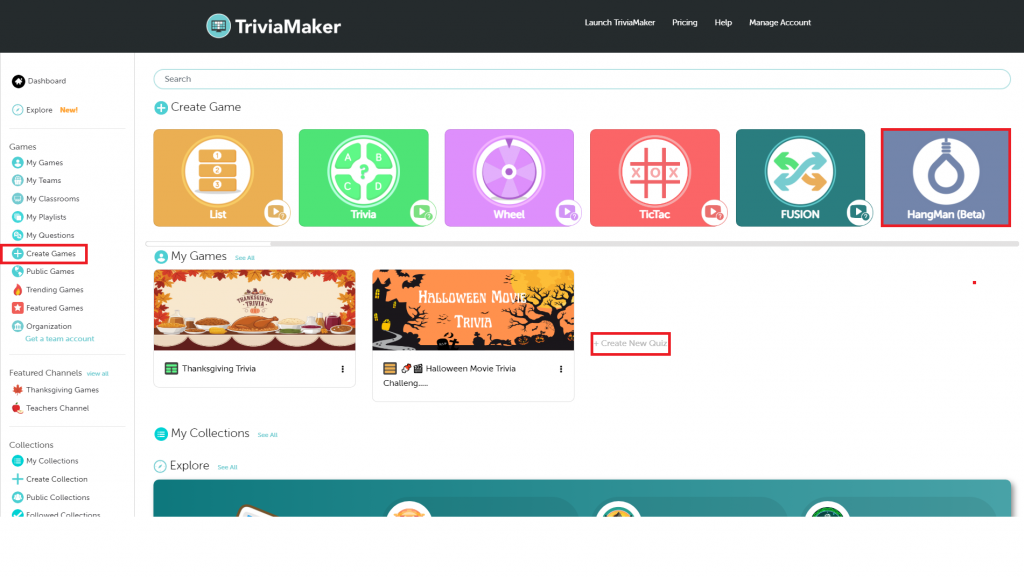
Step 1: Log in and open your dashboard. Click ‘Create Games‘ in the menu. If you spot ‘Create Game‘ or ‘Create New Quiz,’ click that instead.
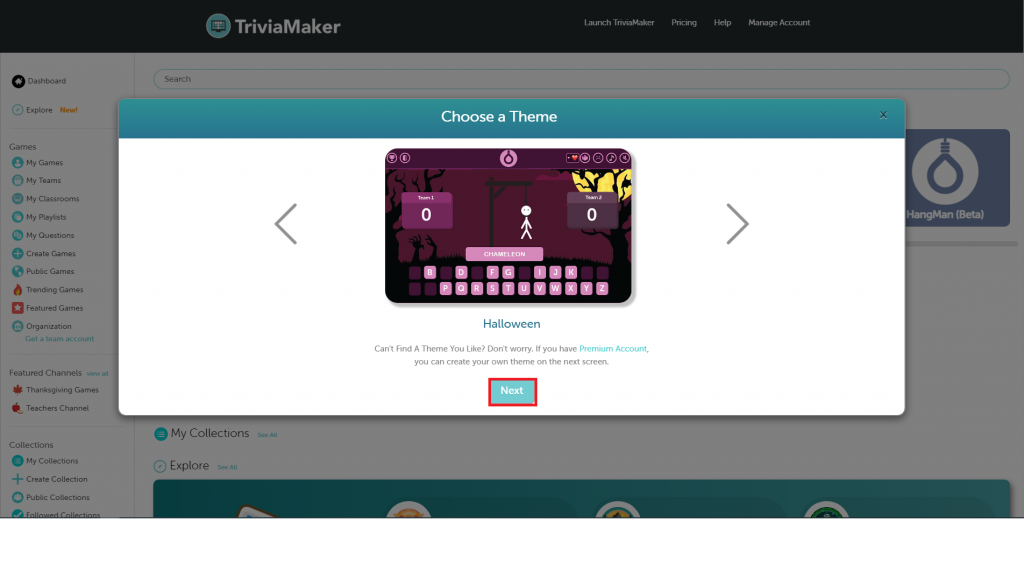
Step 2: You’ll pick a style when setting up your game. Choose from Trivia, Grid, Wheel, TicTac, Fusion, or List. Got a knack for wordplay? Try our newest option—the Hangman Quiz Game! It’s a fresh take on classic quizzes, and it’s as fun as guessing letters on a rainy day. Click ‘next’ when you select your theme. For now, let’s use the Hangman style to create a quiz.
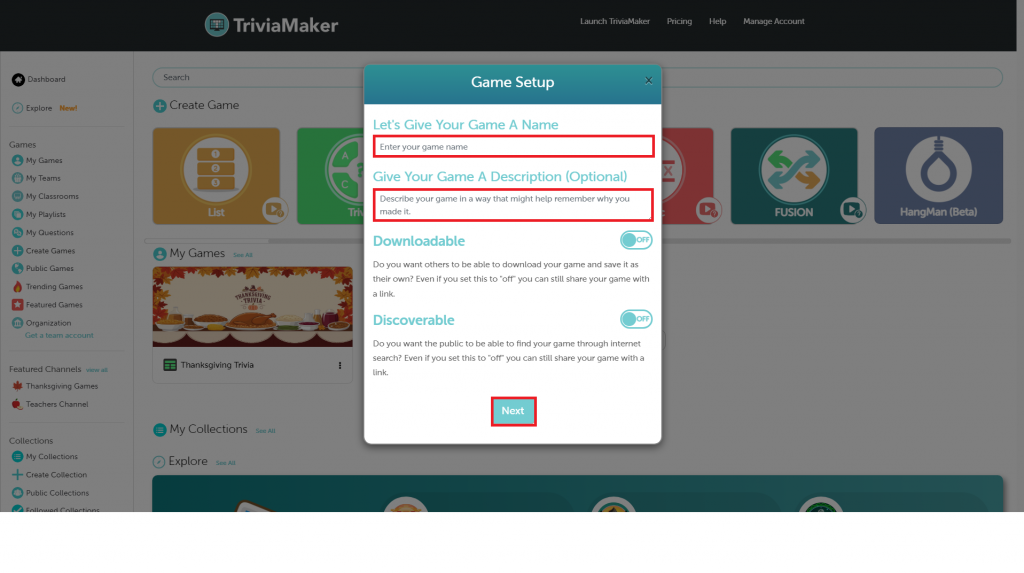
Step 3: Next up, name your game and add a short description. Want it to be easily found and downloaded? Flip the toggle on—or don’t; your call. When you’re ready, click ‘Next’ and boom—you’re all set to start building your game!
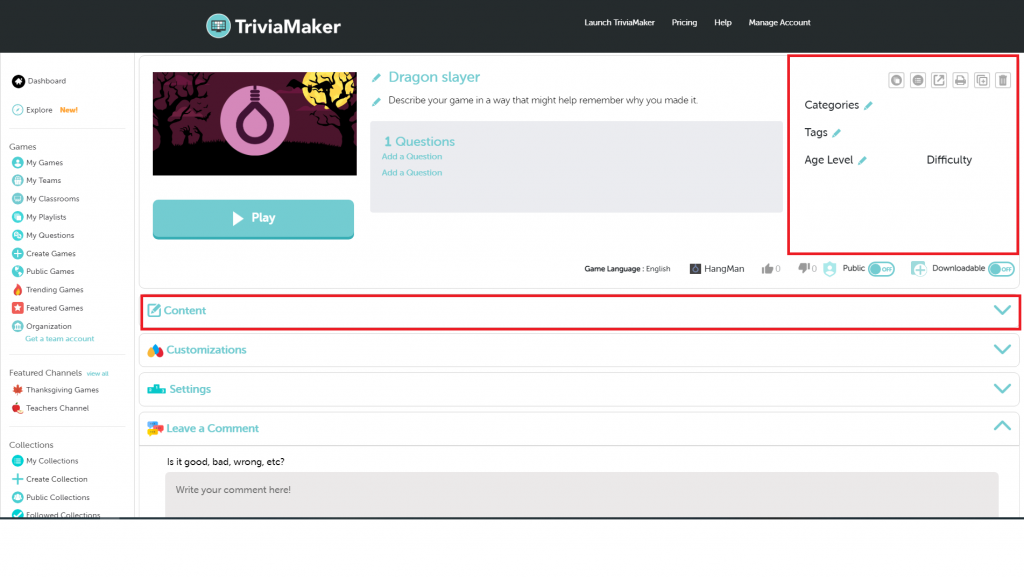
Step 4: Now you can assign a category, add some tags, and choose the age group and difficulty. Then, scroll down until you see ‘Content.’ Click on it, and you’ll find an option called ‘Set Up Your Questions.’ That’s where the fun begins—time to create your questions!”
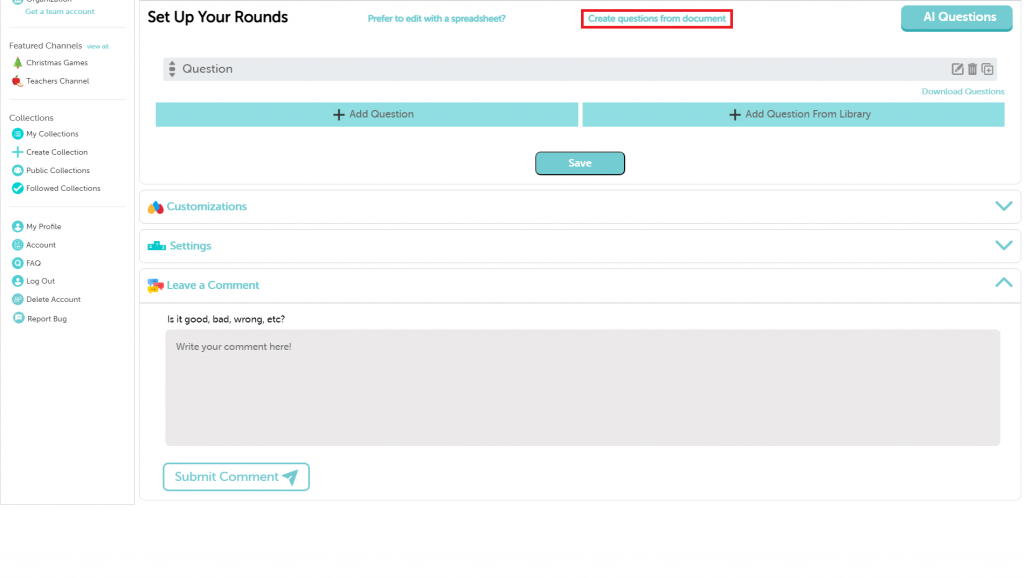
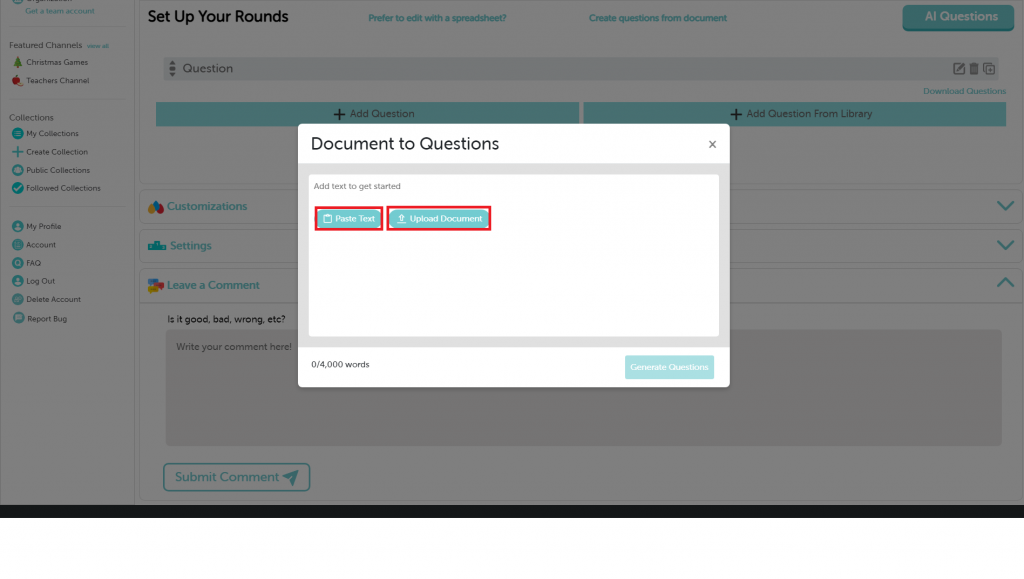
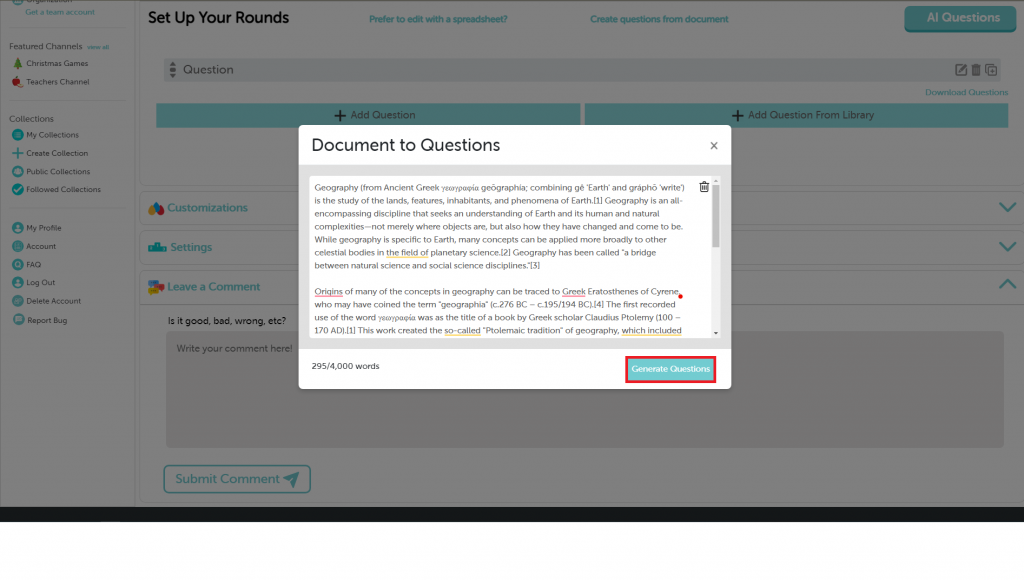
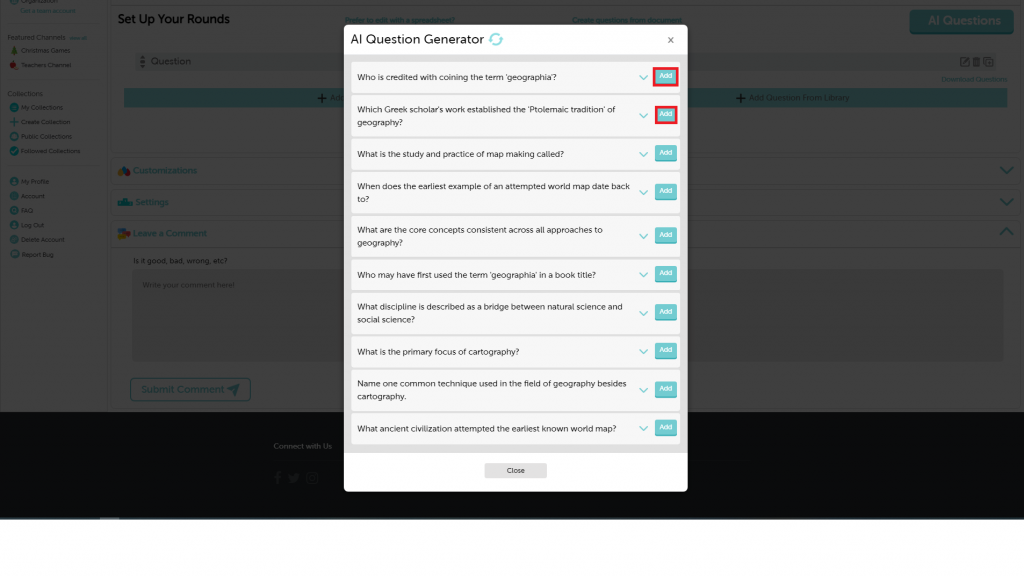
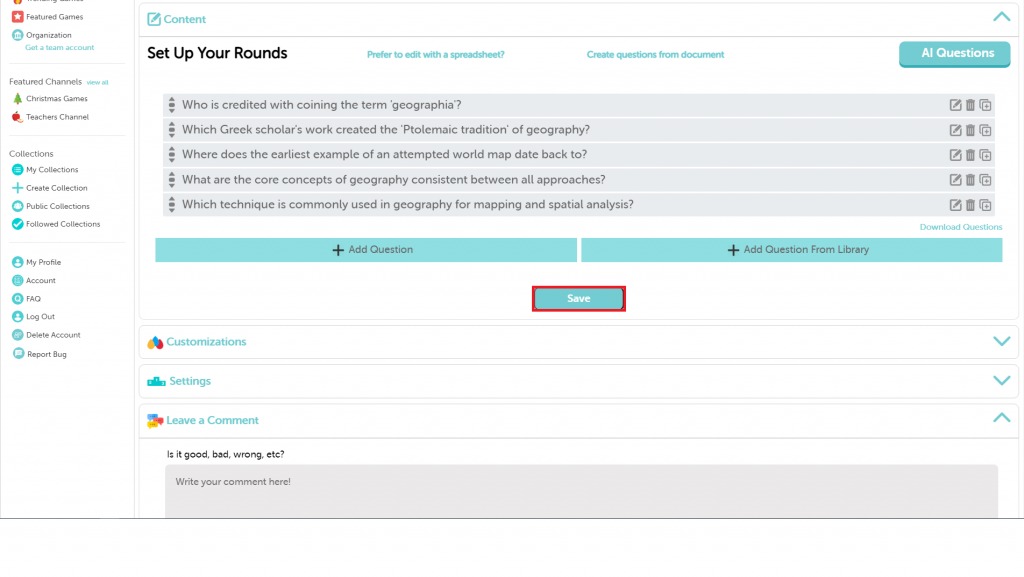
Step 5: To create questions, you have several options: upload a spreadsheet, type them in, import a document, use AI, or select from the question library. For now, We’ll create through the document. To get started, click on the ‘Create questions from document’ button. Got some text? Paste it in to turn it into questions. No text? No problem! You can also upload a document— just click the ‘Upload Document’ button, pick your file, and then hit the ‘Generate Questions’ button. Keep in mind, there’s a 4,000-word limit. Once the questions pop up, pick your favorites and hit ‘Add‘ to include them in your game. Once completed, click the ‘save’ button.
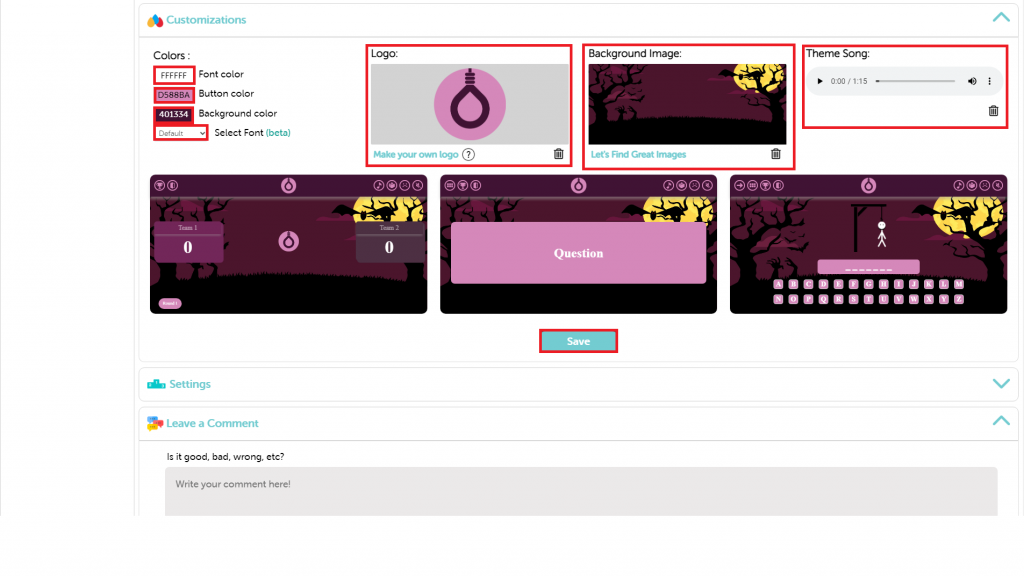
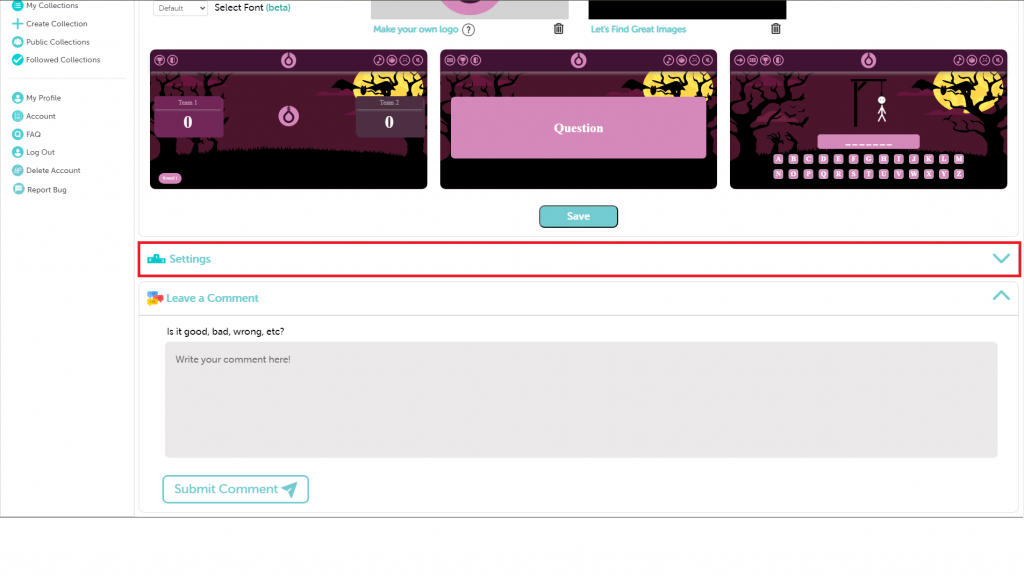
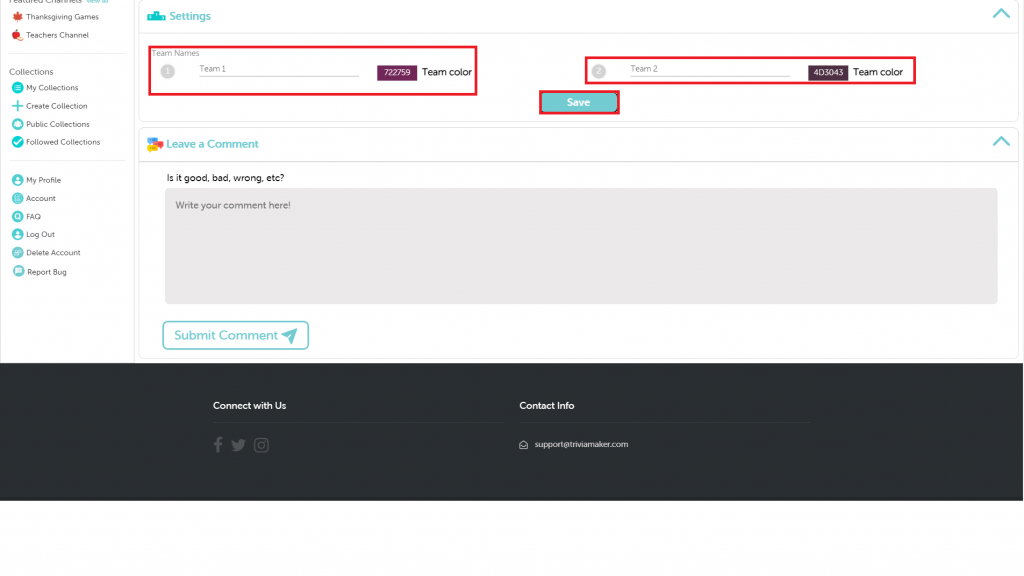
Step 6: Make your game truly yours with our customization options. Change the font color, button color, background, and font style. You can also add a logo, background image, and theme song. Don’t forget to hit ‘Save’ to lock in your changes. Want to pick a team color? Go to settings. Choose your color. Hit ‘Save’ when you’re ready.
Remember: Depending on your game style, you’ll get different features like settings, assignment mode, and much more.