
Creating quizzes online is easier than ever. If you have wondered how to create a quiz, you are in the right place. TriviaMaker is a tool built for exactly this – turning questions into playable quizzes in minutes.
Online quizzes are used in classrooms, businesses, and social events. They make learning fun and work as a team-building activity. The format itself has a measurable effect: a study in Springer found that quizzes can help lower test anxiety in students, while other research shows quizzes help you learn more, especially when you get feedback on wrong answers.
This guide walks through how to create a quiz from start to finish – planning it, writing questions, picking a format, and sharing it. Whether you teach, train, or host events, you can follow the same steps.
New to quiz creation and want the strategic overview first? Read our guide on how to create an interactive quiz – it covers the principles behind question design and format choice. This article focuses on the practical build process inside TriviaMaker.
Step 1: Set Up Your TriviaMaker Account
Before you can start making quizzes, you need a TriviaMaker account. The setup takes about two minutes.
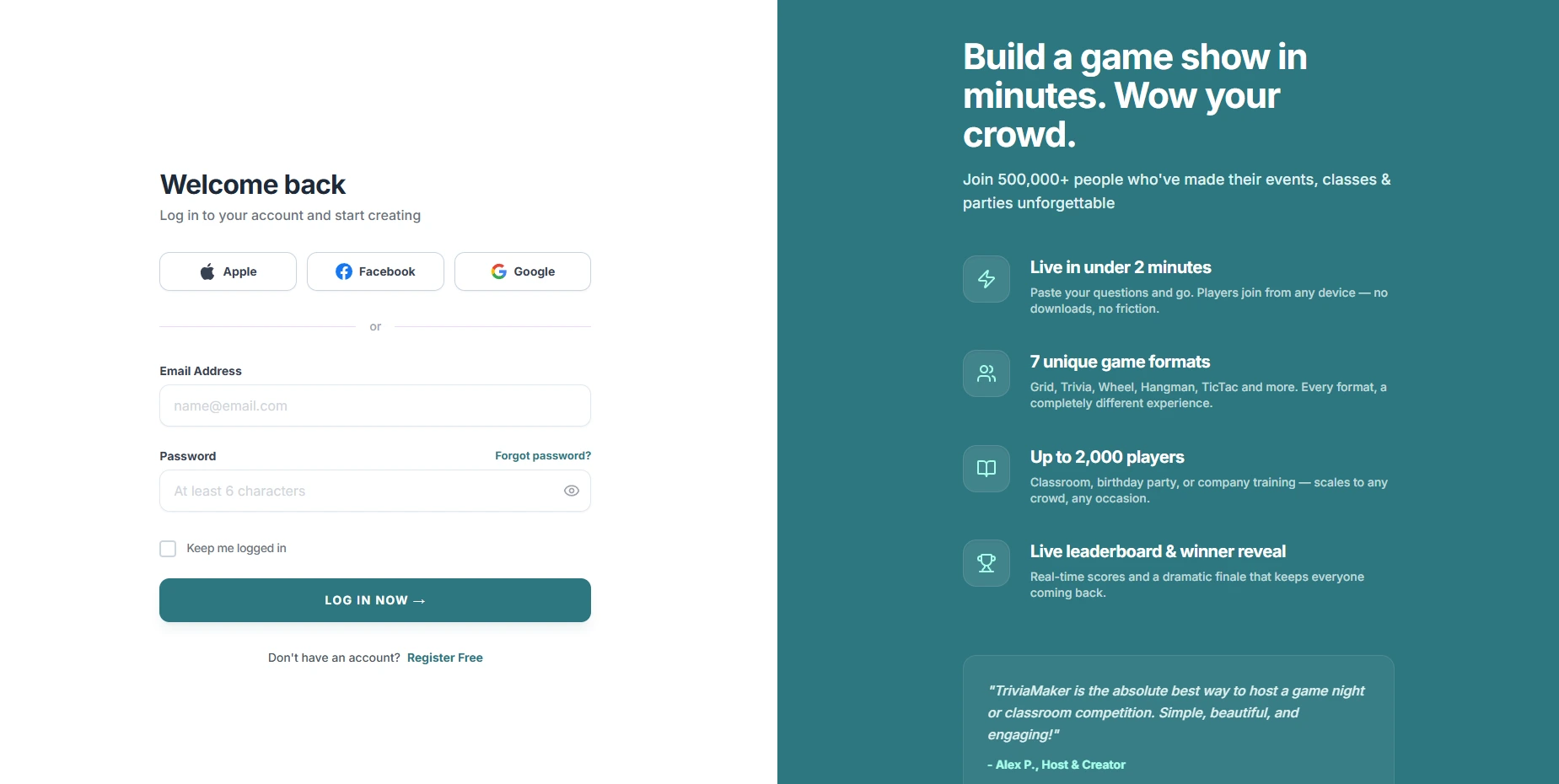
- Visit the website: Go to triviamaker.com.
- Sign up: Click the “Sign Up” button. Use your email or sign up with a social account.
- Fill in your details: Provide your name, email, and create a password.
- Verify your email: Check your inbox for a verification email from TriviaMaker. Click the link to activate your account.
Once your account is set up, you can start exploring the platform. If you prefer a full walkthrough of every feature, the TriviaMaker documentation has detailed guides for every game type and mode.
Step 2: Navigate the Dashboard
After logging in, you will see the TriviaMaker dashboard. Here is a quick overview of the key areas:
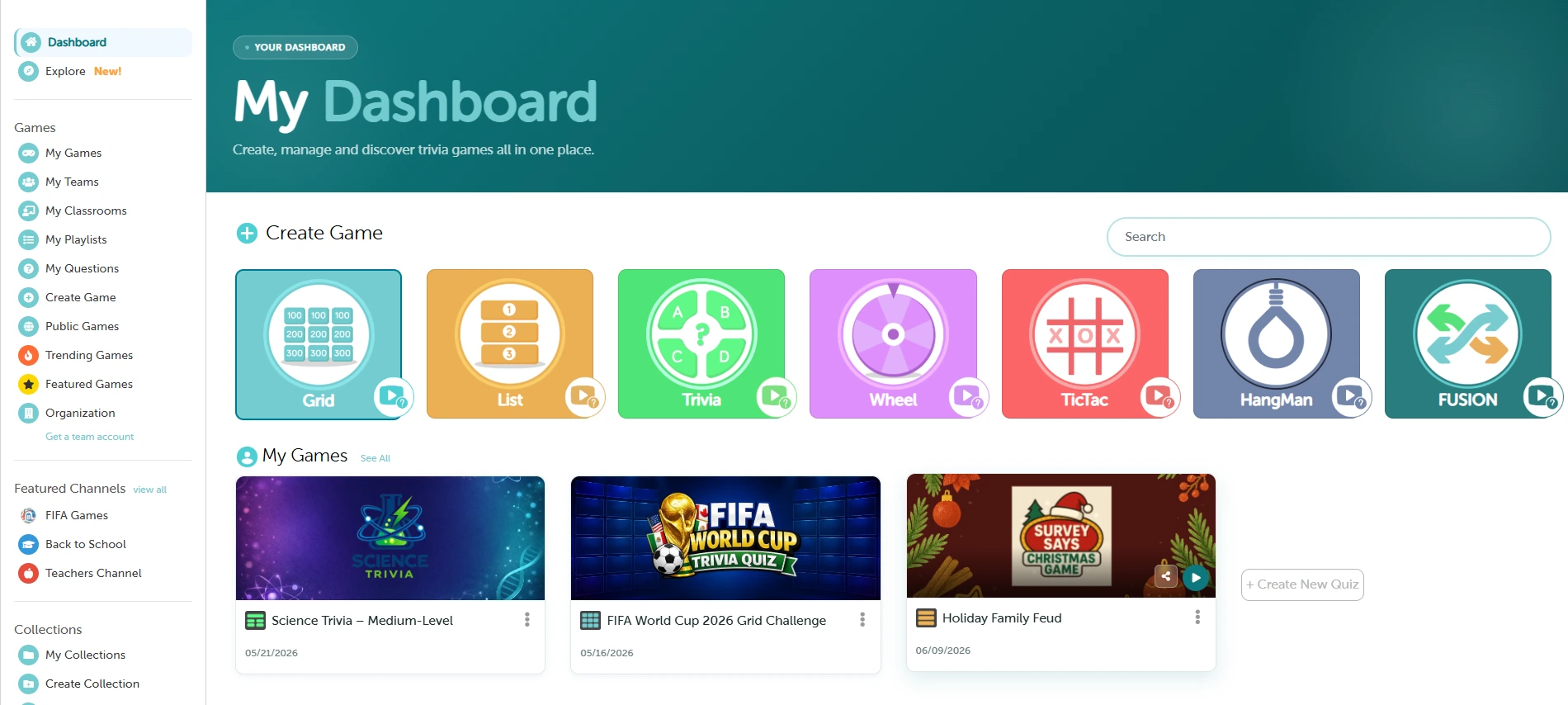
- Create Games – Start a new quiz.
- My Games – View and manage your existing quizzes.
- Settings – Adjust your account preferences.
The dashboard is built to be clear from the first login. Spend a few minutes exploring it, then move on to designing your quiz.
Step 3: Design Your Quiz
Choose a Quiz Type
TriviaMaker offers 7 game styles to suit different needs. Pick the one that fits your audience and purpose:
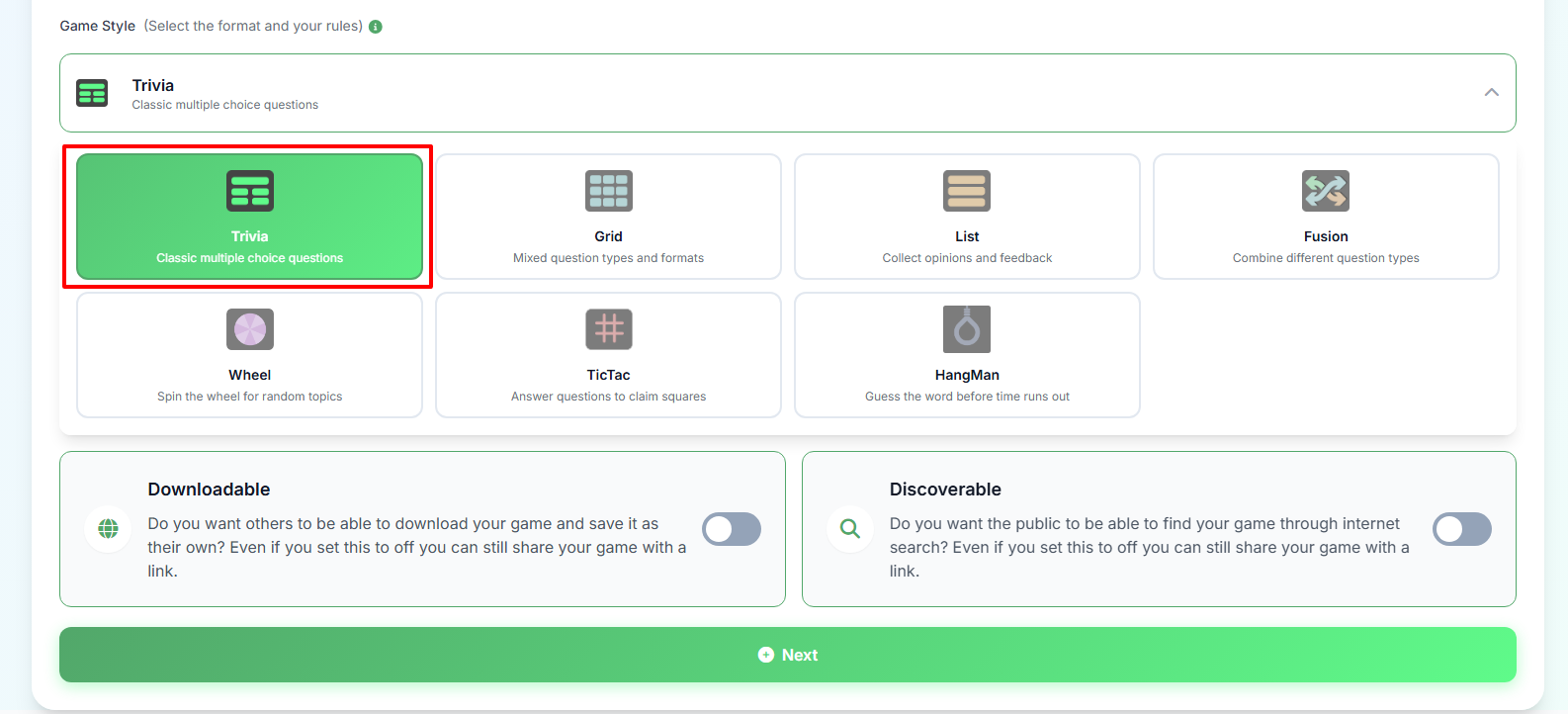
- Trivia – Standard question-and-answer format. Great for general knowledge tests.
- List – Players list items in a particular category. Ideal for brainstorming sessions and survey-style answers.
- Grid – Questions arranged in a Jeopardy-style board. Useful for categories and point values.
- Wheel – A spin-the-wheel format that adds chance. Perfect for game nights.
- Tic-Tac – Turns classic tic-tac-toe into a strategic trivia showdown.
- Hangman – Word-guessing for vocabulary and terminology.
- Fusion – Blends multiple trivia formats in one quiz to keep players engaged.
Not sure which style fits your use case? The TriviaMaker documentation breaks down each game type and mode with examples.
Customize Quiz Settings
Once you have chosen your quiz type, adjust the settings. Key options include:
- Quiz title – Give your quiz a clear, catchy name.
- Theme – Choose a visual theme that matches your topic.
- Time limits – Set a timer per question. TriviaMaker supports per-question timers so you can adjust difficulty as you go.
- Question order – Randomize questions or keep them in a specific sequence.
Step 4: Add Questions and Answers
Create Questions
Click on the Edit (pencil) icon. You have several ways to build your question list:
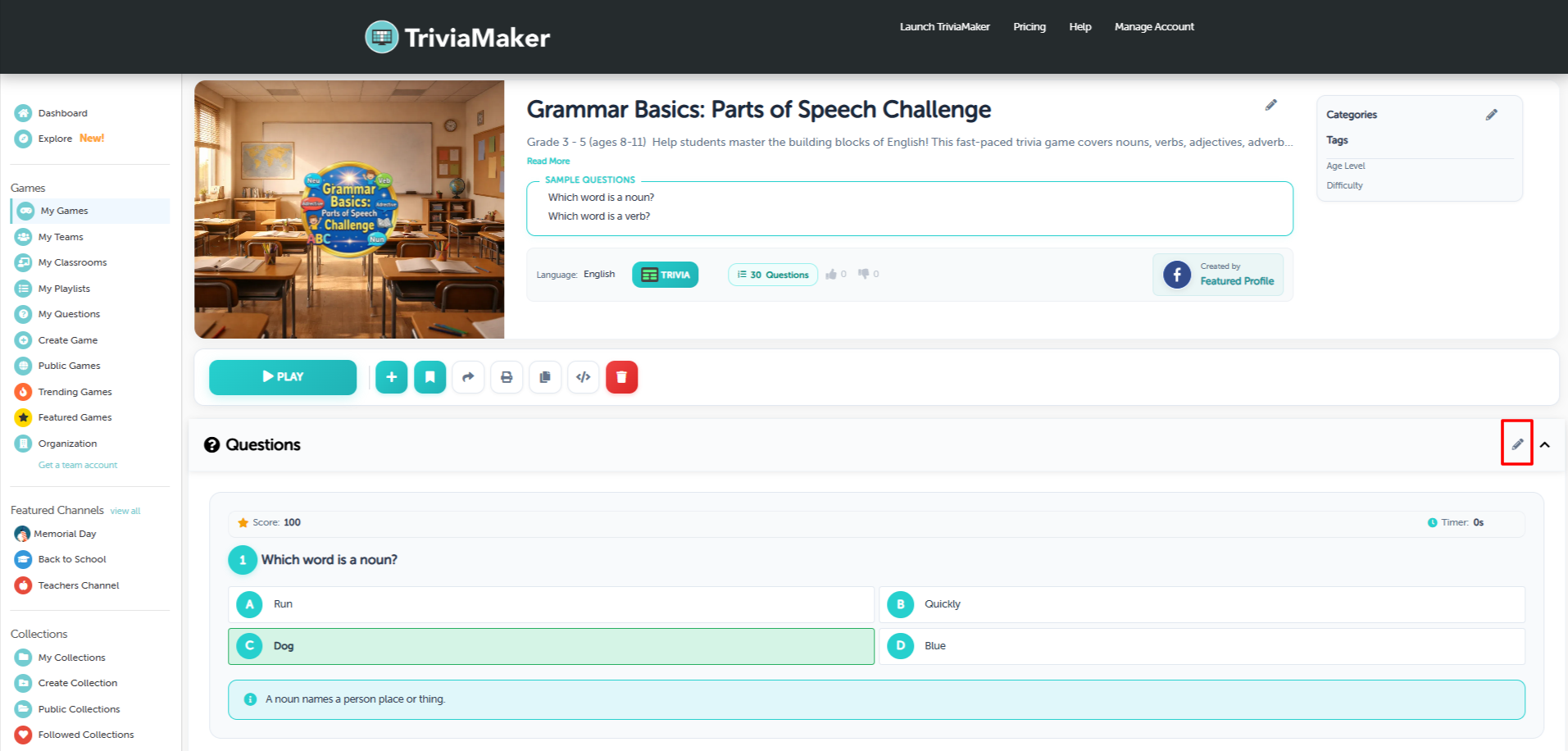
- Type manually – Write questions directly in the editor.
- Import from a spreadsheet – Upload a CSV or Excel file with your questions.
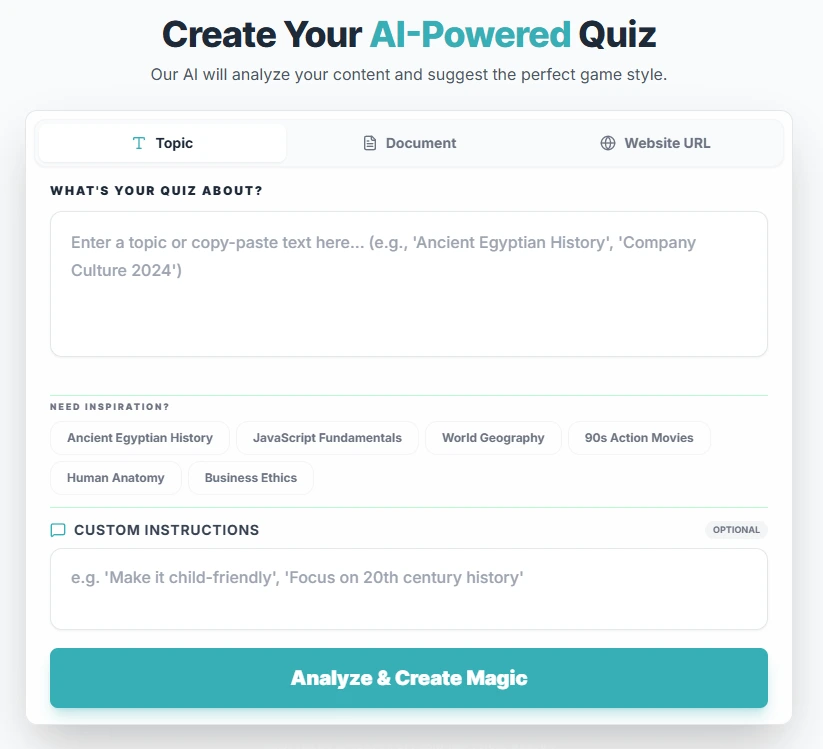
- Use AI – Enter a topic and let the AI question generator build a complete set of questions.
- Import from a document – Upload a PDF or paste text and use the document-to-quiz converter to turn content into questions.
- Choose from the question library – Pick from ready-made questions on popular topics.
Whichever method you choose, follow these guidelines to keep questions effective:
- Clear and concise – Write questions that are easy to understand on first read.
- Engaging – Use interesting facts or scenarios to keep participants interested.
- Varied difficulty – Ask easy, medium, and hard questions so everyone can join in.
Want AI to build the questions for you?
Try the AI Quiz Maker →Types of Questions
TriviaMaker supports several question formats to keep your quiz dynamic:
- Multiple choice – Provide answer options for participants to choose from.
- Single answer – Participants type their answer in their own words, encouraging deeper thinking.
- List type – Provide a bank of answer choices for participants to select from.
Add Media
Enhance questions by adding images, videos, or audio clips. Visual and auditory cues make the quiz more engaging. TriviaMaker supports adding images and video to questions – useful for identifying flags, naming songs, or labeling diagrams.
Step 5: Preview and Test Your Quiz
Use Play Mode
Before publishing, use play mode to see how the quiz will look to participants:
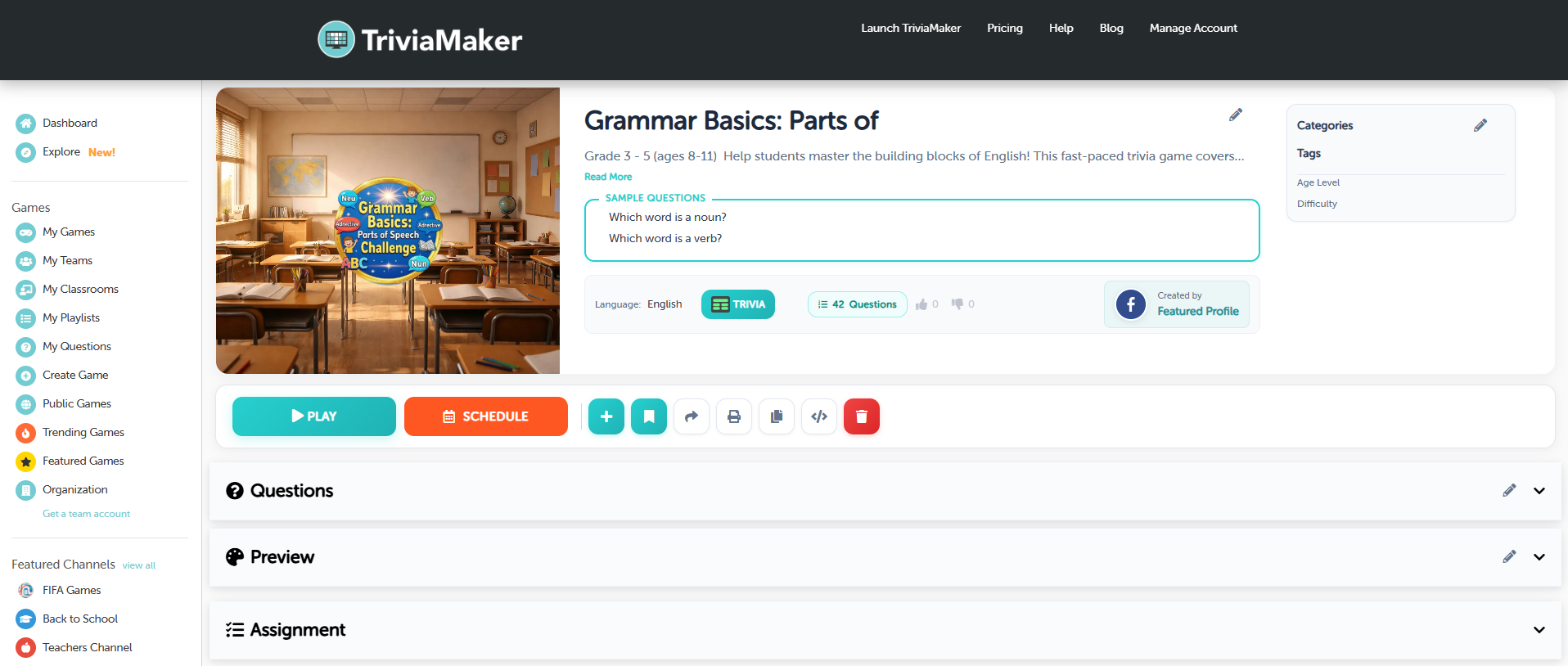
- Check formatting – Ensure questions and answers display correctly.
- Review media – Verify that images, videos, or audio work properly.
- Test navigation – Click through the quiz to catch usability issues.
Run a Test
Conduct a full test run to make sure everything works:
- Simulate the participant experience – Answer questions as a player would.
- Verify scoring – Confirm points are awarded correctly.
- Identify issues – Note unclear questions or technical glitches.
Testing before launch catches problems while they are still easy to fix. Once everything looks good, you are ready to share.
Step 6: Share Your Quiz
Publish Your Quiz
Once your quiz is ready, make it accessible to participants:
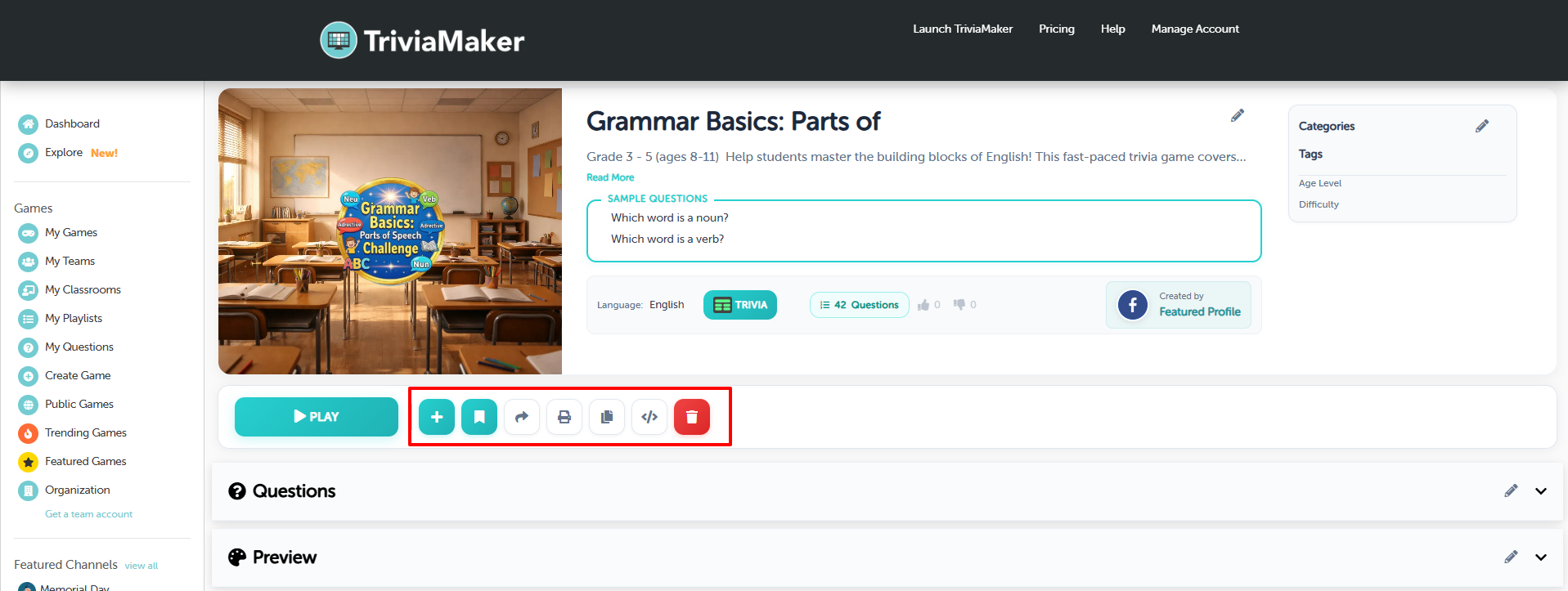
- Share button – Click “Share” within TriviaMaker.
- Confirmation – Confirm your decision to publish.
Sharing Options
Once published, you can share your quiz in several ways:
- Email – Send the quiz link directly to participants.
- Social media – Share on Facebook, Twitter, or LinkedIn.
- Embed – Embed the quiz on your website, blog, or LMS.
- Schedule in advance – Reserve a join code ahead of time with scheduled quiz codes, so you can share the code days before the event.
Use Quiz Codes
Participants can also join using a unique quiz code:
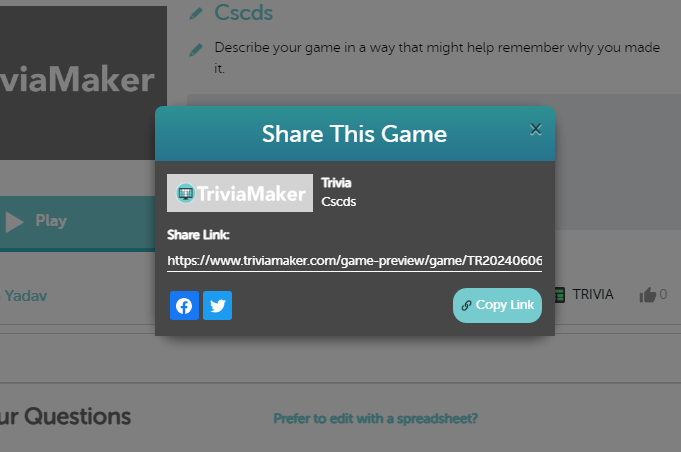
- Generate code – TriviaMaker provides a unique 6-digit code for each quiz.
- Share code – Distribute the code to participants who enter it to access the quiz.
Participants join on any device with no app download and no account required. If you want real-time response data as the quiz runs, TriviaMaker’s Live Poll feature turns every trivia question into a live audience poll, showing response percentages and participation rates.
Ready to share your first quiz?
Start Free →Step 7: Analyze Quiz Results
Access Results
After participants complete the quiz, you can access the results within TriviaMaker:
- Results section – TriviaMaker offers different ways to track scores depending on the game mode. In Classroom mode, scores are stored privately within the classroom. For other modes, you can view final scores on a leaderboard and export them for further analysis or record-keeping.
- View scores – See how participants performed and review individual responses.
Interpret the Data
Use the data to understand performance and engagement:
- Performance analysis – Identify trends in correct answers and participant scores.
- Feedback review – Consider participant feedback to improve future quizzes.
Use Results to Improve
- Content adjustment – Modify questions based on difficulty or clarity.
- Engagement strategies – Incorporate popular topics or formats that participants enjoyed.
Tips for Successful Quizzes
Write Engaging Questions
- Intriguing content – Include fun facts or little-known information.
- Interactive elements – Incorporate multimedia to enhance engagement.
Balance Difficulty
- Progressive difficulty – Start with easier questions and gradually increase complexity.
- Participant feedback – Use feedback to adjust difficulty levels.
Keep It Interactive
- Time limits – Add excitement with timed questions.
- Leaderboards – Foster competition with score tracking.
Which Quiz Tool Fits Your Needs?
TriviaMaker is built for interactive, live, and self-paced quizzes. But it is not the only option. If you are comparing tools, our comparison of Canva Quiz Maker vs Google Forms vs TriviaMaker walks through which tool fits which use case – live hosting, design-first quizzes, or self-graded assessments.
If you want the full feature set and pricing, visit the online quiz maker page.
Conclusion
Creating quizzes online with TriviaMaker is straightforward. You can build quizzes for school, work, or fun – and the process from account setup to sharing takes minutes, not hours. Follow the steps in this guide to create quizzes that teach, entertain, and get people involved.
For a deeper look at question design principles and interactive quiz formats, read our guide on how to create an interactive quiz.
Frequently Asked Questions
What types of quizzes can I create with TriviaMaker?
TriviaMaker lets you make quizzes in 7 game styles. Choose from multiple choice, lists, grids, wheel, Tic-Tac, Hangman, or Fusion. See the full list on the game styles page.
Can I customize the appearance of my quiz on TriviaMaker?
Yes. You can change quiz names and descriptions, set time limits for questions, and adjust other settings. Paid plans include custom logos, colors, and backgrounds.
Is it possible to include multimedia in my quizzes on TriviaMaker?
Yes. You can enhance questions with images, videos, or audio clips. See quizzes with images for examples.
Can participants join my quiz without creating a TriviaMaker account?
Yes. Participants join using a unique quiz code. No app download and no participant account is required.
Is TriviaMaker suitable for educational purposes?
TriviaMaker helps teachers create fun quizzes to teach and test what students know. See quiz maker for teachers for classroom-specific features.
How do I turn a document into a quiz?
Upload a PDF or paste text into the document-to-quiz converter and the AI generates questions from your content. You can review and edit them before adding them to your quiz.