How to Create a List Game
A List Game challenges players to name items that belong to a specific category (e.g., "Name countries in Europe" or "List types of fruit"). Players earn points for each correct answer they can think of within the time limit.
There are two simple ways to create a List game in TriviaMaker
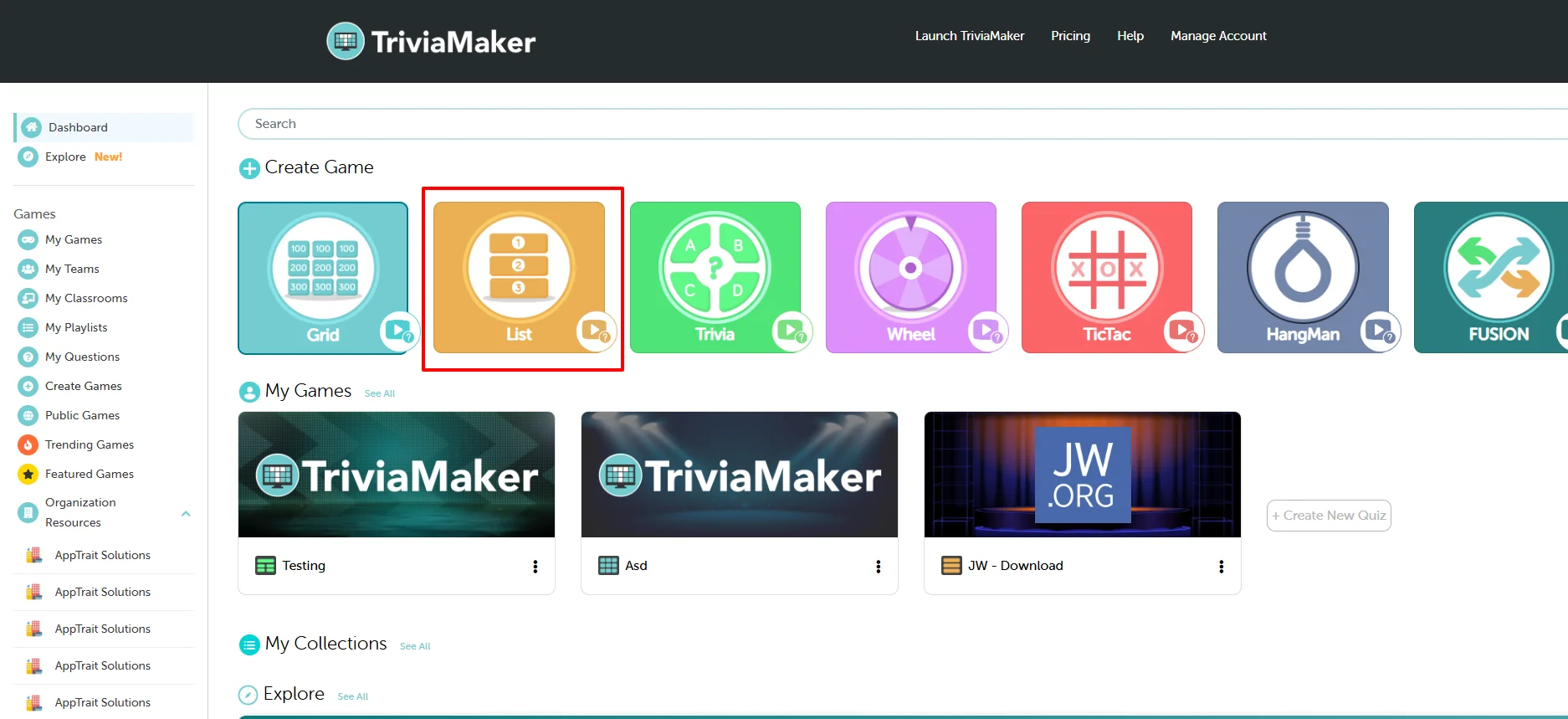
Option 1: Create from the Dashboard
Go to your Dashboard. Under the Create Game section, you'll see multiple game styles. Click on the List game style.
Option 2: Create from the Sidebar Menu
From the left-hand sidebar, click on Create Games.
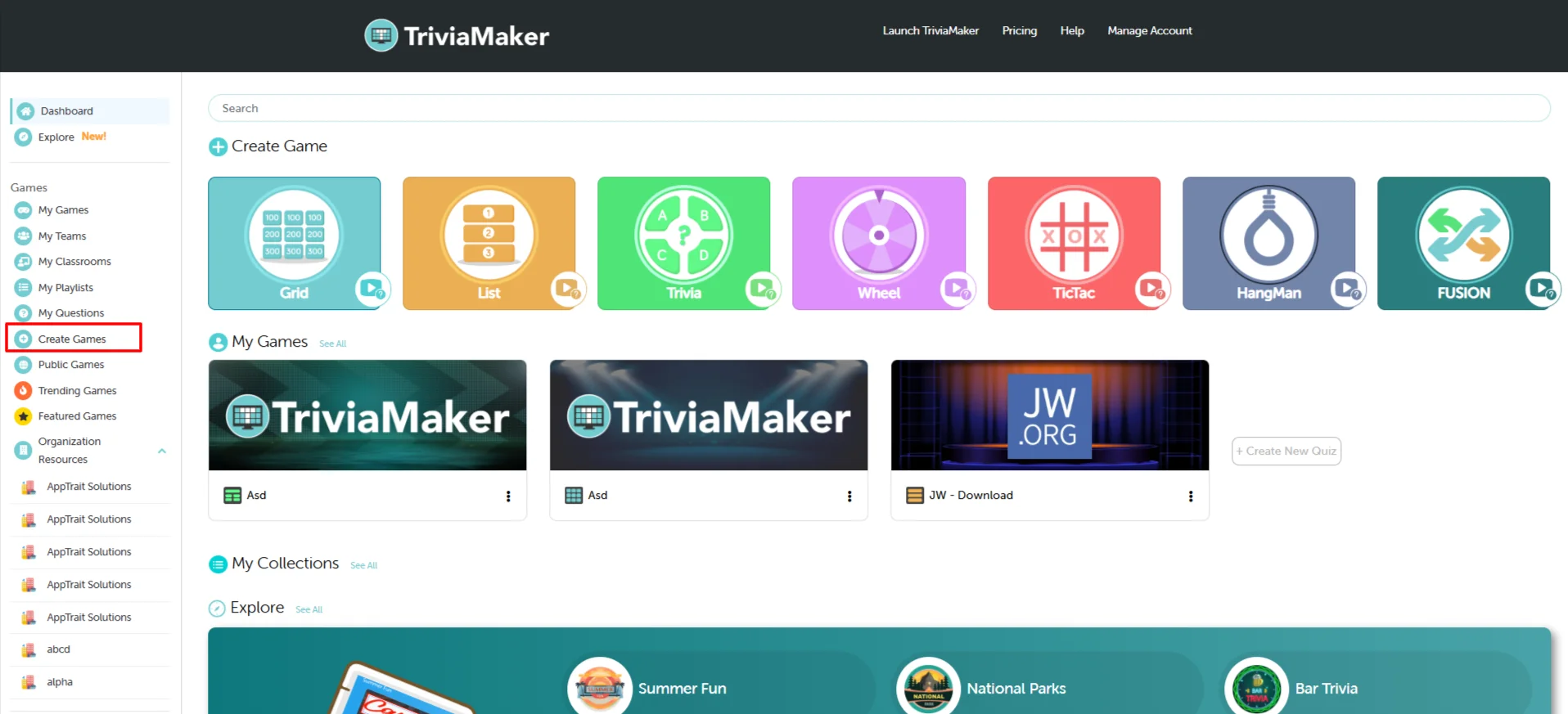
You'll see a list of available game styles — select List from the options.
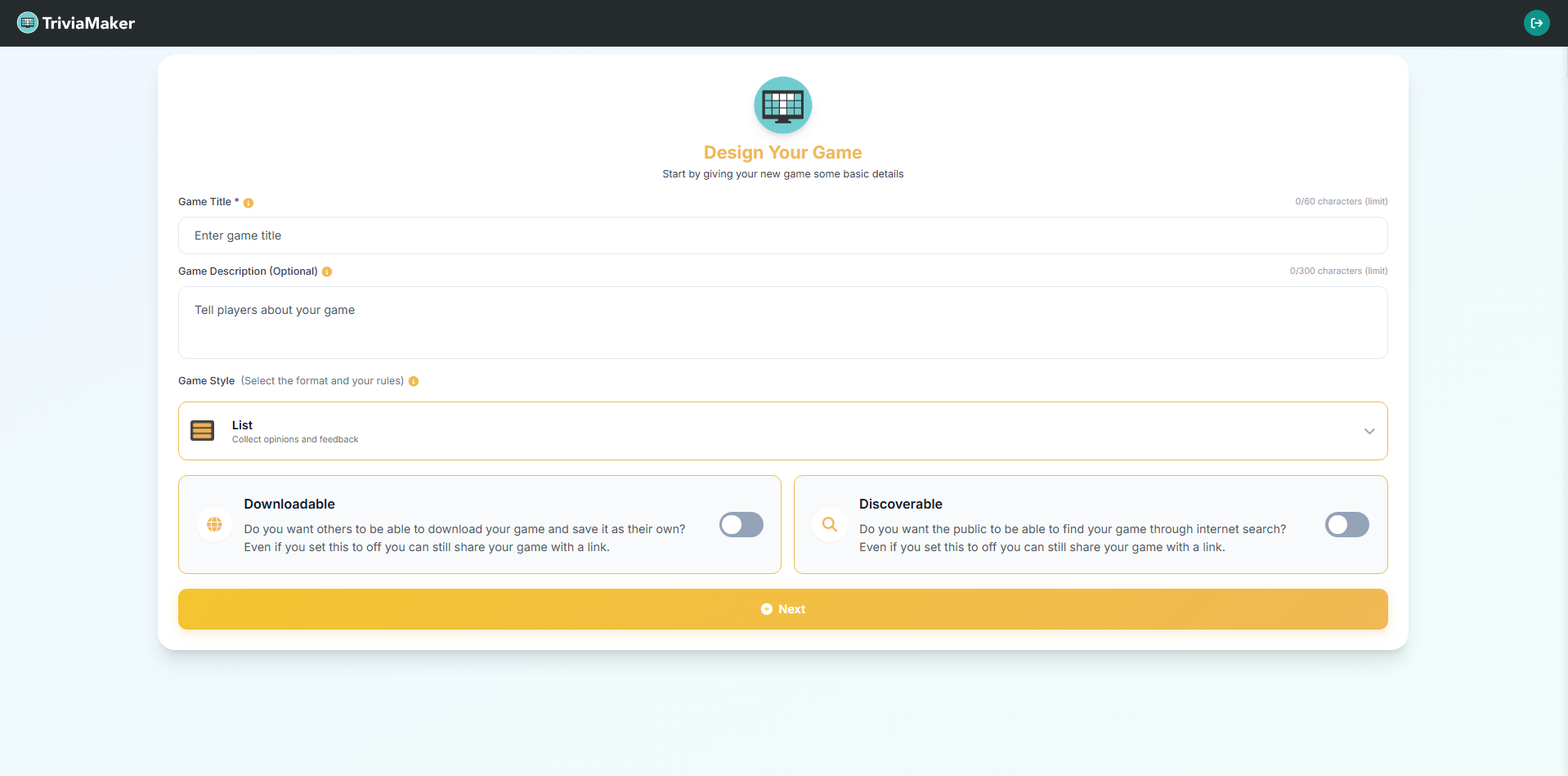
Set Up Your Game
Enter Your Game Name
Give your game a unique and recognizable name. This name will help you identify your game easily within your dashboard and when sharing it with others.
Add a Game Description (Optional)
You can optionally add a short description for your game. Use this space to describe the purpose, theme, or any special notes about your game — it helps you and others remember why you created it.
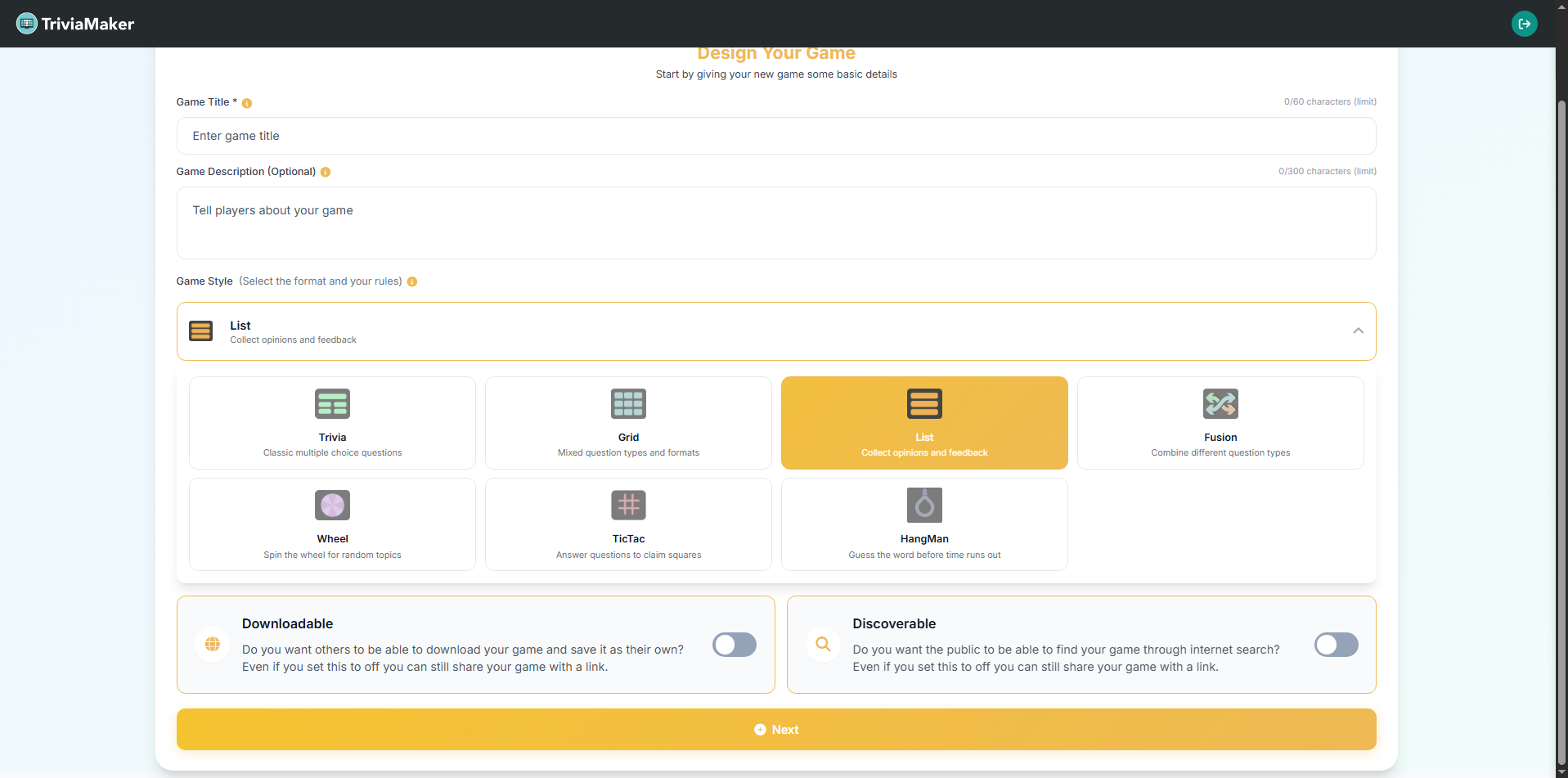
Select the List Game Style
From the Game Style dropdown, select List — Collect opinions and feedback or list items. This sets the format and rules for your game.
Allow Others to Copy (Downloadable)
Toggle this switch if you want others to download your game and save it as their own.
💡 Why use this? This is great for educators who want to share a template quiz with other teachers, or for content creators who want their games to be reused by the community.
Publicly Searchable (Discoverable)
Toggle this switch to make your game visible to the public.
💡 Why use this? Turn this on if you've created a fun, general-knowledge quiz that you want the whole TriviaMaker community to find and play. Keep it off for private games for your class or team.
How to Add Questions to Your Quiz
Pro Tip: Start by generating questions with our AI tool to quickly build a foundation. Then, manually add a few custom questions to personalize the quiz and cover specific topics.
Five Ways to Add Questions to Your Quiz
Choose the method that best suits your needs, whether you're starting from scratch, leveraging existing content, or using AI to speed up the process.
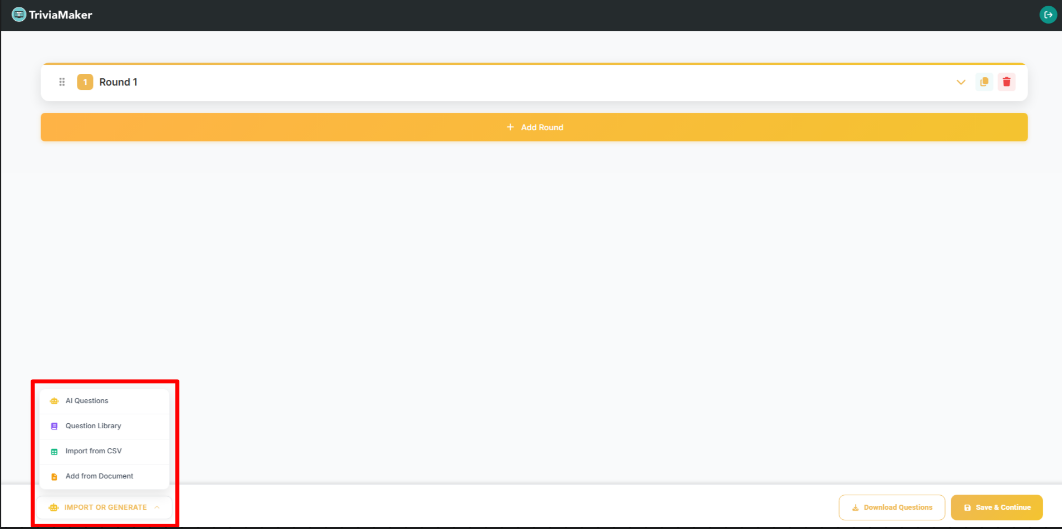
Use our AI Question Generator to instantly create relevant questions based on any topic.
Pro Tip: Start by generating questions with our AI tool to quickly build a foundation. Then, manually add a few custom questions to personalize the quiz and cover specific topics.
Click on the AI Questions button
In the text field, enter the topic or keyword.
Click Generate.
Review the list of generated questions and click Add next to any question you wish to include in your quiz.
Reuse questions you've previously created and saved in your my questions.
Click the Add Question From Library button.
Browse or Search for Questions in your My Questions library.
Click Add next to the desired question to insert it into your current quiz.
Convert existing text or documents into quiz questions instantly.
Click on Create questions from the document.
In the pop-up window, you have two options:
Paste Text: Copy and paste up to 4,000 words directly into the text area.
Upload Document: Upload a file from your computer.
Once the content is in place, click Generate Questions. The platform will analyze the text and suggest questions you can add.
For spreadsheet power users or bulk uploads, add questions by importing a CSV file.
Click the Prefer to edit with a spreadsheet? link at the top of the Set Up Your Questions section.
In the pop-up, you can Download Template to see the required format, or click Upload CSV File to import your prepared spreadsheet.
Important: Ensure your CSV file follows the specified column format for successful import.
Download CSV Template
Create a custom List question from scratch using the full editor with multimedia options.
Click the central Add Question button.
The Question Editor window will appear with fields specific to List game style.
Enter Your Question:
Type your question or prompt in the dedicated field (e.g., "Name countries in Europe" or "List types of fruits").
Add List Items (Answers):
Enter the correct answers/items for your list. Each item represents a valid answer that players can guess.
Click Add Item to create new answer slots
Enter each valid answer in the list (e.g., "France", "Germany", "Italy")
You can add multiple items - the more items, the more challenging the game
Set Points for Each Item (Optional):
Assign point values to each list item. Higher points can be given to more difficult or less obvious answers.
Click Save Question to finalize and add the List question to your game.
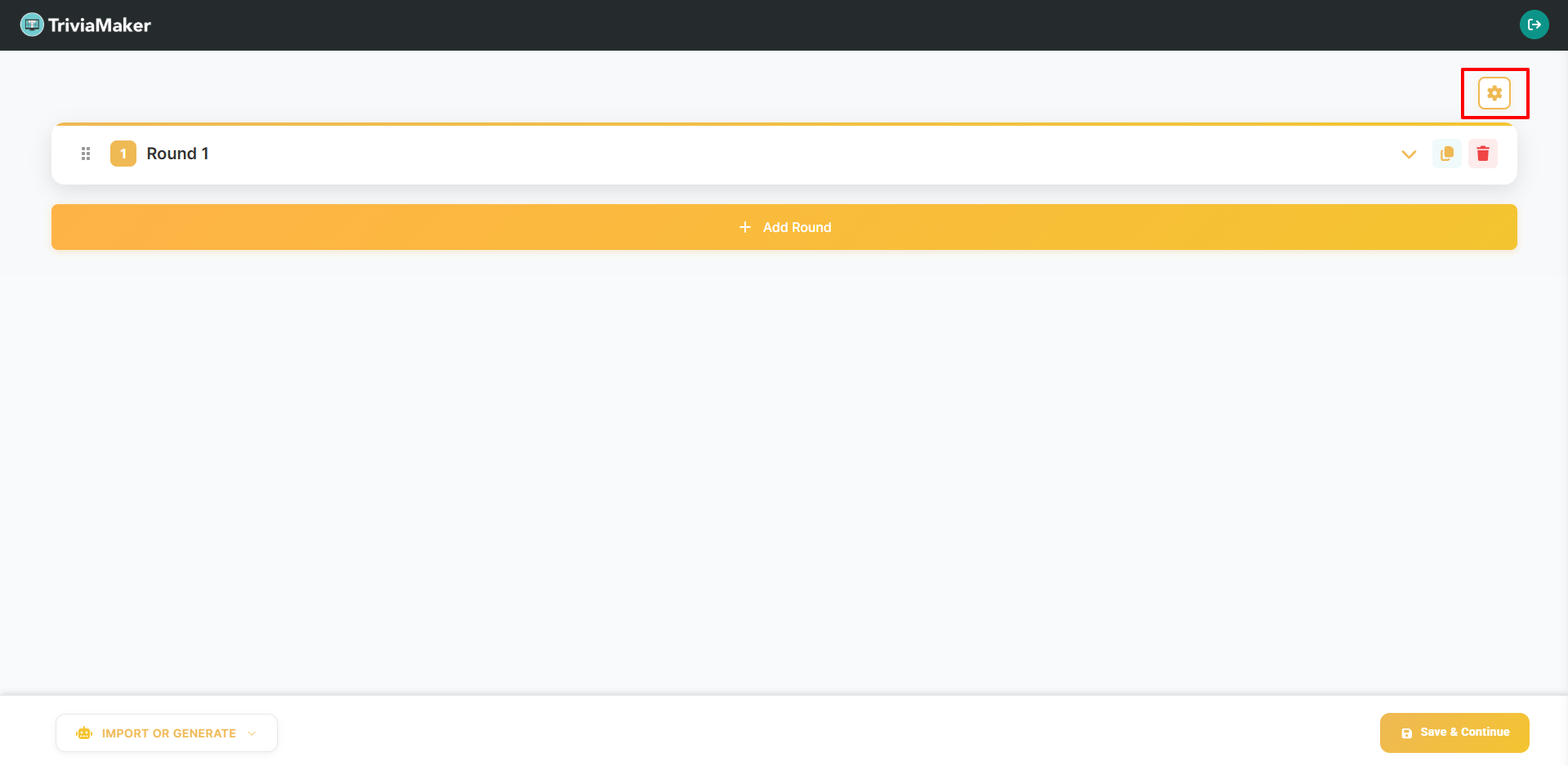
Additional Question Management Tools
| Tool / Feature | Description |
|---|---|
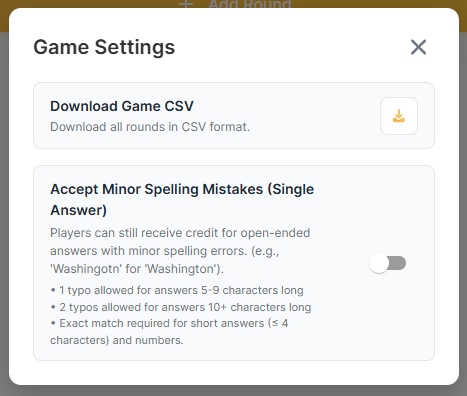
| Download Game CSV | Click this option to download all rounds and questions of your list game in a CSV spreadsheet format. |
| Accept Minor Spelling Mistakes (Single Answer) | Toggle this setting ON to enable spelling leniency, allowing players to still receive credit for open-ended answers with minor spelling errors (e.g., 'Washingotn' for 'Washington'). • 1 typo allowed for answers 5-9 characters long • 2 typos allowed for answers 10+ characters long • Exact match required for short answers (≤ 4 characters) and numbers. |
Branding Your Quiz
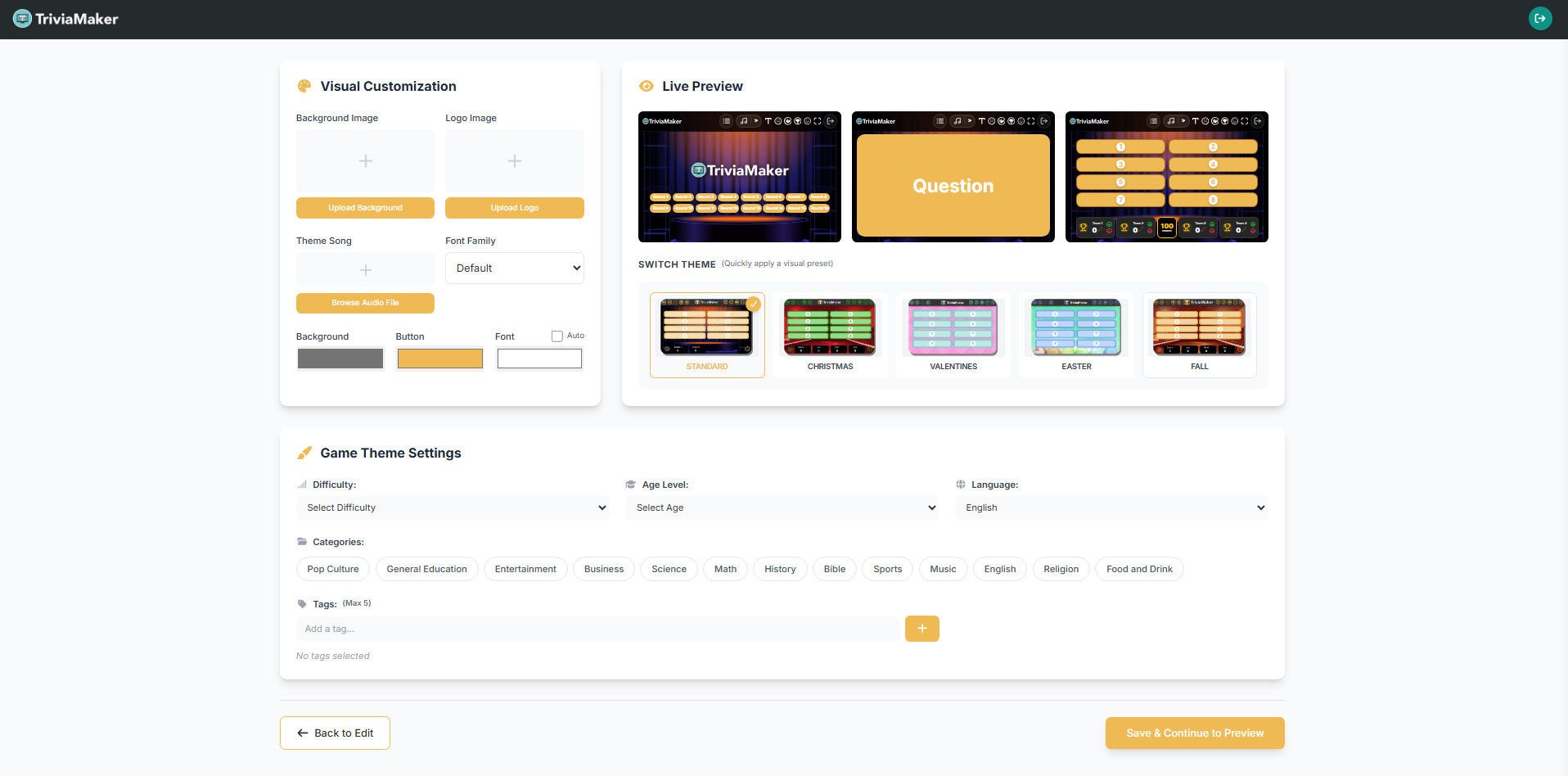
Pro Tip: For the best visual results, use a high-contrast color combination. If you upload a background image, choose a font color that stands out clearly against it.
| Option / Setting | Description |
|---|---|
| Font Color | Click the color swatch next to "Font color" to select a new text color for your quiz. |
| Button Color | Click the color swatch next to "Button color" to change the color of interactive elements. |
| Background Color | Click the color swatch next to "Background color" to set the main background hue. |
| Font | Use the "Select Font" dropdown to choose a different typeface for your quiz text, further enhancing its visual style. |
| Theme / Select Theme | Use the Theme dropdown (set to "Default" by default) to apply a premade visual theme (such as Space, Neon, or Jungle) which automatically customizes the layout, backgrounds, and styling of your quiz. |
| Upload Logo | Display your brand logo within the game interface. (Note: If you do not upload a custom logo, the default TriviaMaker logo will be used in gameplay.) |
| Background Image | Replace the default background with your own image to make the game visually appealing and thematic. (Note: If you do not upload a custom background image, the default theme background will be used in gameplay.) |
| Theme Song | Upload a background theme song to make gameplay more immersive and entertaining. If you do not want to set any audio, you can upload a blank audio file (downloadable from the blank-audio GitHub repository). |
Game Theme Settings
At the bottom of the customization panel, you will find the Game Theme Settings. Here you can configure the metadata, search tags, language, and general classification of your quiz to make it professional and easy to manage:
| Setting | Description |
|---|---|
| Categories | Define the theme or subject of your quiz to make it easily discoverable. You can select from various pre-defined categories such as Pop Culture, General Education, Entertainment, Business, Science, Math, History, Bible, Sports, Music, English, Religion, Food and Drink, and more. |
| Tags | Add relevant keywords (up to a maximum of 5 tags) to help organize and enable easy search functionality for your games. Type your desired keyword in the "Add a tag..." field and click the green `+` (plus) button to add it. |
| Age Level / Grade Levels | Choose the suitable age or grade range for your players by selecting from the "Select Age" dropdown menu. |
| Difficulty | Select the appropriate challenge level (Easy, Medium, or Hard) using the "Select Difficulty" dropdown to guide your players. |
| Language | Choose the language for your quiz text using the language dropdown (set to "English" by default). |
| Save Your Updates | Click the green "Save & Continue to Preview" button on the bottom-right to confirm all your updates and proceed. You can also click the "Back to Edit" button on the bottom-left to return to the previous editing screen. |
Edit your quiz
How to Edit Questions
You can easily modify any question after it has been added to your quiz. Follow these two simple steps:
Step 1: Click the Edit Icon
Click on the Edit (pencil) icon next to the question you want to modify. This will redirect you to the Edit Question page for that game.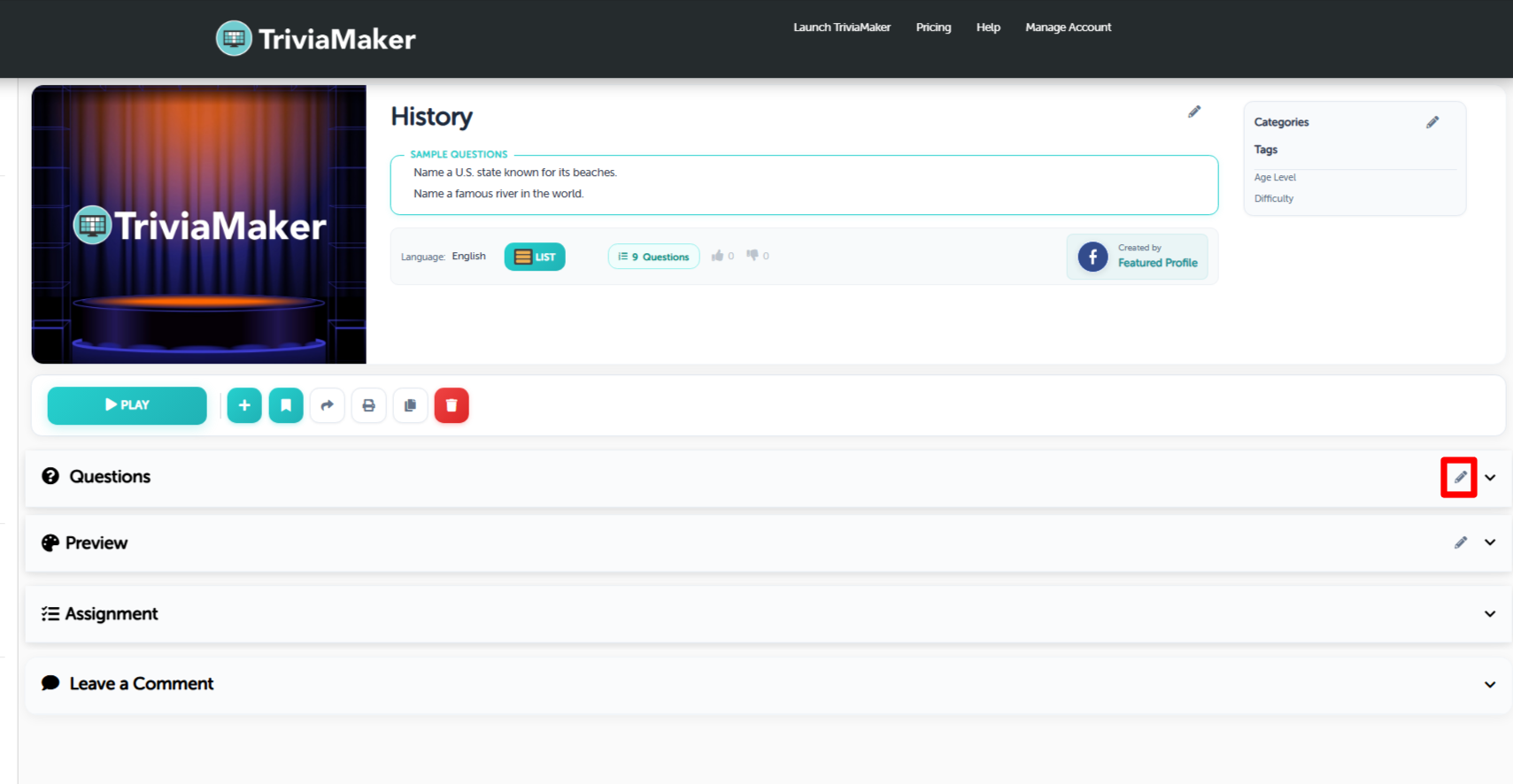
Step 2: Modify Content & Save
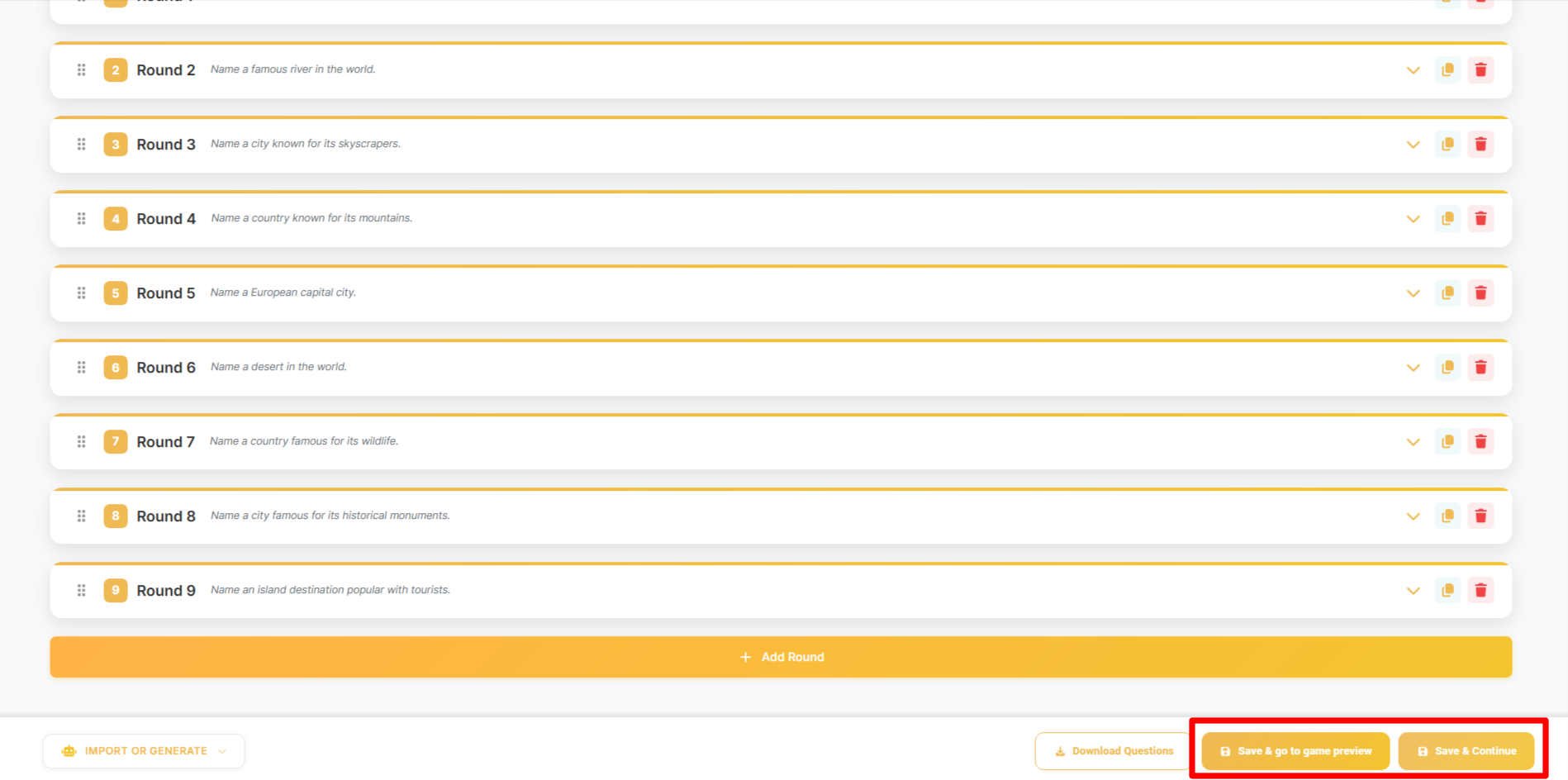
Edit the question, answers, score, or media as desired. Once you're done, you have two options for saving:If you want to go directly to the game preview page, click the Save & go to game preview button.
If you want to return to the customize section, click the Save & continue button.
How to Edit Customization & Game Settings
You can easily update your quiz settings, colors, fonts, background images, and general classification at any time:
Step 1: Click the Edit Icon
Click on the Edit (pencil) icon in the customization/settings header. (Note: On click of that edit icon, it will redirect you to the customization page where you can edit all the game settings and customizations.)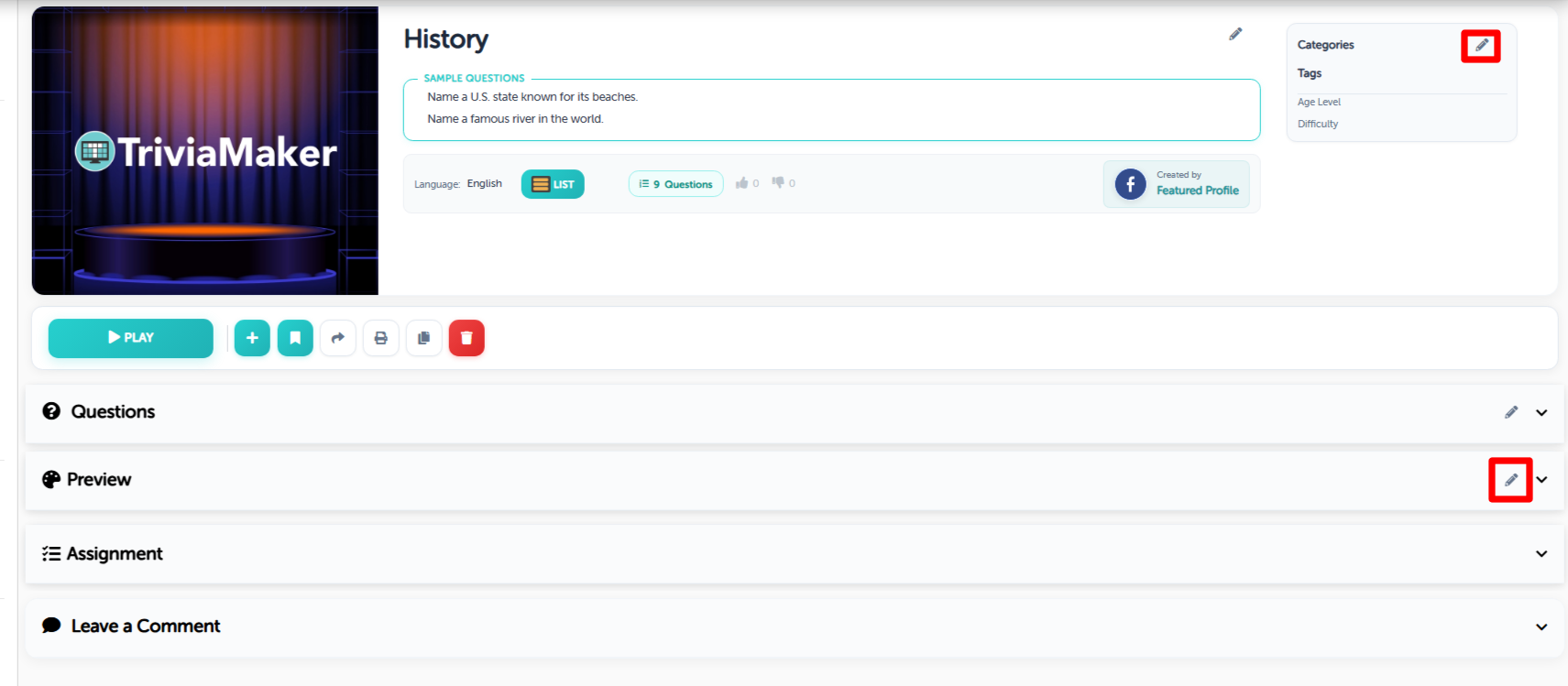
Step 2: Modify Settings & Save
Edit the styling, background music, category, tags, or difficulty levels as needed. After completing your editing, click on the Save & continue to preview button to go to the game preview.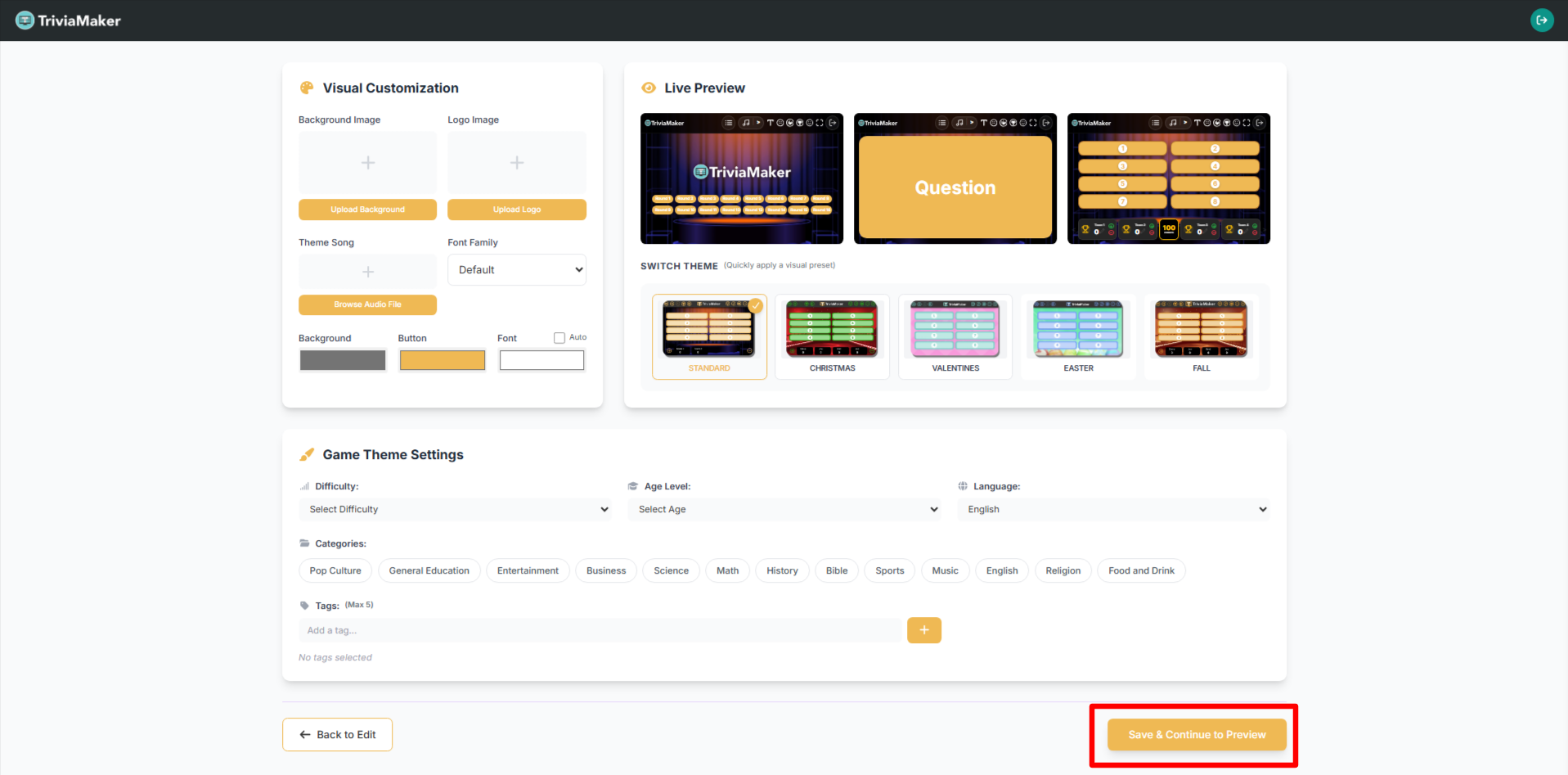
Game Settings & Quick Actions
In the game management panel or dashboard, you can perform several quick actions to manage, share, or customize your list game:
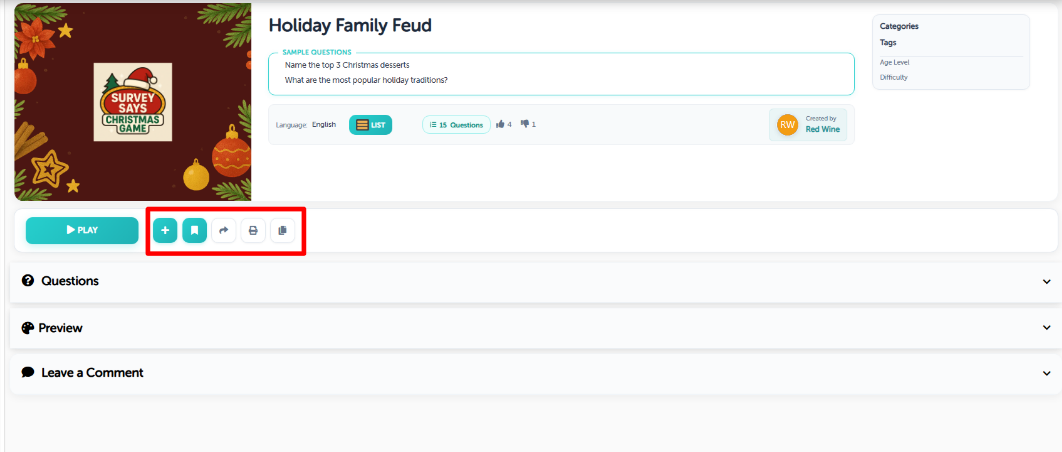 Game Settings & Quick Actions
| # | Action | Description |
|---|---|---|
| 1 | Add to Playlist | Organize your game into playlists like "Christmas Games" or "Science Games." |
| 2 | Add to Collection | Group different games together for easier management. |
| 3 | Share Game | Copy and share the game link via the share modal. |
| 4 | Print Questions | Open all questions in a new tab — save as PDF or print directly. |
| 5 | Clone Game | Duplicate the game to create modified versions. |
| 6 | Delete Game | Permanently delete the game (cannot be undone). |
| 7 | Embed Game | Get iframe/embed code to display the game on any website. |
How to Play Your List Game: A Quick Guide
Pro Tip: Before starting a live game, test the timer settings and make sure players understand they need to type their answers quickly. List games work best when players feel the time pressure!
List games offer versatile game modes to suit any setup. Here's how to quickly start your List game:
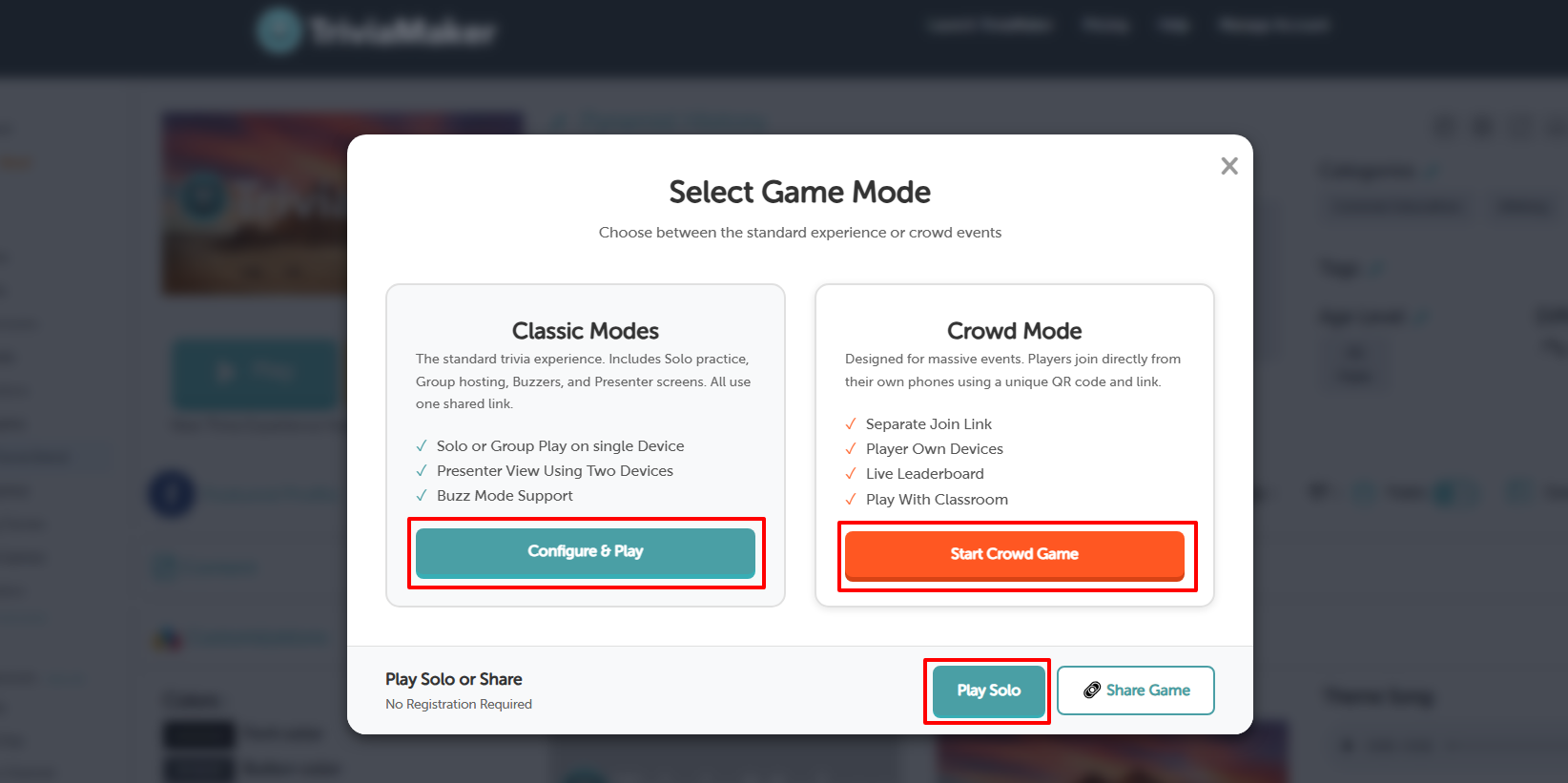
Choose Between Two Game Modes
Basic Mode
The standard TriviaMaker experience for small groups and classrooms.
Best For
Small groups
Classrooms
Team games
Solo practice
Features
Solo or group play on single device
Presenter view using two devices
Buzz mode support
Shared game link
Example
Teacher shows questions on projector and students answer in teams.
Crowd Mode
Designed for large audiences and live events.
Best For
Large groups
Events
Workshops
Live competitions
Features
Separate join link
Players use own devices
Live leaderboard
QR code joining
Example
Conference attendees join from phones and compete live.
Quick Comparison
| Feature | Basic Mode | Crowd Mode |
|---|---|---|
| Best For | Small groups | Large audiences |
| Player Devices | Shared screen | Each player device |
| Join Method | Single link | QR / Link / Code |
| Live Leaderboard | Optional | Yes |
| Buzz Mode | Yes | No |
| Solo Play | Yes | No |
Mode Settings
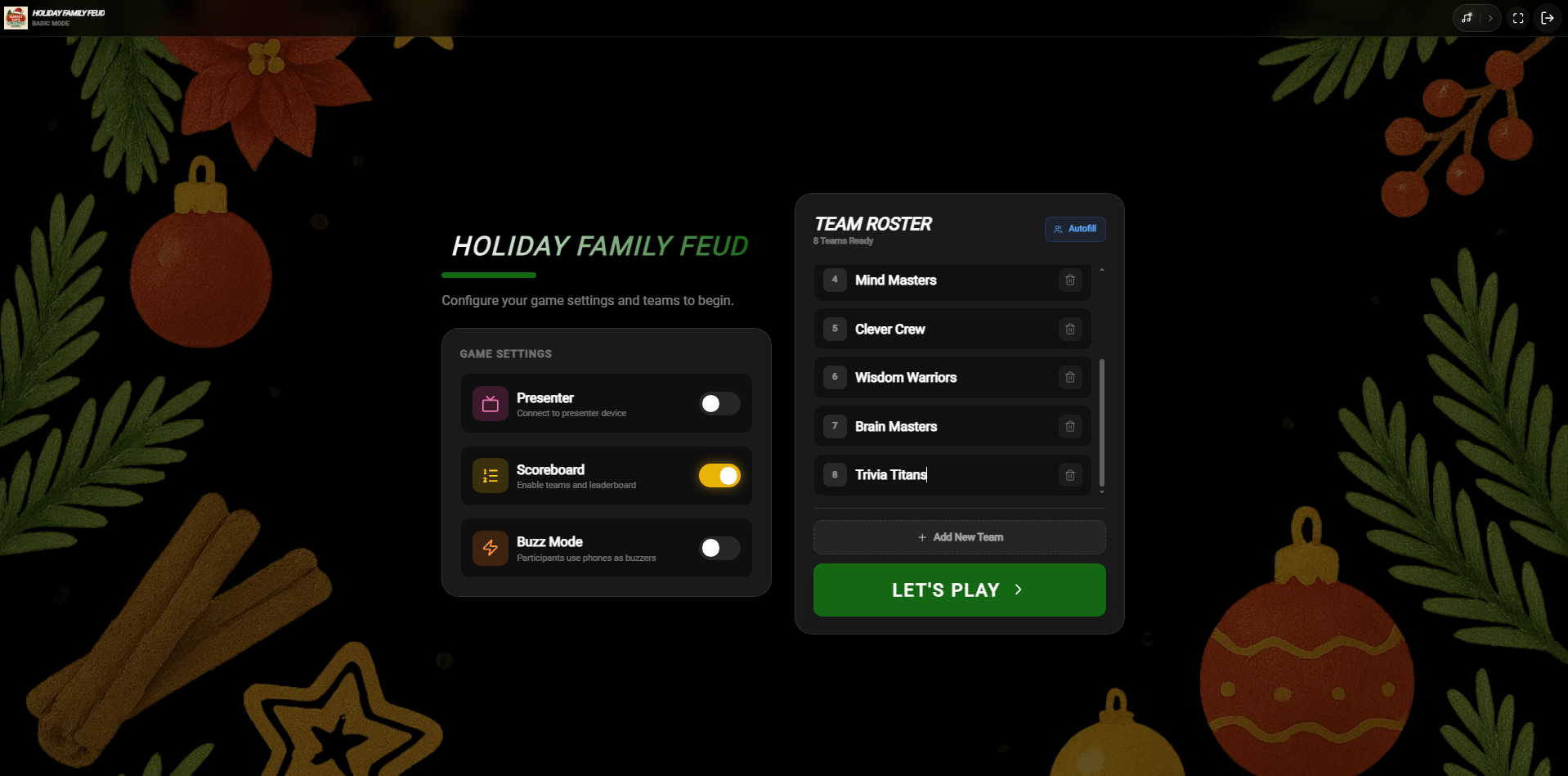
Mode Settings gives you flexible ways to run your game. You can turn settings ON or OFF depending on how you want to play.
Basic Mode → Scoreboard ON
When Scoreboard is turned ON, TriviaMaker runs in Basic Mode.
Play with teams
Track team scores
Best for classrooms and group games
Competitive gameplay
Solo Mode → Scoreboard OFF
When Scoreboard is OFF, TriviaMaker switches to Solo Mode.
Play alone
No teams
No score tracking
Best for practice
Presenter Mode
Presenter Mode lets you control the game from one device while players view on another screen.
Control from laptop or phone
Show game on TV or projector
Best for classrooms and events
Professional hosting experience
Buzz Mode
Buzz Mode allows players to buzz in to answer first.
Players use phones as buzzers
Fastest player answers first
Great for competitive games
Interactive gameplay
Basic Mode
Basic Mode is the standard, presenter-led way to play a List style game. In this mode, the presenter displays the game on a main screen (projector, TV, or screen share) and manually manages teams, reveals answers, and updates points based on players' verbal responses.
Basic Mode – Team Setup
Game Settings panel showing Scoreboard, Presenter, and Buzz Mode optionsWhen Scoreboard is turned ON, TriviaMaker enables Basic Mode. In this mode, you can create teams and track scores during gameplay.
Presenter
There is no need to enable this for Basic Mode. This setting is used exclusively for Presenter Mode.
Keep disabled for Basic Mode
Used for Presenter Mode only
Note
Leave this switch OFF if you are just playing a standard Basic Mode game.
Set Team Names
You can manually create and edit team names before starting the game, or use Autofill to automatically load teams from previously used games.
Add, edit, or remove teams
Organize teams before starting
Quickly reuse saved teams with Autofill
Faster game setup for recurring classes
Tip
Teacher can use the same teams every week by loading them instantly with Autofill.
Buzz Mode
There is no need to enable this for Basic Mode. This setting is used exclusively for Buzz Mode.
Keep disabled for Basic Mode
Used for Buzz Mode only
Note
Leave this switch OFF if you are just playing a standard Basic Mode game.
Start Game
Once teams are ready, click Let's Play to begin the game.
Teams locked after start
Game begins immediately
Scores tracked automatically
Round Screen
The Round Screen displays the active list of categories and team scores in a grid layout designed for seamless interaction.
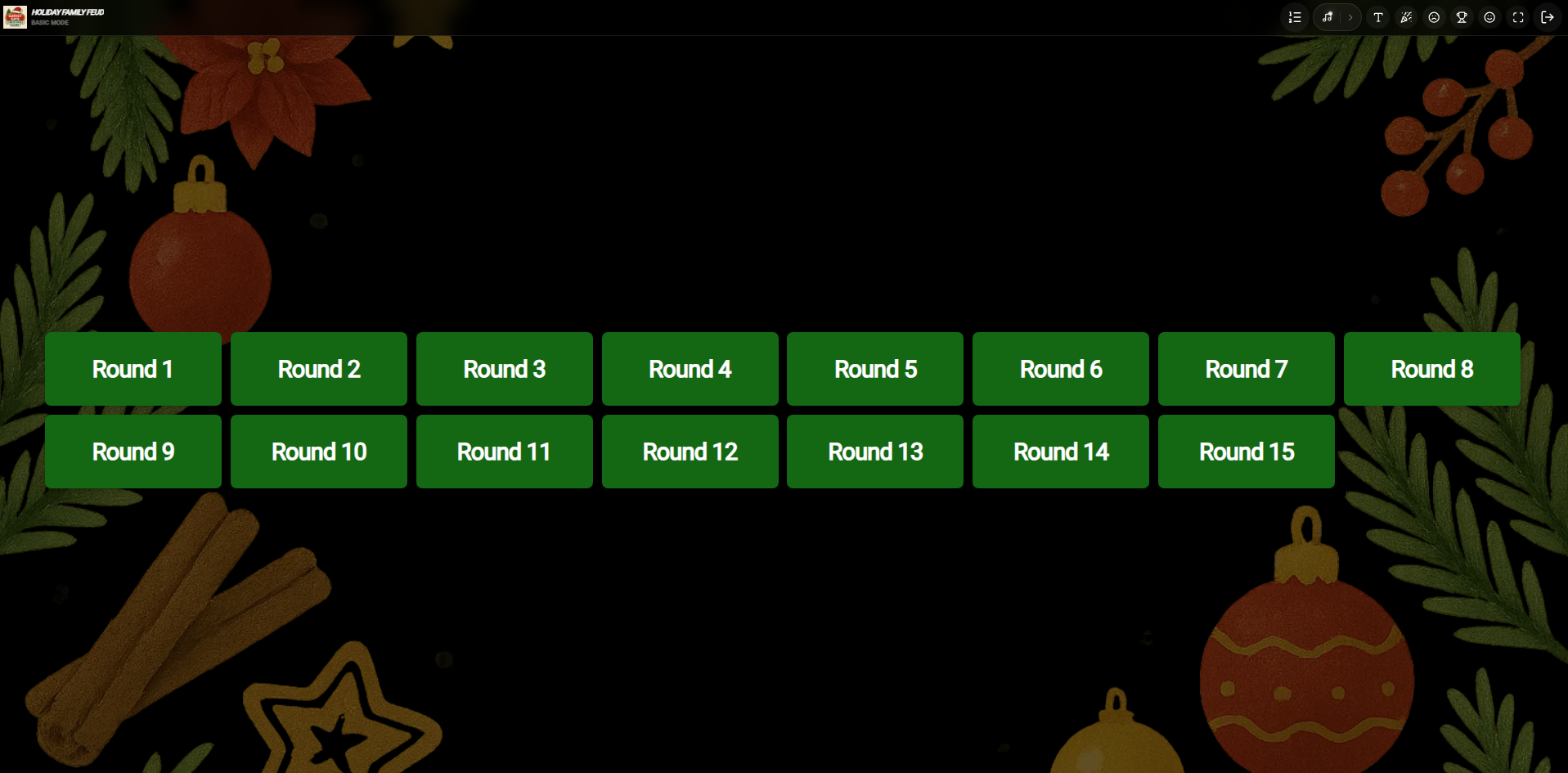 Round screen showing categories and team grid
Topbar Navigation & Icons
Leaderboard
Click this icon to open the game leaderboard and view the current team standings during the game.
Play Music
Click this icon to play or pause the theme song/background music during gameplay.
Font Size
Click this icon to adjust the font size.
Clap
Click this icon to play a clapping sound effect, perfect for celebrating correct answers or team achievements.
Sad Face
Click this icon to play a sad sound effect, typically used when a team answers incorrectly.
Winner
Click this icon to skip directly to the winner screen and see the final results and leaderboard.
Fullscreen
Click this icon to toggle fullscreen mode for a more immersive gameplay experience.
Exit
Click this icon to exit the game and return to the main dashboard or game selection screen.
Round Name Screen
The Round Name Screen introduces the upcoming round details with high-impact bold graphics.
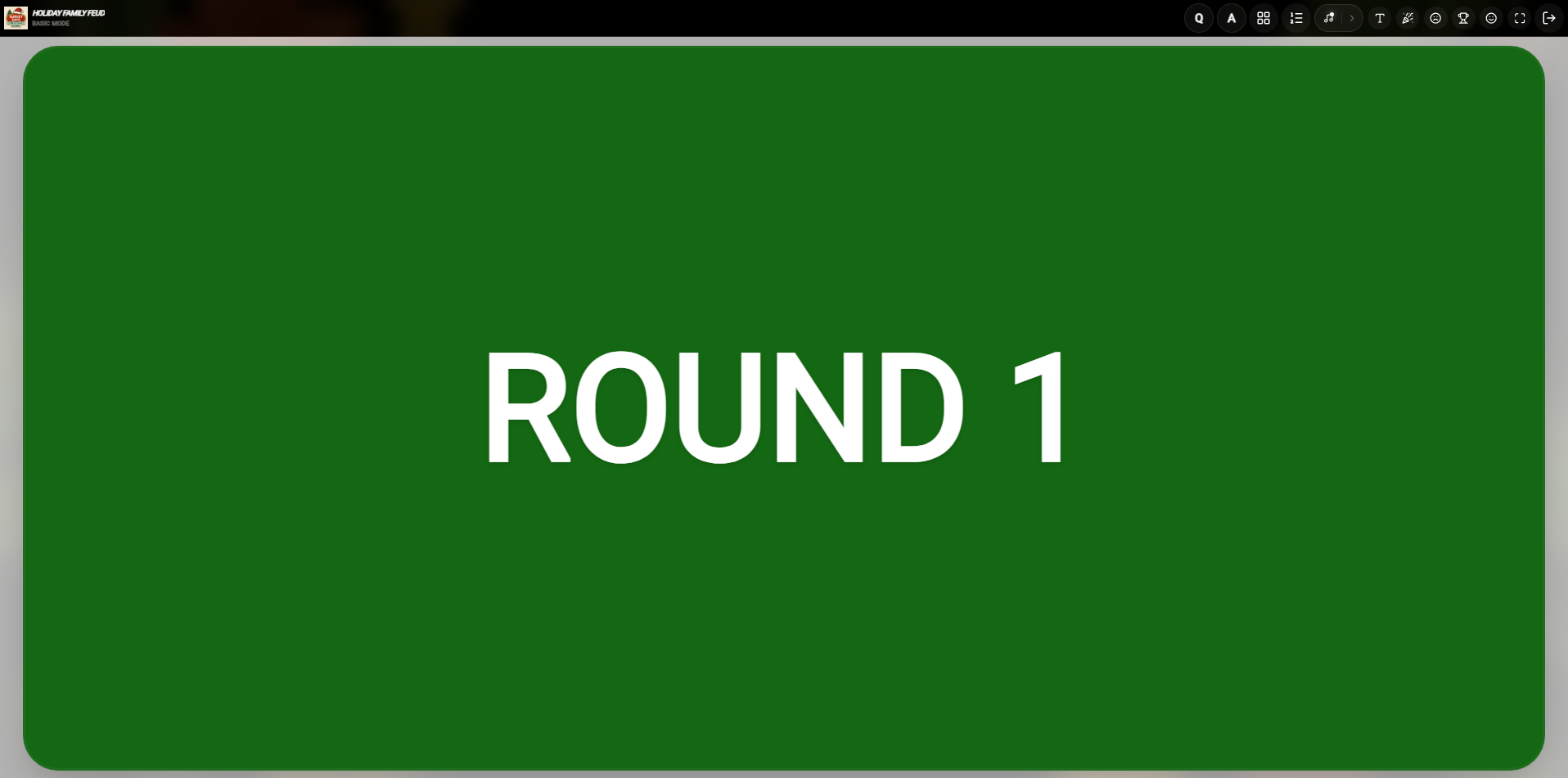 Round Name screen introducing the selected round
Topbar Navigation & Icons
Leaderboard
Click this icon to open the game leaderboard and view the current team standings during the game.
Play Music
Click this icon to play or pause the theme song/background music during gameplay.
Round Screen
Click this icon to navigate back to the main Round selection screen.
Font Size
Click this icon to adjust the font size.
Clap
Click this icon to play a clapping sound effect, perfect for celebrating correct answers or team achievements.
Sad Face
Click this icon to play a sad sound effect, typically used when a team answers incorrectly.
Winner
Click this icon to skip directly to the winner screen and see the final results and leaderboard.
Fullscreen
Click this icon to toggle fullscreen mode for a more immersive gameplay experience.
Exit
Click this icon to exit the game and return to the main dashboard or game selection screen.
Question Screen
The Question Screen presents the active question category and prompt elements in bold contrast.
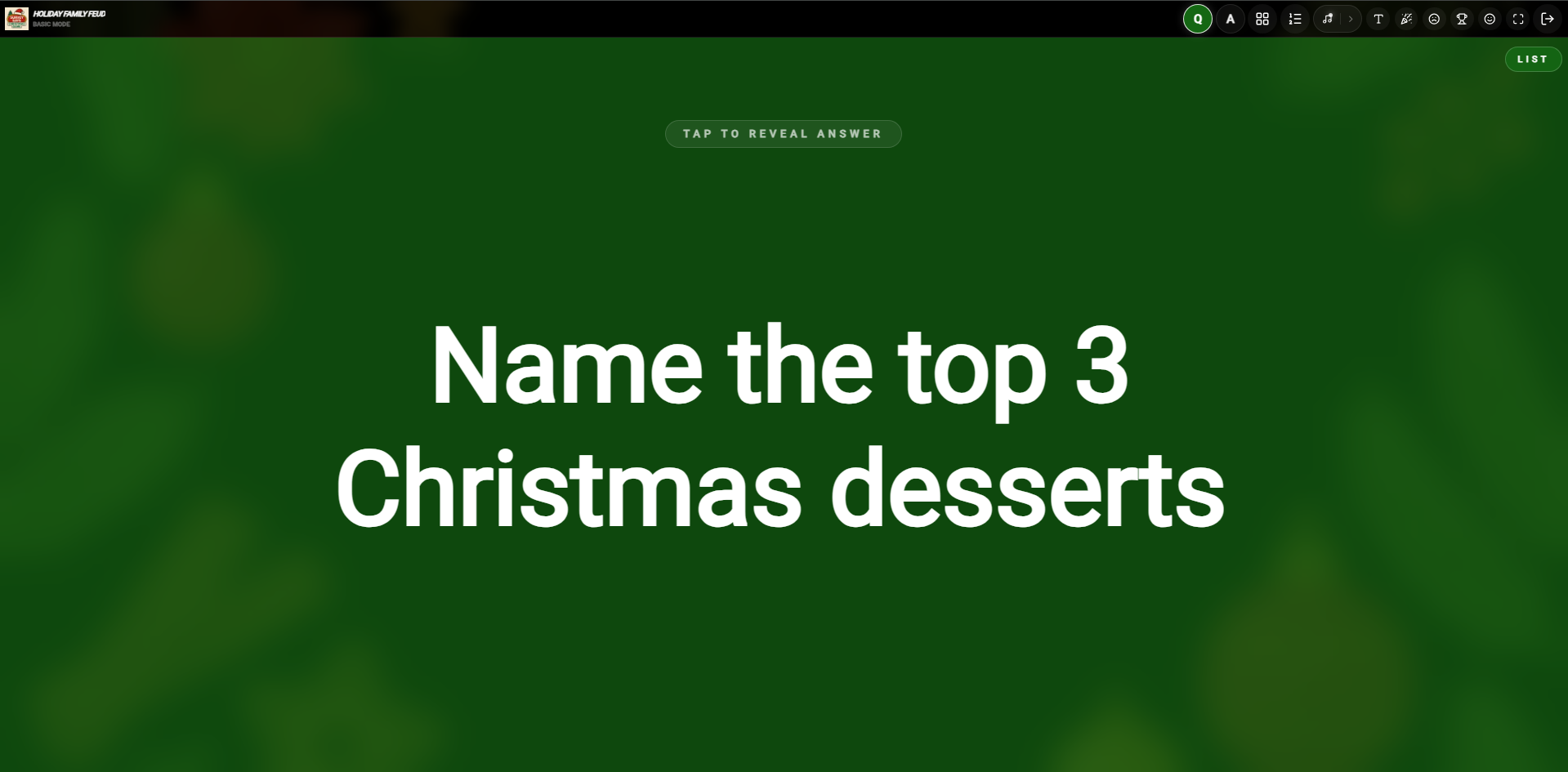 Question screen displaying active quiz items
Topbar Navigation & Icons
Leaderboard
Click this icon to open the game leaderboard and view the current team standings during the game.
Play Music
Click this icon to play or pause the theme song/background music during gameplay.
Round Screen
Click this icon to navigate back to the main Round selection screen.
Font Size
Click this icon to adjust the font size.
Clap
Click this icon to play a clapping sound effect, perfect for celebrating correct answers or team achievements.
Sad Face
Click this icon to play a sad sound effect, typically used when a team answers incorrectly.
Winner
Click this icon to skip directly to the winner screen and see the final results and leaderboard.
Fullscreen
Click this icon to toggle fullscreen mode for a more immersive gameplay experience.
Exit
Click this icon to exit the game and return to the main dashboard or game selection screen.
Play Screen
The Play Screen features the active list of questions, options list, and scorekeeping controls.
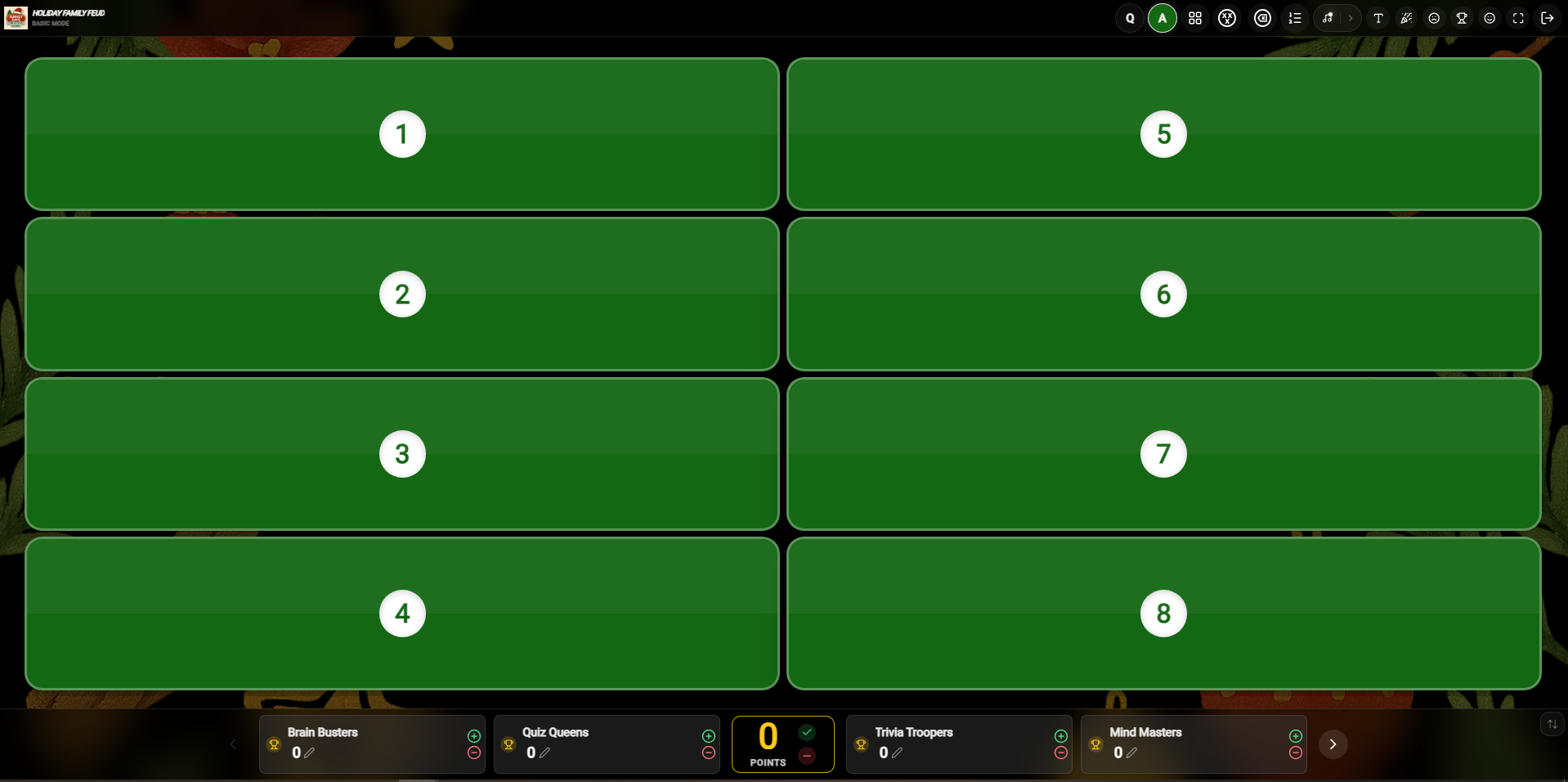
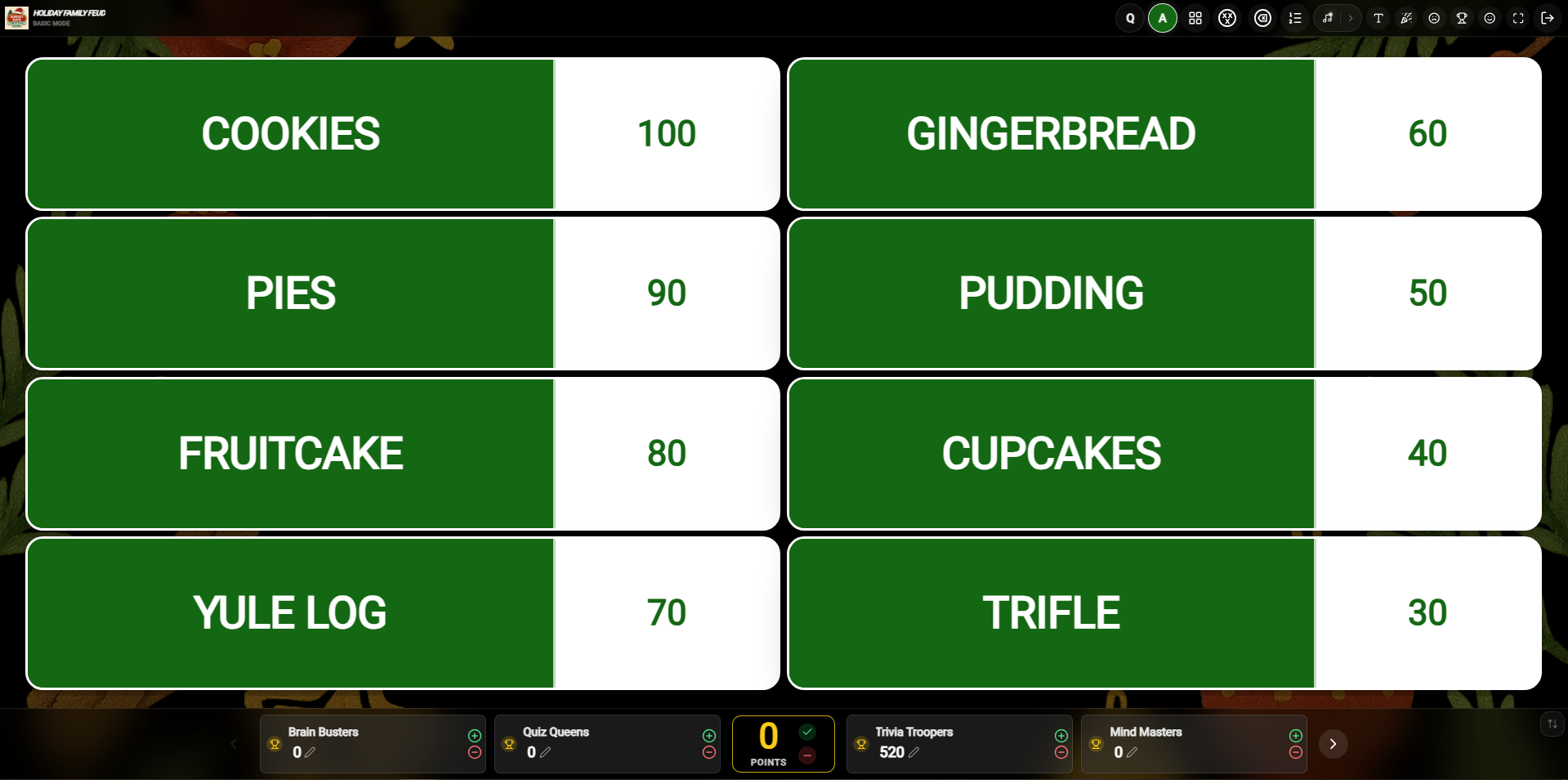 List Style gameplay play screens showing timer, questions list, and answers with scoreboard controls
Topbar Navigation & Icons
Leaderboard
Click this icon to open the game leaderboard and view the current team standings during the game.
Play Music
Click this icon to play or pause the theme song/background music during gameplay.
Round Screen
Click this icon to navigate back to the main Round selection screen.
Font Size
Click this icon to adjust the font size.
Clap
Click this icon to play a clapping sound effect, perfect for celebrating correct answers or team achievements.
Sad Face
Click this icon to play a sad sound effect, typically used when a team answers incorrectly.
Winner
Click this icon to skip directly to the winner screen and see the final results and leaderboard.
Fullscreen
Click this icon to toggle fullscreen mode for a more immersive gameplay experience.
Exit
Click this icon to exit the game and return to the main dashboard or game selection screen.
Explanation
Click this icon to show the correct answer explanation that you added during game creation.
Image Expansion
Click this icon (located on the question image) to expand the image to full screen for better visibility.
Edit Score
Click this icon (next to a team name) to manually adjust a team's score during the game.
Winner Screen
The Winner Screen features celebratory podium stands alongside final cumulative team scores.
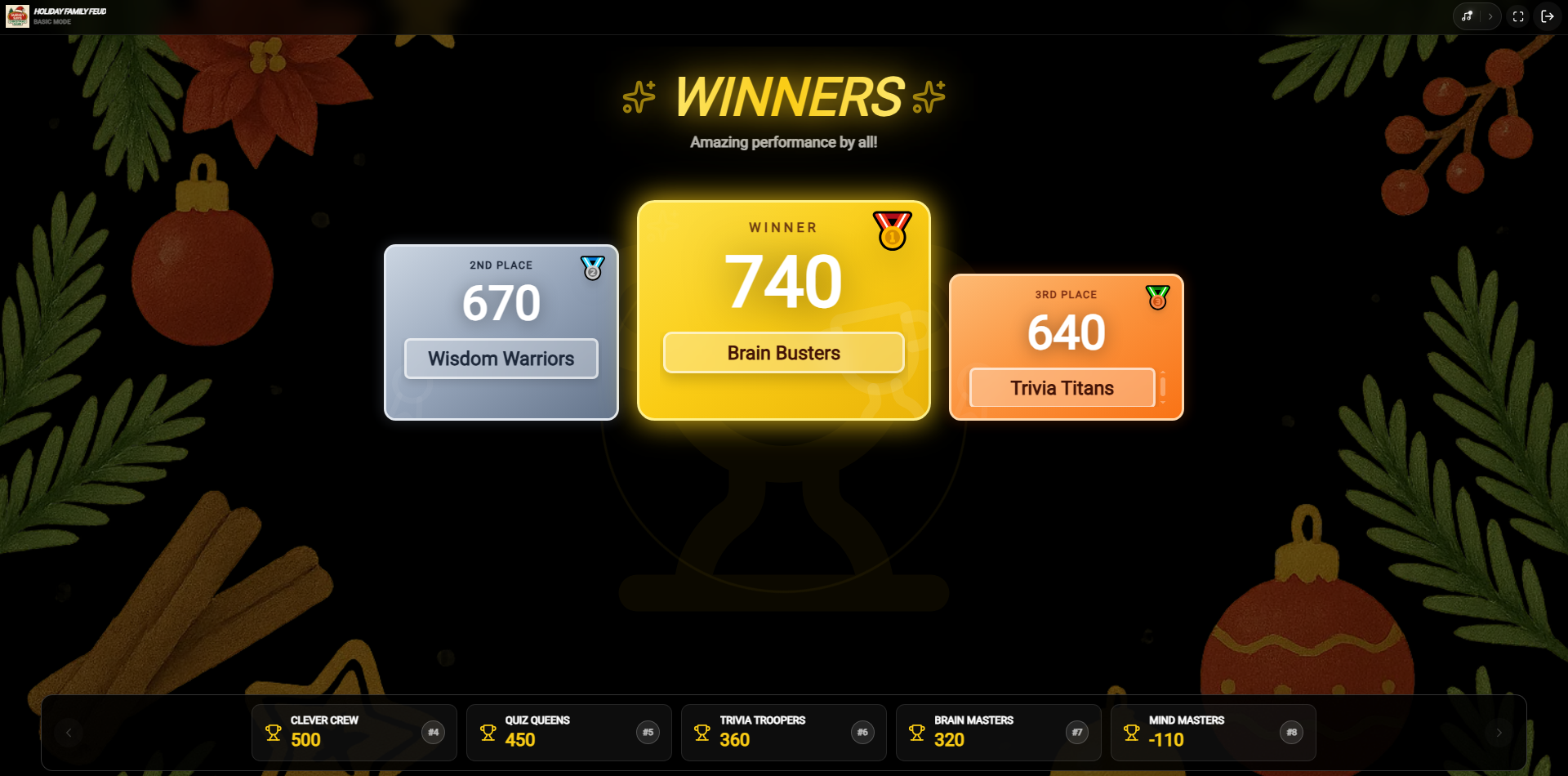 Winner and scoreboard summary podium screen celebrating the champion team
Topbar Navigation & Icons
Play Music
Click this icon to play the winner's theme or celebratory background music.
Fullscreen
Click this icon to toggle fullscreen mode for a more victory celebration.
Exit
Click this icon to exit the game and return to your dashboard.
Controller Presenter Mode
To use the Controller Presenter mode, simply click on the Presenter button to turn it ON in your game settings. This allows you to host the game professionally from one device (your controller) while projecting the clean gameplay interface to your audience on a second screen.
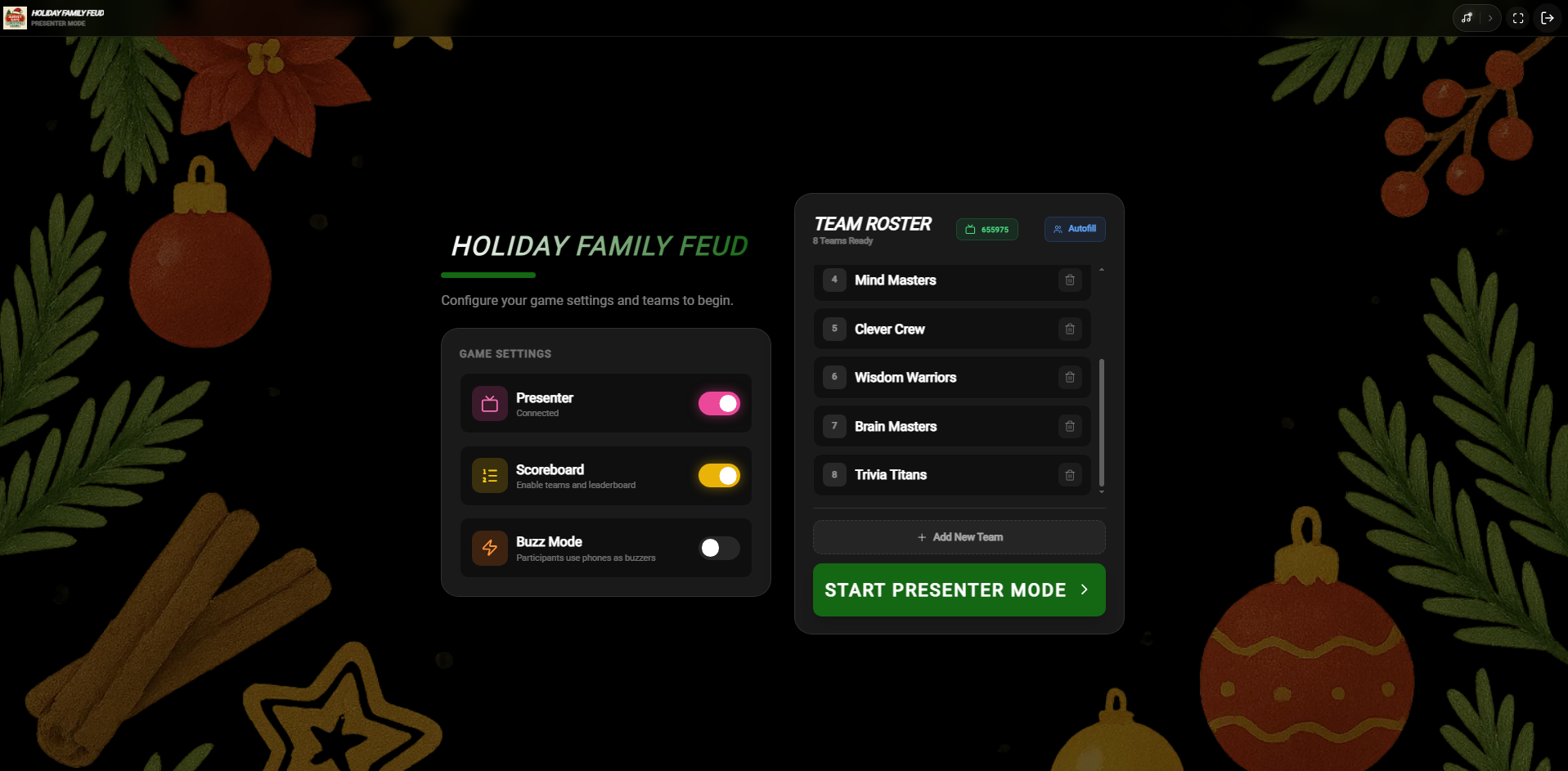 Controller and Presenter Mode view
Connecting the Presenter Display
When you turn the Presenter setting ON, a Presenter Control popup will immediately appear on your controller device asking for a 6-digit code.
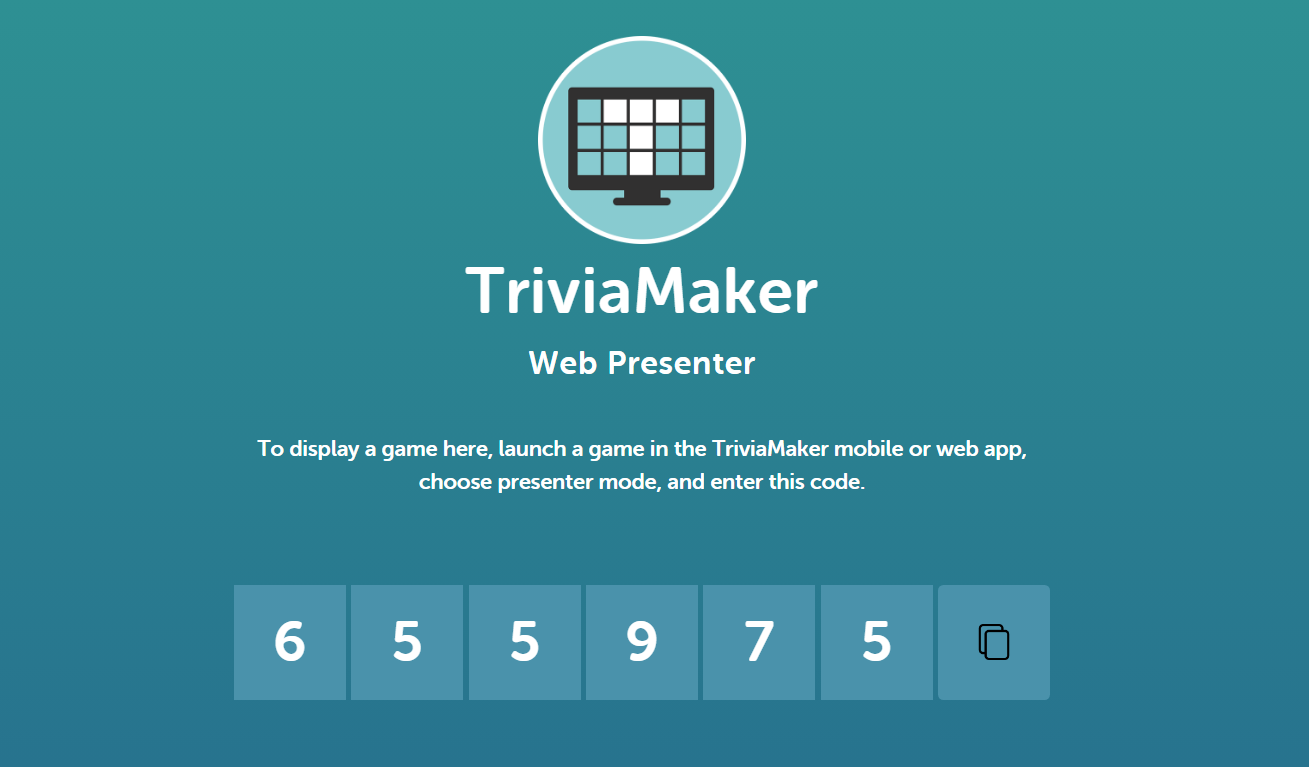 The Presenter Control popup waiting for your 6-digit code
To get this code, open your second device (like a classroom projector, TV, or secondary monitor) and navigate to triviamaker.com/presenter/. Click on Show Code.
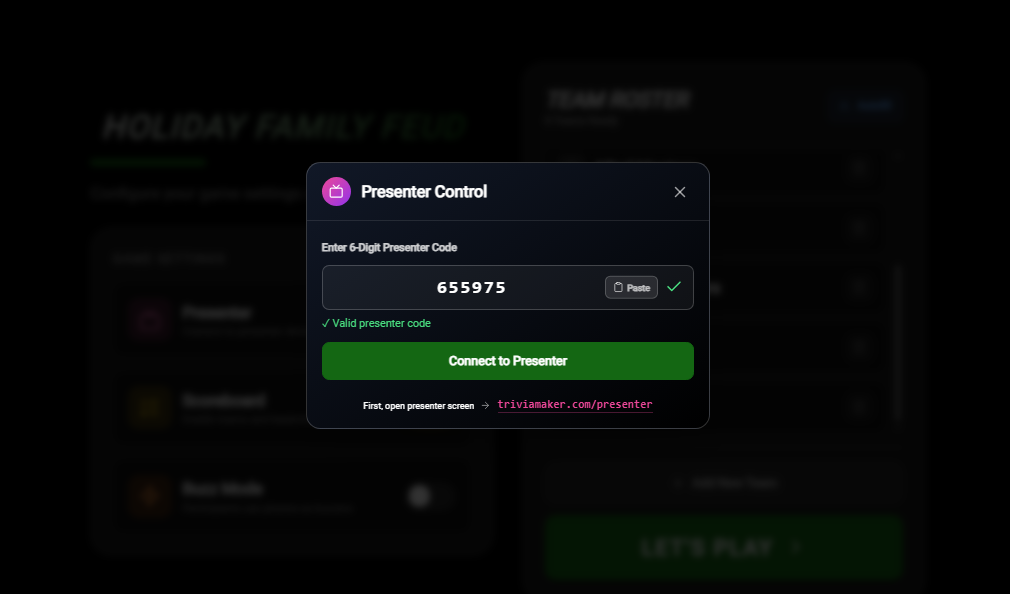 Your 6-digit connection code is revealed on the presenter lobby display
Finally, enter that 6-digit code back into the popup on your controller device and click Start Presenter Mode.
Round / Category List Screens
Presenter Round Screen
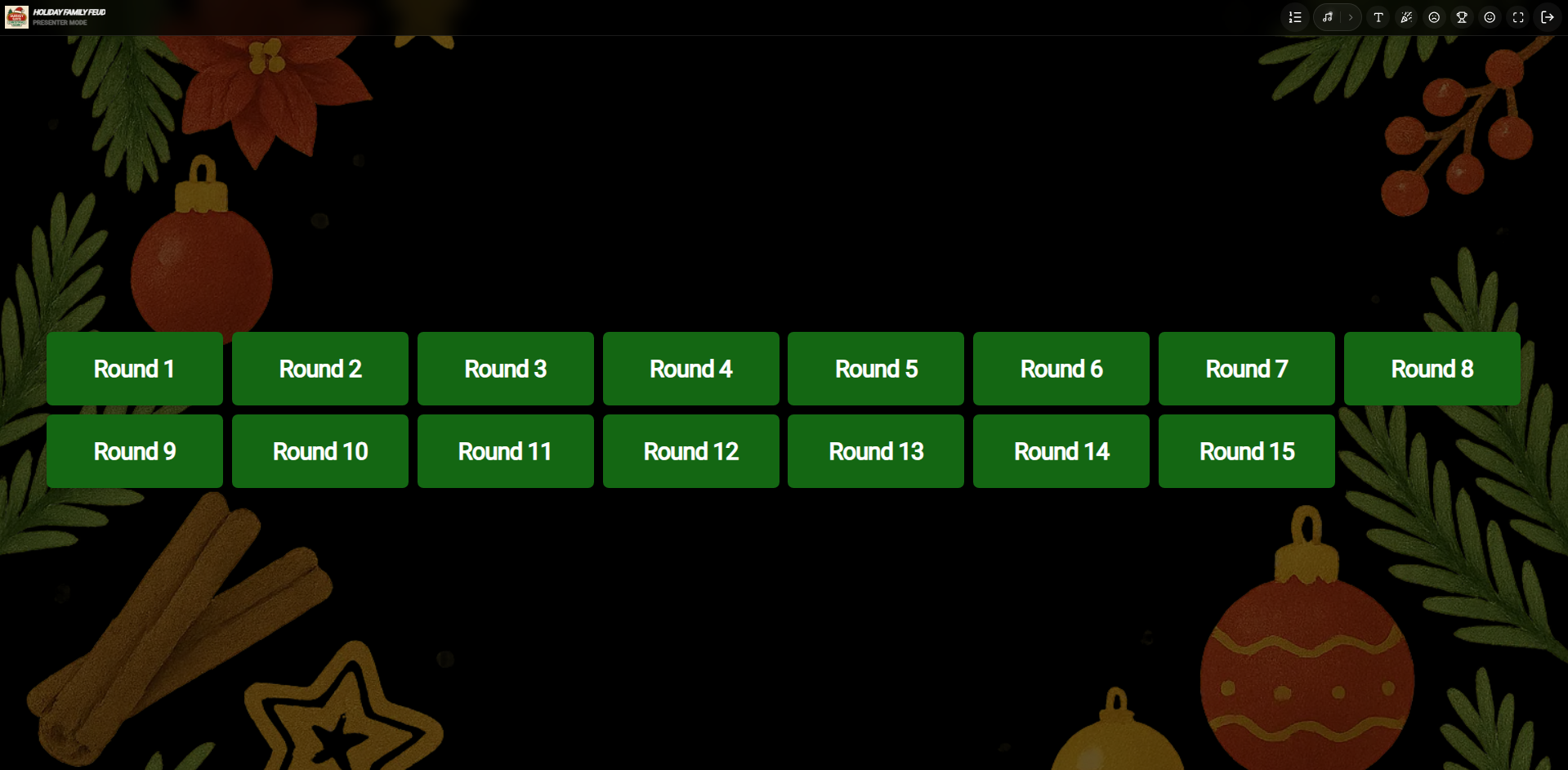
Controller Screen (Round & Team Standings)
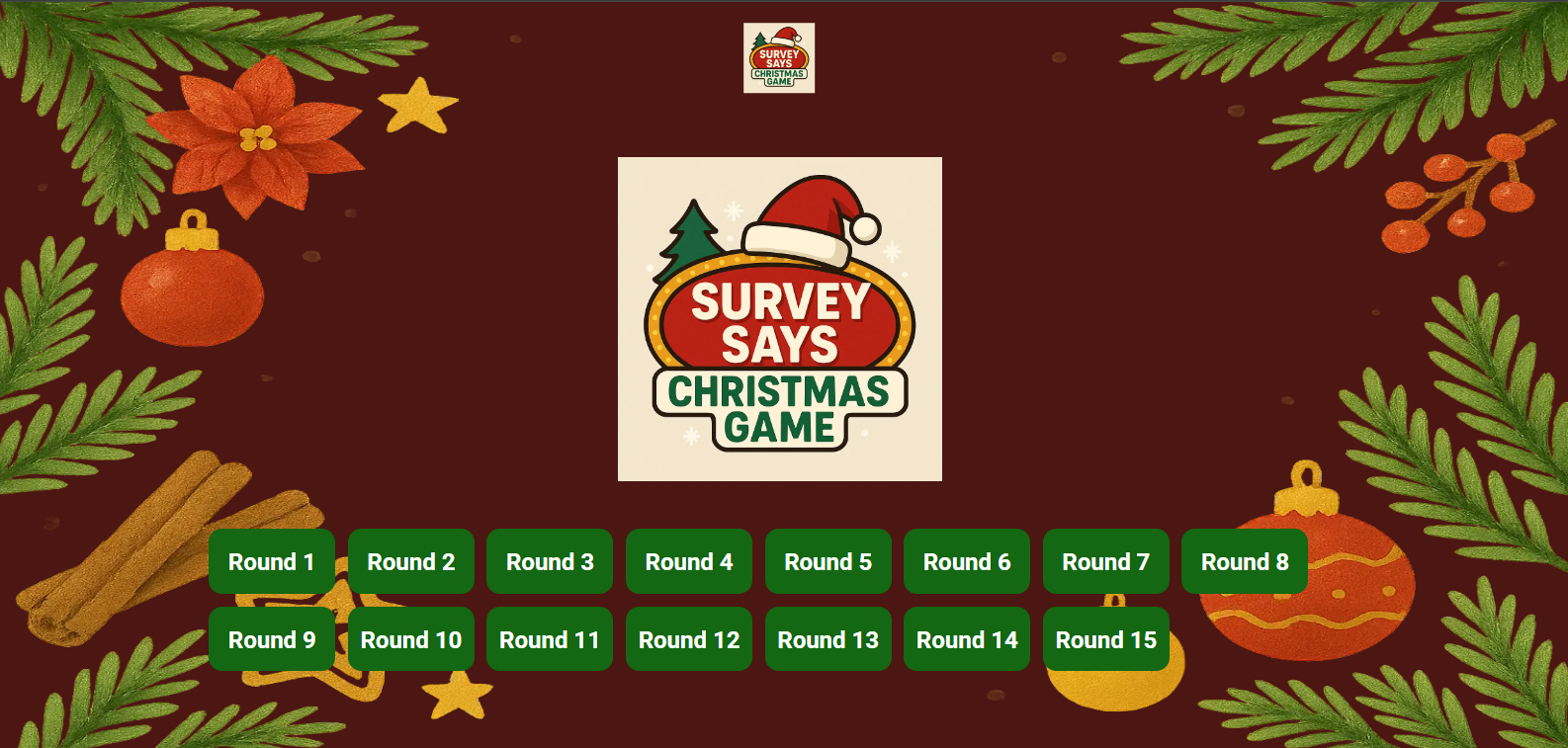
The Presenter Round Screen displays the active category list in high-contrast tiles to the audience. The Controller Screen displays full team standings, scoring lists, and active controls, allowing the host to select which round or category to proceed with.
Topbar Navigation & Icons
Leaderboard
Click this icon to open the game leaderboard and view the current team standings during the game.
Play Music
Click this icon to play or pause the theme song/background music during gameplay.
Font Size
Click this icon to adjust the font size.
Clap
Click this icon to play a clapping sound effect, perfect for celebrating correct answers or team achievements.
Sad Face
Click this icon to play a sad sound effect, typically used when a team answers incorrectly.
Winner
Click this icon to skip directly to the winner screen and see the final results and leaderboard.
Fullscreen
Click this icon to toggle fullscreen mode for a more immersive gameplay experience.
Exit
Click this icon to exit the game and return to the main dashboard or game selection screen.
Round Name Screens
Presenter Round Name Screen
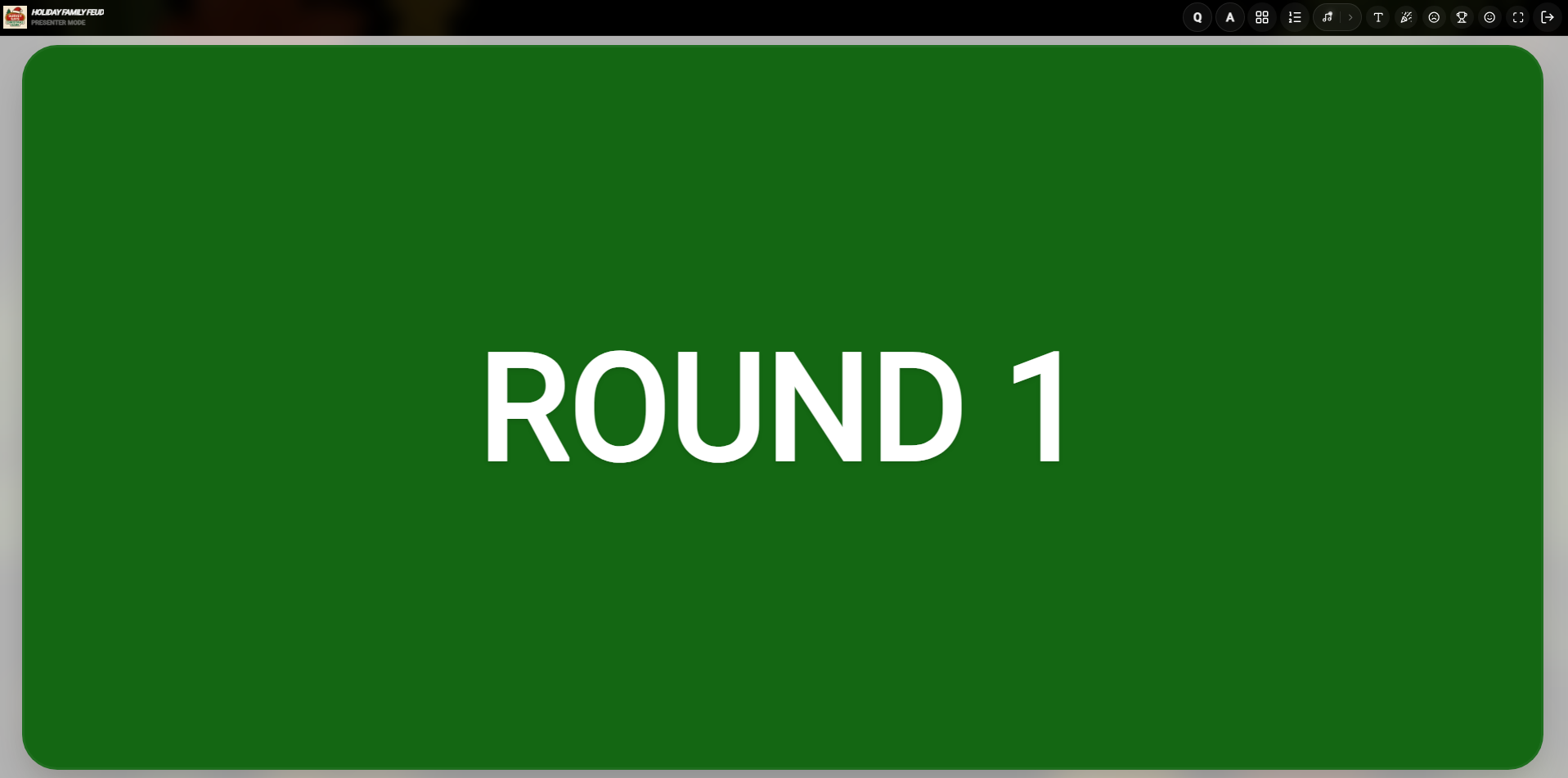
Controller Round Name Screen
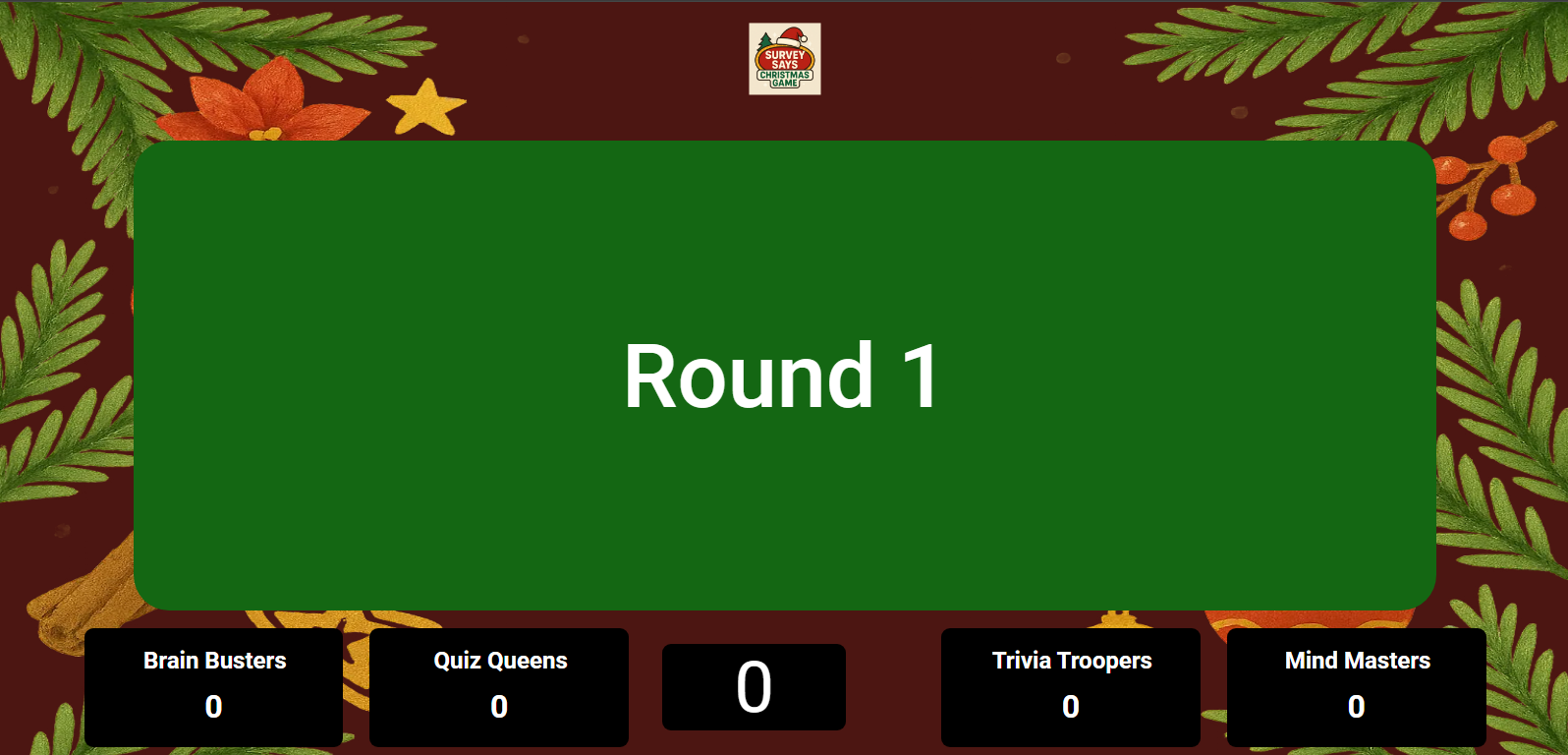
The Round Name Screen displays active round transition text directly to your audience while the controller displays advanced round summaries and ready-state controls.
Topbar Navigation & Icons
Leaderboard
Click this icon to open the game leaderboard and view the current team standings during the game.
Play Music
Click this icon to play or pause the theme song/background music during gameplay.
Category Screen
Click this icon to navigate back to the main category / round list screen.
Font Size
Click this icon to adjust the font size.
Clap
Click this icon to play a clapping sound effect, perfect for celebrating correct answers or team achievements.
Sad Face
Click this icon to play a sad sound effect, typically used when a team answers incorrectly.
Winner
Click this icon to skip directly to the winner screen and see the final results and leaderboard.
Fullscreen
Click this icon to toggle fullscreen mode for a more immersive gameplay experience.
Exit
Click this icon to exit the game and return to the main dashboard or game selection screen.
Question Screens
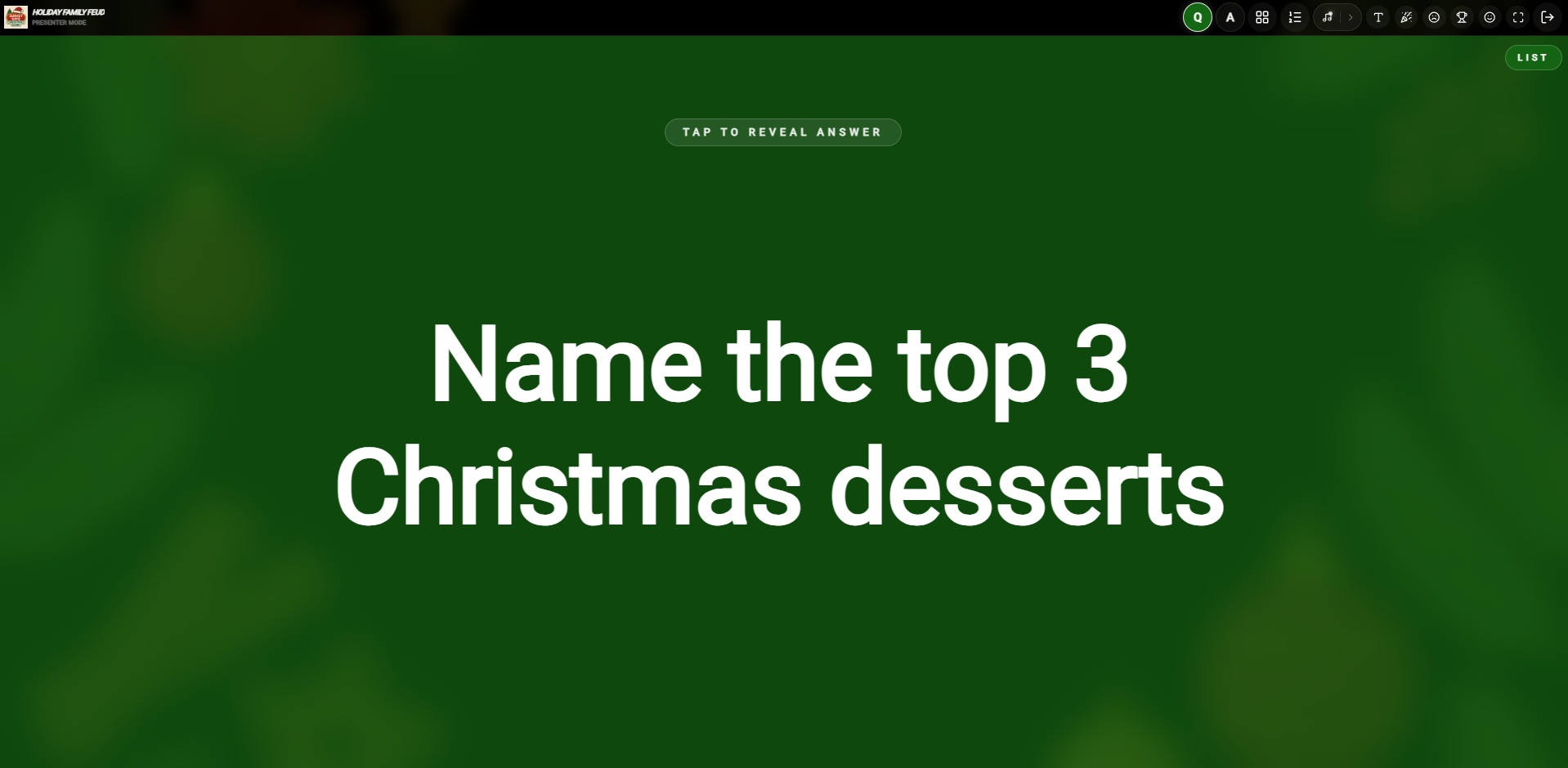
Presenter Question Screen
Controller Question Screen
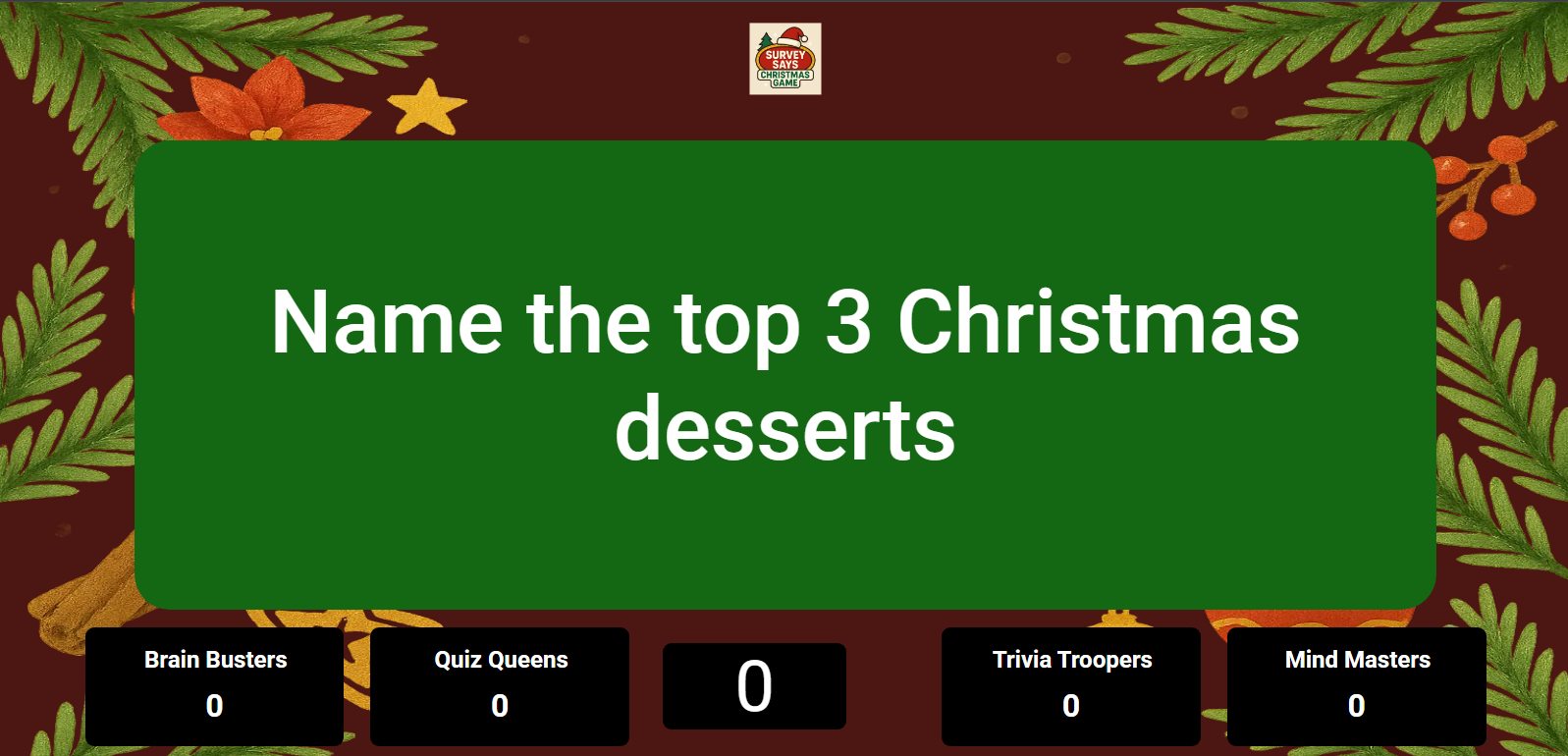
Once a category/round is chosen, the Question Screen displays. The Presenter Screen shows the category name and a clean, distraction-free prompt directly to the audience, while the Controller Screen lets the host view the underlying question details and proceed to reveal options or buzzers when ready.
Topbar Navigation & Icons
Leaderboard
Click this icon to open the game leaderboard and view the current team standings during the game.
Play Music
Click this icon to play or pause the theme song/background music during gameplay.
Font Size
Click this icon to adjust the font size.
Clap
Click this icon to play a clapping sound effect, perfect for celebrating correct answers or team achievements.
Sad Face
Click this icon to play a sad sound effect, typically used when a team answers incorrectly.
Winner
Click this icon to skip directly to the winner screen and see the final results and leaderboard.
Fullscreen
Click this icon to toggle fullscreen mode for a more immersive gameplay experience.
Exit
Click this icon to exit the game and return to the main dashboard or game selection screen.
Play Screens
Presenter Play Screen (Active state)
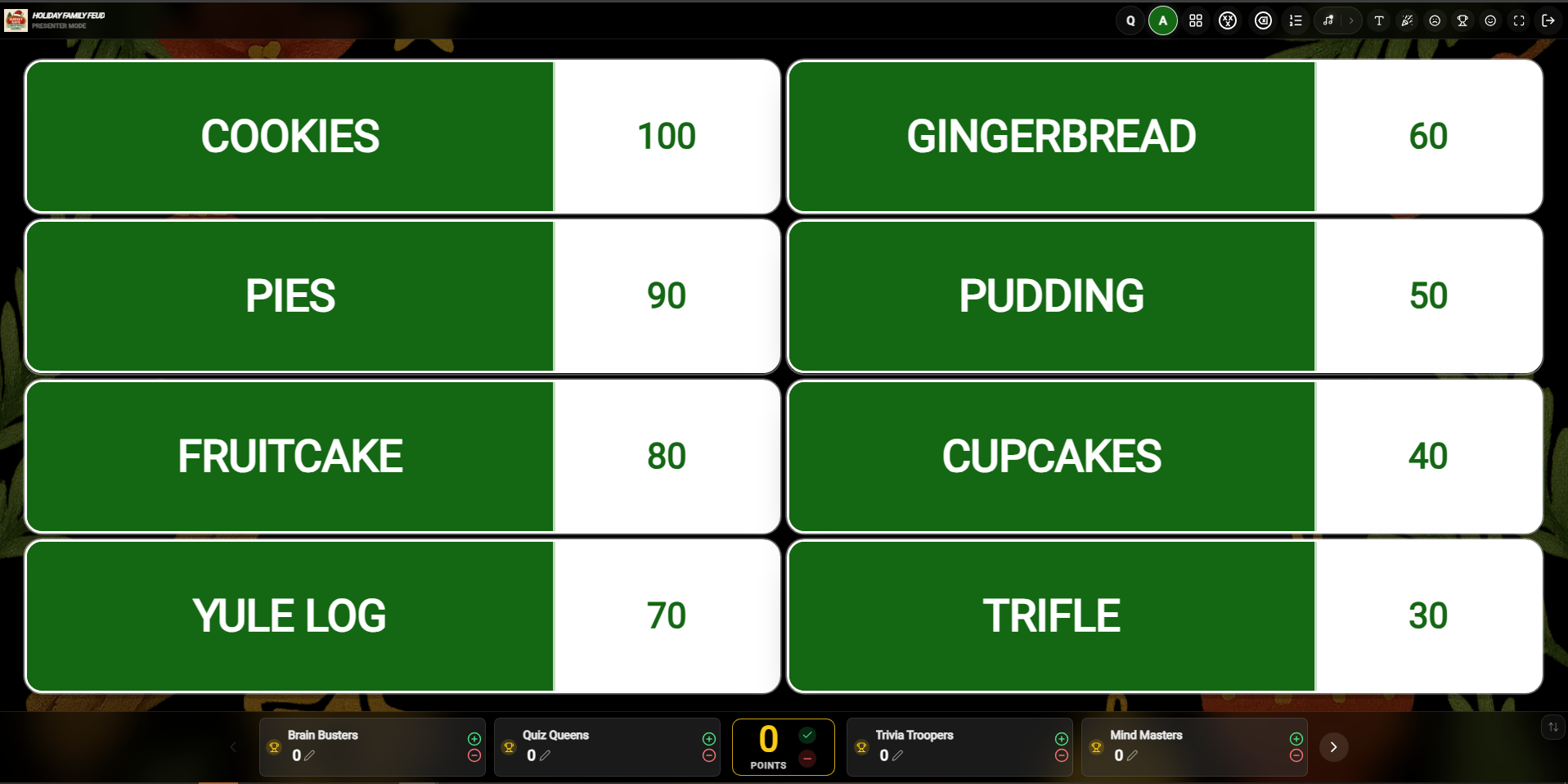
Controller Play Screen (Active state)
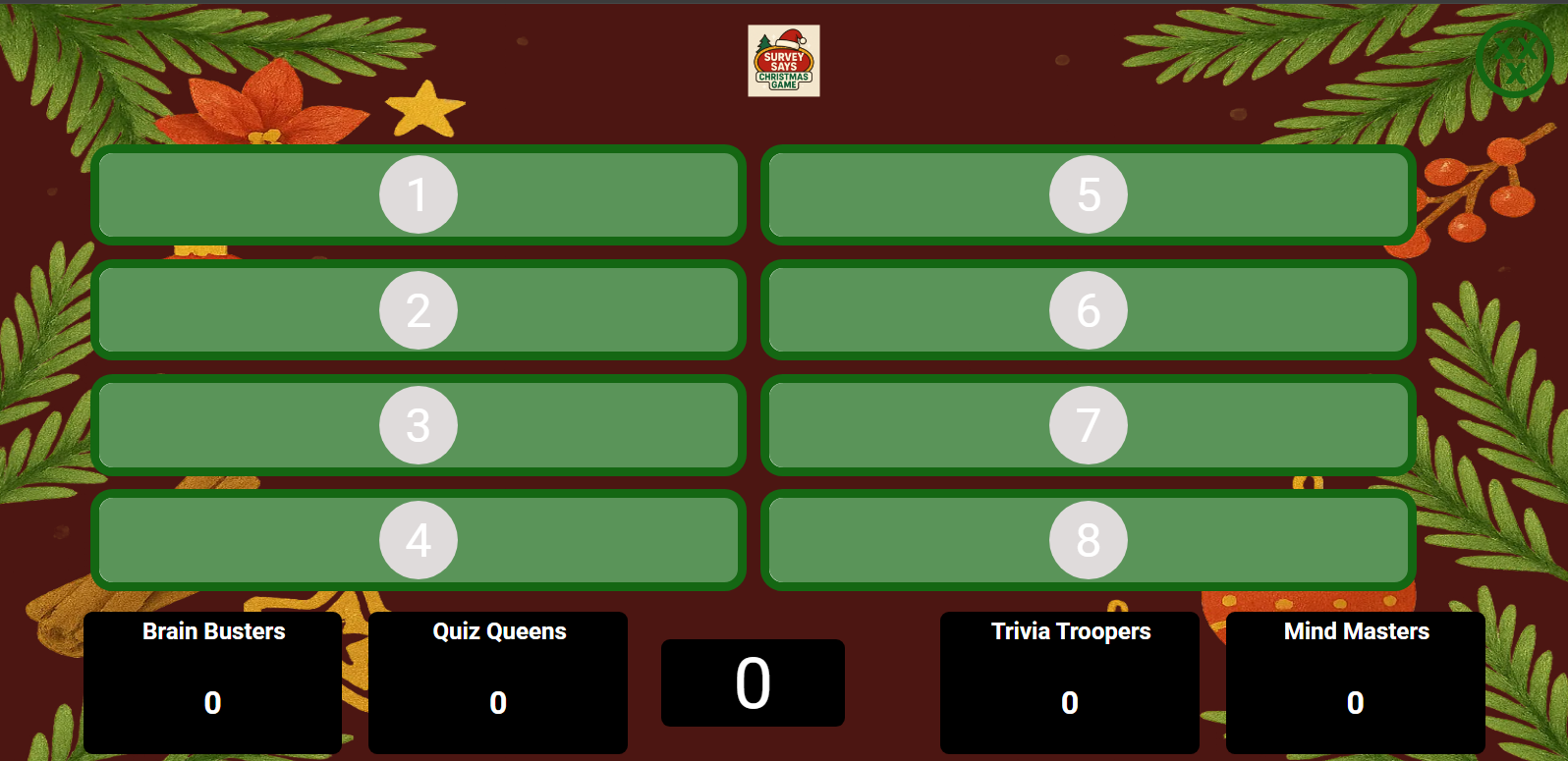
Presenter Play Screen (Reveal state)
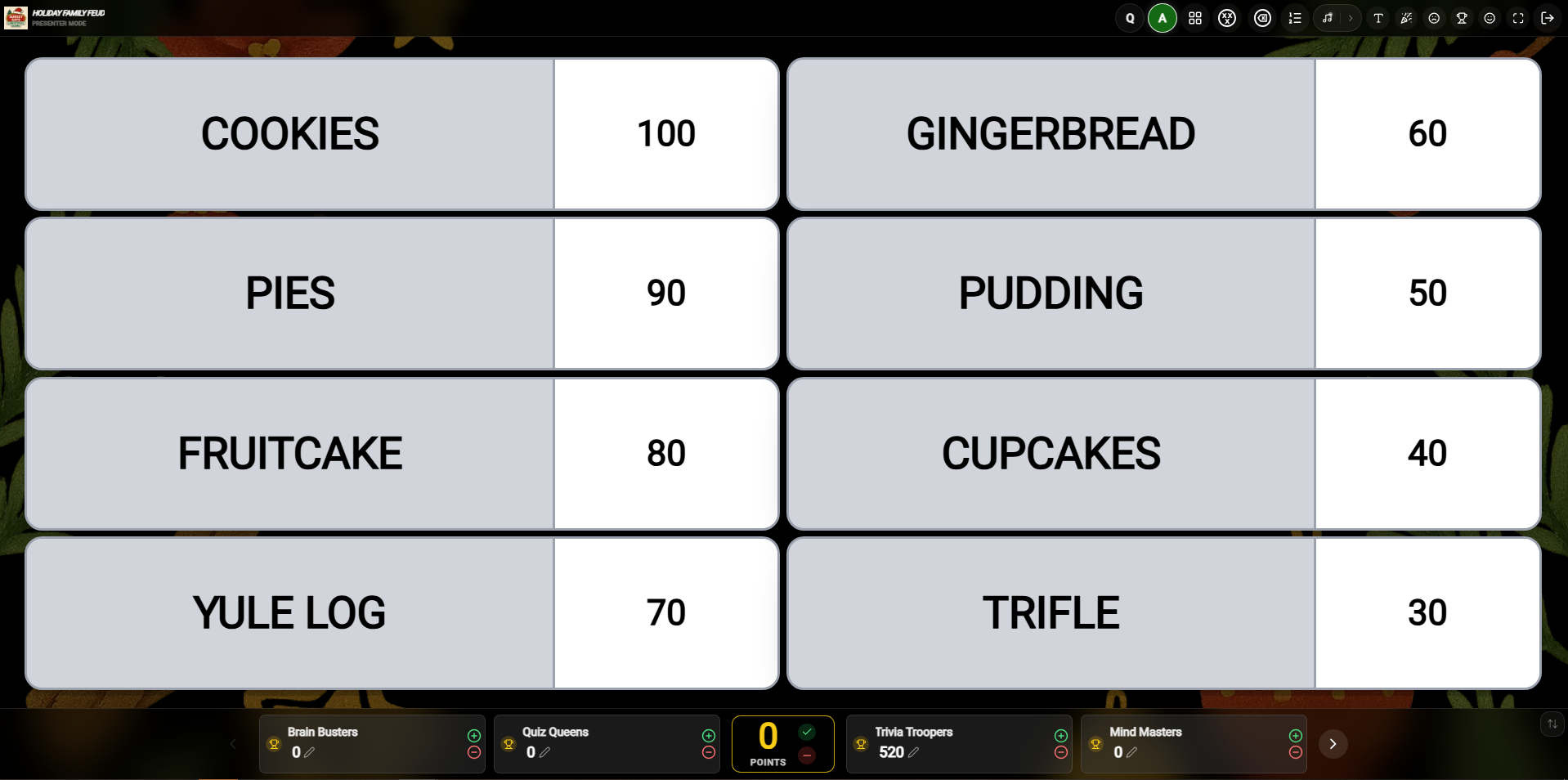
Controller Play Screen (Reveal state)
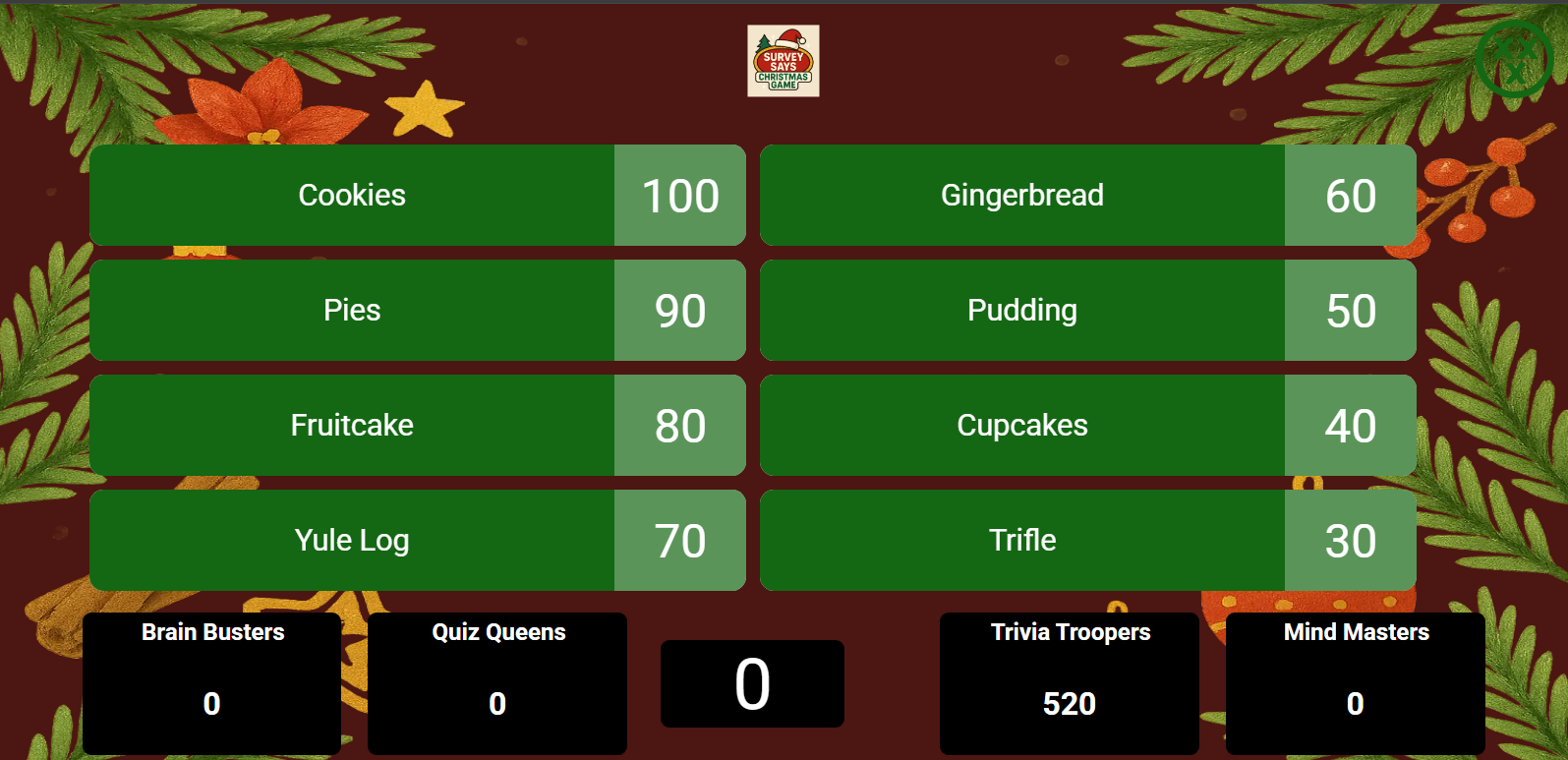
During active gameplay, the screen transitions to the Play Screen. The Controller Screen lets the host manage active timers, manually award points to teams, reveal answer items individually, or click on team score fields to make quick edits. The Presenter Screen displays active lists and highlighted revealed items dynamically to the audience.
Topbar Navigation & Icons
Leaderboard
Click this icon to open the game leaderboard and view the current team standings during the game.
Play Music
Click this icon to play or pause the theme song/background music during gameplay.
Font Size
Click this icon to adjust the font size.
Clap
Click this icon to play a clapping sound effect, perfect for celebrating correct answers or team achievements.
Sad Face
Click this icon to play a sad sound effect, typically used when a team answers incorrectly.
Winner
Click this icon to skip directly to the winner screen and see the final results and leaderboard.
Fullscreen
Click this icon to toggle fullscreen mode for a more immersive gameplay experience.
Exit
Click this icon to exit the game and return to the main dashboard or game selection screen.
Explanation
Click this icon to show the correct answer explanation that you added during game creation.
Image Expansion
Click this icon (located on the question image) to expand the image to full screen for better visibility.
Edit Score
Click this icon (next to a team name) to manually adjust a team's score during the game.
Final Results & Winner Screens
Presenter Winner Screen
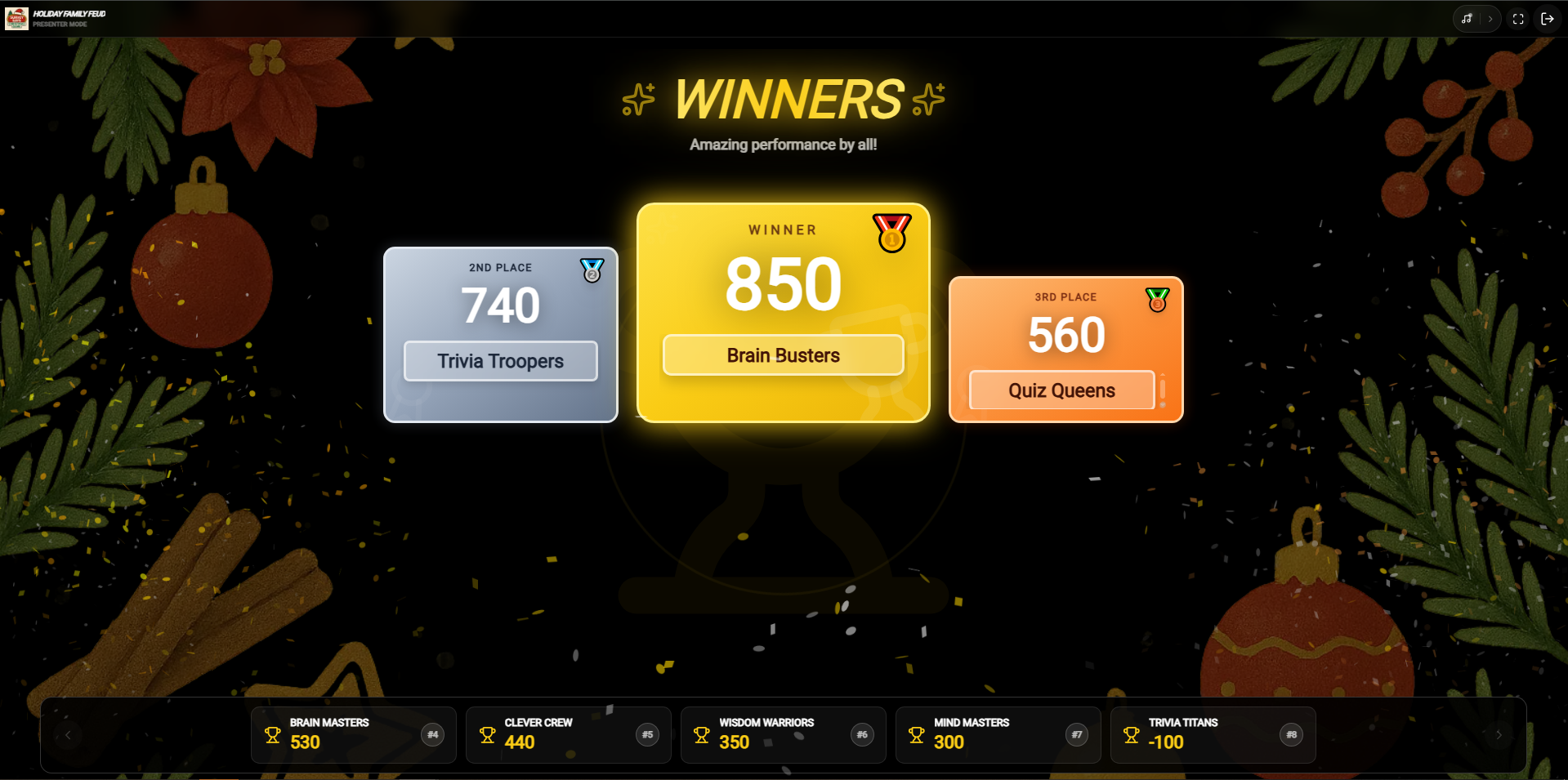
Controller Winner Screen
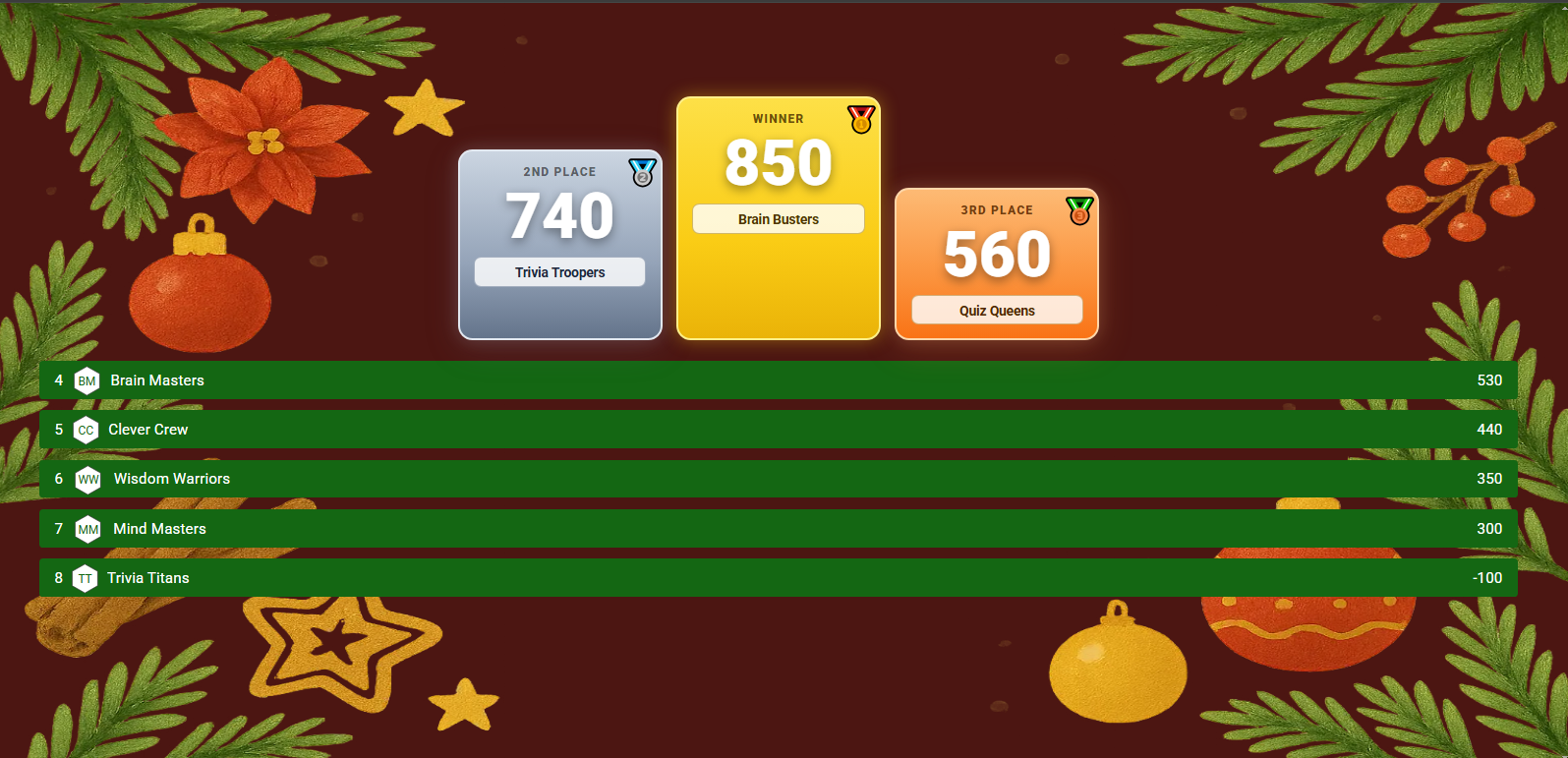
When the game concludes, clicking the Winner icon displays the final podium. The Presenter Screen projects a premium, animated victory celebration showing the top teams on the podium to the audience. The host can safely close, restart, or export the game standings from the controller.
Topbar Navigation & Icons
Play Music
Click this icon to play the winner's theme or celebratory background music.
Fullscreen
Click this icon to toggle fullscreen mode for a more victory celebration.
Exit
Click this icon to exit the game and return to your dashboard.
Basic Buzz Mode
Basic Buzz Mode transforms your list game into a high-energy competition. In this mode, players use their own smartphones or devices as wireless buzzers. The first person to "buzz in" locks out others and earns the opportunity to answer the question, creating a true game-show experience.
Launching Basic Buzz Mode
To launch Buzz Mode, first toggle the Buzz Mode switch to ON in your Game Settings panel before starting the session.
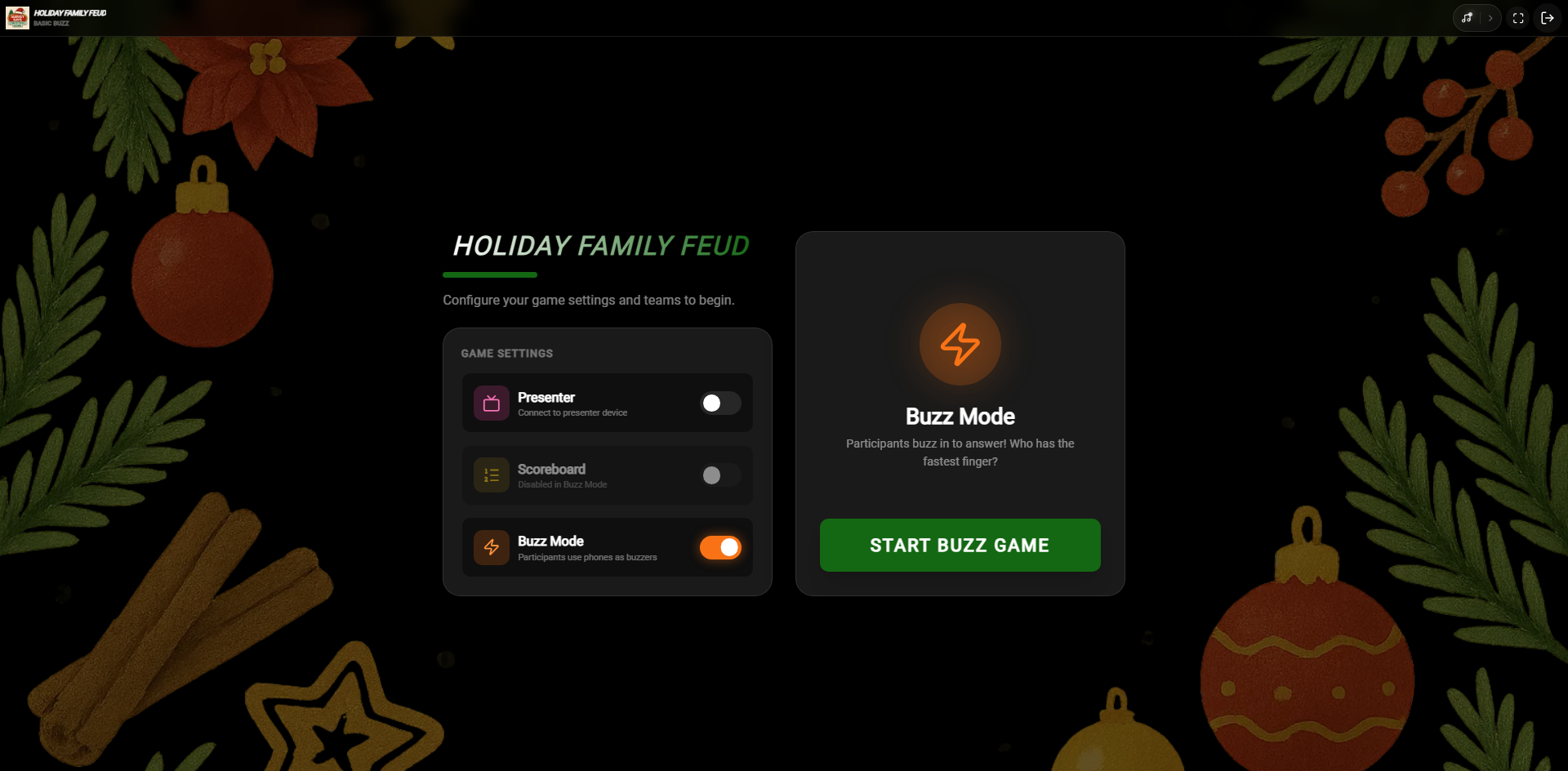 Turn the Buzz Mode toggle ON in the Game Settings popup
How it Works & Joining
Players scan the QR Code displayed on the lobby screen or click the Joining Link provided by the host. This loads the participant portal on their smartphones instantly.
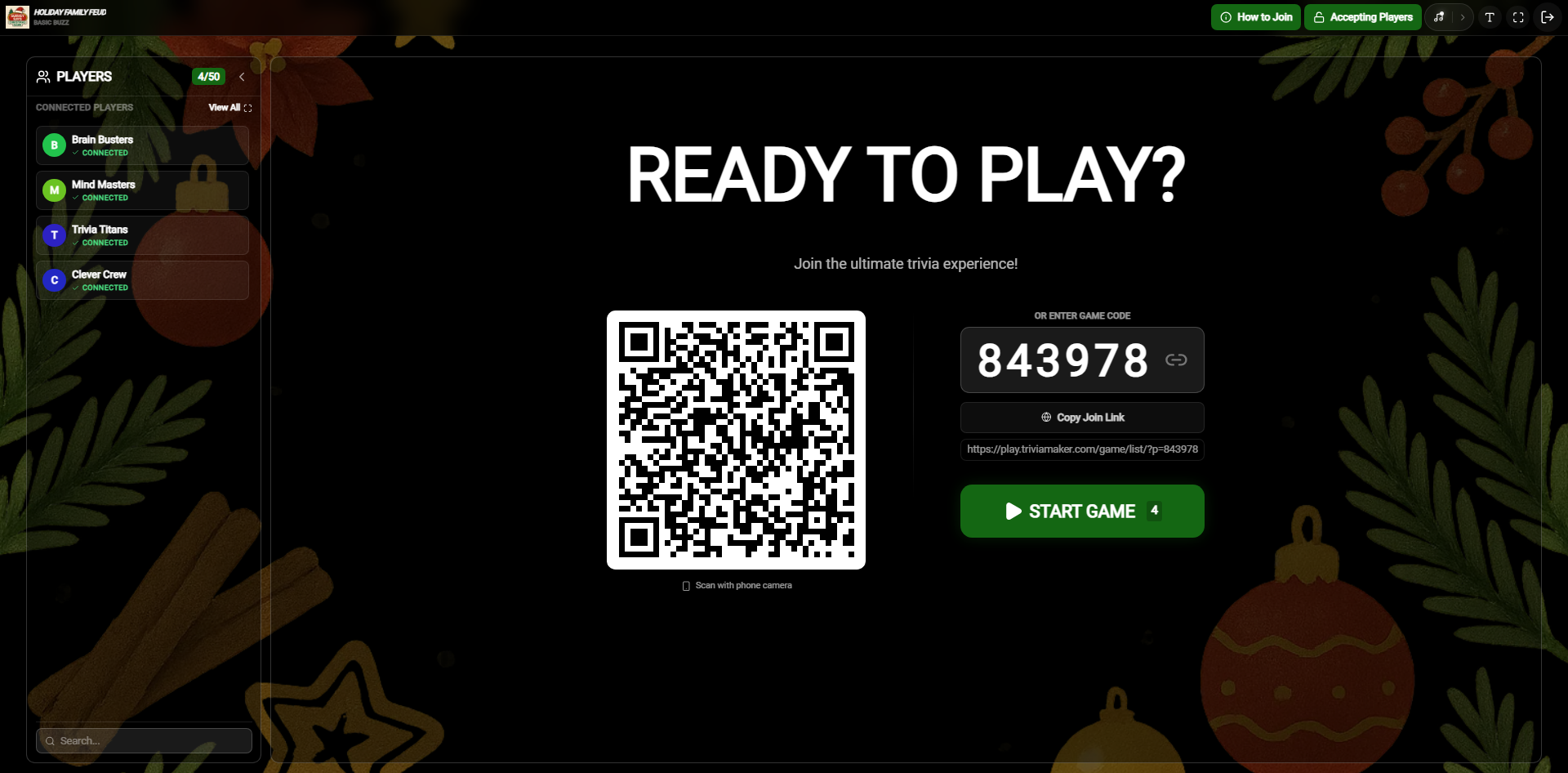 The connection screen showing instructions and QR code for incoming players
Topbar Navigation & Icons
How to Join
Click this button to display the joining instructions, including the QR code and joining link for your participants.
Copy Code
Click this icon to copy the unique 6-digit game code to your clipboard for sharing with participants.
Play Music
Click this icon to play or pause the theme song/background music during gameplay.
Font Size
Click this icon to adjust the font size.
Fullscreen
Click this icon to toggle fullscreen mode for a immersive gameplay experience.
Exit
Click this icon to exit the game and return to the main dashboard or game selection screen.
Once they've accessed the portal, players simply need to Enter their Name and click the Join button. They will then be ready to buzz in as soon as the question appears.
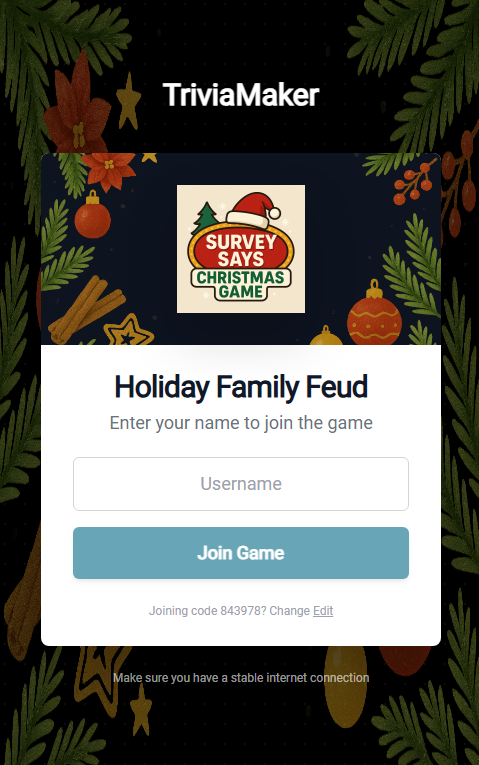 Step 1: Enter your name to join the buzz lobby
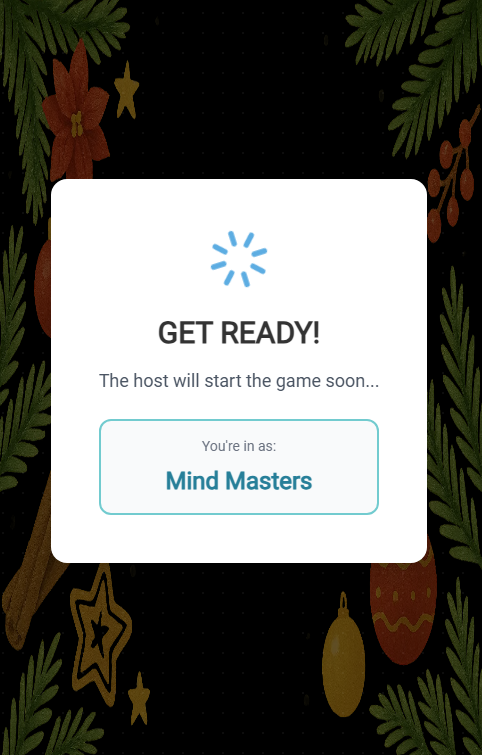 Step 2: Successfully connected and ready to buzz in
Connecting Participants & Starting the Game
As participants join, their names appear instantly in the Connected Participants list on the host's screen. Once everyone is in, the host clicks Let's Play to begin the gameplay.
Rounds Screens
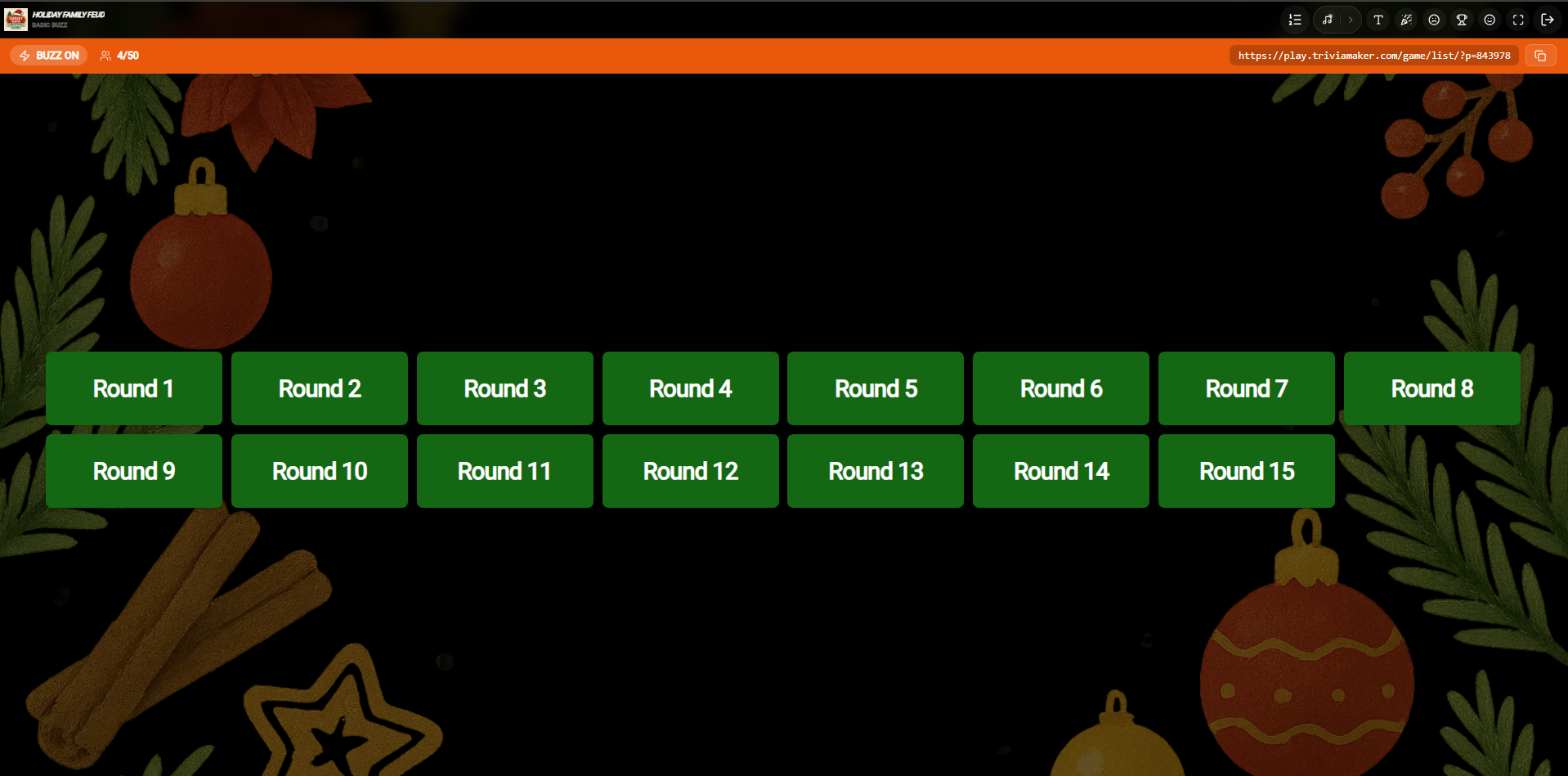
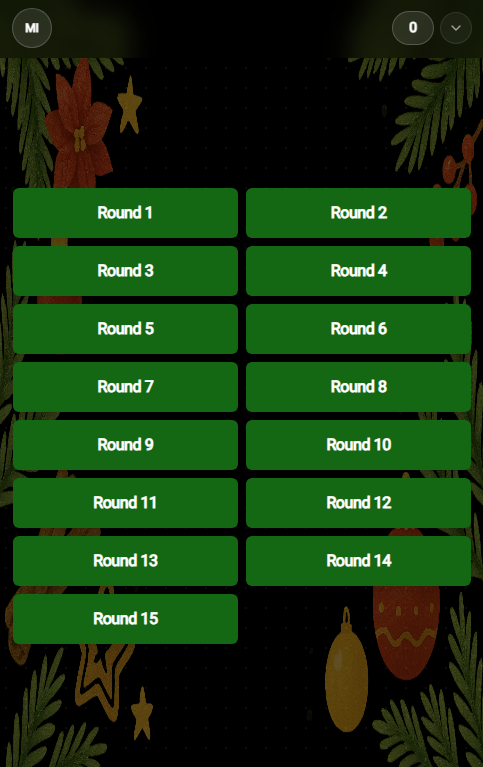
Before entering questions, the game shows the Round list. The Host Screen displays all available rounds/categories in the game, while the Participant Screen displays a waiting screen.
Host Round Screen
Participant Wait Screen
Round Name Screen
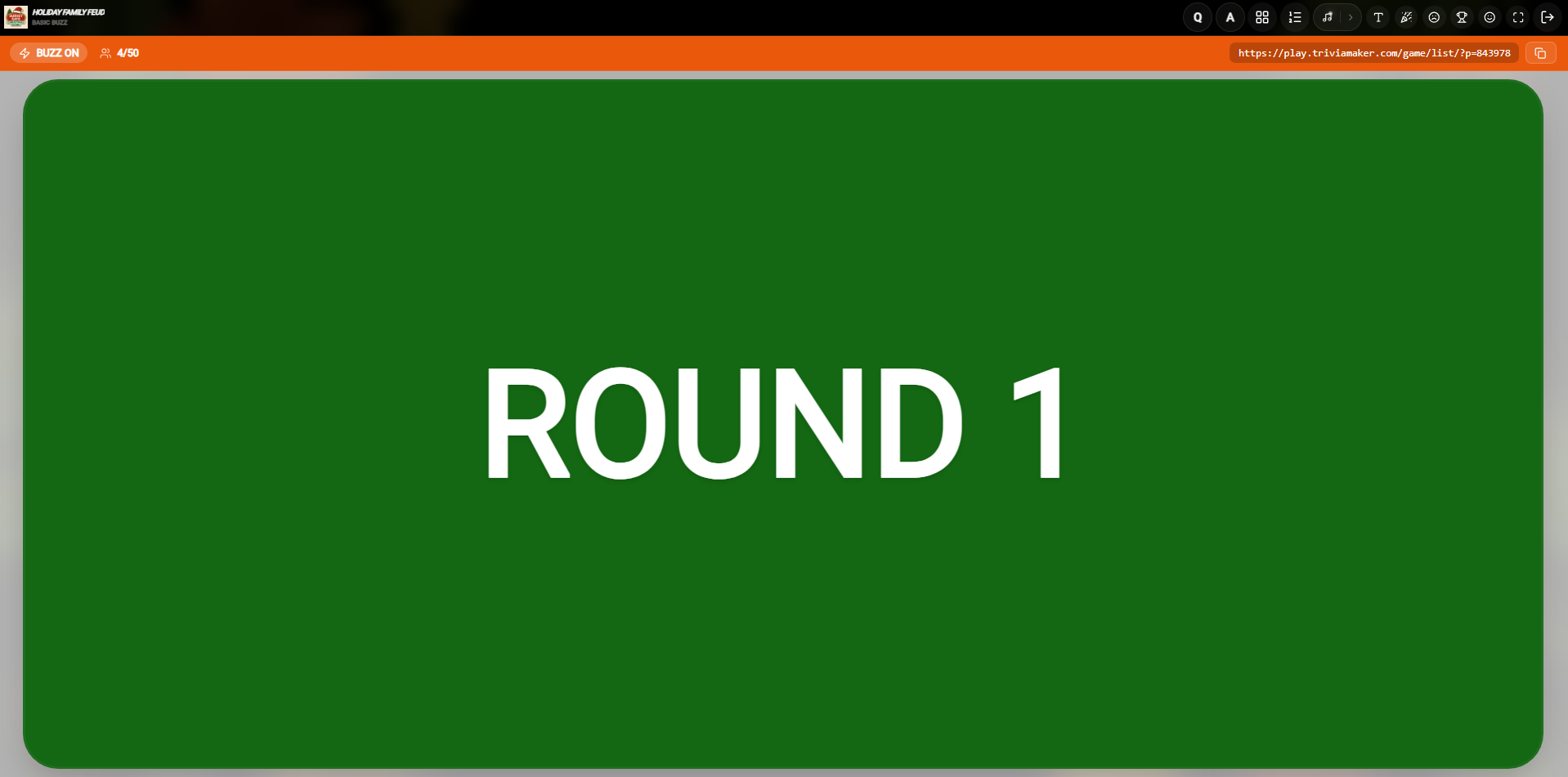
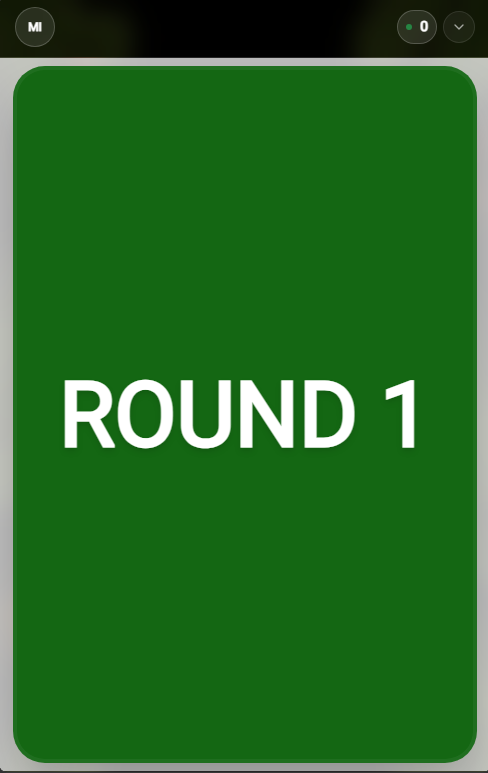
When a specific round starts, the Host Screen displays the Round Name, and the Participant Screen shows a synchronized wait message.
Host Round Name Screen
Participant Wait Screen
The Question Screen
Once the game starts, the Host Screen displays the question details and scoring list. The Participant Screen shows a waiting message until the buzzer is opened.
Host Question Screen
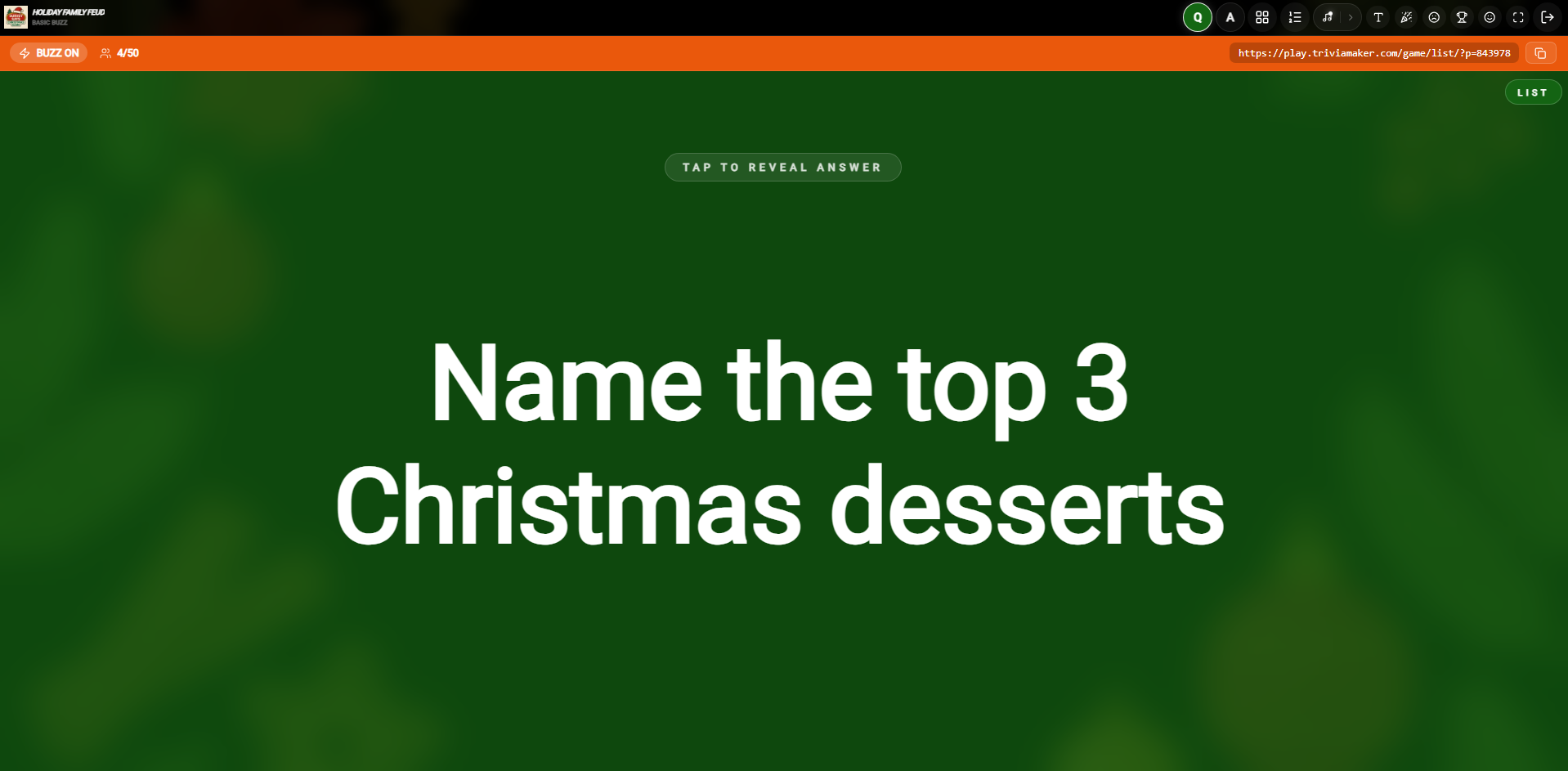
Participant Wait Screen
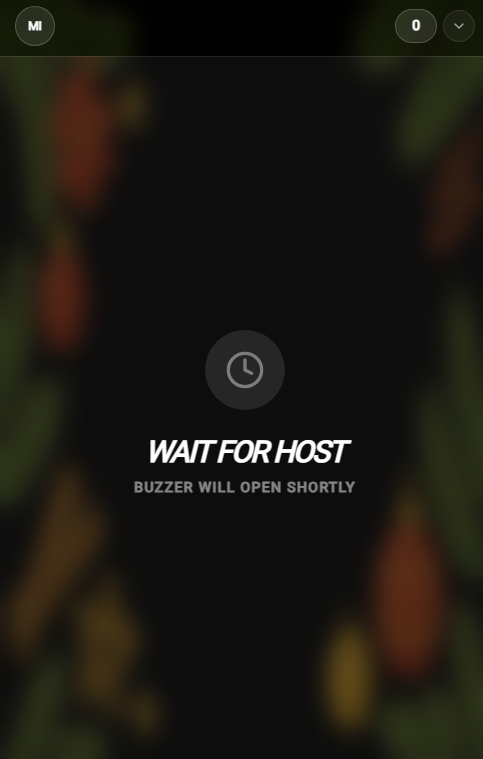
Question Screen - Buzz Mode Topbar Navigation & Icons
Leaderboard
Click this icon to open the game leaderboard and view the current team standings during the game.
Play Music
Click this icon to play or pause the theme song/background music during gameplay.
Font Size
Click this icon to adjust the font size.
Clap
Click this icon to play a clapping sound effect, perfect for celebrating correct answers or team achievements.
Sad Face
Click this icon to play a sad sound effect, typically used when a team answers incorrectly.
Happy Face
Click this icon to play a happy sound effect to cheer on participants.
Winner
Click this icon to skip directly to the winner screen and see the final results and leaderboard.
Fullscreen
Click this icon to toggle fullscreen mode for a immersive gameplay experience.
Exit
Click this icon to exit the game and return to the main dashboard or game selection screen.
Opening the Buzzer
Once the host is ready for players to respond, they can click the Open Buzzer button on the question screen. This action prepares the game for the competition.
Host: Open Buzzer Screen
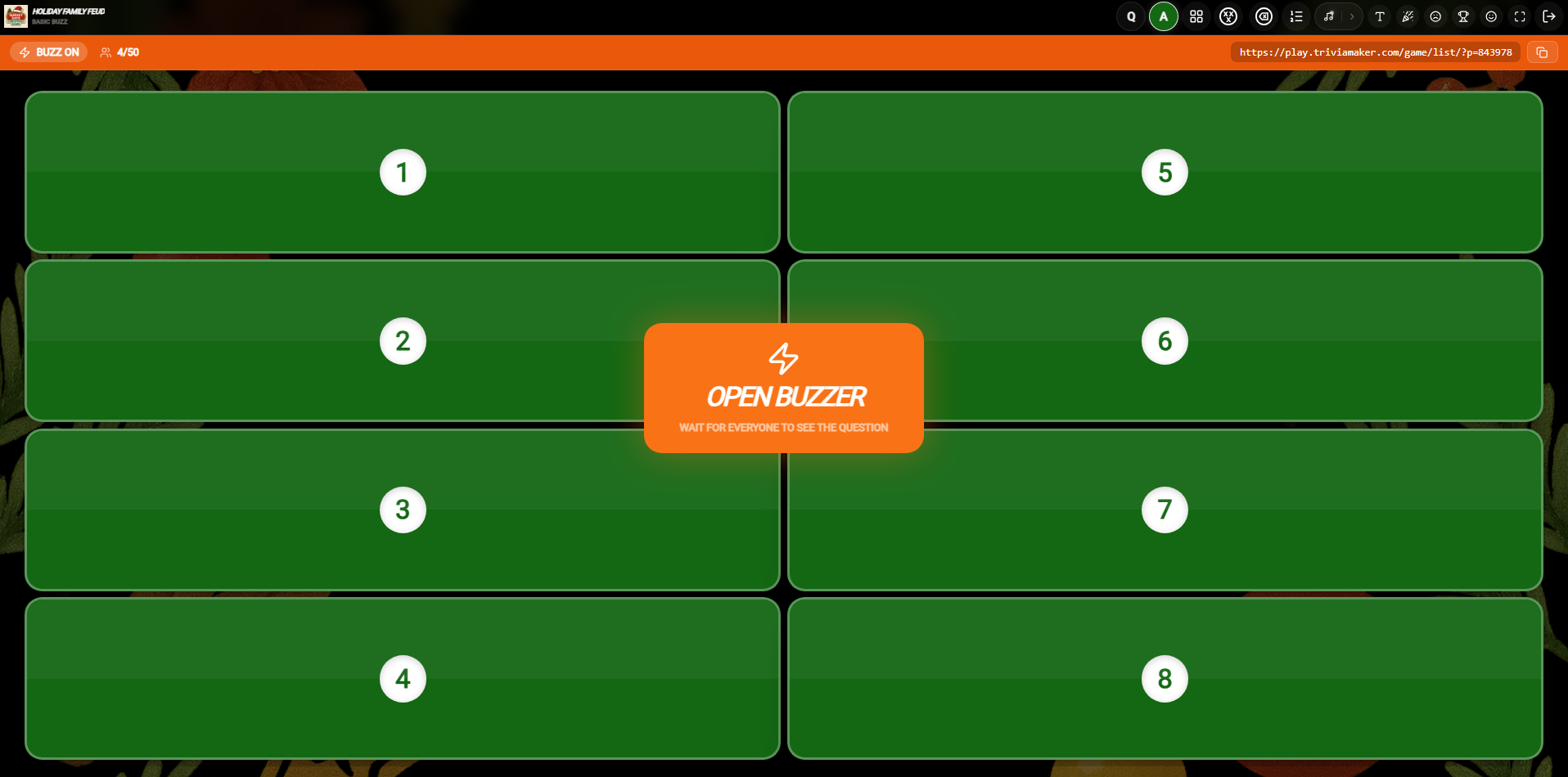
Participant: Waiting to Buzz
Buzzing In
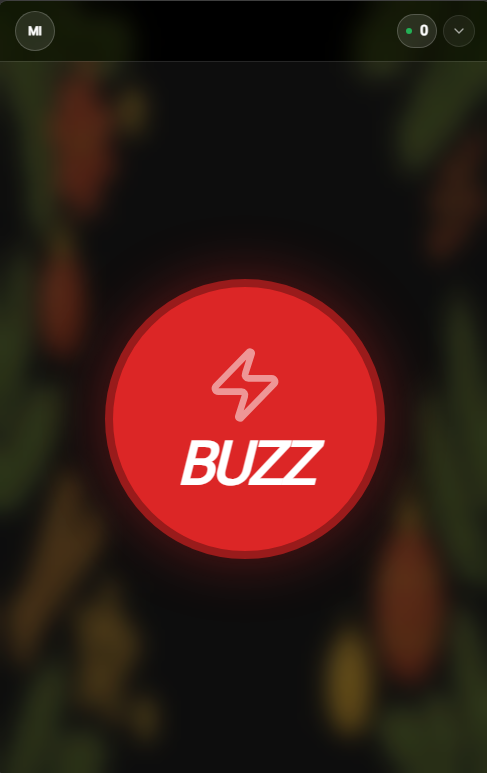
Once active, the large red Buzz button is revealed to players. The fastest player to buzz locks out others and is displayed on the host's screen.
Host: Active Buzzer Screen
Participant: Active Buzz Button
Host Controls & Answer Management
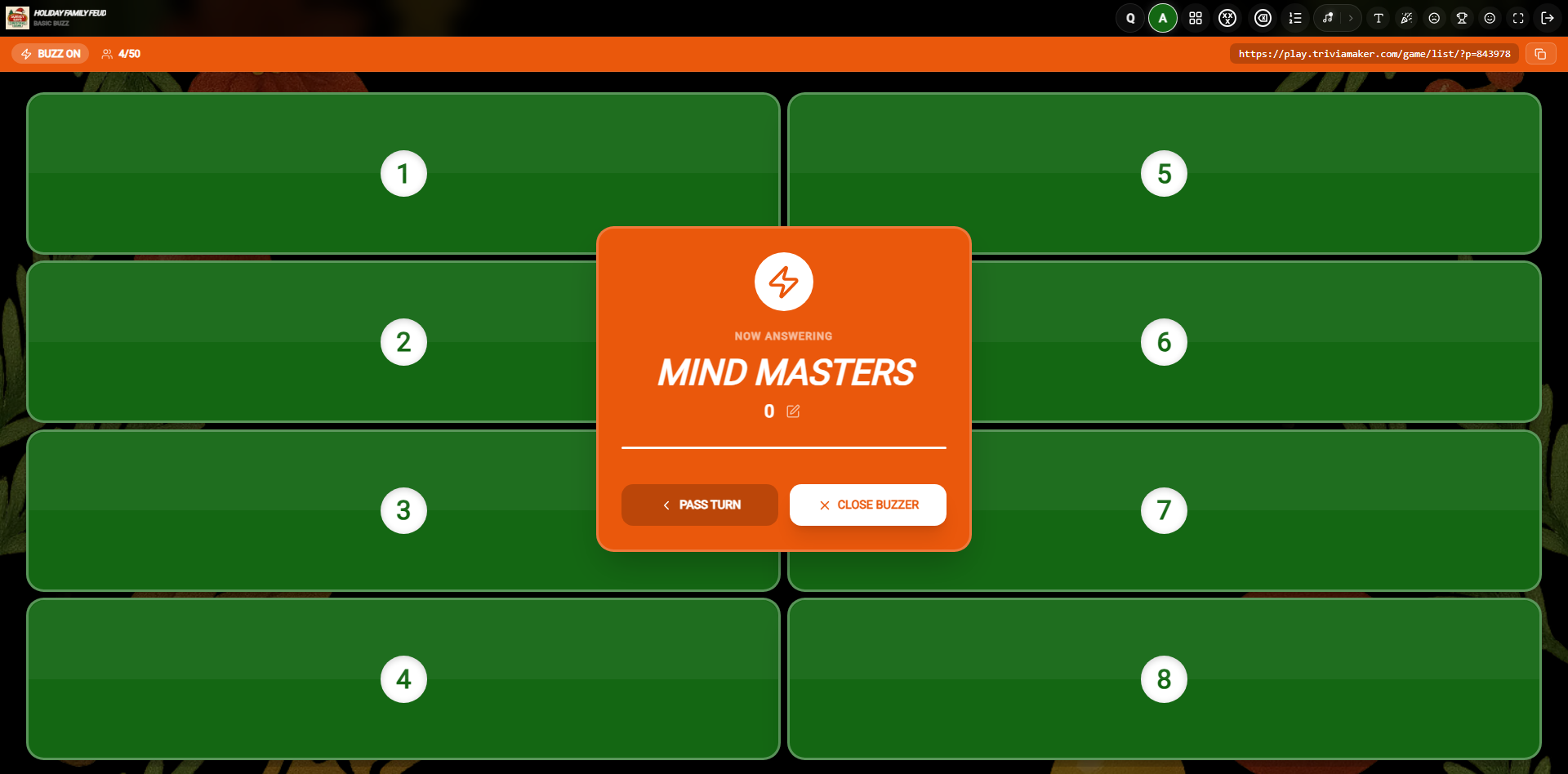
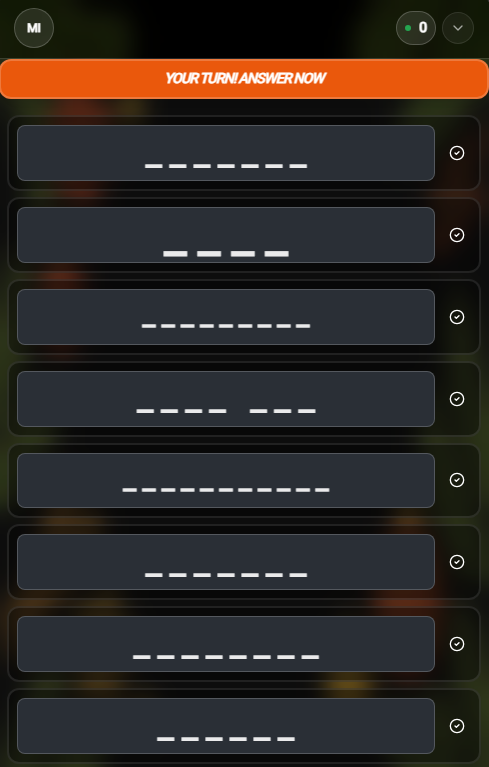
Once a player has buzzed in, a scorepopup card is displayed to the host, and the active participant's phone updates with an answer interface.
Host: Score Card & Validation Controls
Participant: Answer Screen
Winner Screen & Final Results
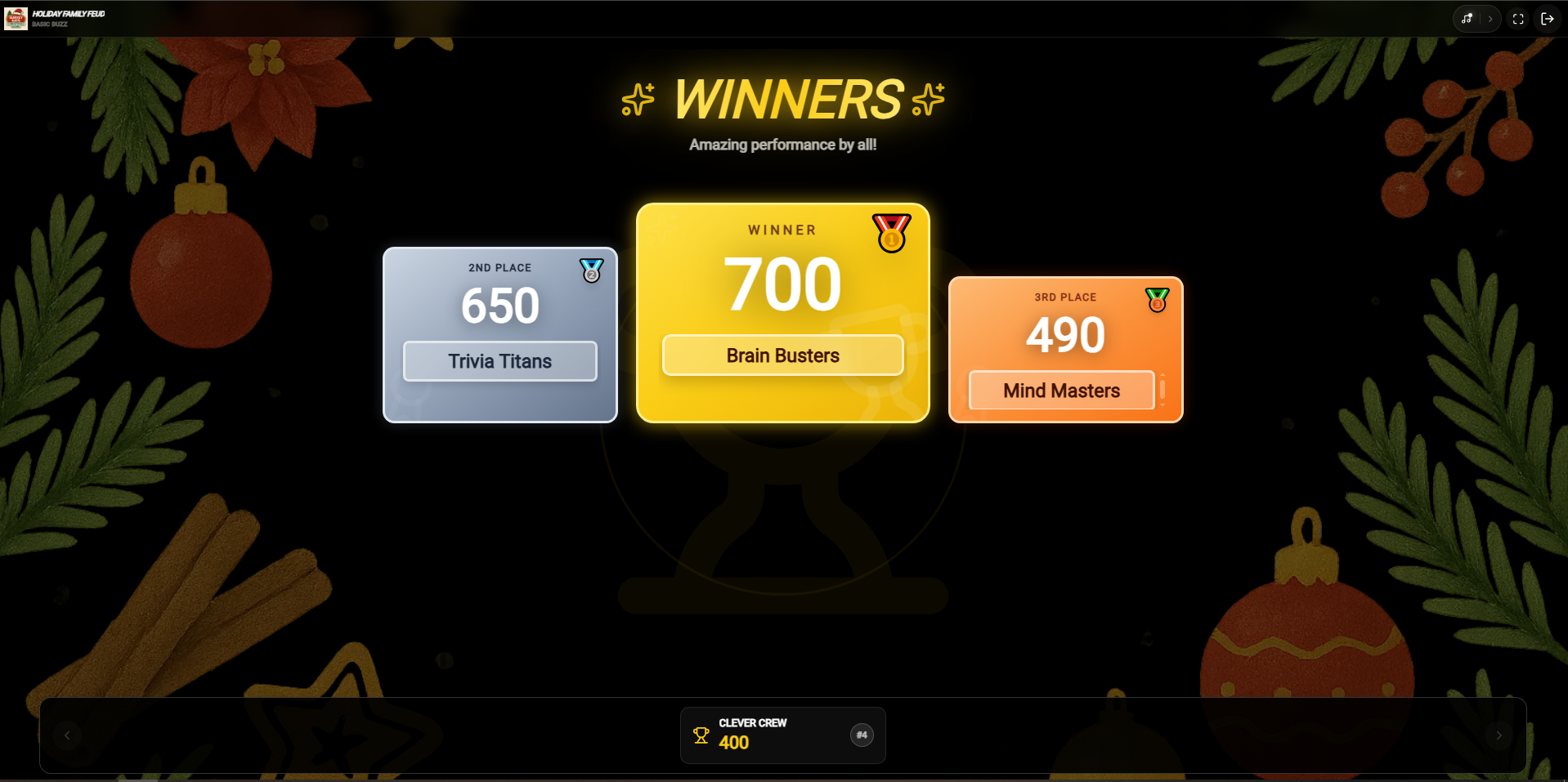
At the conclusion of the game, clicking the Winner icon displays the final cumulative scores and podium animation to celebrate the champion.
Host: Winner Standings
Participant: Victory Screen
Crowd Mode
Crowd Mode is designed for large-scale participation, allowing an unlimited number of players to join and interact with your list style game in real-time. This mode is perfect for live events, conferences, or classroom settings where you want everyone to be involved simultaneously from their own devices.
Host Side Interface
As a host, you have a centralized dashboard to manage the game flow. The main screen displays the game board, a large QR code for easy joining, and the unique game connection code.
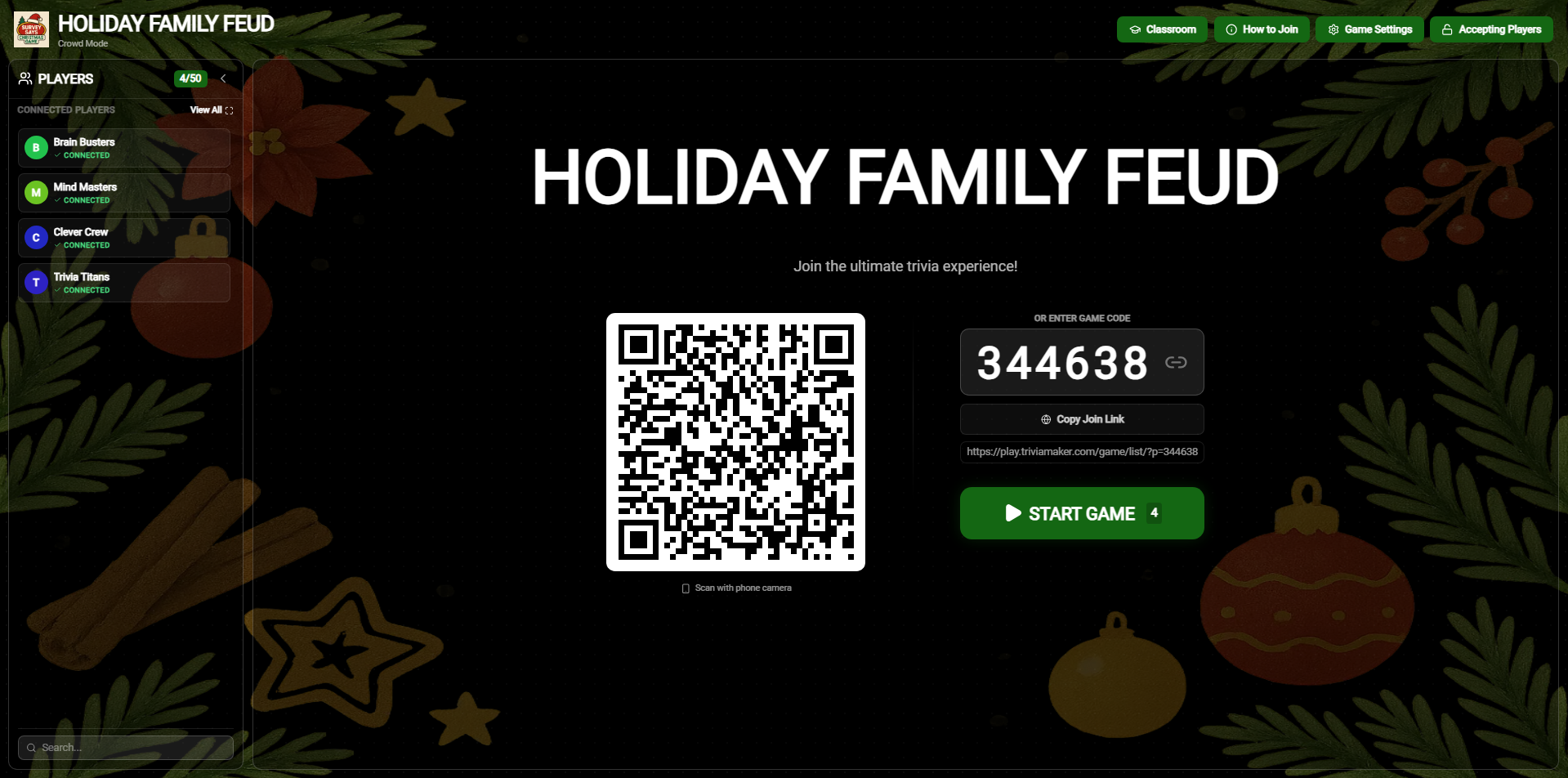 Host Dashboard: The central hub for managing your List Crowd Mode session
Host Controls & Navigation
How to Join
Click this to display a modal with step-by-step instructions for participants to join your game.
Classroom
Open the classroom selection modal to convert your current Crowd Mode session into a structured Classroom session.
Game Settings
Access and adjust game-specific settings to customize the experience for your crowd.
Accepting Players
Toggle between 'Accepting' and 'Locked'. When locked, no new participants can join the game.
Copy Join Link
Instantly copy the direct joining URL to share with your audience via chat or social media.
Game Settings
Clicking the Game Settings icon opens a configuration modal where you can fine-tune the gameplay experience.
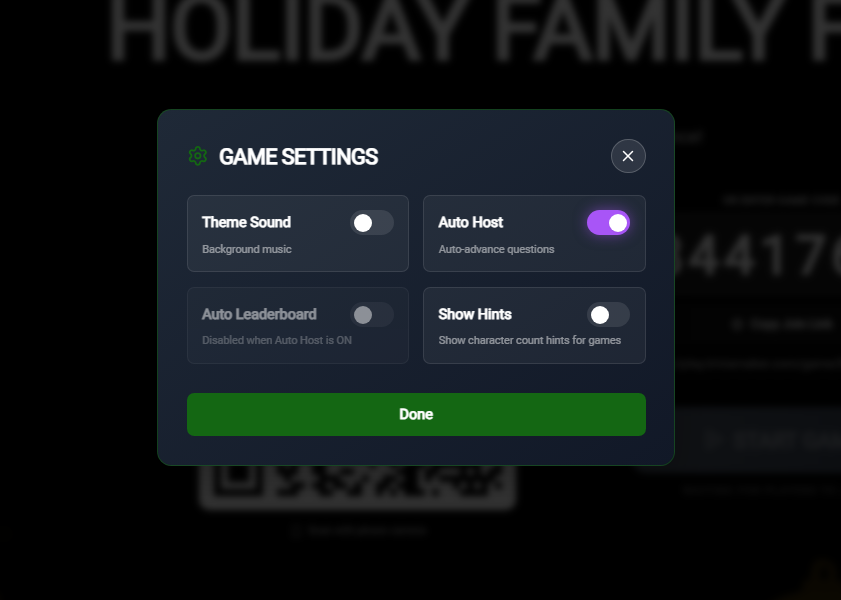 Configure your game with these specialized Crowd Mode settings
Question Screen
Toggle the host-side question screen on or off to control when participants see the questions on the main display.
Auto Submit
When enabled, participants' answers are submitted immediately upon selection, removing the need for a manual submit button.
Theme Sound
Enable or disable the background theme music and sound effects for your session.
Auto Host
With this on, the game will automatically advance to the next screen five seconds after all participants have submitted their answers.
Auto Leaderboard
Automatically display the leaderboard after every question once everyone has responded or the host ends the question.
Joining Instructions
When you click the How to Join icon in the topbar, a clear modal appears for your audience. This helps ensure everyone knows exactly how to connect their devices.
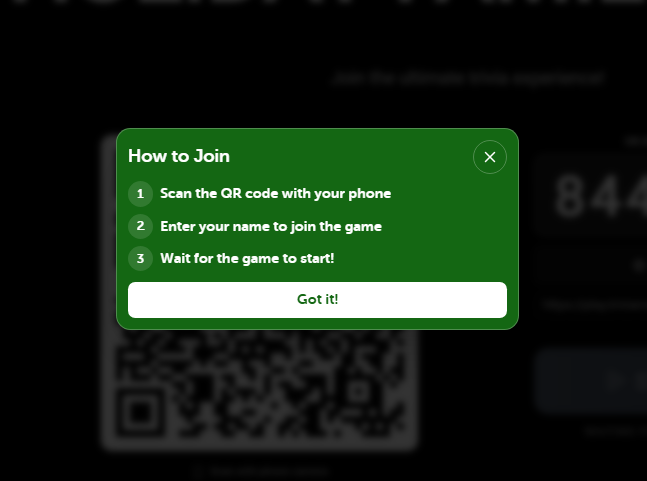 The joining screen provides clear steps for participants to connect
Participant Experience
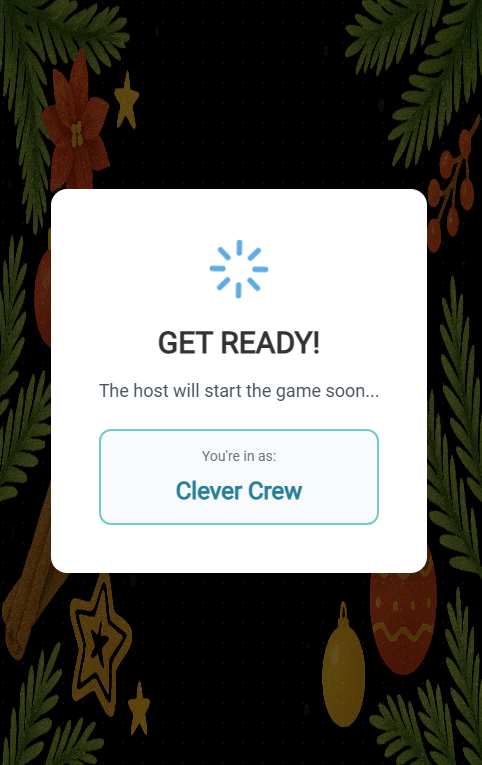
Participants can join by scanning the QR code or clicking the shared link. On their device, they will be prompted to enter the game code to enter the session.
Participant Side: Enter Code
Participant Side: Connected
Real-time Participant Tracking
Once participants join, the host can see them appearing in the "Connected Players" list in real-time. This allows the host to monitor attendance and ensure everyone is ready before starting the game.
Host View: Monitoring connected players in real-time as they joinRounds Screens
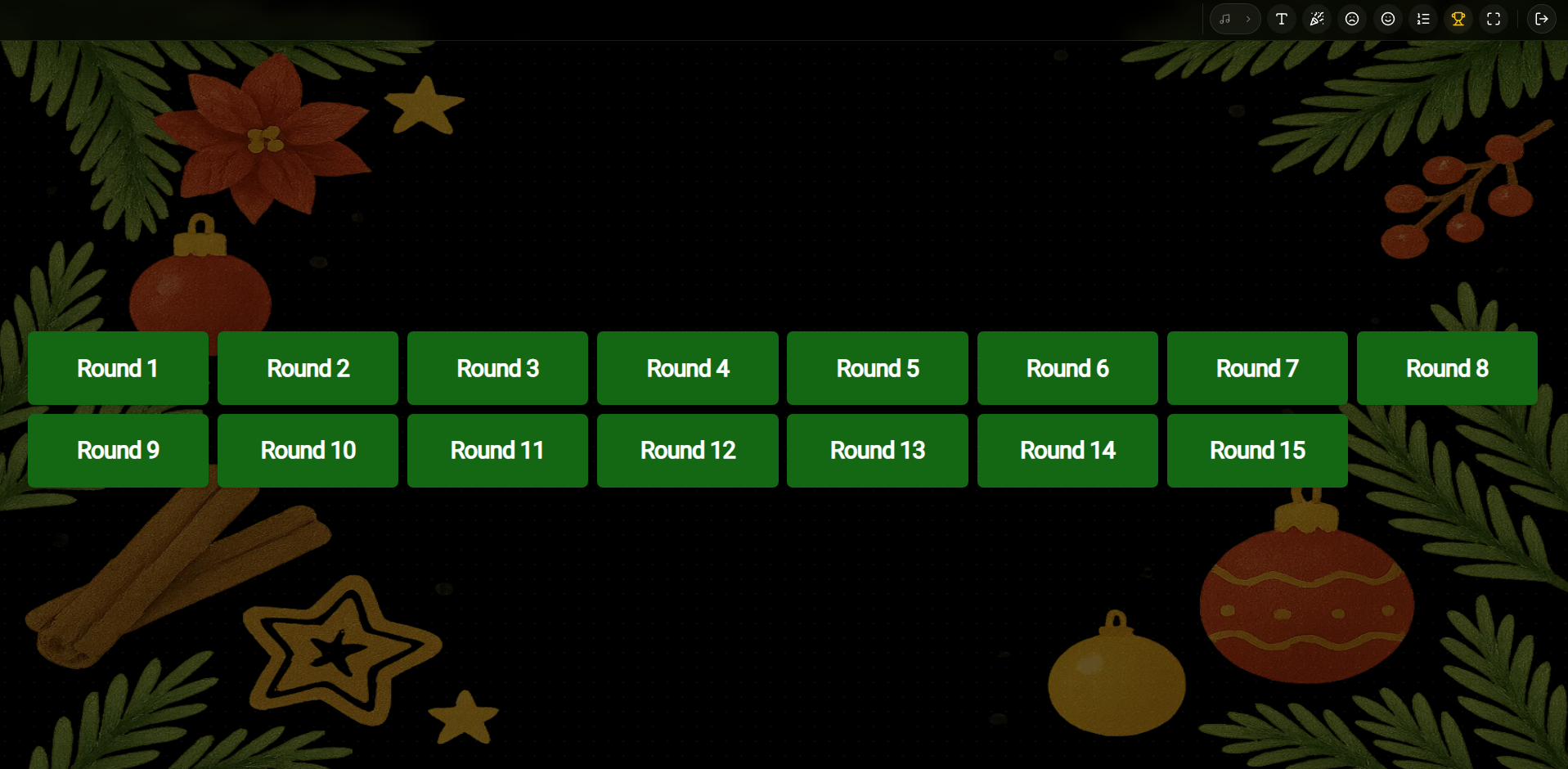
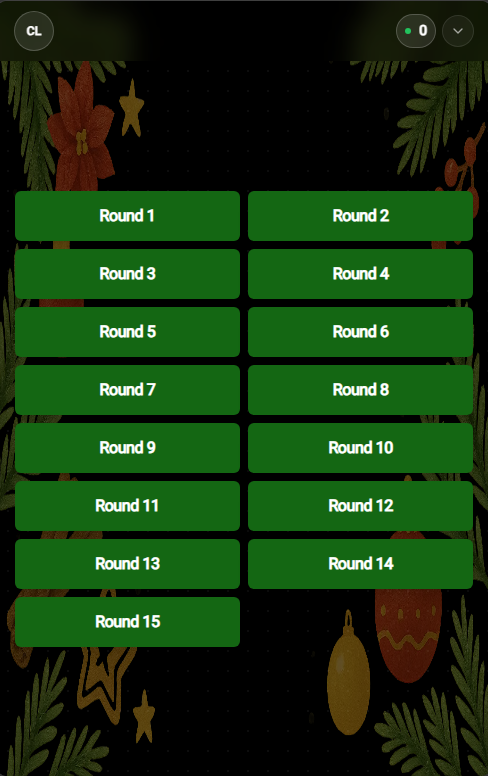
The Rounds Screen displays all available question categories or rounds in your game. In Crowd Mode, the host views this list to select the category they wish to present next, while the participants see a wait screen on their devices until the category is introduced.
Host View: Rounds Screen
Participant View: Rounds Wait Screen
Topbar Navigation & Icons (Rounds Screen)
How to Join
Click this icon to view or display the participant joining instructions and QR code.
Play Music
Click this icon to play or pause the background theme song while presenting the rounds list.
Font Size
Click this icon to adjust the size of the rounds list text on the host's screen.
Clap
Click this icon to trigger a congratulatory clapping sound effect for your crowd.
Sad Face
Click this icon to play a disappointing buzzer/sad sound effect.
Winner
Click this icon to immediately skip to the winner's podium and finalize the game scores.
Fullscreen
Click this icon to toggle fullscreen presentation mode on the host screen.
Exit
Click this icon to exit the active game session and return to the main dashboard.
Round Name Screen
Once a category/round is selected by the host, the Round Name Screen appears, introducing the chosen topic in large, bold text. This screen synchronizes across all devices, displaying the round name to both the host and the crowd.
Host View: Round Name Screen
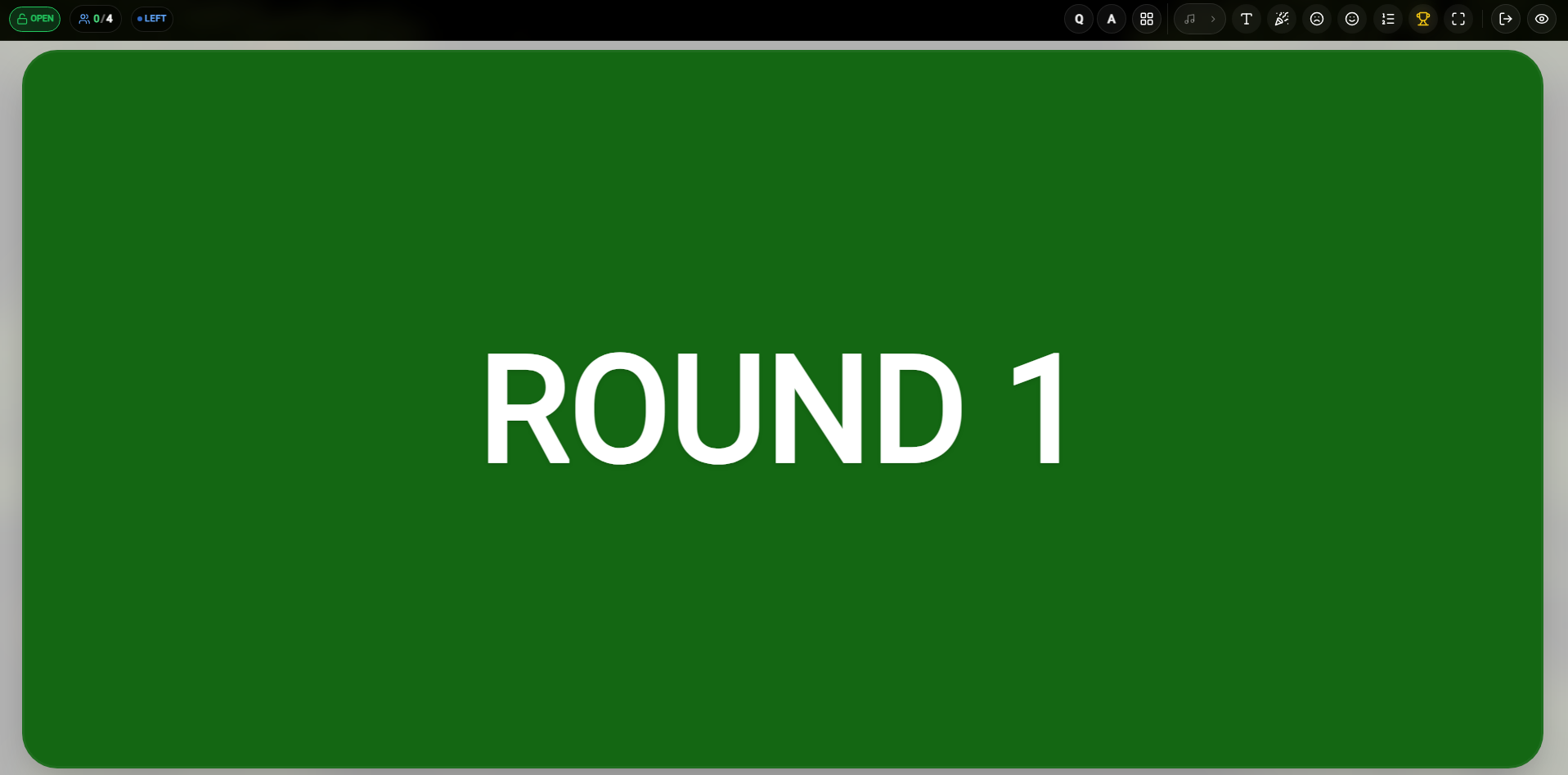
Participant View: Round Name Screen
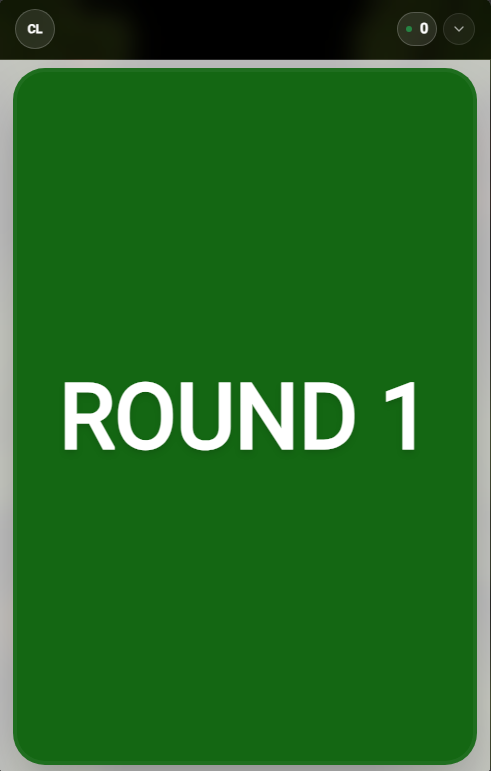
Topbar Navigation & Icons (Round Name Screen)
Rounds Board
Click this icon to navigate back to the main Category/Rounds Selection screen.
Play Music
Click this icon to play or pause the background theme song during round presentation.
Font Size
Click this icon to adjust the size of the round title text on the host's screen.
Clap
Click this icon to trigger a congratulatory clapping sound effect for your crowd.
Sad Face
Click this icon to play a disappointing buzzer/sad sound effect during round name display.
Winner
Click this icon to immediately skip to the winner's podium and conclude the session.
Fullscreen
Click this icon to toggle fullscreen presentation mode on the host screen.
Exit
Click this icon to exit the active game session and return to the main dashboard.
The Question Screen
Once a question is opened by the host, the screen displays the current question topic and provides a comprehensive set of controls to manage the session. From this screen, you can control the pace of the game, play sound effects, and manage question visibility.
Host View: Active Question Screen
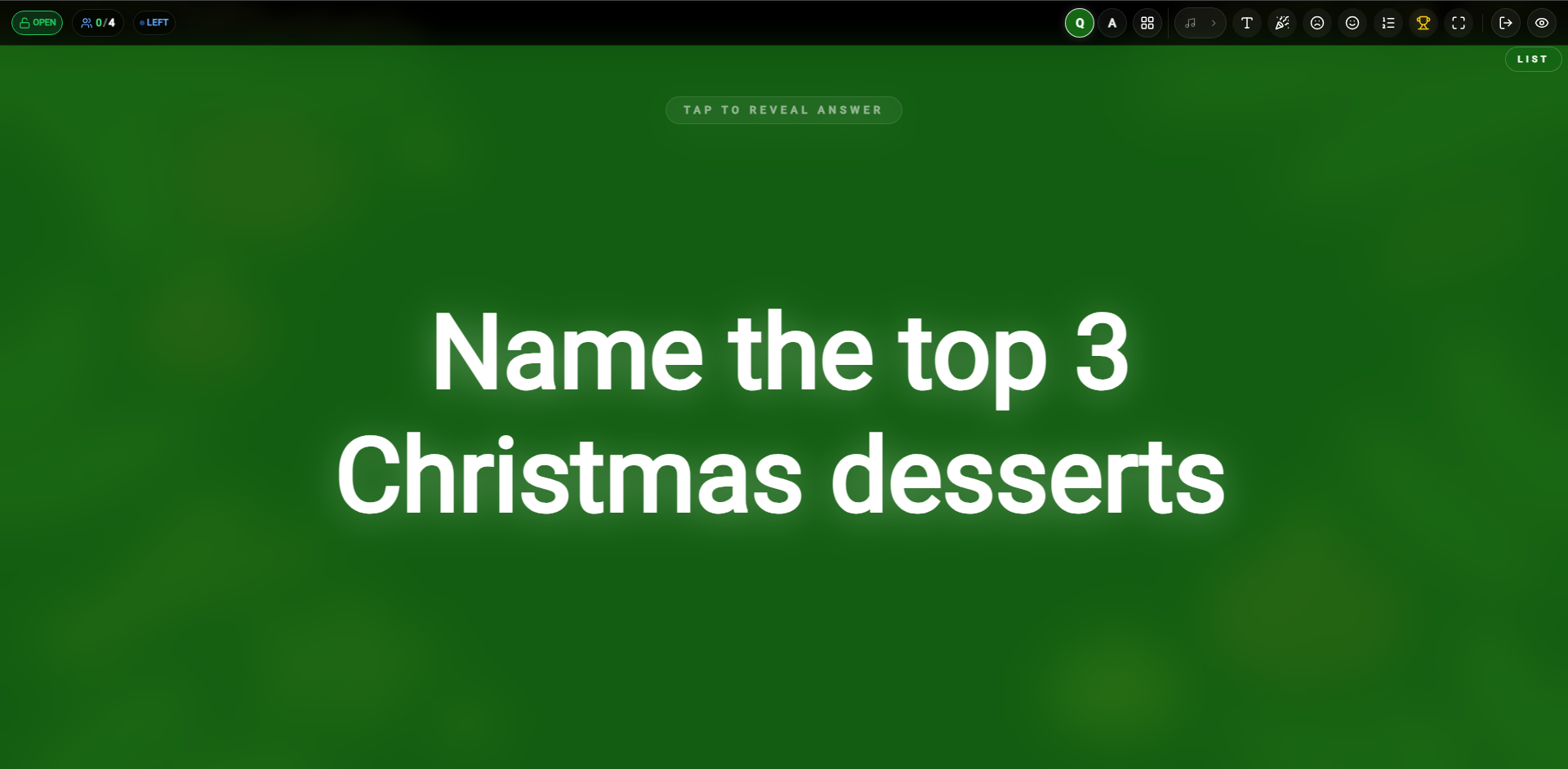
Participant View: Answer Slots Screen
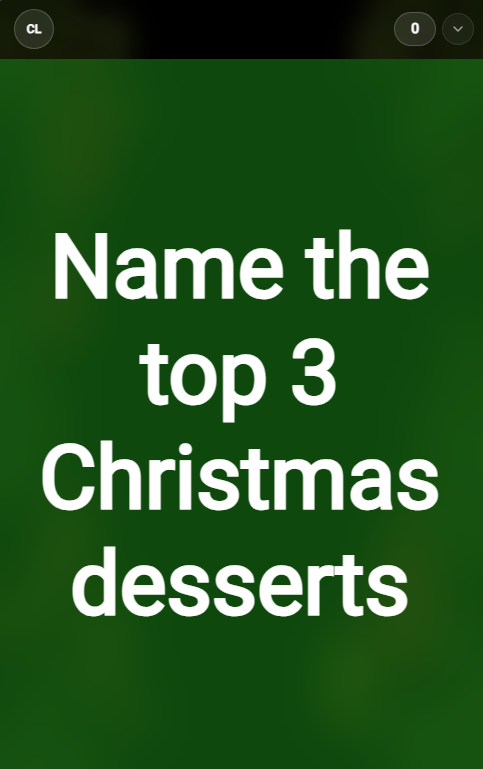
Question Screen Host Controls
Music
Click this to play or pause the background theme music during the question.
Font Size
Adjust the font size of the question text for better visibility on large screens.
Celebration
Play a cheering sound effect to celebrate correct answers or milestones.
Sad Sound
Play a 'wrong answer' sound effect when participants miss a question.
Emoji Reactions
Open the Emoji Reaction modal to display full-screen emoji animations for all participants.
Winner
Skip directly to the winner screen to announce the final results.
Fullscreen
Toggle fullscreen mode for a more immersive audience experience.
Exit
Exit the current game session and return to the dashboard.
Visibility
Toggle whether the question content is visible to participants on their devices.
Answer Statistics & Results
Once participants have submitted their answers or the host reveals the result, the screen displays a real-time breakdown of the responses. You can see the percentage of the audience that got various answers correct, along with the exact count of participants for every correct list item revealed.
Answer Statistics (Overview)
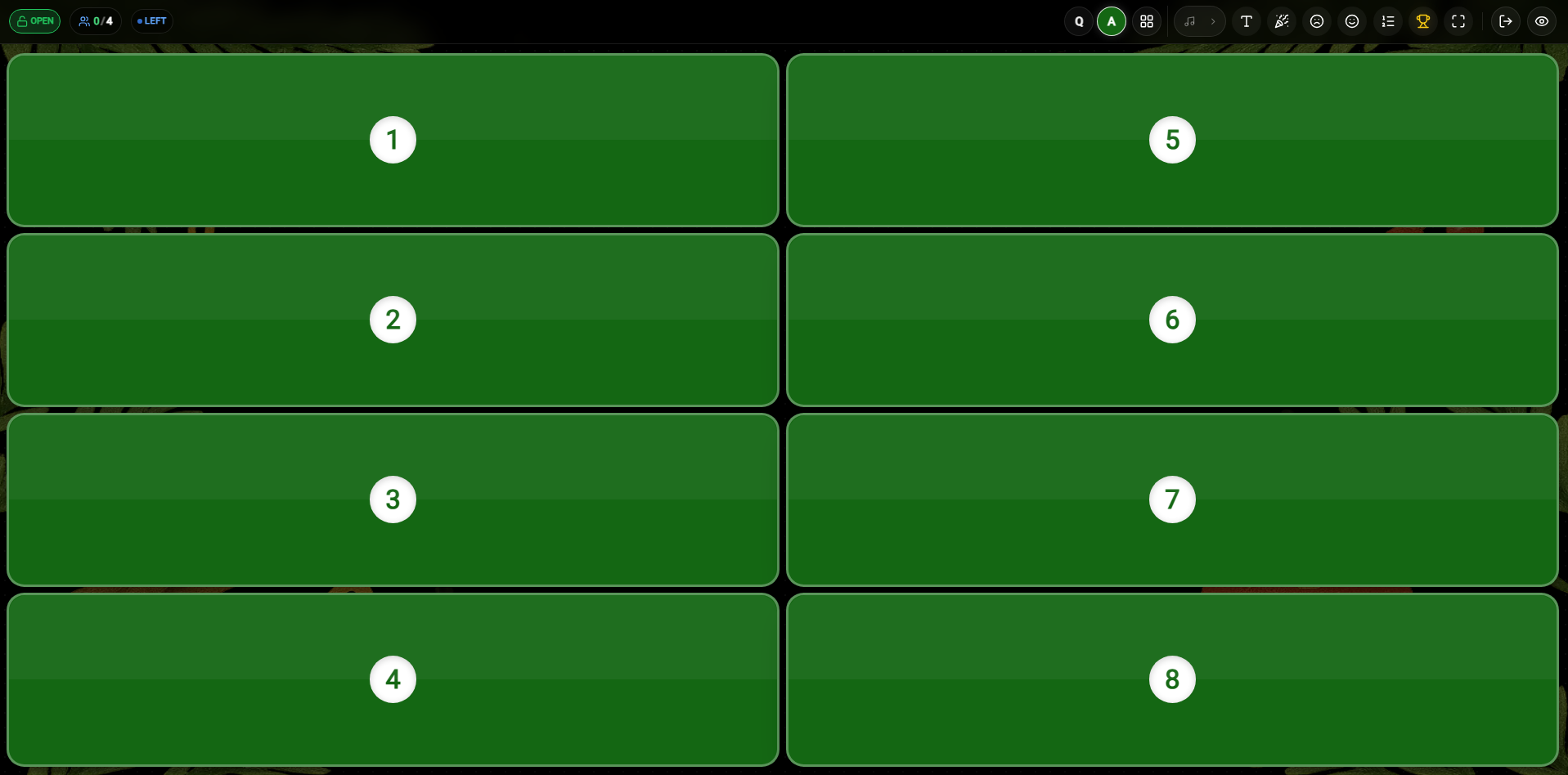
Answer Distribution Statistics
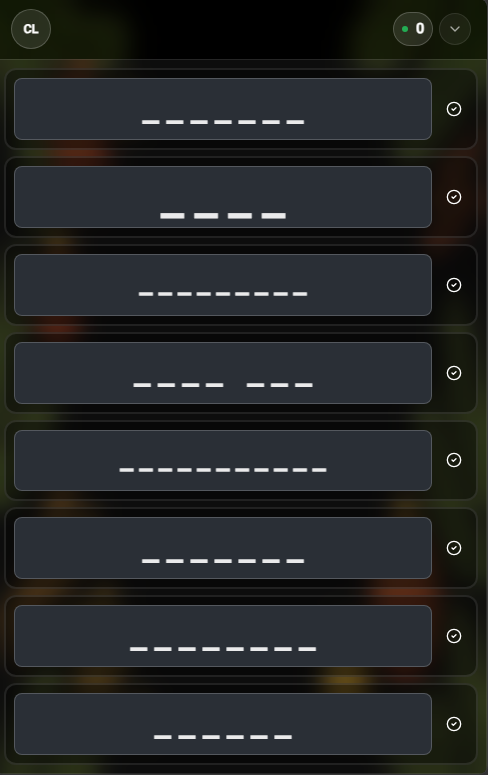
Audience Response Summary
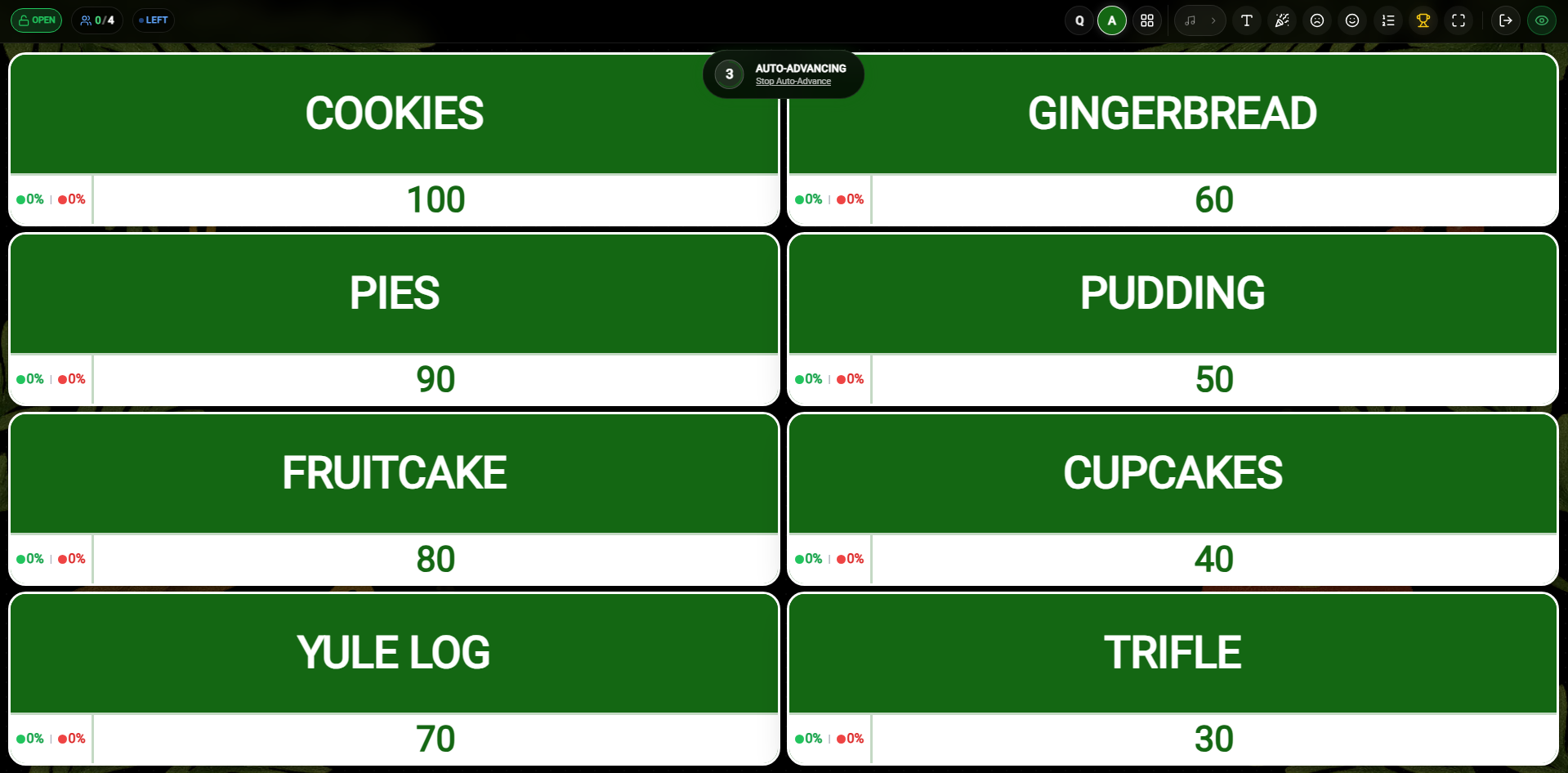
Topbar Navigation & Icons (Answer Statistics)
Rounds List
Click this icon to navigate back to the main category/rounds selection board.
Play Music
Click this icon to play or pause the background theme song during results display.
Font Size
Click this icon to adjust the size of the question and statistics text on the host's screen.
Clap
Click this icon to trigger a congratulatory clapping sound effect for your crowd.
Sad Face
Click this icon to play a disappointing buzzer/sad sound effect.
Winner
Click this icon to immediately skip to the winner's podium and conclude the session.
Fullscreen
Click this icon to toggle fullscreen presentation mode on the host screen.
Exit
Click this icon to exit the active game session and return to the main dashboard.
Winners & Final Results
At the end of the game, both the host and participants see the final standings. The host screen displays a celebratory winner's podium featuring the top three players.
Final Winner Standings (Podium)
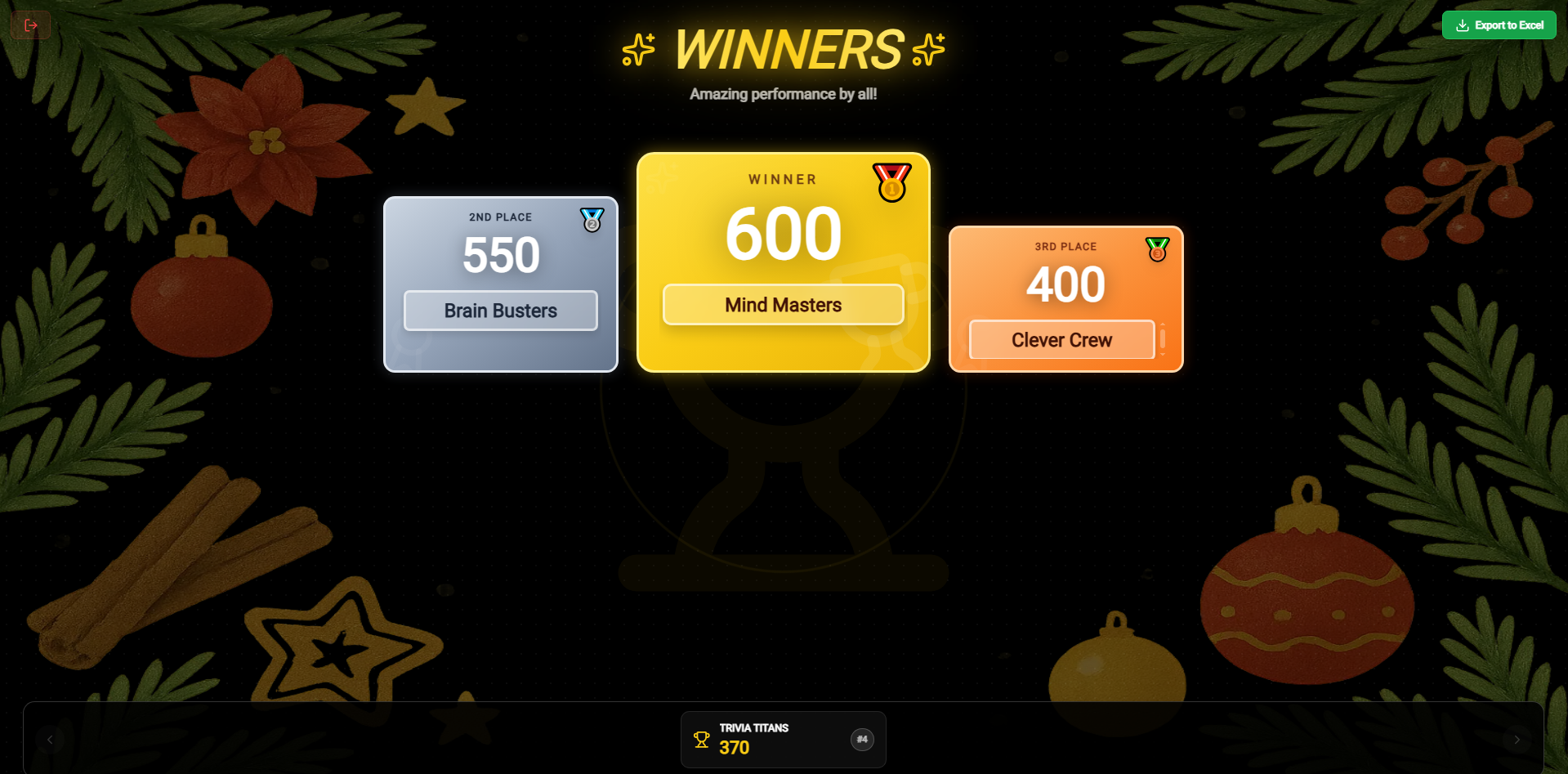
Detailed Final Rankings Export
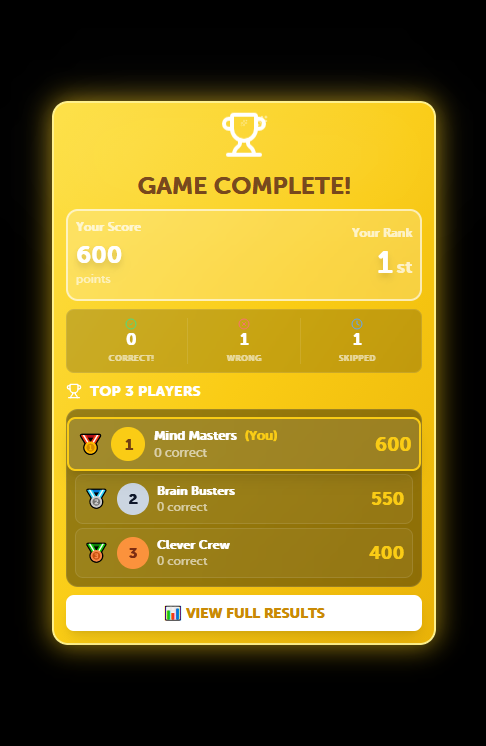
From the host's winner screen, you can click Export to Excel at the top right to download a detailed report of all participant performance data. The exit icon at the top left allows you to close the game and return to the main dashboard.
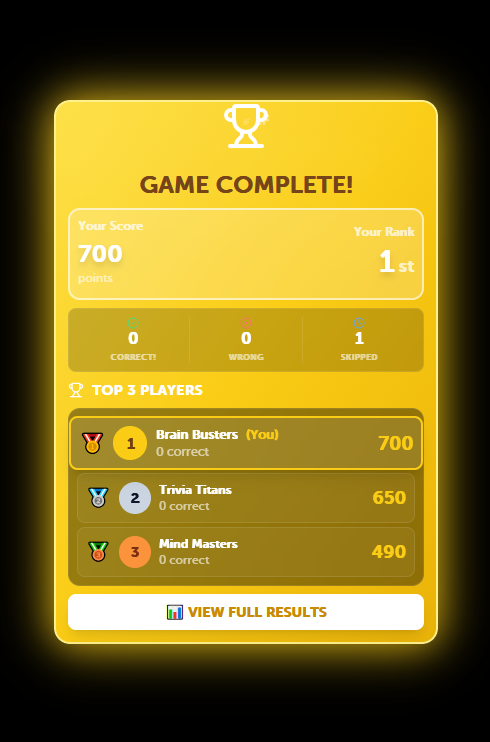
On the participant's device, they receive a personal summary of their performance, including their total score, final rank, and the number of correct vs. wrong answers.
Classroom Mode
Classroom Mode is a specialized version of Crowd Mode tailored for educational settings. Instead of a general audience, it uses a predefined list of students from your saved classrooms, allowing for more structured tracking and participation in your List game.
Host Side Interface
As a host, you can easily transition into Classroom Mode by selecting a classroom from your list. The host dashboard remains familiar, with controls optimized for classroom management.
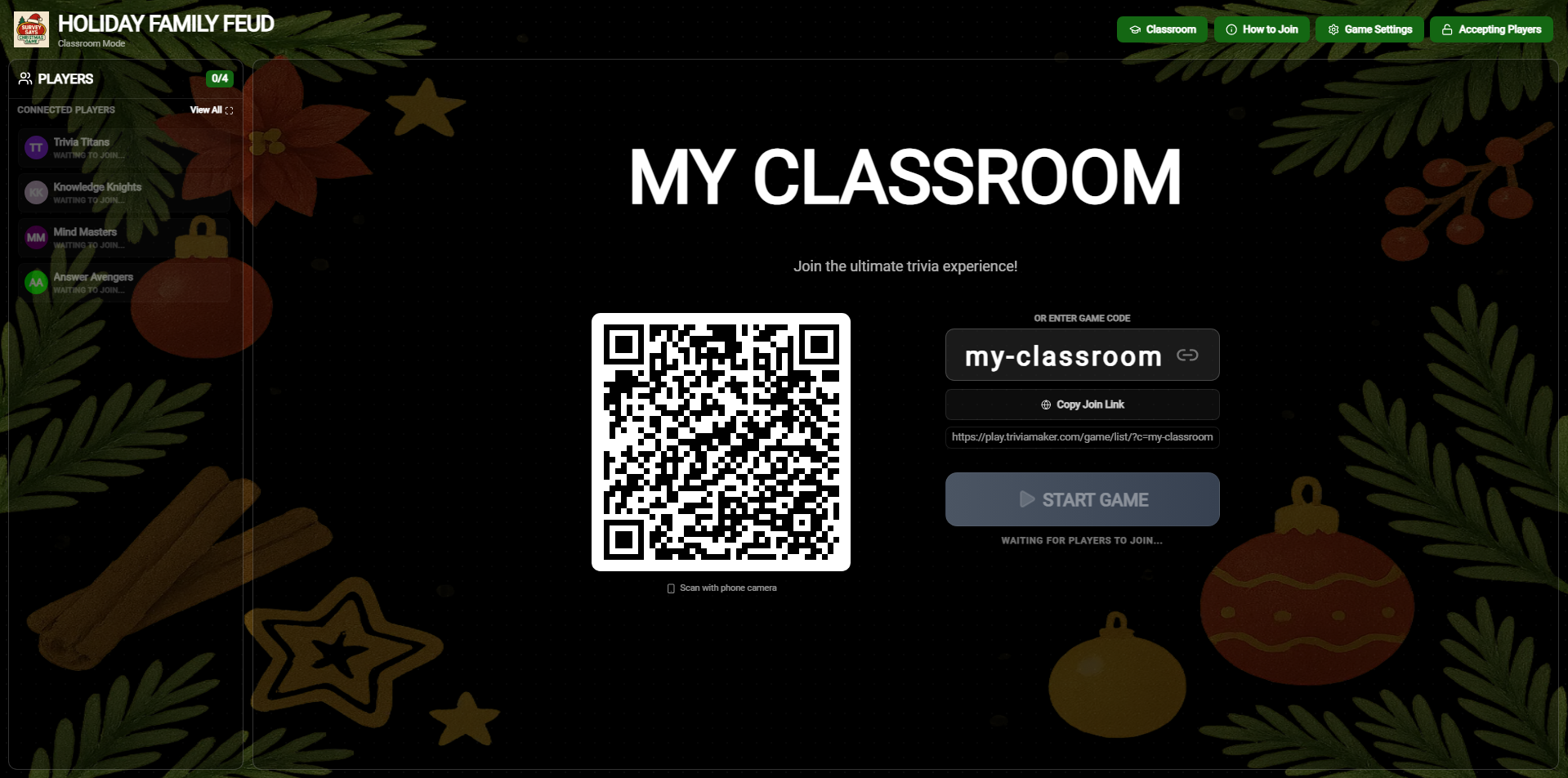 Host View: Selecting a predefined classroom to start the session
Host Controls & Navigation
How to Join
Display joining instructions specifically for your classroom students.
Game Settings
Access and adjust game-specific settings to customize the experience for your class.
Accepting Players
Toggle between 'Accepting' and 'Locked' to control student entry.
Copy Join Link
Instantly copy the direct joining URL to share with your students.
Game Settings
The Game Settings modal allows you to configure rules like Auto-Submit, Auto-Host, and Leaderboard visibility, ensuring the game fits your teaching style.
Configure your game with specialized Classroom Mode settingsQuestion Screen
Toggle the host-side question screen on or off to control student visibility.
Auto Submit
When enabled, students' answers are submitted immediately upon selection.
Theme Sound
Enable or disable the background theme music for the class.
Auto Host
Automatically advance to the next question 5 seconds after everyone answers.
Auto Leaderboard
Automatically display the leaderboard after every question.
Classroom Integration
If you want to use a predefined list of students, click the Classroom icon in the topbar. This opens a modal where you can select one of your saved classrooms, seamlessly converting your Crowd Mode session into a Classroom Mode session.
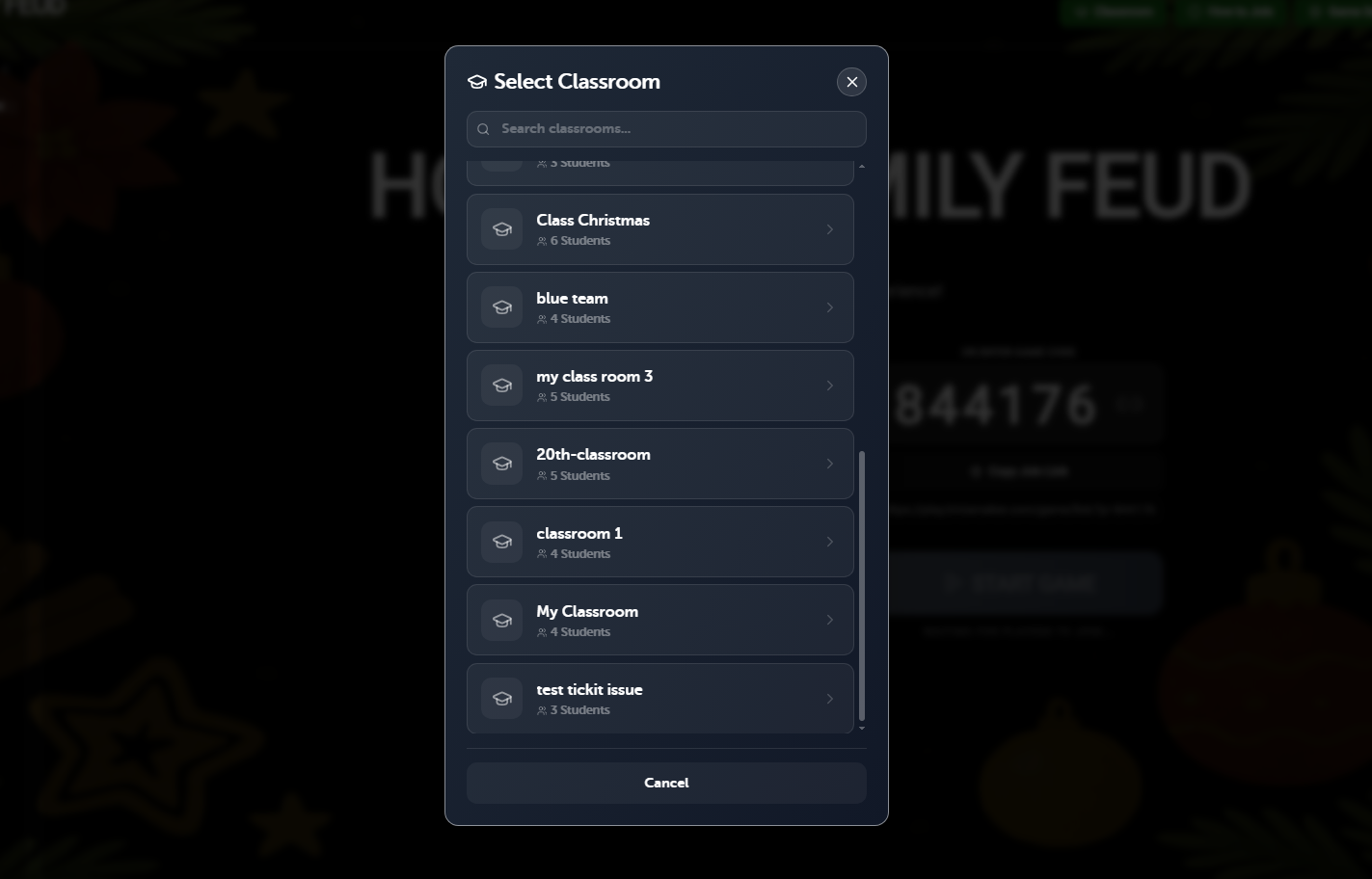 Select a classroom to transition from Crowd Mode to Classroom Mode
Student Joining Process
Students join by scanning the QR code or clicking the link. Since this is a classroom session, they will see their name in the student list and will be required to enter the PIN provided by the teacher to join the session.
Student View: Select Your Name
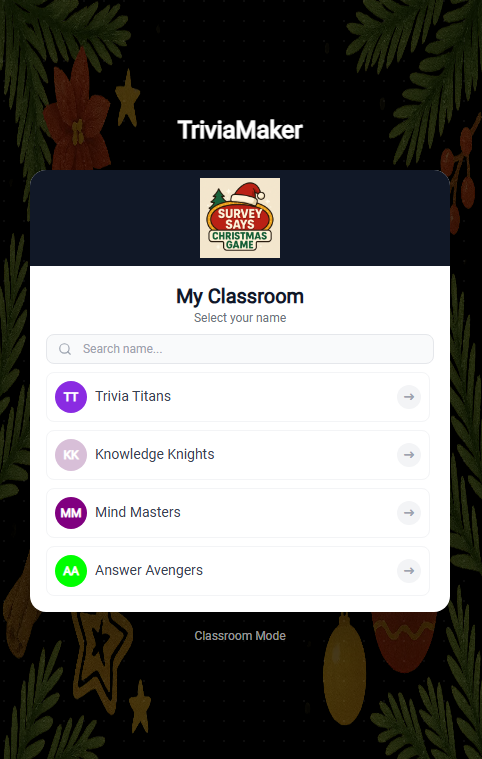
Student View: Enter Secure PIN
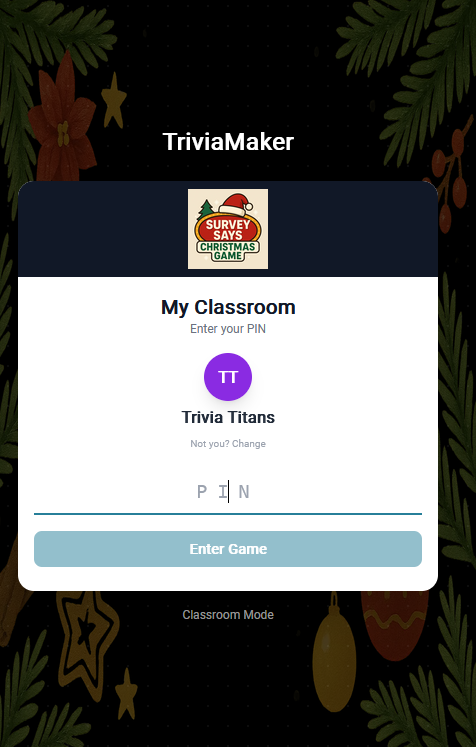
Real-time Attendance Tracking
As students log in, the teacher can see them appearing in the "Connected Players" list in real-time, ensuring everyone is present before the lesson starts.
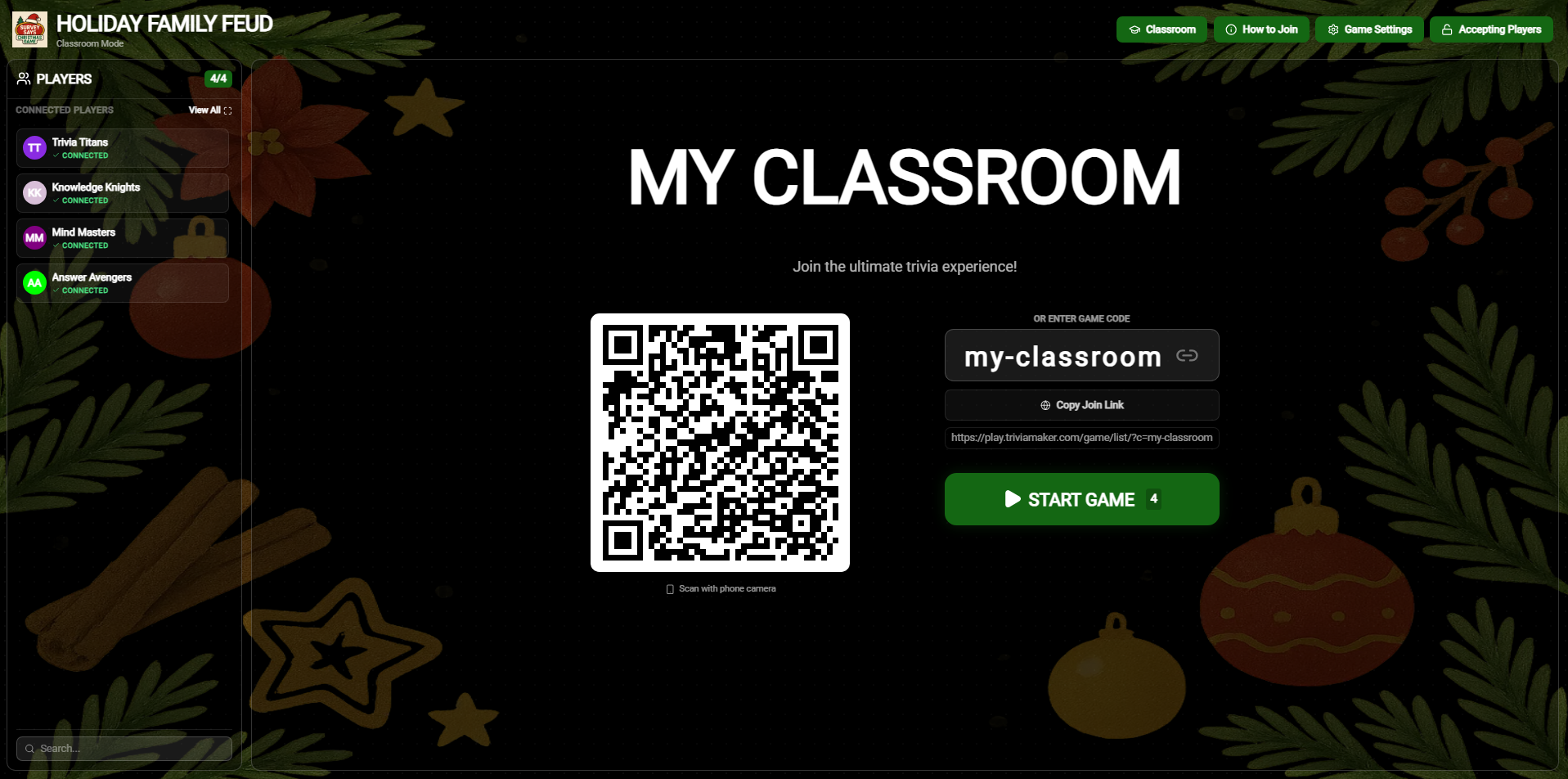 Teacher View: Monitoring connected students in real-time
Rounds Screens
The Rounds Screen displays all available question rounds in your game. In Classroom Mode, the teacher selects the round they wish to present next, while students see a synchronized waiting screen on their devices until the round is introduced.
Teacher View: Rounds Screen
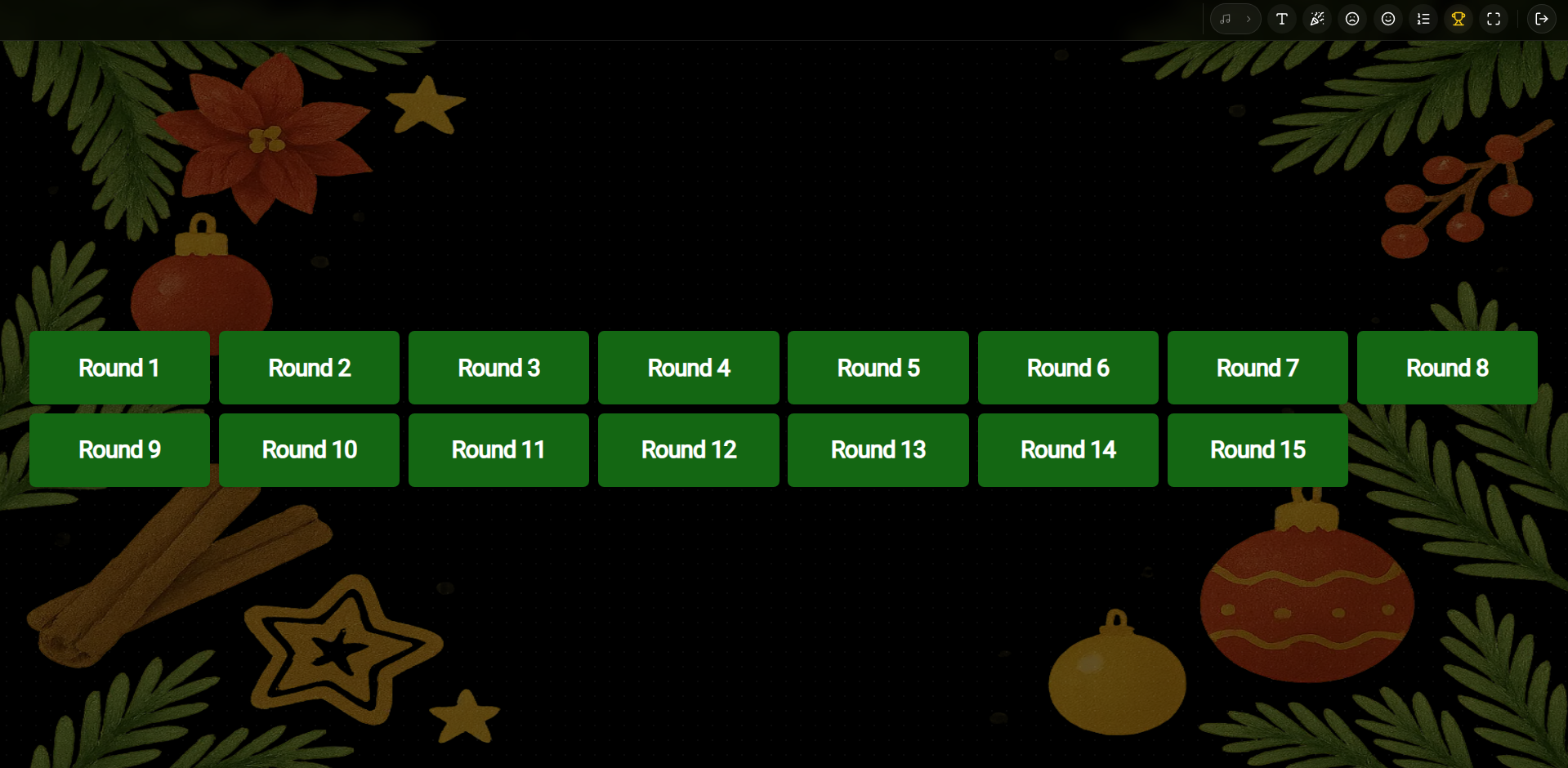
Student View: Rounds Wait Screen
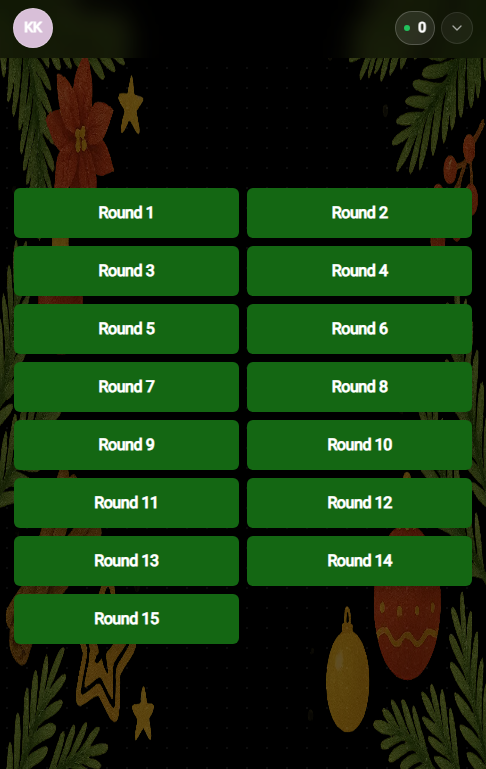
Topbar Navigation & Icons (Rounds Screen)
How to Join
Click this icon to view or display the student joining instructions and QR code.
Play Music
Click this icon to play or pause the background theme song while presenting the rounds list.
Font Size
Click this icon to adjust the size of the rounds list text on the teacher's screen.
Clap
Click this icon to trigger a congratulatory clapping sound effect for your class.
Sad Face
Click this icon to play a disappointing buzzer/sad sound effect.
Winner
Click this icon to immediately skip to the winner's podium and finalize the game scores.
Fullscreen
Click this icon to toggle fullscreen presentation mode on the teacher's screen.
Exit
Click this icon to exit the active game session and return to the main dashboard.
Round Name Screen
Once a round is selected by the teacher, the Round Name Screen appears, introducing the chosen topic in large, bold text. This screen synchronizes across all devices, displaying the round name to both the teacher and the students.
Teacher View: Round Name Screen
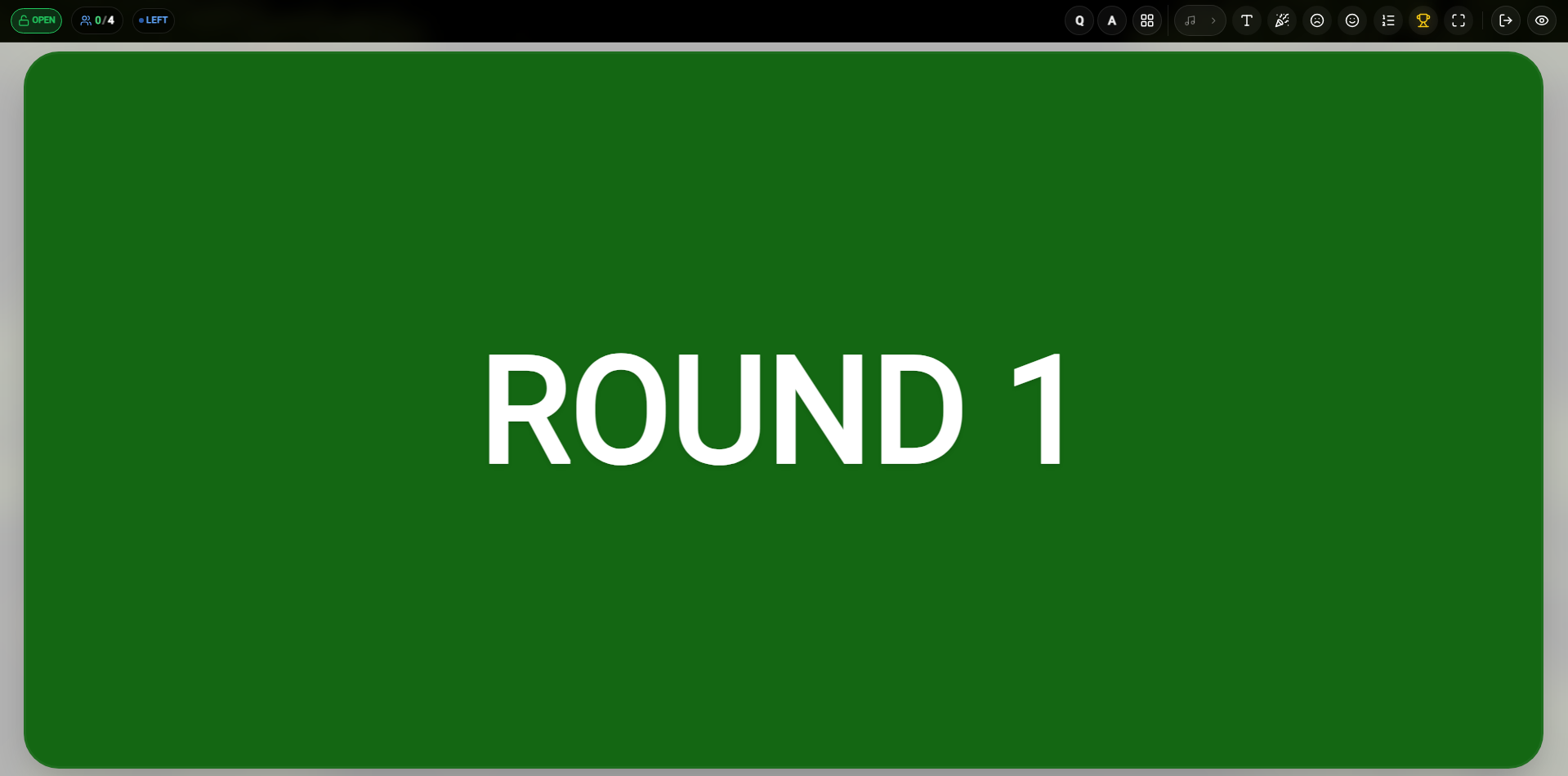
Student View: Round Name Screen
Topbar Navigation & Icons (Round Name Screen)
Rounds Board
Click this icon to navigate back to the main Rounds Selection screen.
Play Music
Click this icon to play or pause the background theme song during round presentation.
Font Size
Click this icon to adjust the size of the round title text on the teacher's screen.
Clap
Click this icon to trigger a congratulatory clapping sound effect for your class.
Sad Face
Click this icon to play a disappointing buzzer/sad sound effect.
Winner
Click this icon to immediately skip to the winner's podium and conclude the session.
Fullscreen
Click this icon to toggle fullscreen presentation mode on the teacher's screen.
Exit
Click this icon to exit the active game session and return to the main dashboard.
The Question Screen
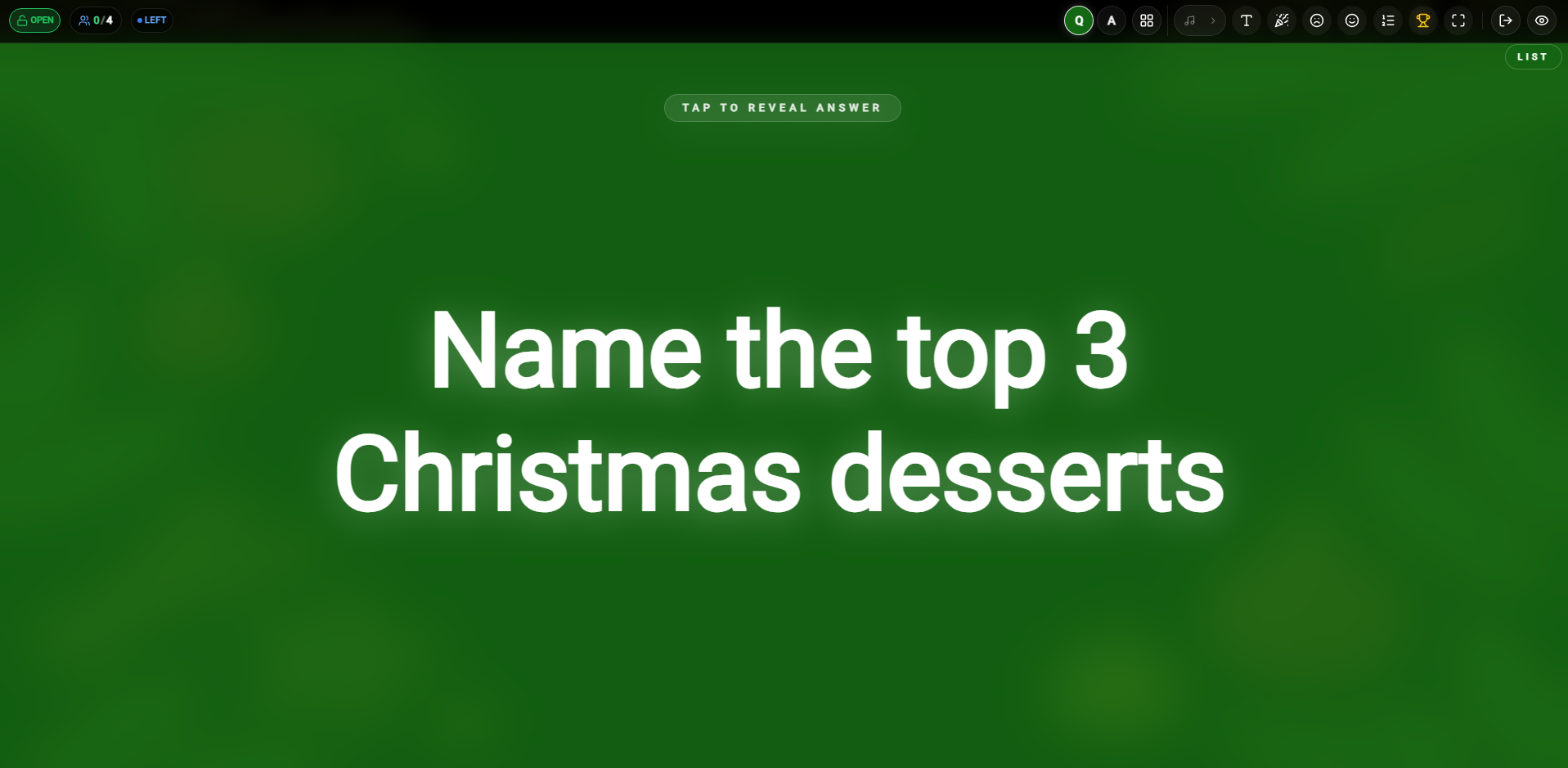
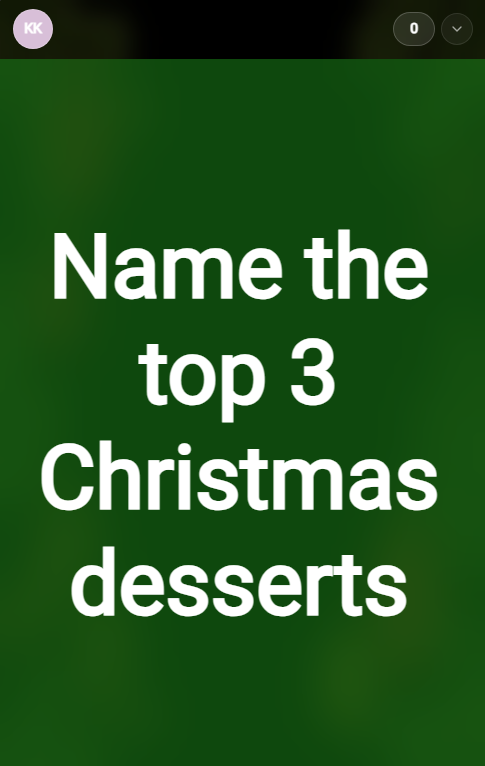
Once the game begins, the teacher's screen displays the active question. In Classroom Mode, the teacher controls question visibility and pacing, while students view a synchronized answer submission interface on their own devices.
Teacher View: Active Question Screen
Student View: Answer Submission Screen
Teacher Controls
Music
Play or pause the background theme music.
Font Size
Adjust question text size for classroom visibility.
Celebration
Play cheering sounds for correct student answers.
Sad Sound
Play 'wrong answer' sounds for incorrect responses.
Emoji Reactions
Display full-screen emoji animations to reward the class.
Winner
Skip directly to the final winner podium.
Fullscreen
Toggle fullscreen for an immersive classroom experience.
Exit
Exit the session and return to the classroom dashboard.
Visibility
Toggle student visibility of the current question.
Monitoring Student Progress
By clicking the LEFT button, the teacher can see a list of students who haven't yet submitted their answers and can manually end the question if needed.
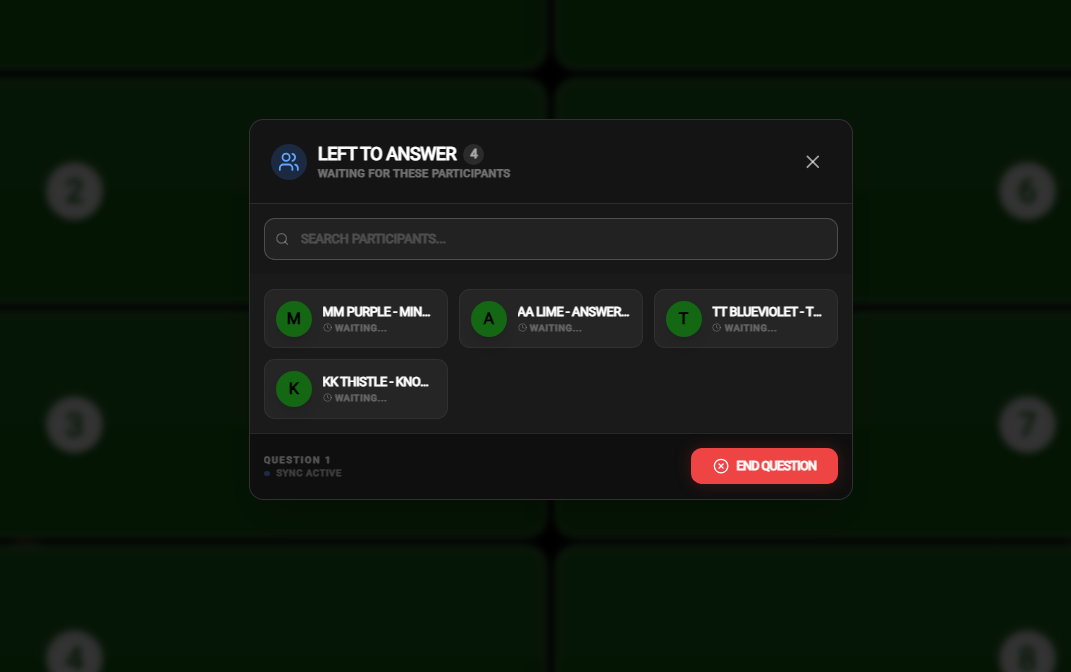 Identify students who are still working on the current question
Classroom Results & Statistics
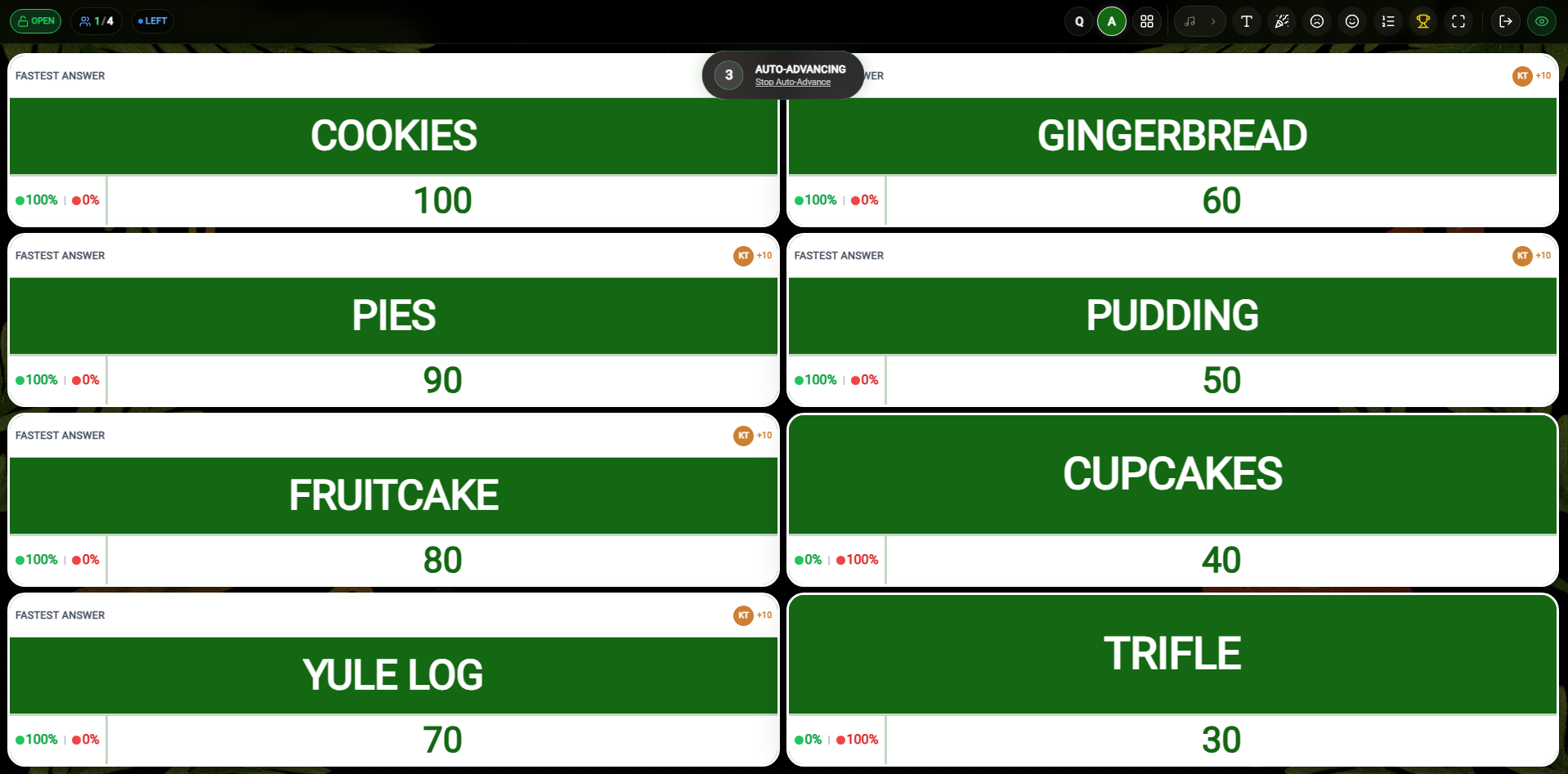
After each question, the teacher can review the class performance statistics, showing the percentage and count of students for each answer choice.
Answer Statistics Overview
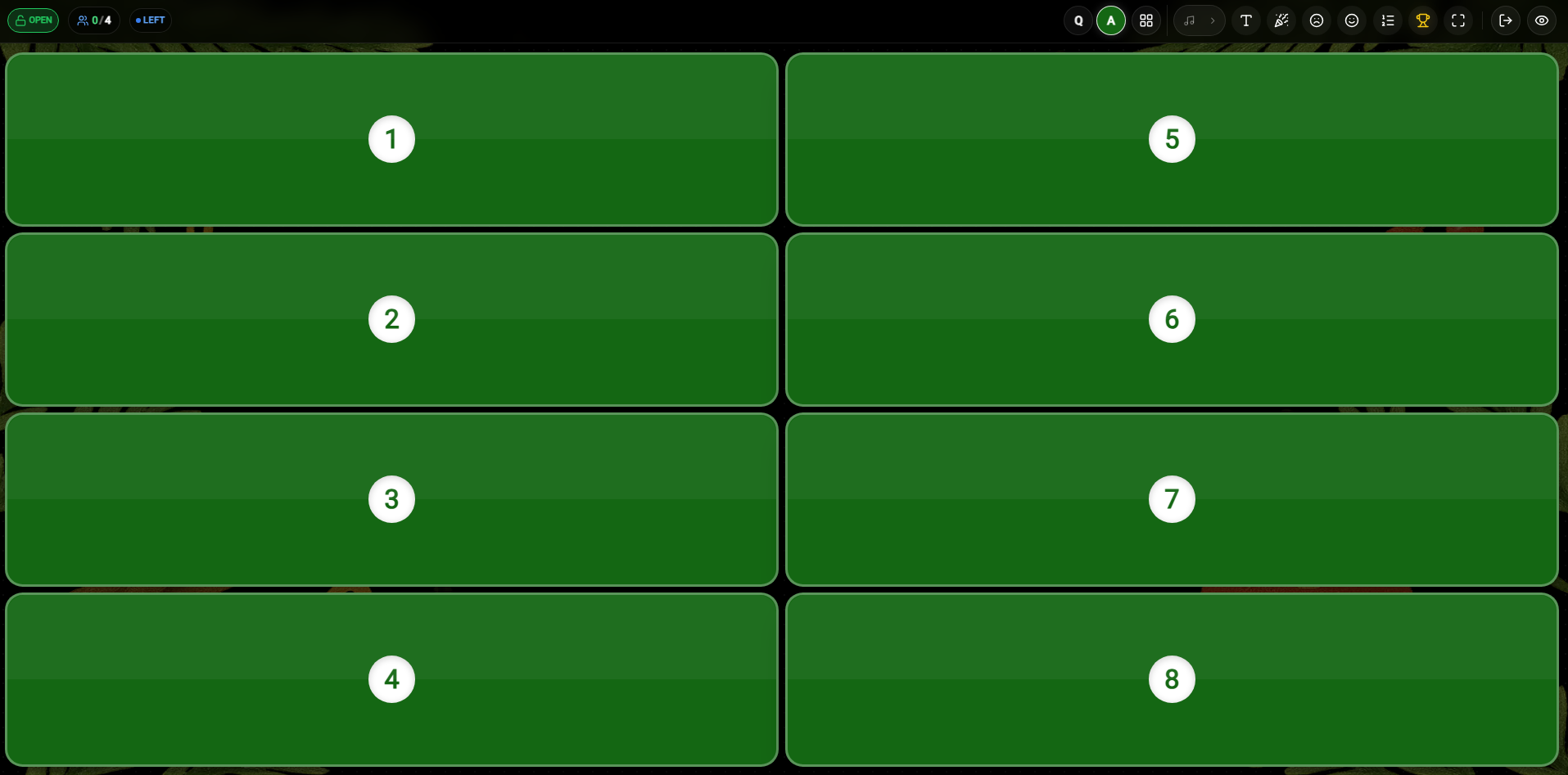
Response Distribution
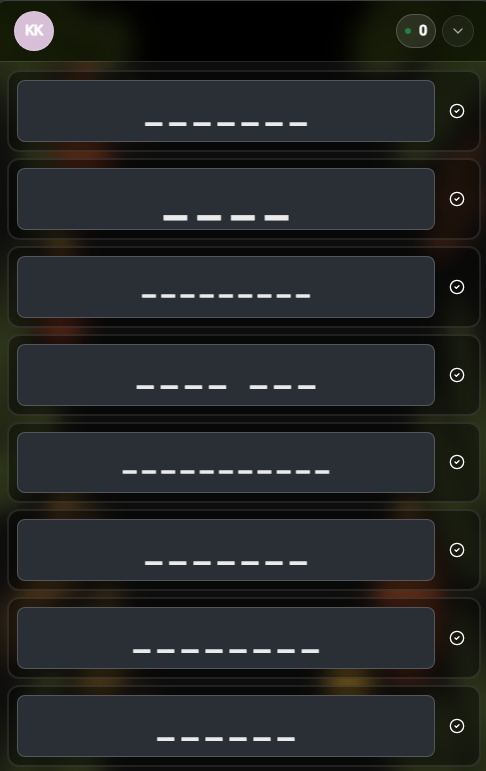
Student Interface & Submission
Students receive a summary of their performance on their devices. Depending on the teacher's settings, they may submit answers automatically or manually via the submission button.
Student View: Answer Interface
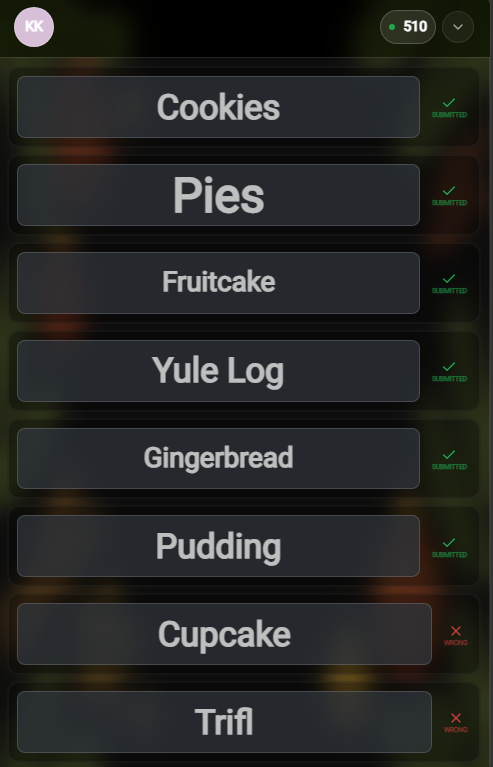
Student View: Score Tracking
Winners & Final Reports
The final podium celebrates the top students. Teachers can export the full classroom performance report to Excel for grade tracking and analysis.
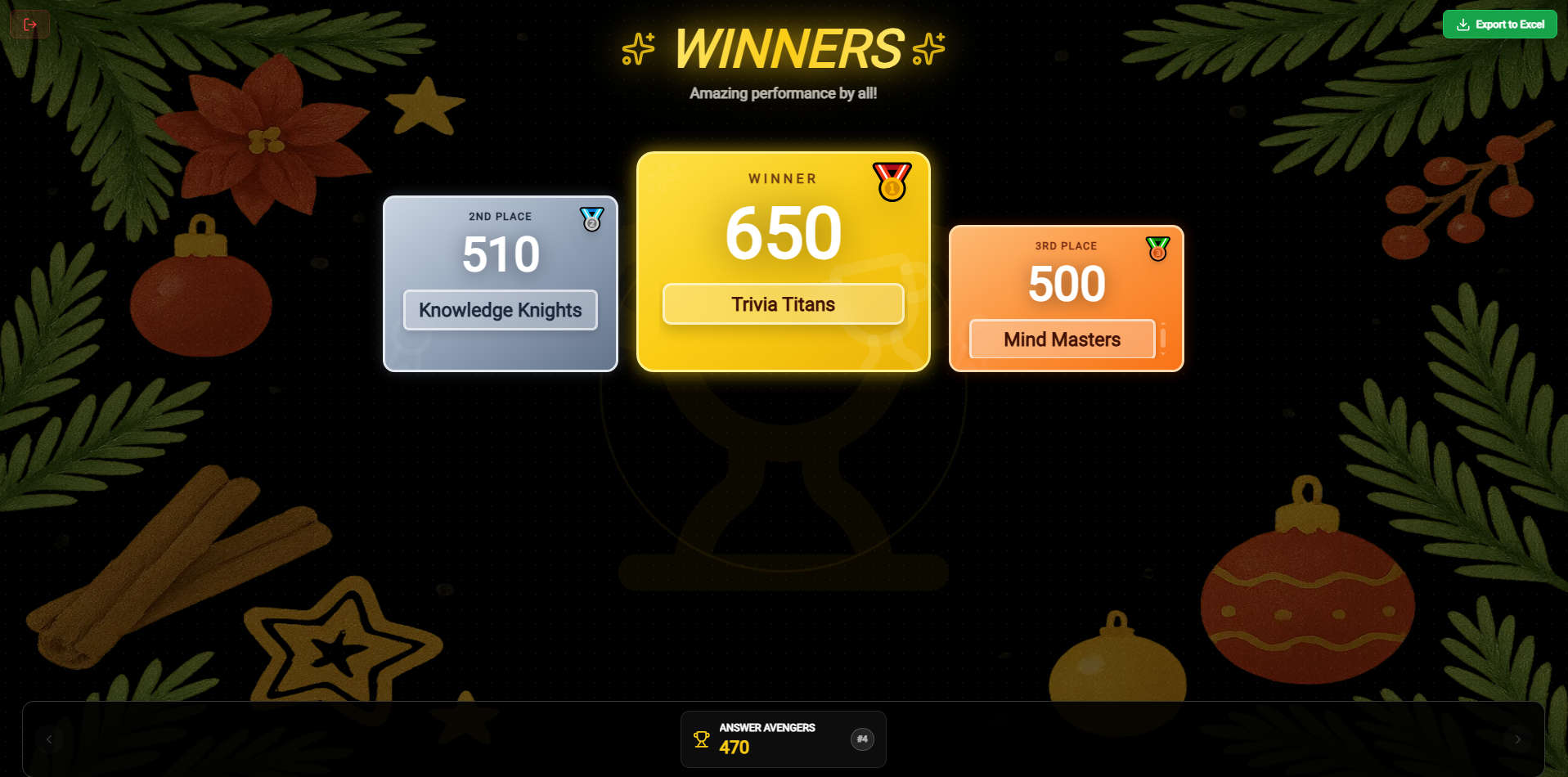 Teacher View: Final class standings and export options
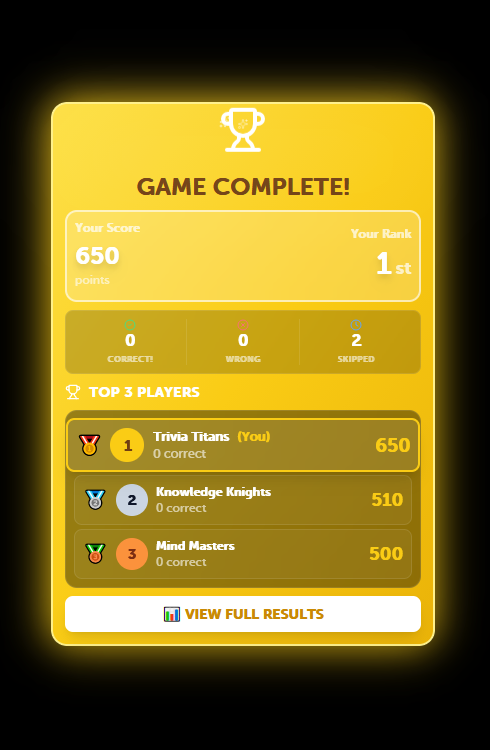 Host View: Detailed student performance export for gradebook and analysis
Presenter Buzz Mode
Presenter Buzz Mode is the professional dual-device version of Buzz Mode for List games. It allows you to manage the game from a private Controller (your laptop/tablet) while displaying the questions and live buzz-in results on a Presenter screen (Projector/TV).
Launching Presenter Buzz Mode
To start, toggle the Presenter switch to ON in your game settings, then click the Buzz In Mode button. This will launch the dual-screen interface where your audience can join via QR code or URL.
Connecting the Presenter Display
Setting up your professional presenter display is a simple 3-step process that ensures your audience sees the action while you maintain full control.
Step 1: Toggle Presenter Mode
In your Game Settings panel, ensure the Presenter toggle is switched ON. This tells TriviaMaker to prepare for a second display.
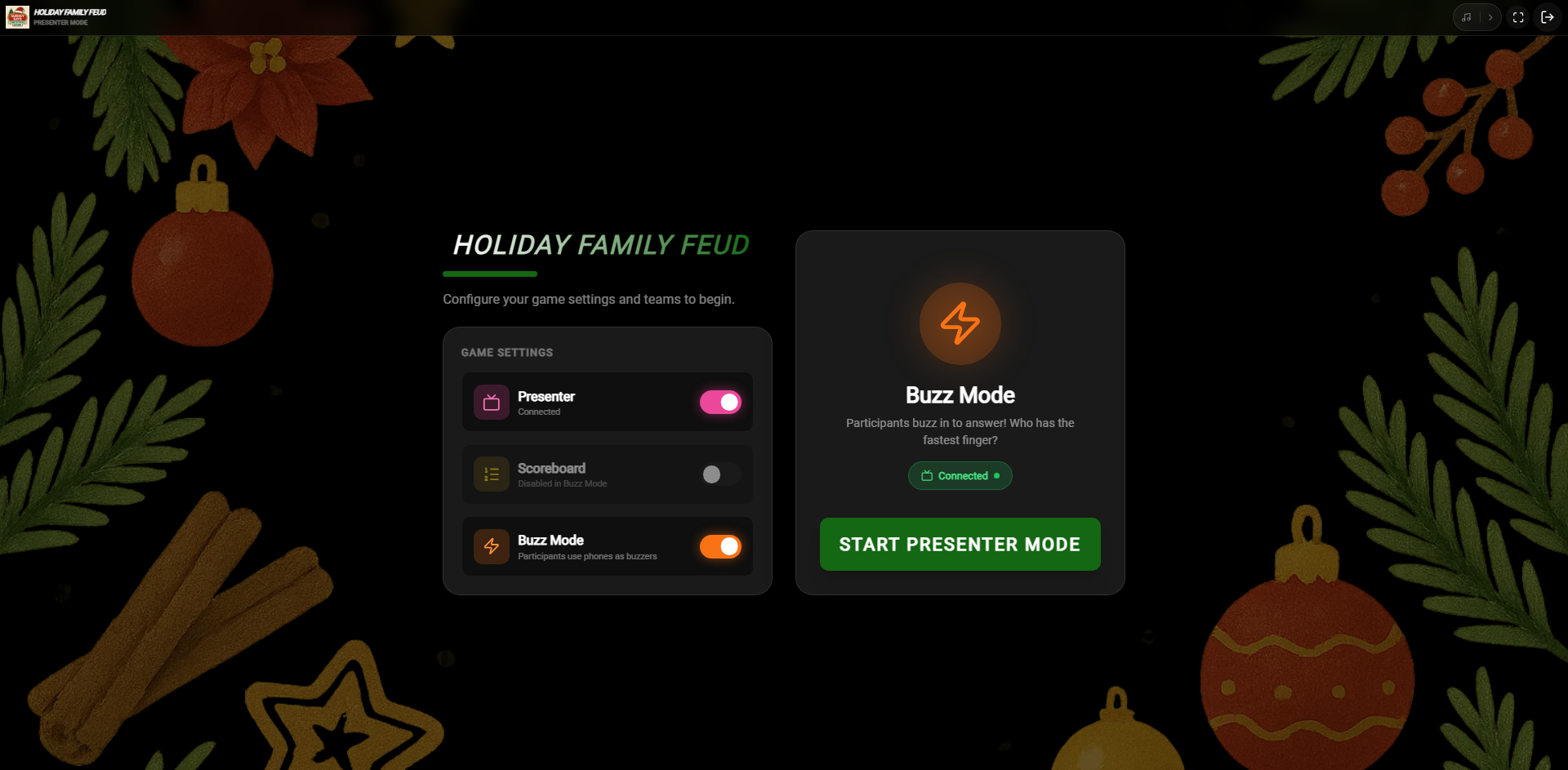 Toggle the Presenter setting to ON in your game configuration
Step 2: Get your Presenter Code
On your audience-facing device (TV, Projector, or Laptop), navigate to triviamaker.com/presenter. Click on Show Code to generate your unique 6-digit connection code.
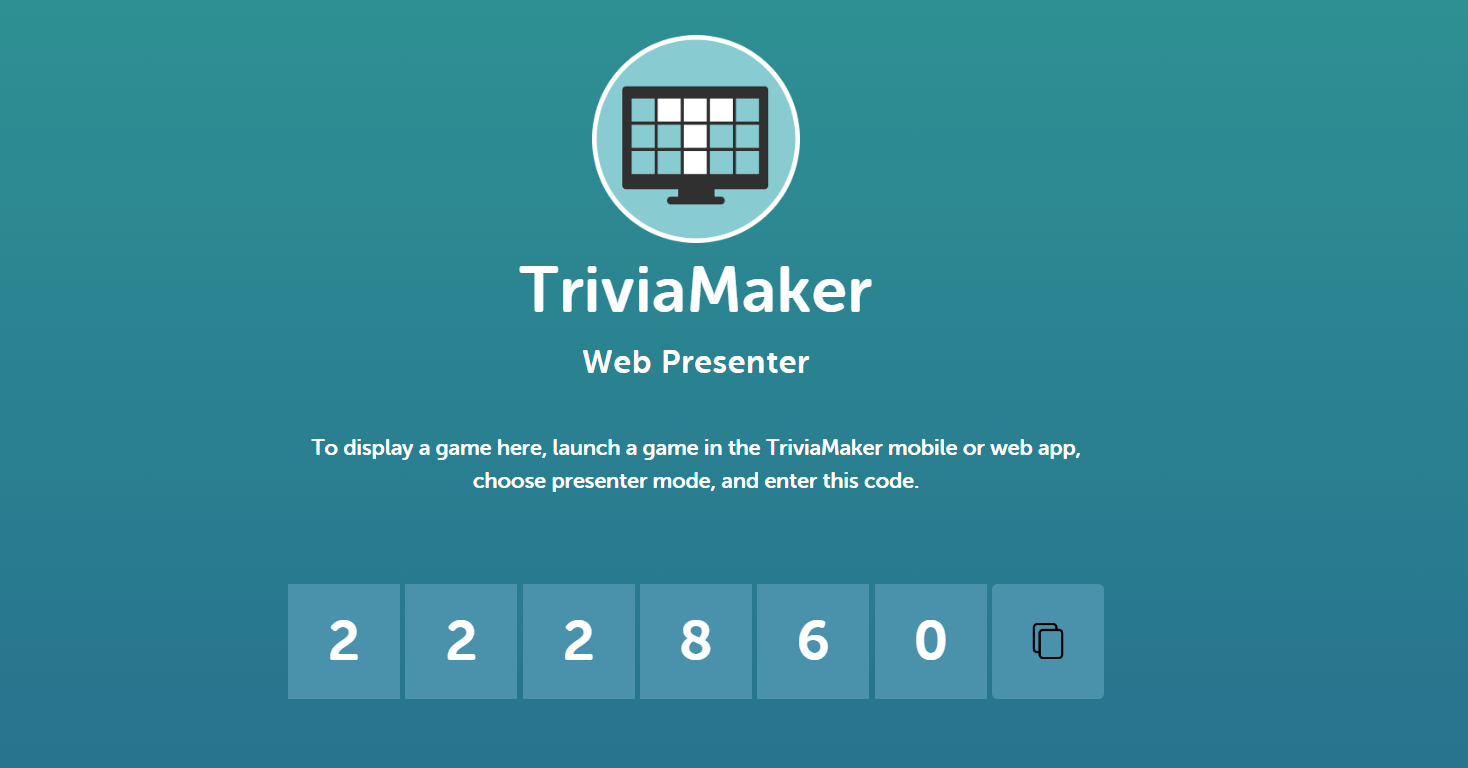 The Web Presenter screen showing where to find your connection code
Step 3: Enter Code & Connect
Return to your controller device. A Presenter Control modal will be waiting for you. Type in the 6-digit code and click Connect to Presenter.
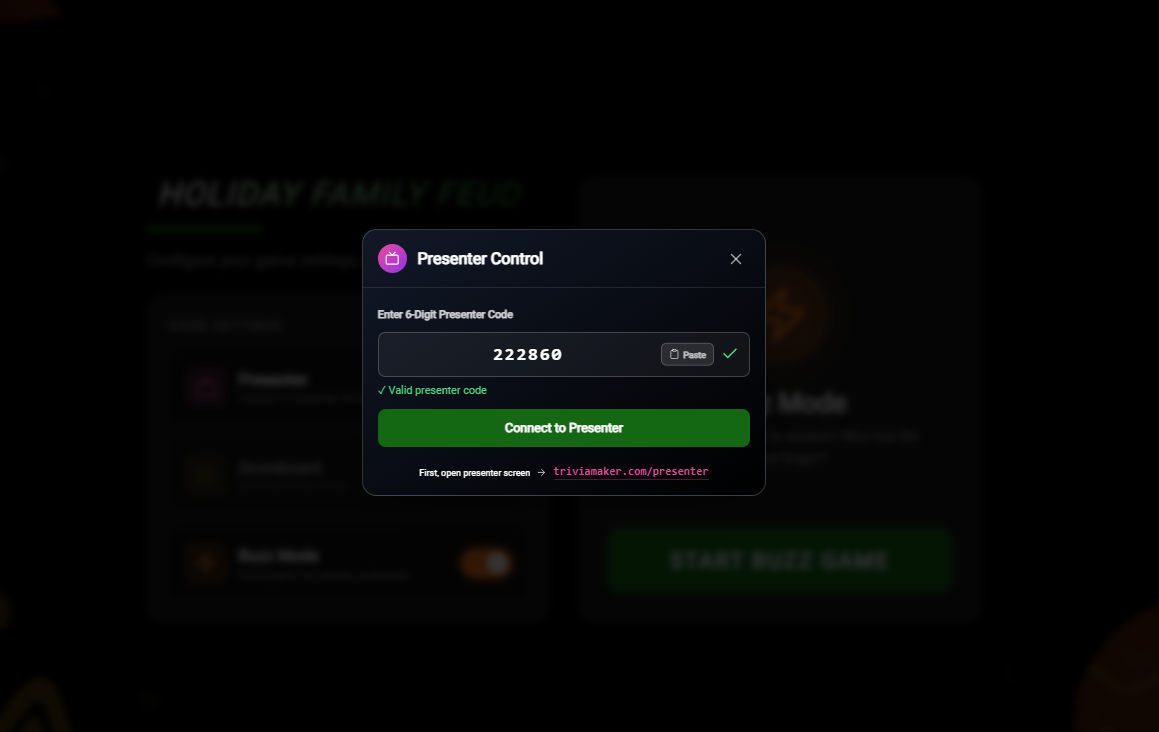 Enter the 6-digit code into the Presenter Control modal on your controller
Connection Tip: If the code doesn't work, refresh the presenter page to generate a new one and ensure both devices have a stable internet connection.
Joining the Game
Once the connection is established, your audience can join the game in two ways. As they join, they will immediately appear in the Incoming Playerslist on both the host and presenter screens.
Option 1: Scan QR Code (Host Display)
The host can display a large QR code on their screen. Participants simply scan this with their phone camera to jump straight into the game.
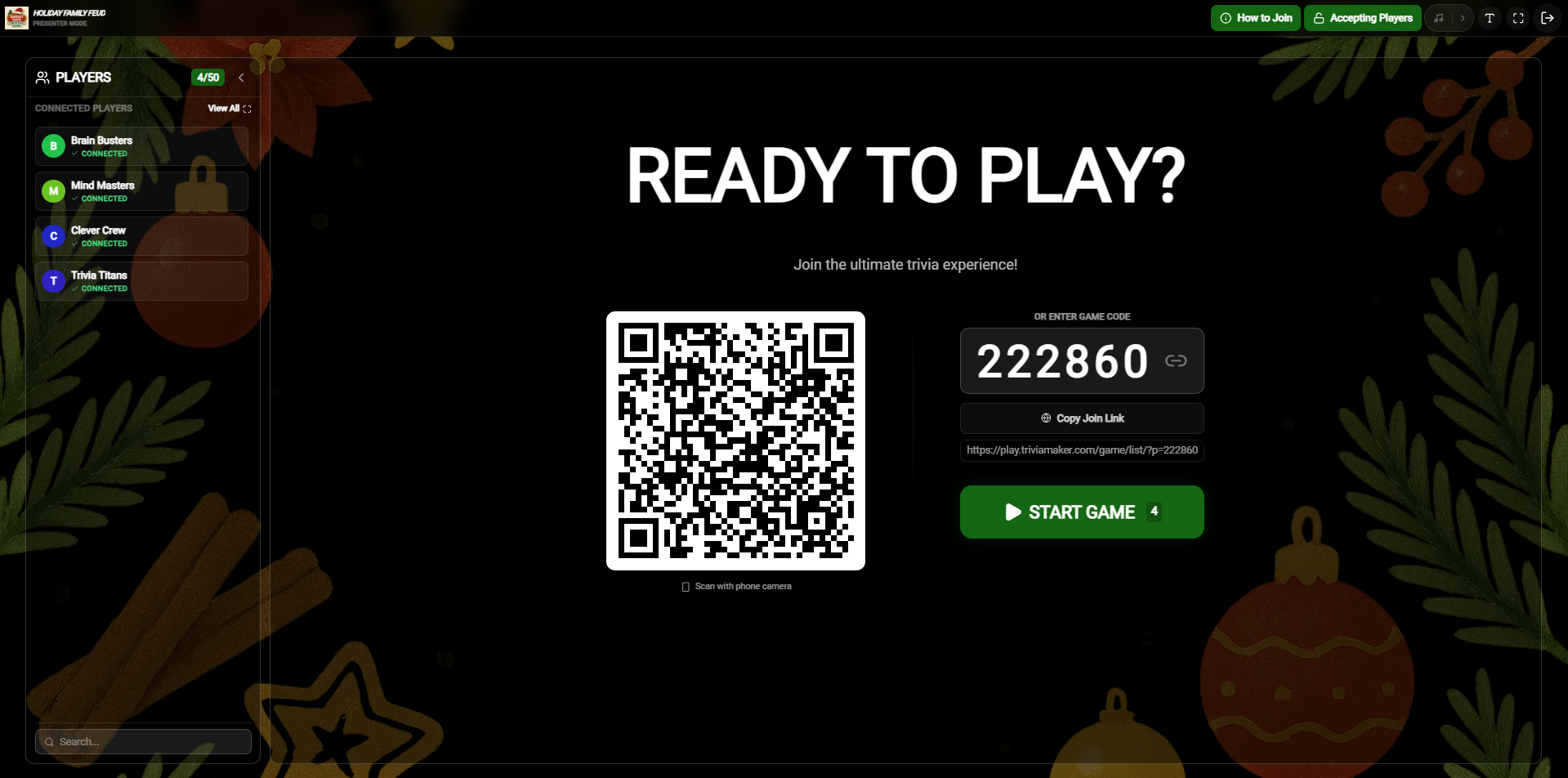 Participants scanning the QR code from the host's 'Ready to Play' screen
Option 2: Join URL & Code (Presenter Display)
The presenter screen also displays a direct join URL and the 6-digit game code. This is perfect for larger audiences who are further away from the screen.
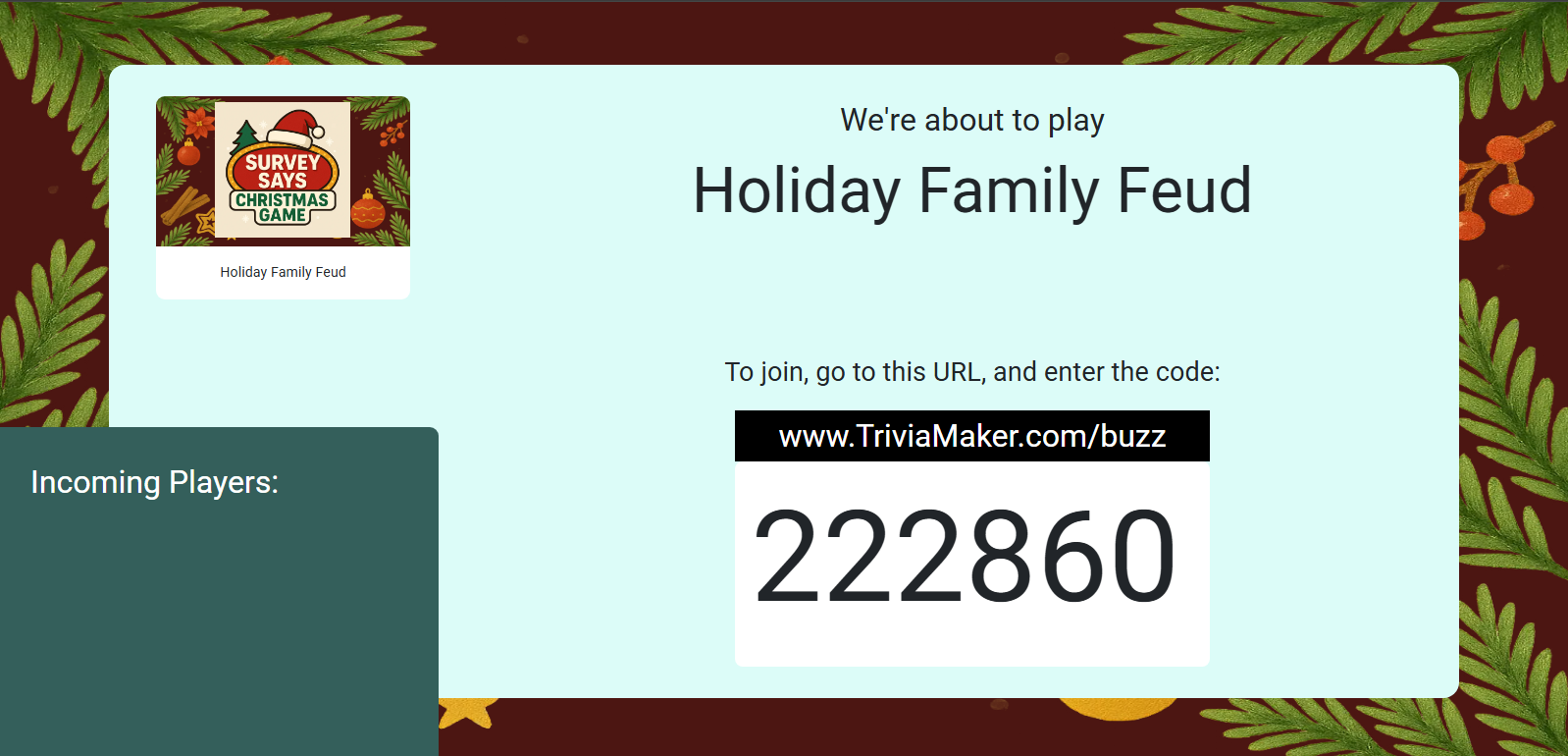 The presenter screen showing the URL and code for incoming players
Participant Experience: Joining & Waiting
When a participant scans the code or visits the URL, they are prompted to enter a Username. After clicking Join Game, their screen will update to show they are successfully in the lobby.
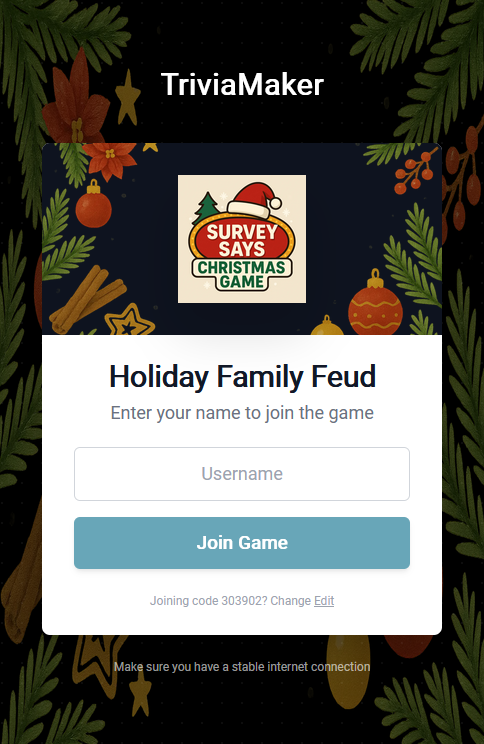 Step 1: Participant entering their username to join
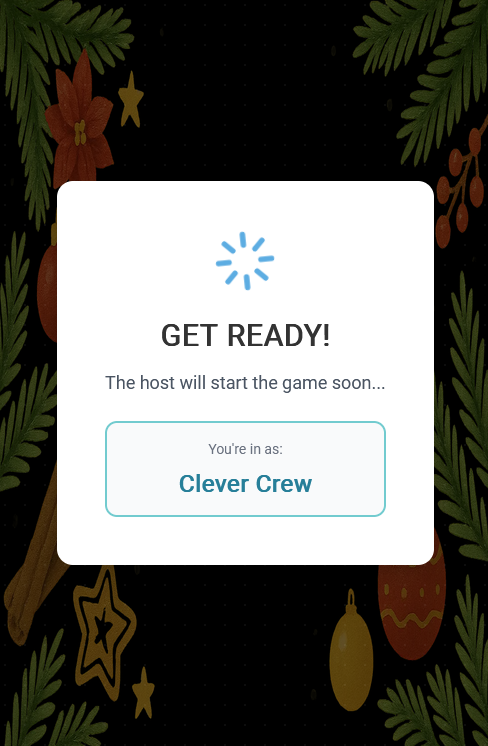 Step 2: Participant waiting for the host to start the game
Lobby & Connection List
The host can monitor all connected players in the real-time Lobby. This view allows you to see when everyone has successfully joined before officially launching the Rounds Board.
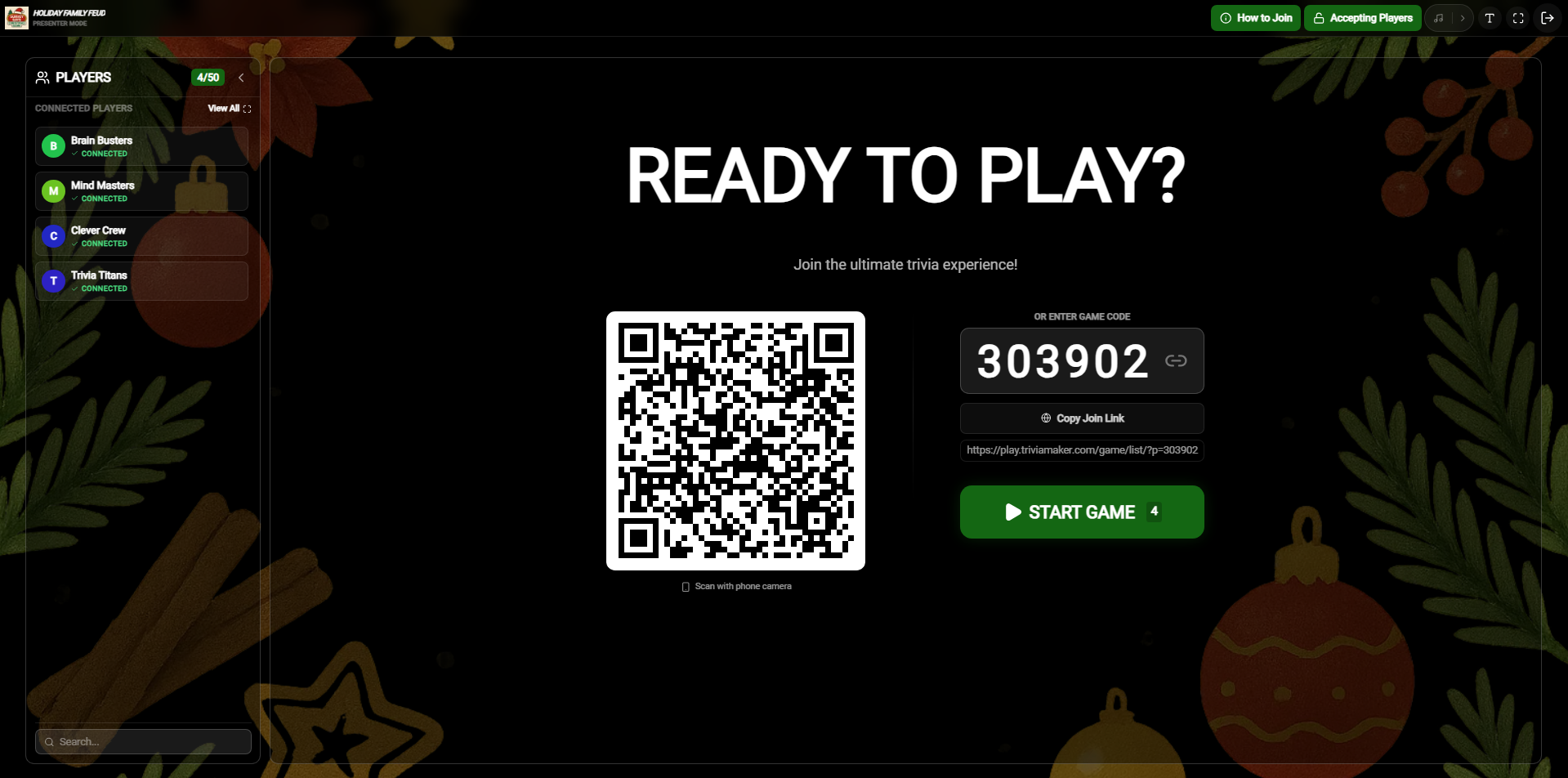 Host View: Real-time lobby showing successfully joined participants
Rounds Screen
The Rounds Screen displays the complete set of rounds in a clean listing. This allows both the host and the presenter display to introduce the topics covered in the game.
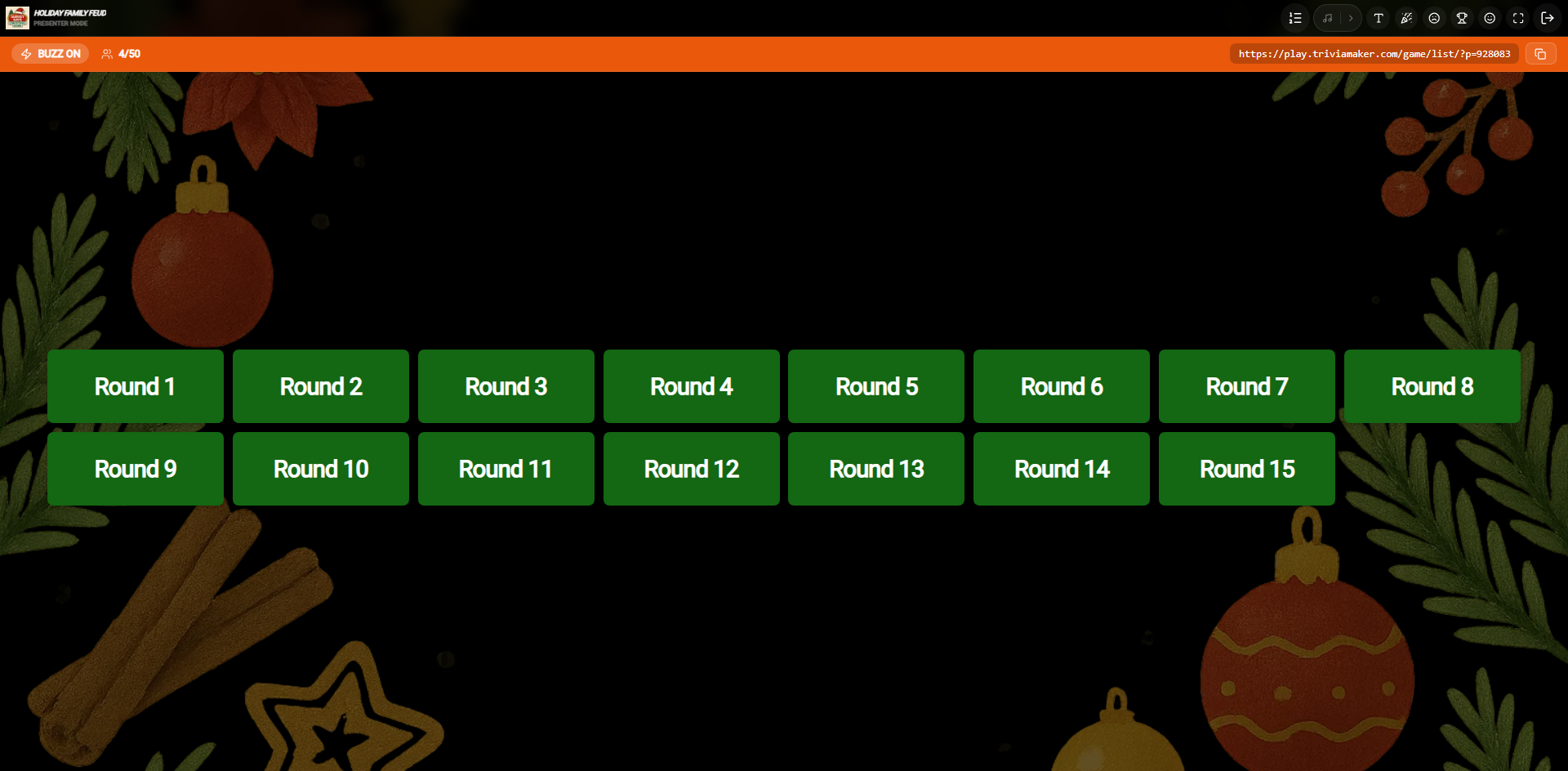 Host View: Rounds list setup and management options
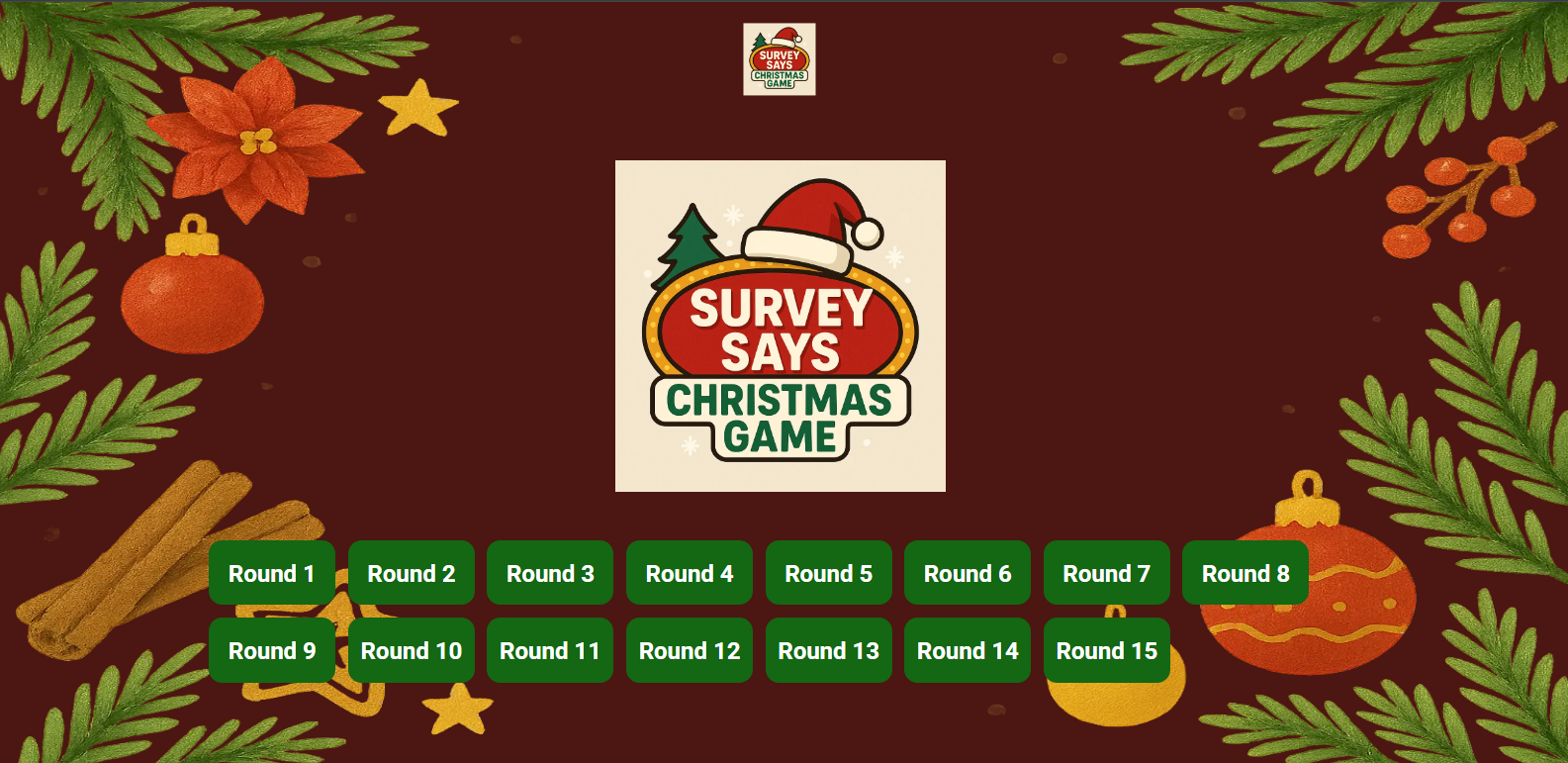 Presenter View: Sleek rounds listing shown on the audience screen
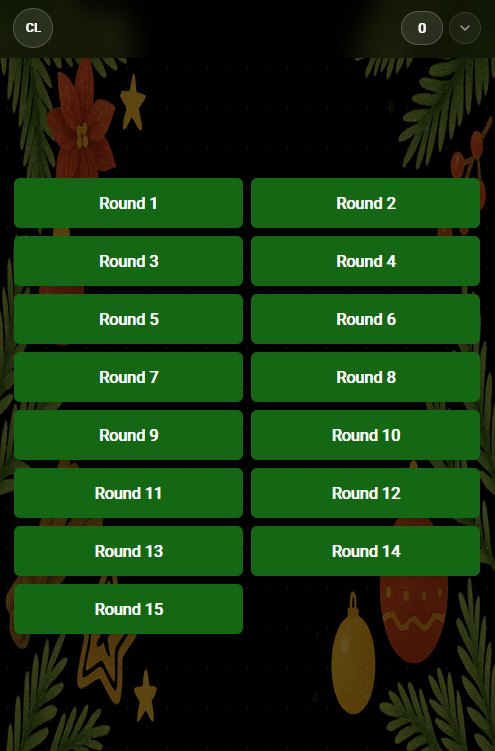 Additional Rounds Screen view
Topbar Navigation & Icons (Rounds Screen)
Leaderboard / List
Toggle the listing view or standings table on the presenter display.
Music
Play or pause the background connection music.
Font Size
Adjust presentation text scaling for high readability.
Celebration sound
Trigger clapping or congratulatory effects.
Disappointed sound
Play minor buzzes or reaction sound effects.
Winner Podium
Skip directly to final scores and podium celebration.
Fullscreen
Toggle fullscreen presentation view.
Exit
Exit session and return to the main dashboard.
Round Name Screen
When introducing a specific round during selection, the Round Name Screen gives a dramatic focus on the selected topic to build anticipation and focus.
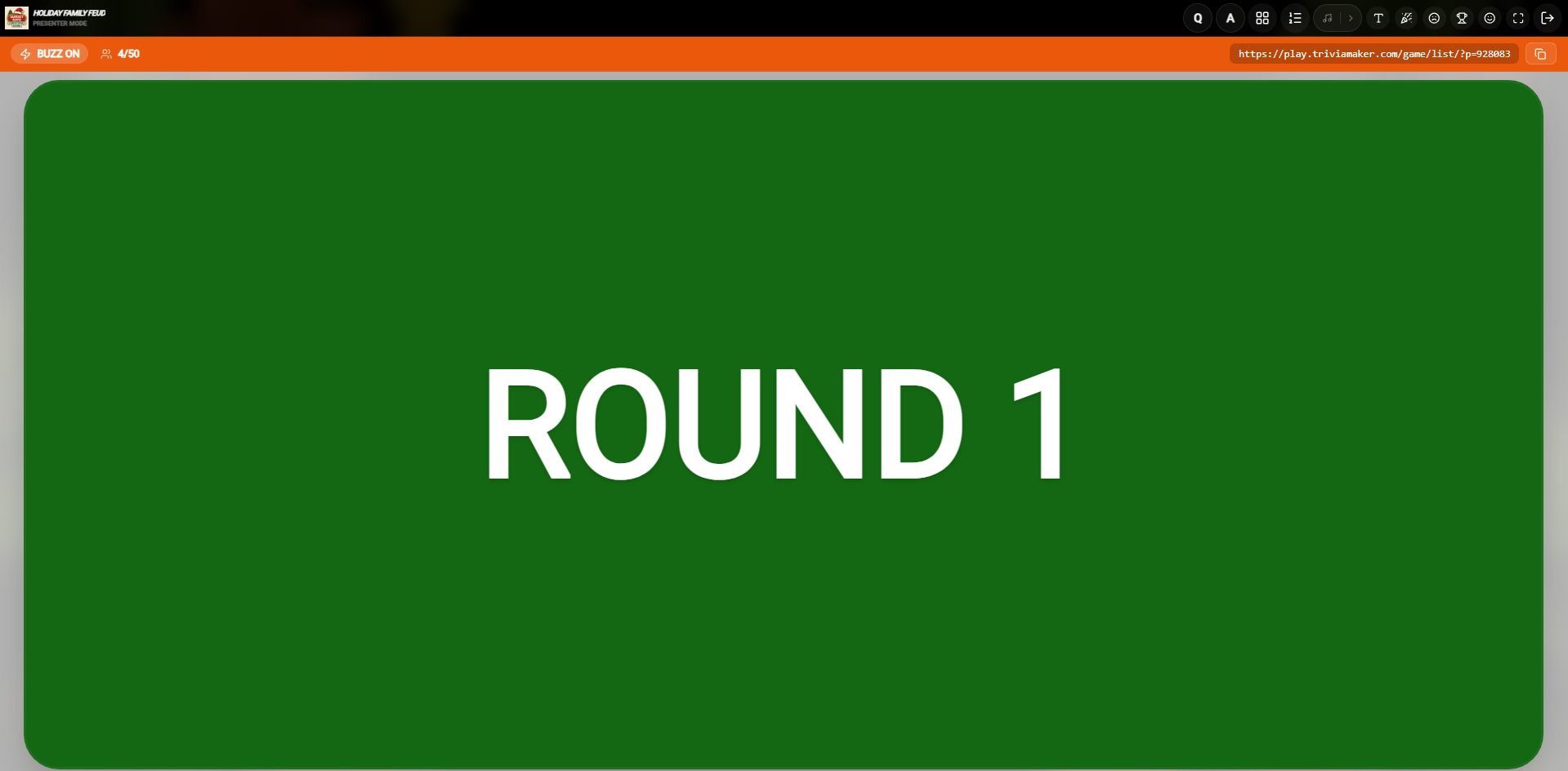 Host View: Round Name focus screen on the Controller
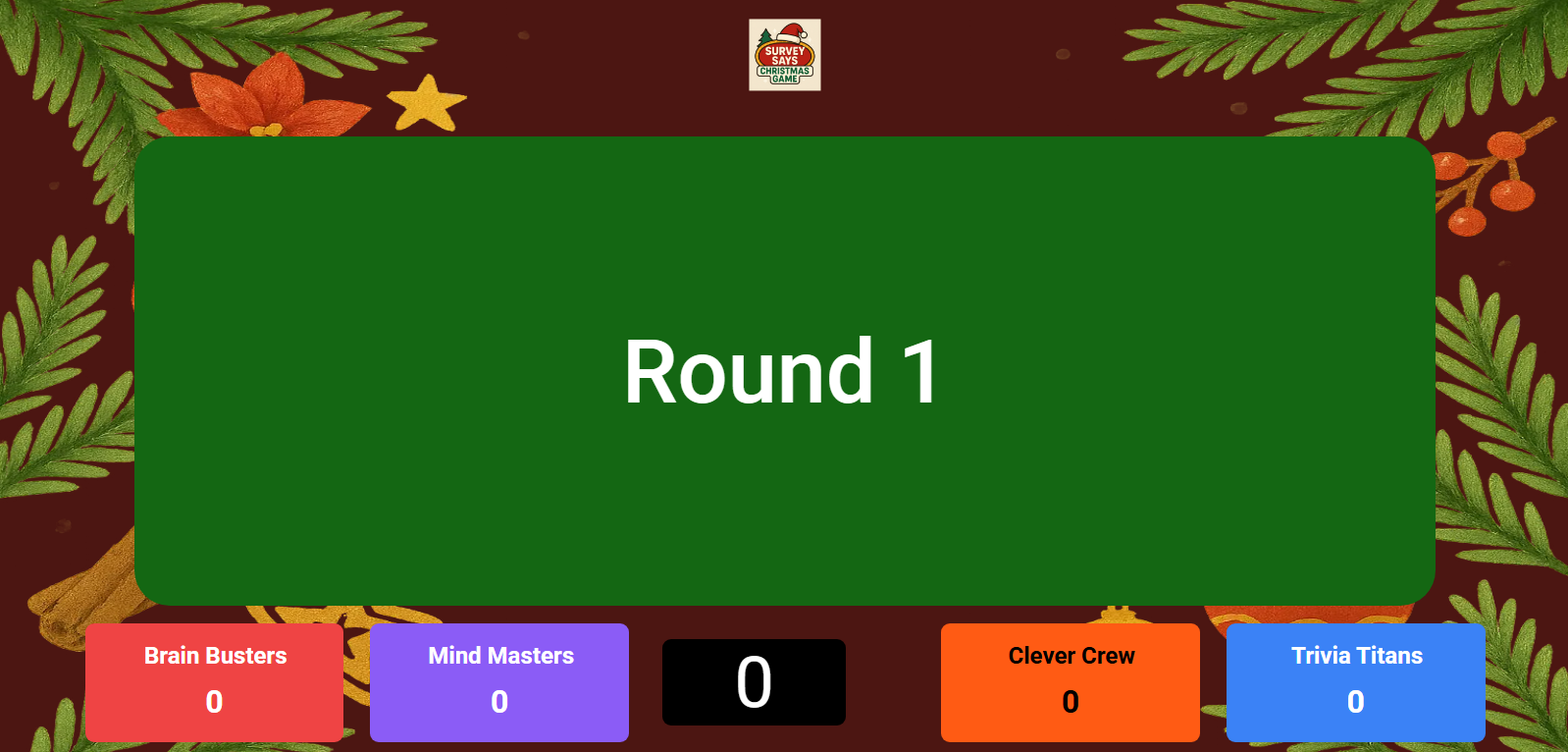 Presenter View: Cinematic round name splash card shown to audience
 Additional Round Name view
Topbar Navigation & Icons (Round Name Screen)
Leaderboard / List
Toggle the listing view or standings table on the presenter display.
Music
Play or pause the background connection music.
Font Size
Adjust presentation text scaling for high readability.
Celebration sound
Trigger clapping or congratulatory effects.
Disappointed sound
Play minor buzzes or reaction sound effects.
Winner Podium
Skip directly to final scores and podium celebration.
Fullscreen
Toggle fullscreen presentation view.
Exit
Exit session and return to the main dashboard.
Gameplay & Buzz-In Logic
Presenter Buzz mode uses a specialized workflow where the host controls the timing of questions and buzzers, while the presenter display provides the cinematic experience for the audience.
Phase 1: The Question Phase
When you advance to a question, it is displayed on both the Host and Presenter screens. During this phase, participants are in a "Wait" state, as the host prepares to read the question.
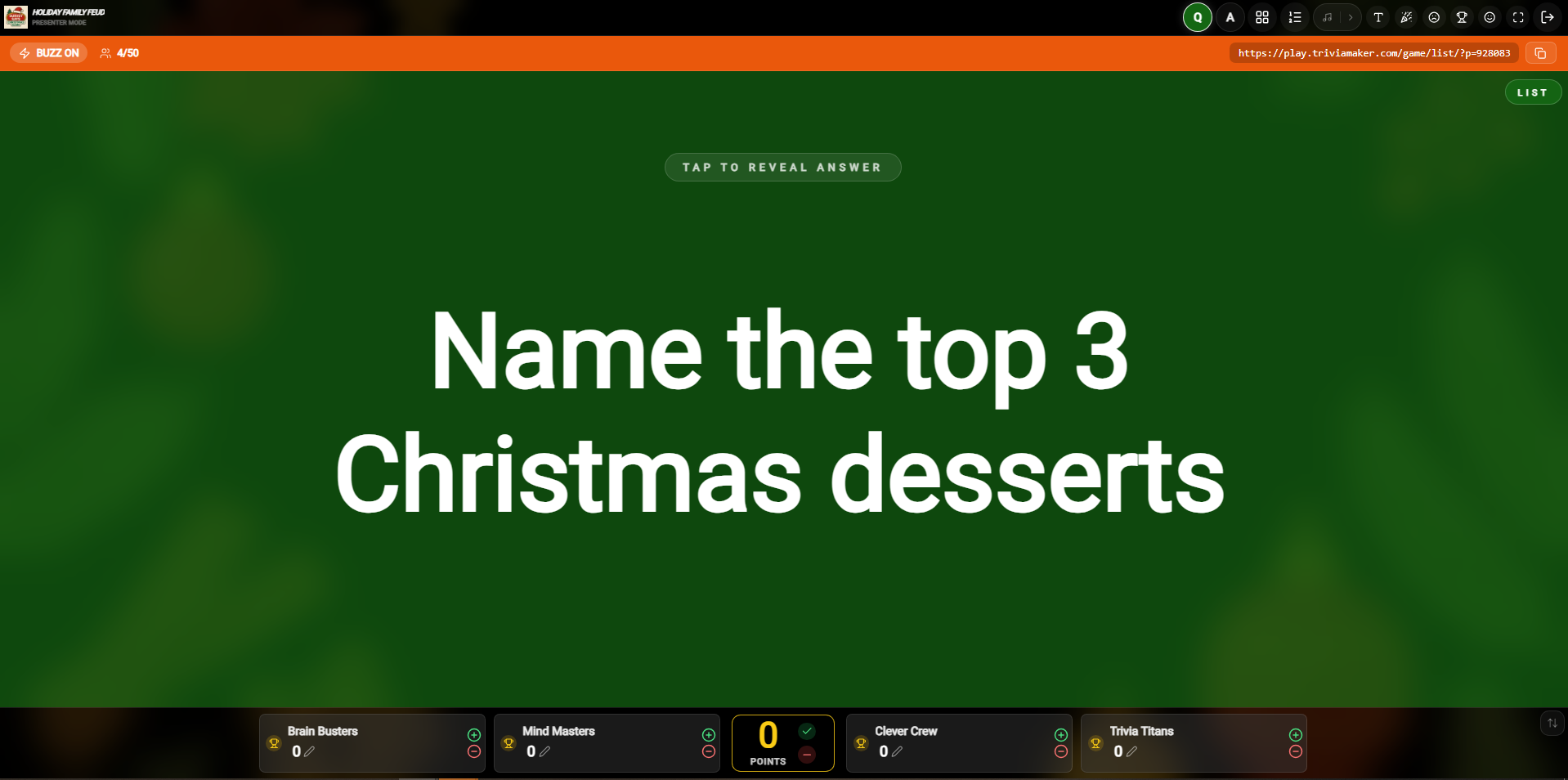 Host/Controller: View the question and control the Buzz-In toggle
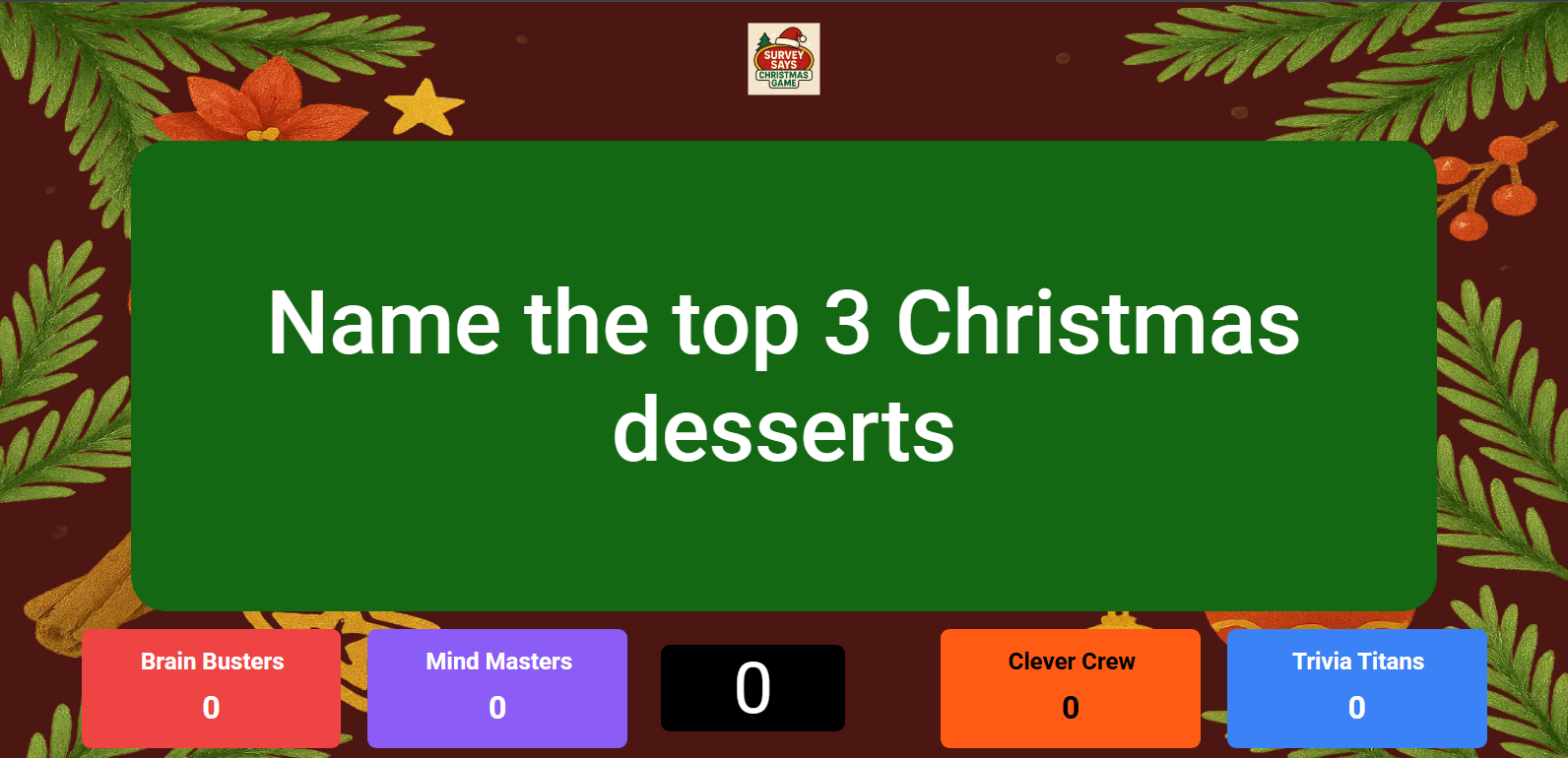 Presenter: Large, cinematic question view for the audience
 Additional Question Phase view
Participant View: Waiting for Buzz-In
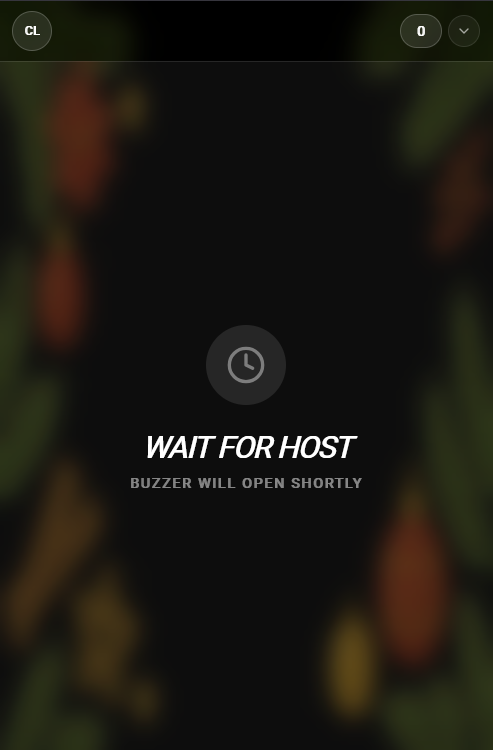
While the question is being read, participants see a Wait for Hostmessage. This prevents accidental buzzing before the question is fully understood.
Participant: Screen showing the 'Wait for Host' message before buzzers openHost Control: As the host, you decide exactly when to open the buzzers by toggling the BUZZ ON button at the top left of your screen.
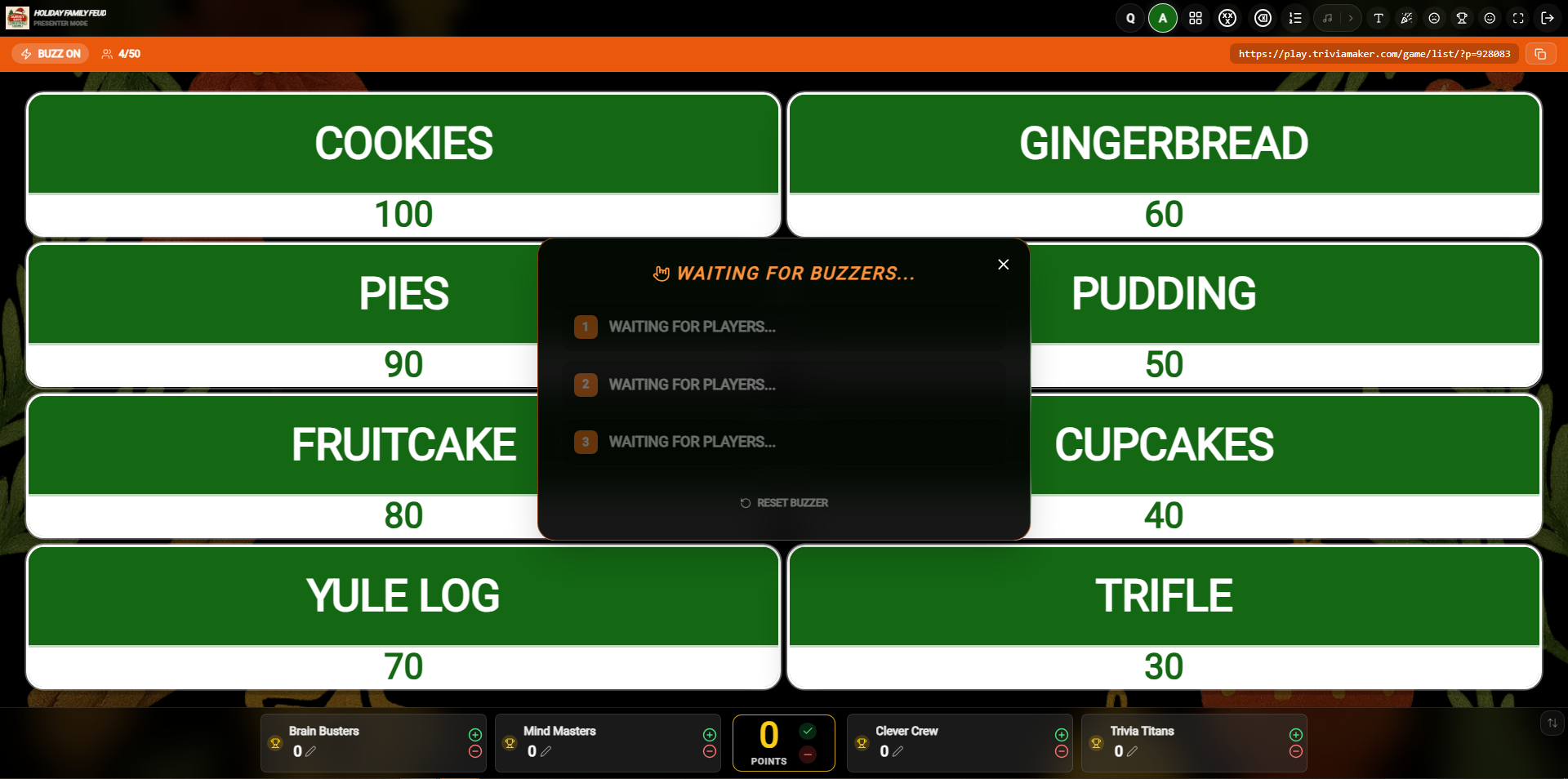 Host View: Managing the question and seeing who buzzed in first
Pro Tip: Use the Auto-Next feature in settings to keep the game moving quickly, especially in large audience environments.
Phase 2: Opening the Buzzer
After reading the question, the host can reveal the answer options. A large OPEN BUZZER button appears on the host screen. Clicking this will activate the buzzers for all participants.
Host/Controller: Reveal options and click 'OPEN BUZZER' when ready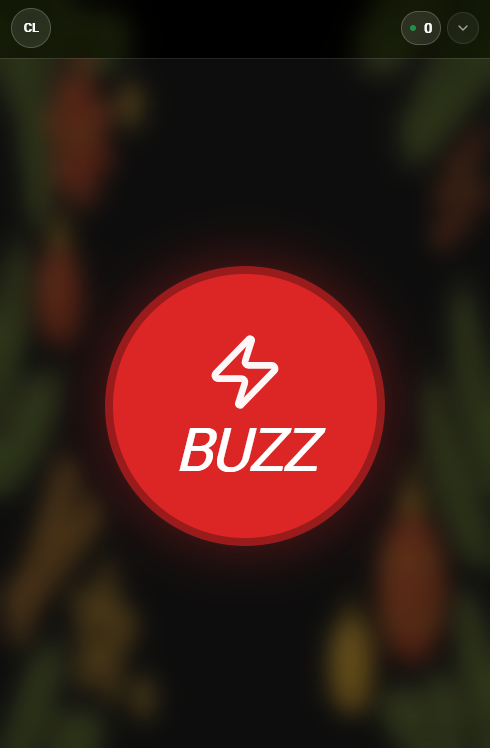 Presenter: Displaying the answer options to the audience
Phase 3: Buzzers Active
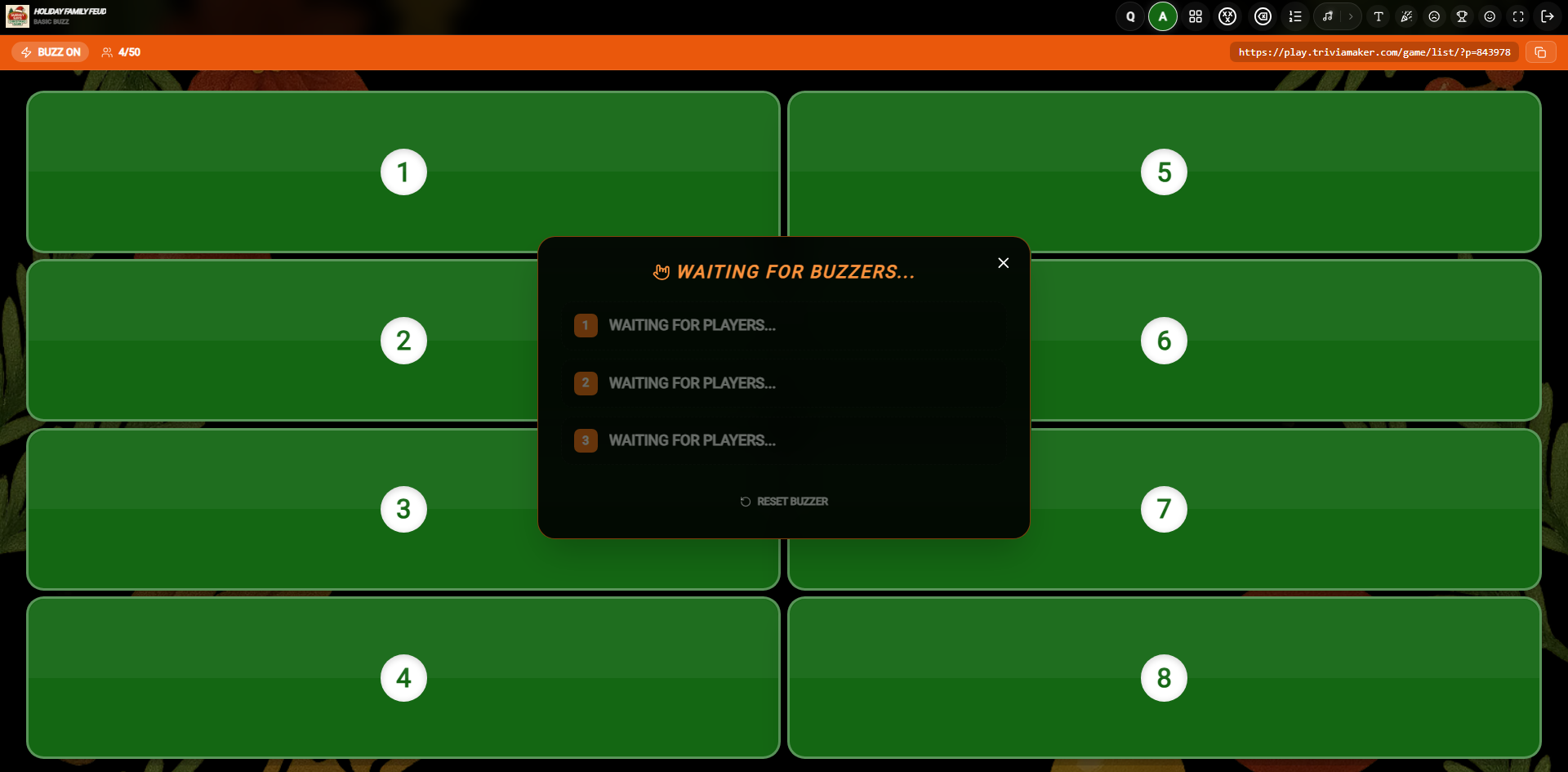
The moment the host clicks OPEN BUZZER, a large red BUZZbutton appears on every participant's phone. On the host side, a "Waiting for Buzzers" modal tracks the first players to respond.
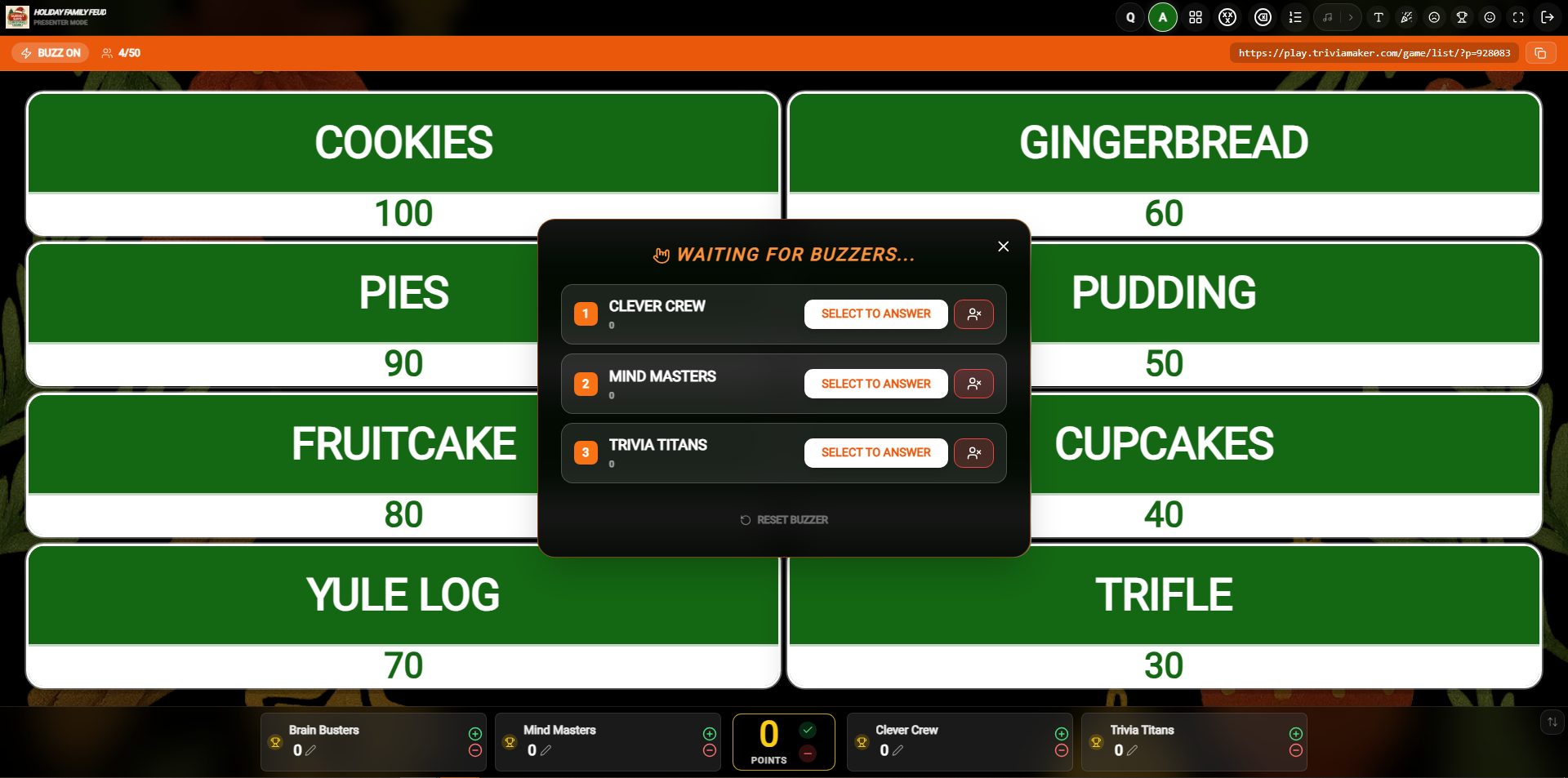 Host/Controller: Modal tracking incoming buzzes in real-time
 Participant: The red BUZZ button is now live on the phone screen
Phase 4: The Buzzer Queue
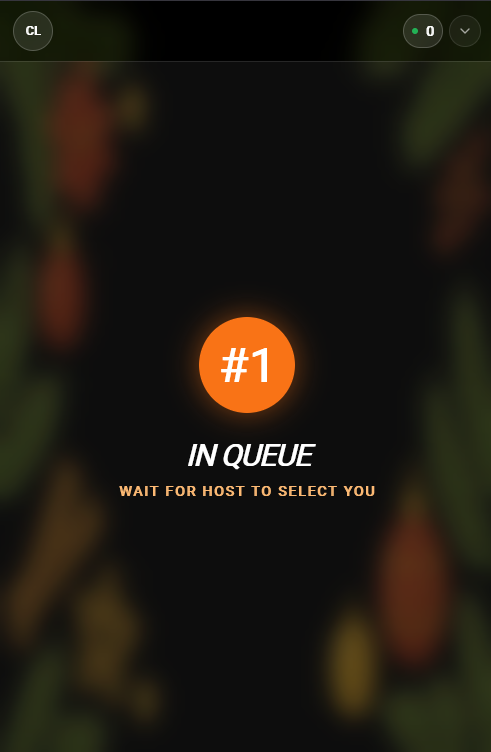
As soon as the first person buzzes in, they are placed at the top of the queue. Their phone screen updates to show their position (e.g., #1 IN QUEUE), while the host sees their name with a SELECT TO ANSWER button.
 Participant: Visual confirmation of their place in the buzz-in line
 Host/Controller: Identifying the first player and preparing to let them answer
Multiple Buzzes: If several players buzz in, they will all be listed in order. If the first player gets the answer wrong, the host can easily move to the next person in the queue.
Phase 5: The Active Turn
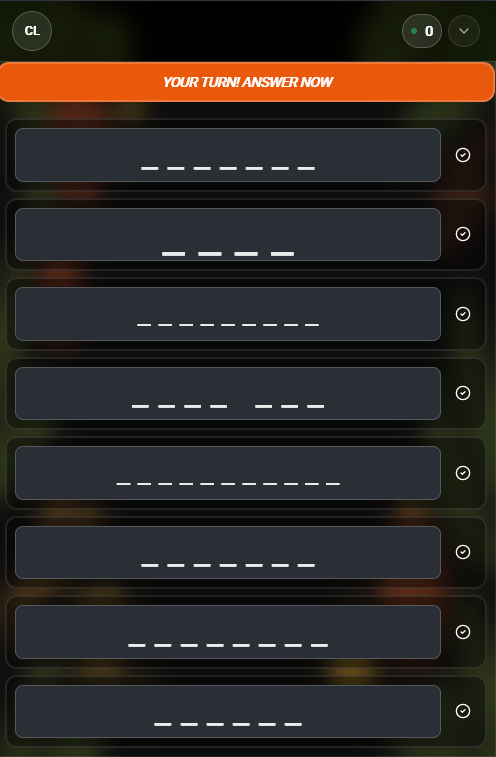
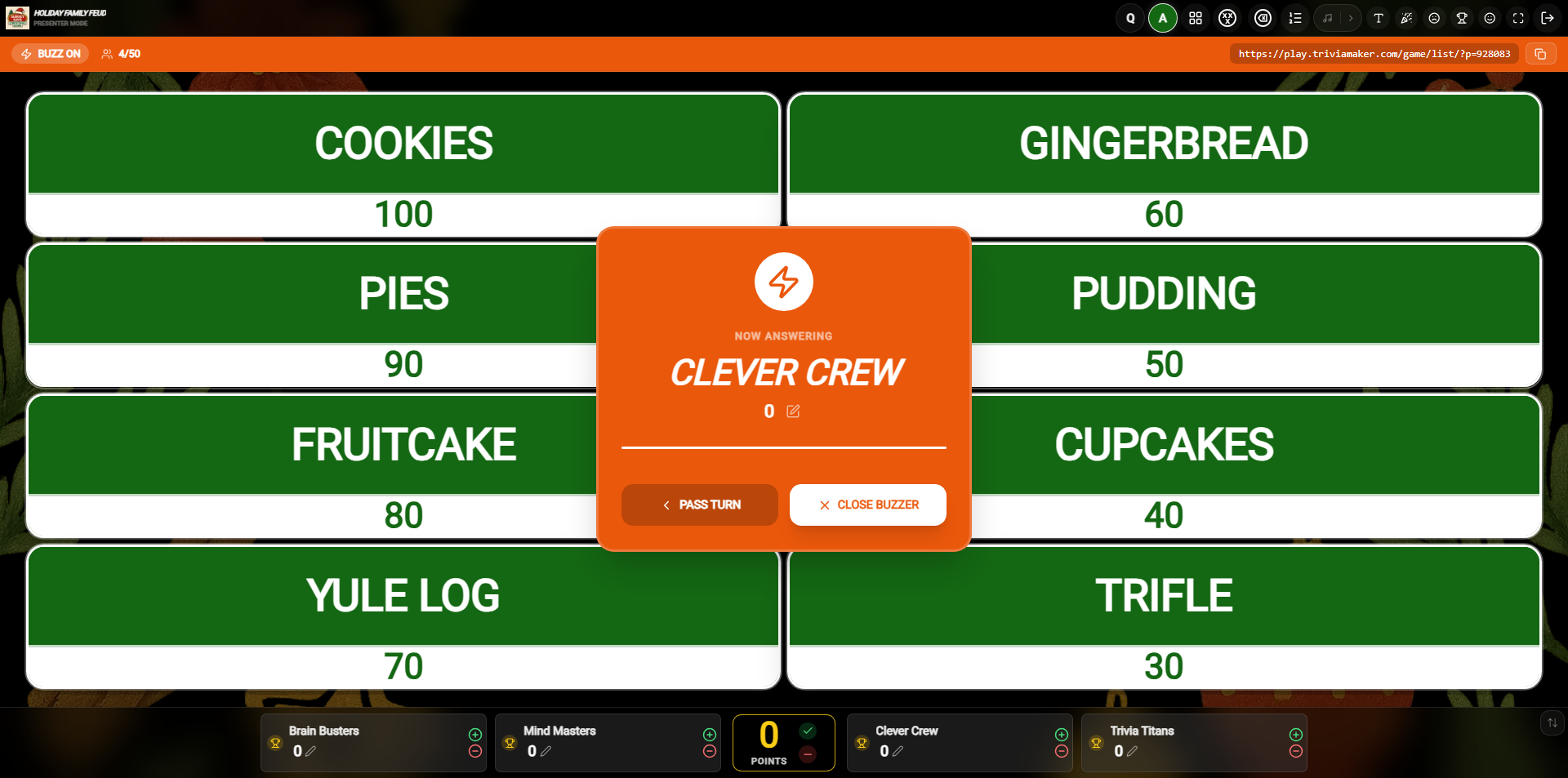
When the host clicks SELECT TO ANSWER, that specific player is granted the turn. The host sees a "Now Answering" status, and the chosen player's screen updates with an orange YOUR TURN! banner, revealing the question and options on their device.
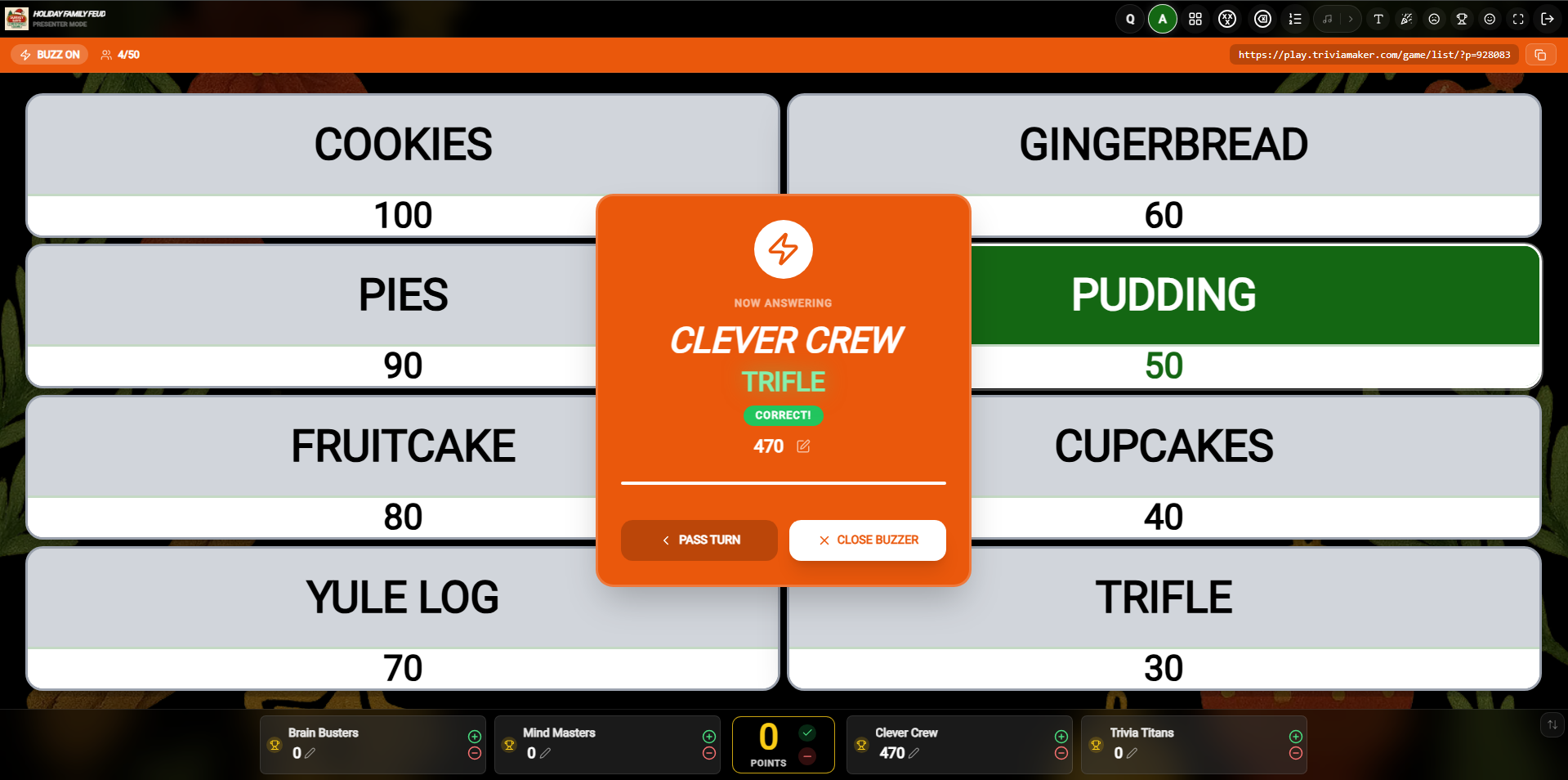 Host/Controller: Viewing the active player and management options (Pass/Close)
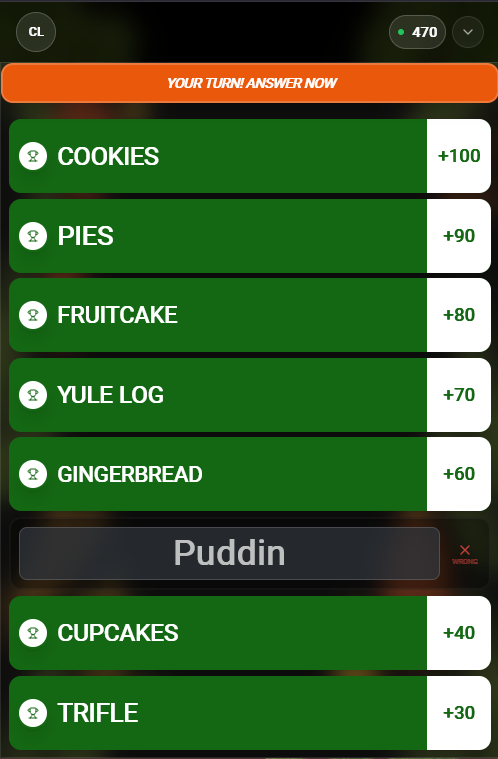 Participant: The screen reveals the question and options for the active player
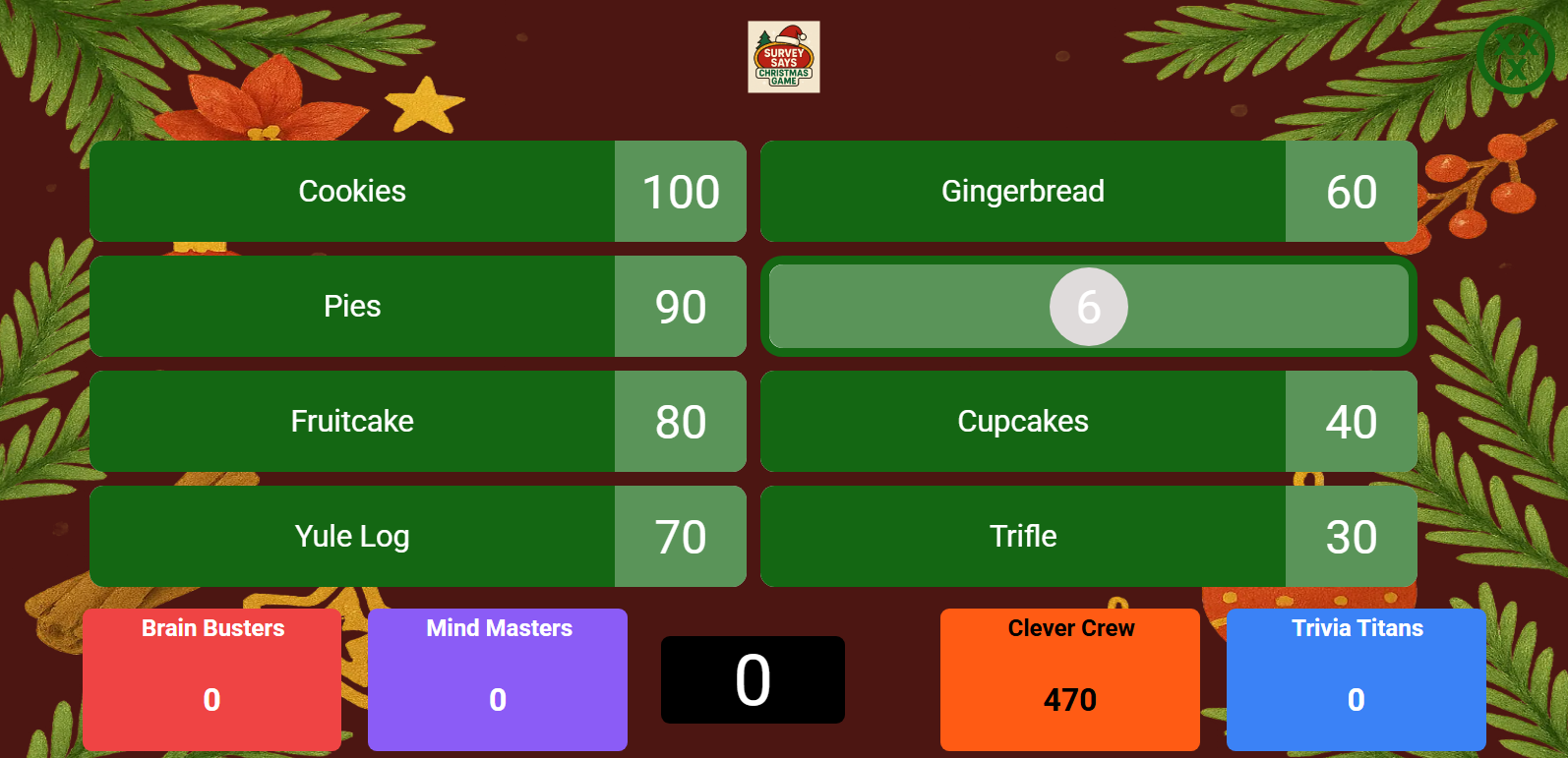 Participant: Active turn view with answer options visible
Managing the Turn: If the player is unsure or takes too long, the host can click PASS TURN to let the next person in the queue try, or CLOSE BUZZER to end the attempt for that question.
Winner Screen & Final Results
At the conclusion of the game, the Winner Screen celebrates the top performers. The final scores are tallied, and the winner is announced with dynamic visuals across all three displays.
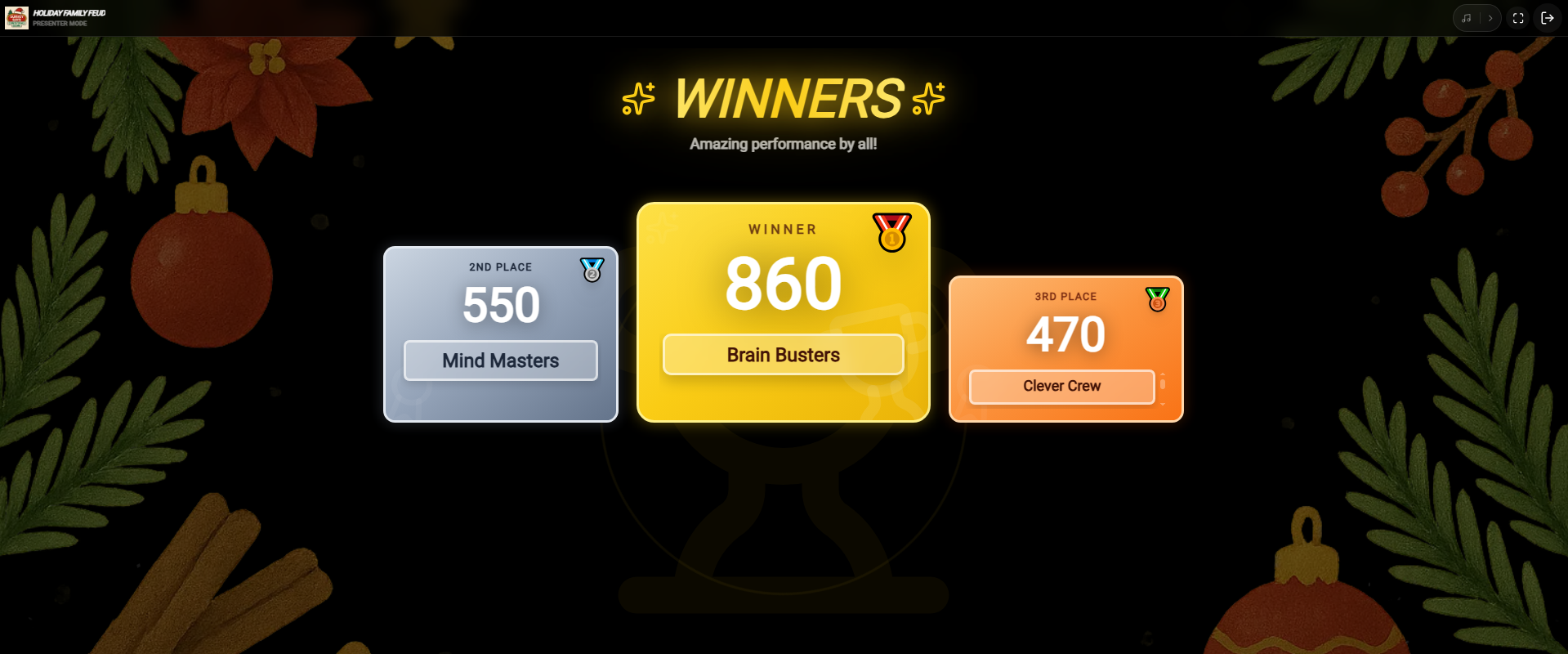 Host View: Final leaderboard and game summary
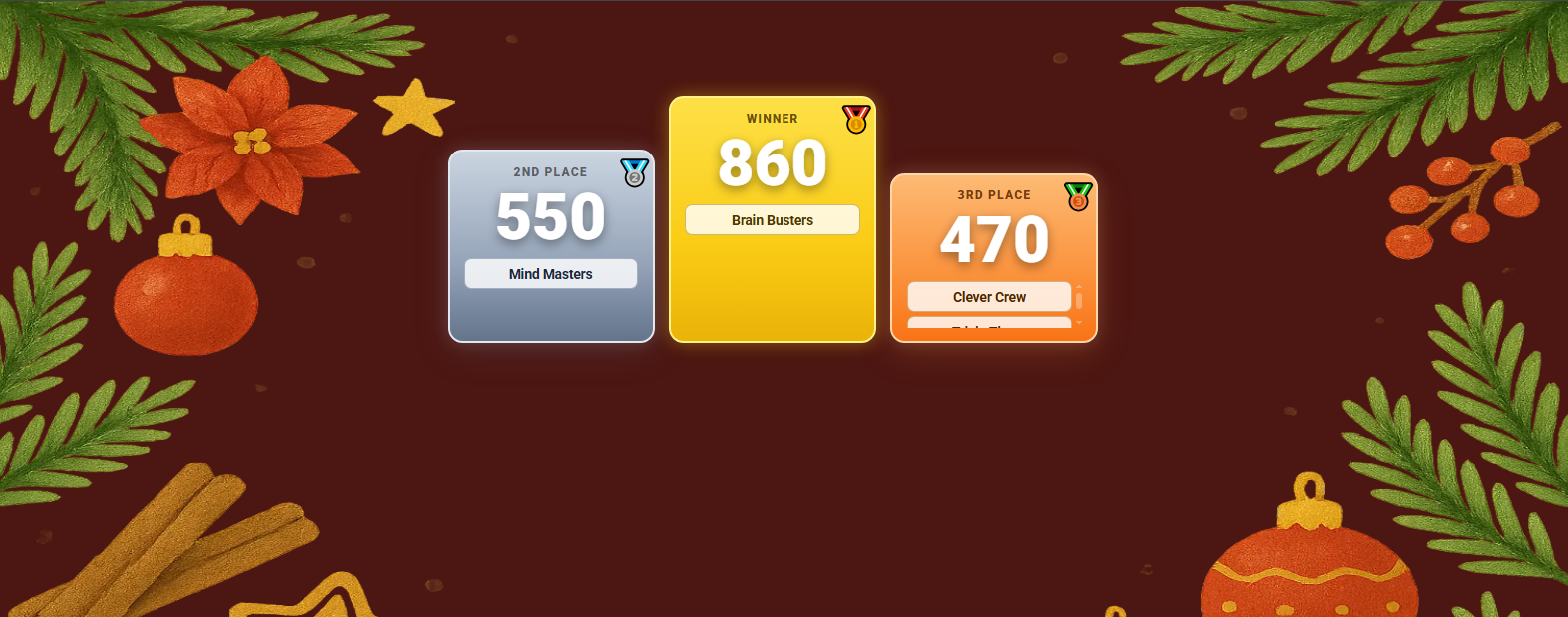 Presenter View: Cinematic winner celebration for the audience
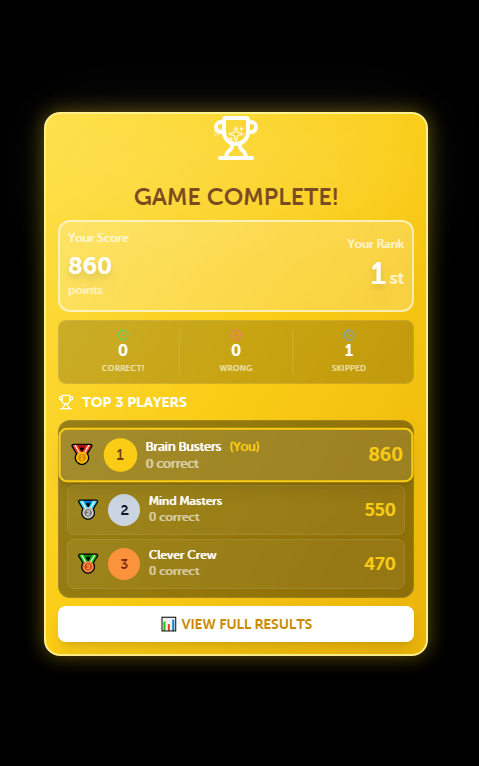 Participant View: Personal standing and celebration on their device
Celebrating Success: The Presenter display provides a grand announcement with animations, making it the perfect moment for the audience to cheer for the champions.
Host Controller
Your private panel to see answers, manage scores, and control the buzzer state. Audience never sees this screen.
Audience Presenter
The public display showing the question, the countdown, and real-time buzz-in animations.
Host Control Icons
Leaderboard
Toggle the live scoreboard on the presenter screen.
Music
Control background music and sound effects.
Fullscreen
Make the presenter view fill the entire projector screen.
Exit
Safely end the session and save player data.
Solo Mode
Solo Mode is designed for players who want to test their knowledge or practice individually without the need for team scoring, hosting controls, or multiple participants. It provides a simple, direct self-assessment format.
How to Launch Solo Mode
1. From the Game Preview page, locate and click the primary Play button.
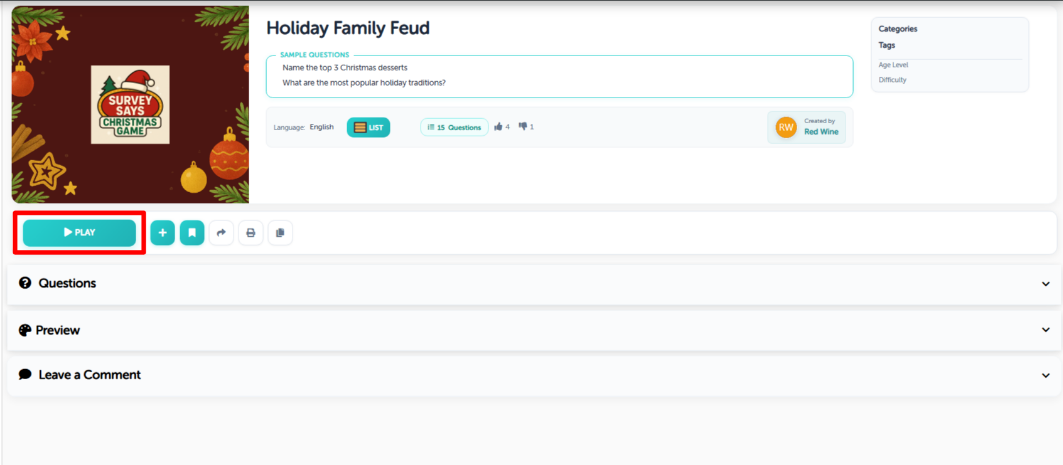 Game Preview Page: Click the primary Play button to open the options popup
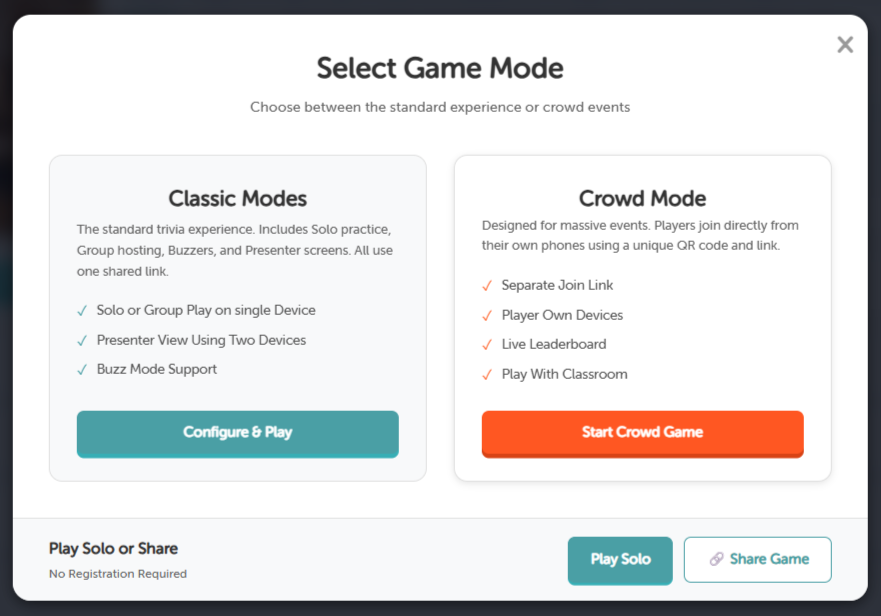
2. A Select Game Mode popup will appear. In the bottom-right corner of this modal, you will find the Play Solo button.
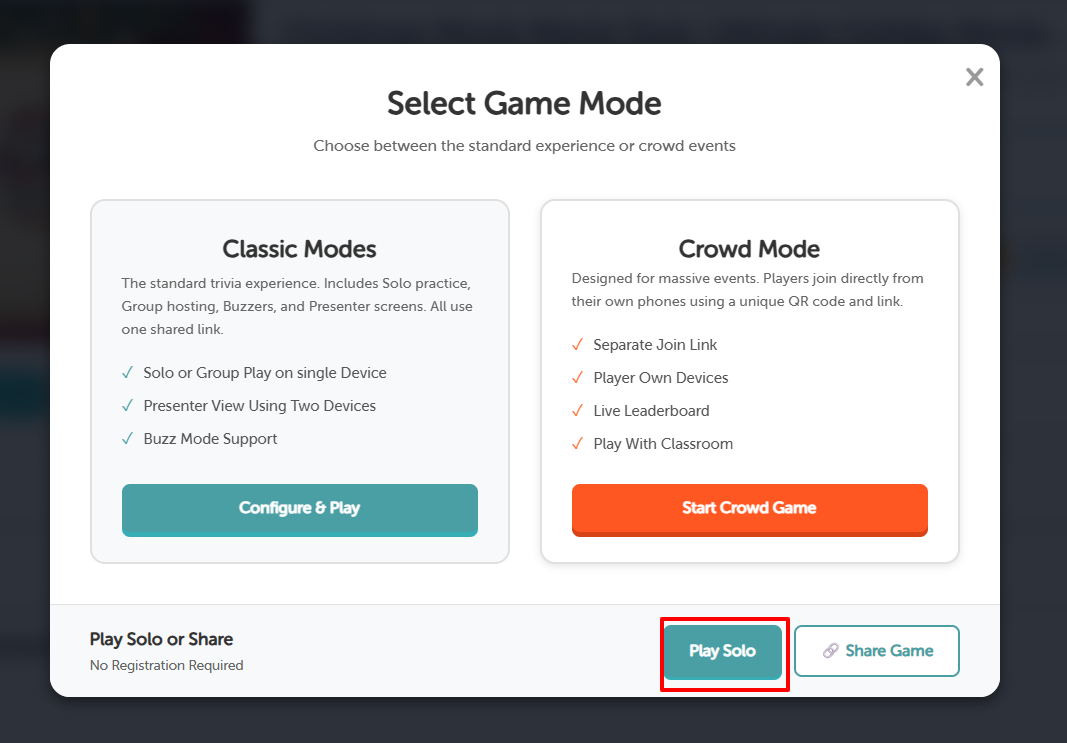 Game Mode Selector: Click 'Play Solo' in the bottom right corner
3. Alternatively, you may configure game settings and click the Start Game option after selecting Solo Mode.
 Solo Mode Settings: Set up options and click start
4. Click the Play Solo button or configure the settings with scoreboard toggled OFF to launch the game instantly.
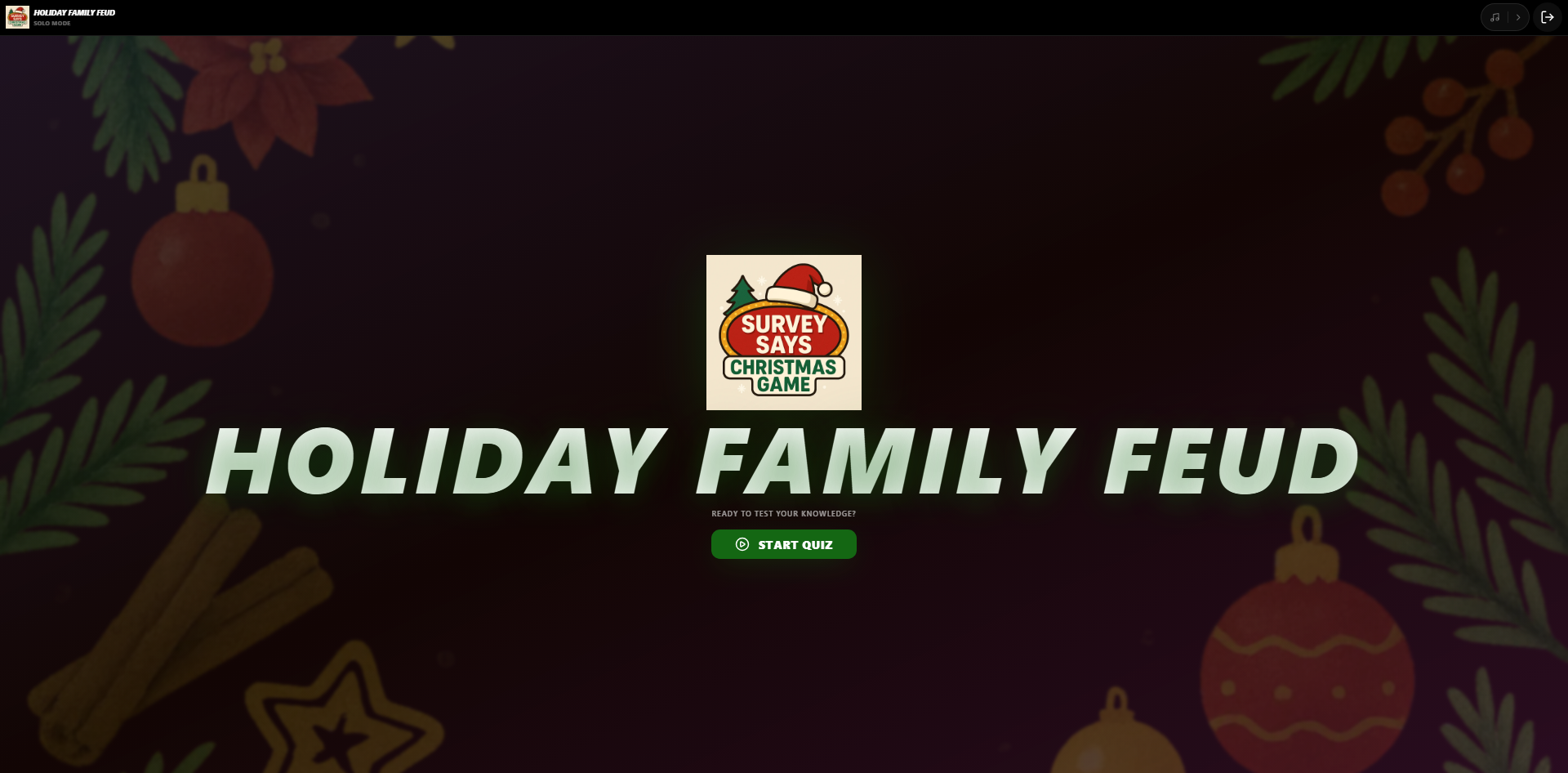 List Setup Screen: Final launch configurations in Solo Mode (Scoreboard OFF)
Rounds Screens
The Rounds Screen displays all available rounds/categories in your list game, letting you select which category to tackle.
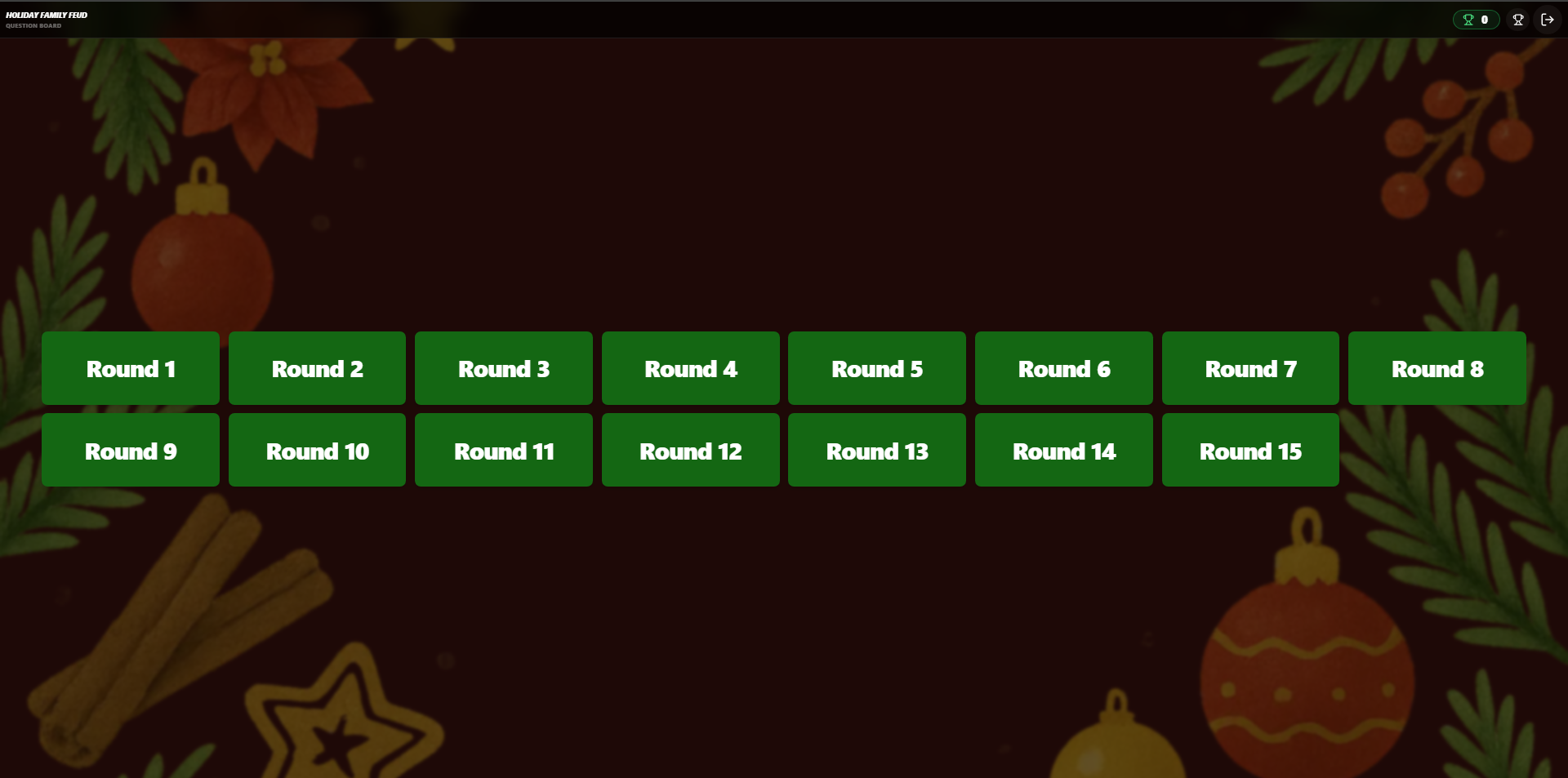 Select a category round to begin testing your knowledge
Round Name Screen
The Round Name Screen introduces the selected category topic before revealing the question details.
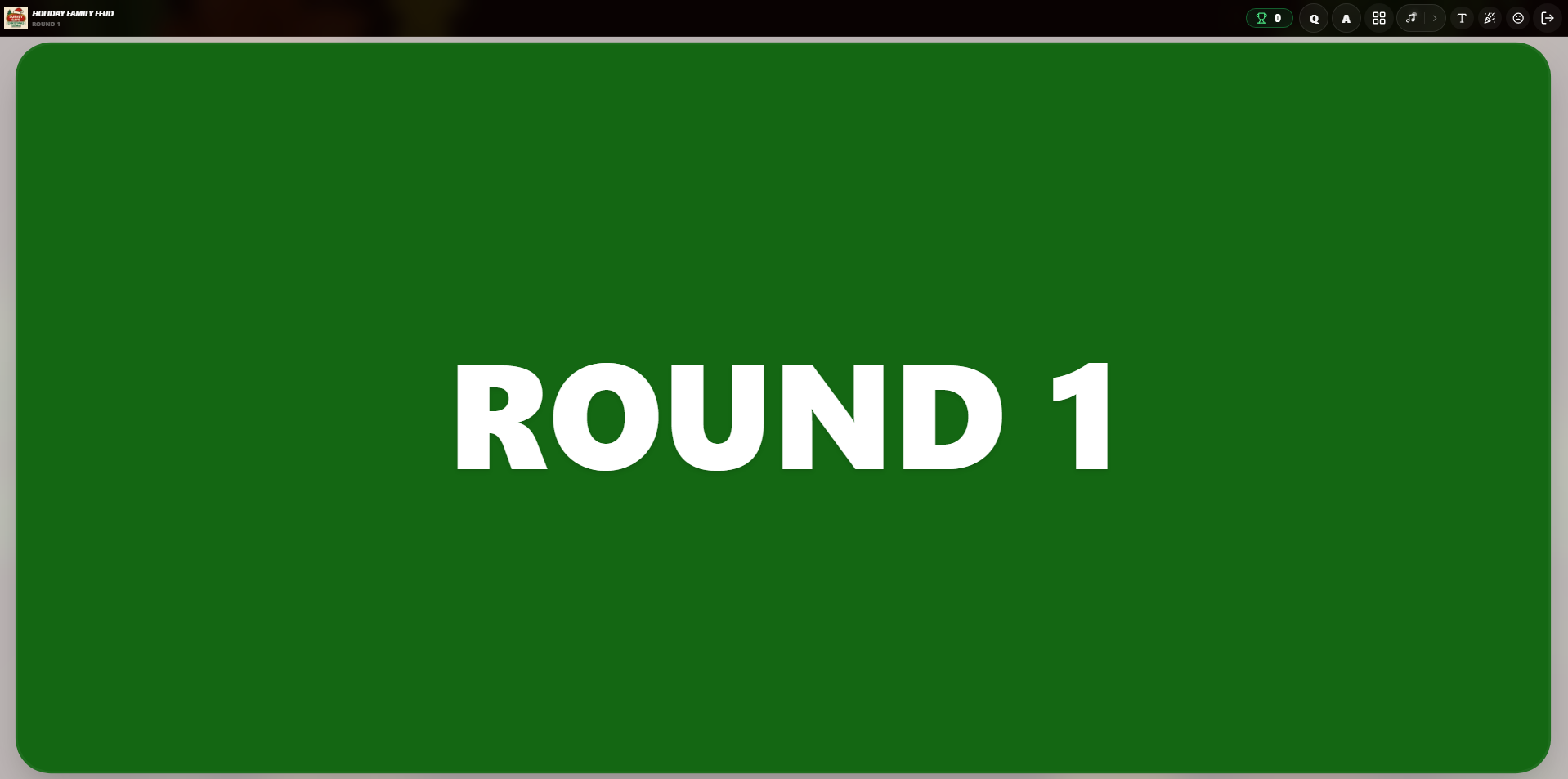 Introductory screen displaying the name of the round
Question Screen
The Question Screen presents the main challenge prompt or item category that needs to be listed.
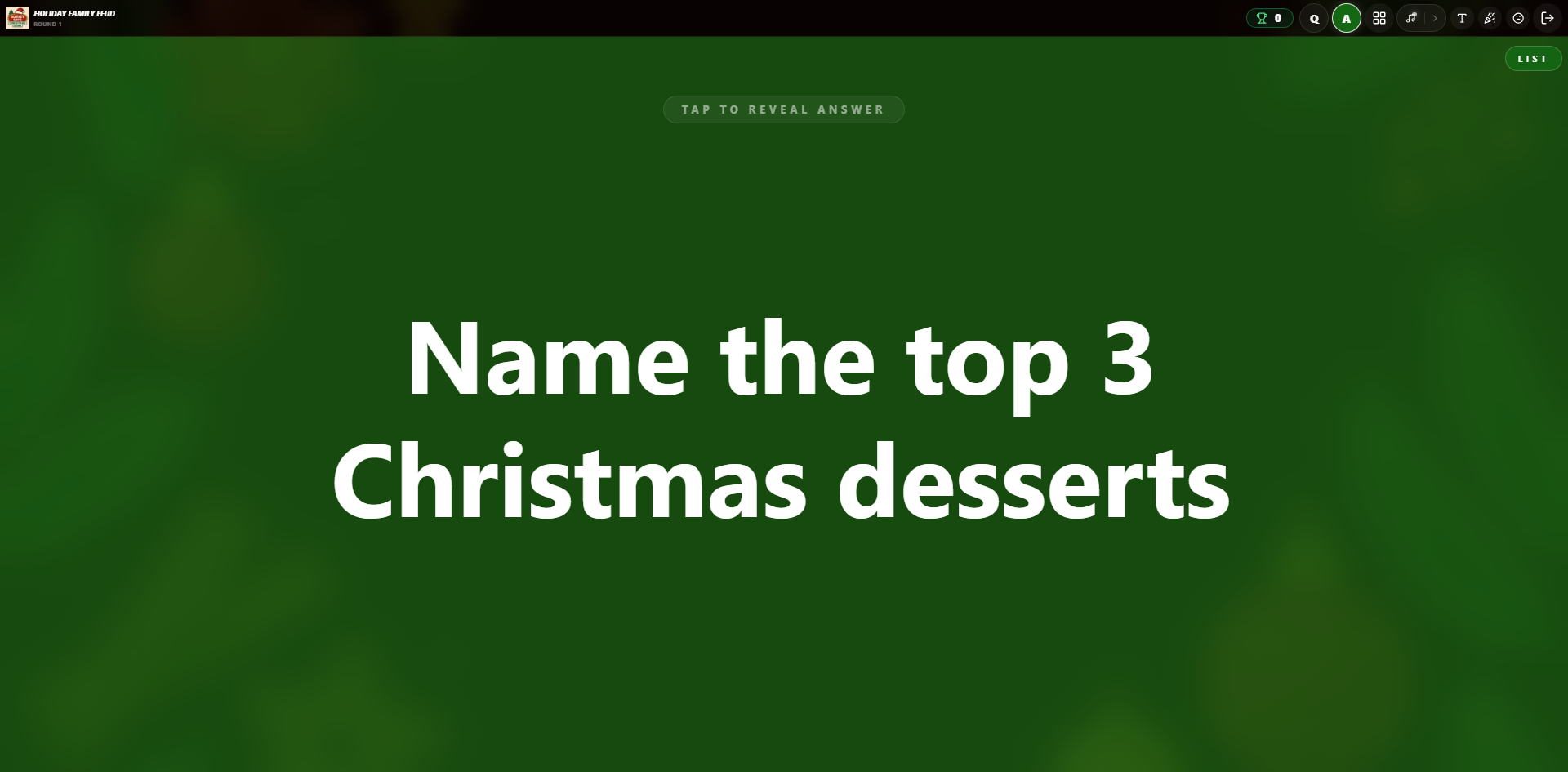 Main question screen displaying the list topic
Playing Screen
During active gameplay, the Playing Screen reveals the answer slots. You can recall correct list items individually before revealing them.
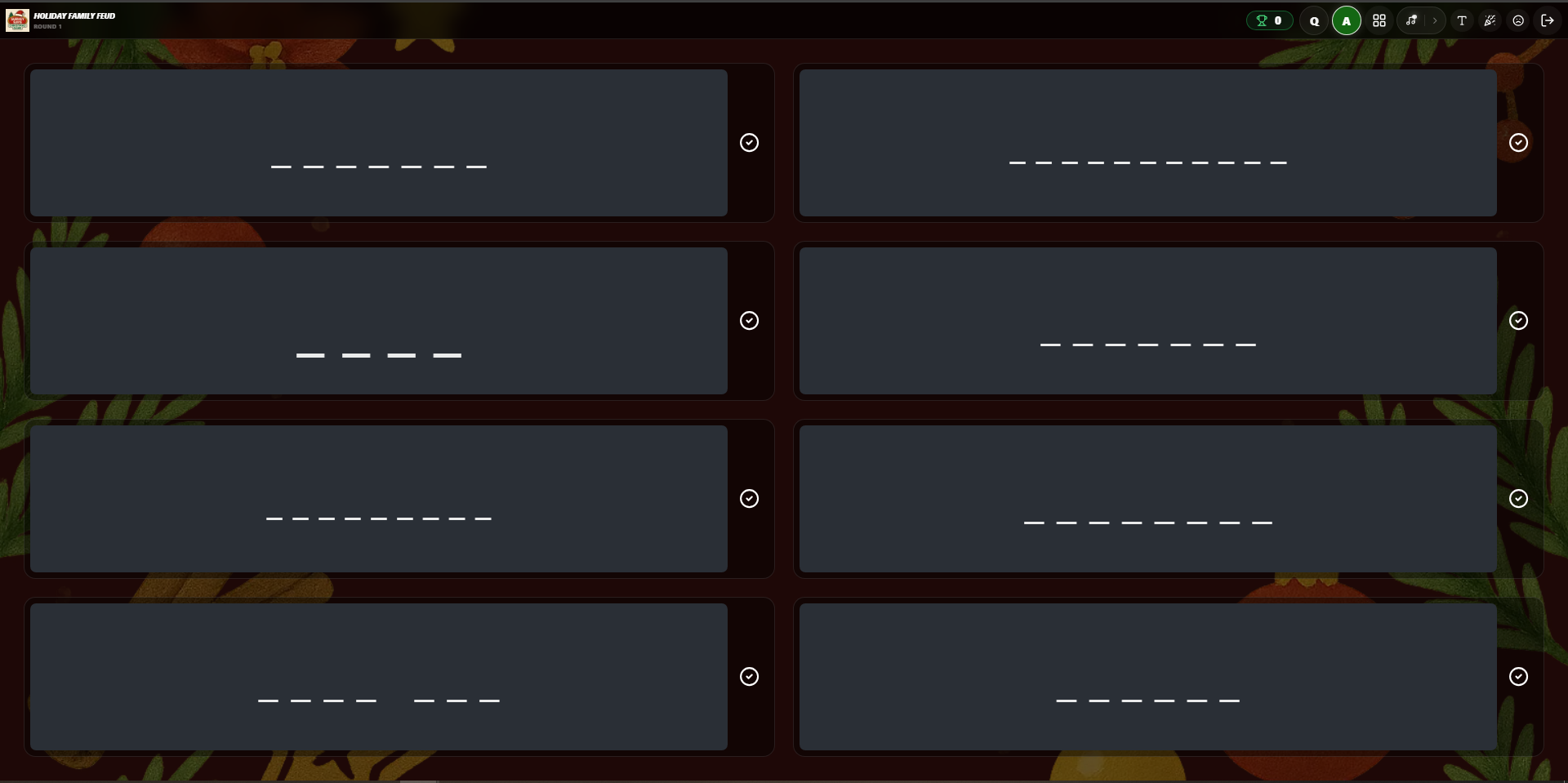 Playing screen showing answer slots
Answer Reveal Screen
The Answer Reveal Screen shows the full details of all correct list answers and highlights items that were guessed correctly.
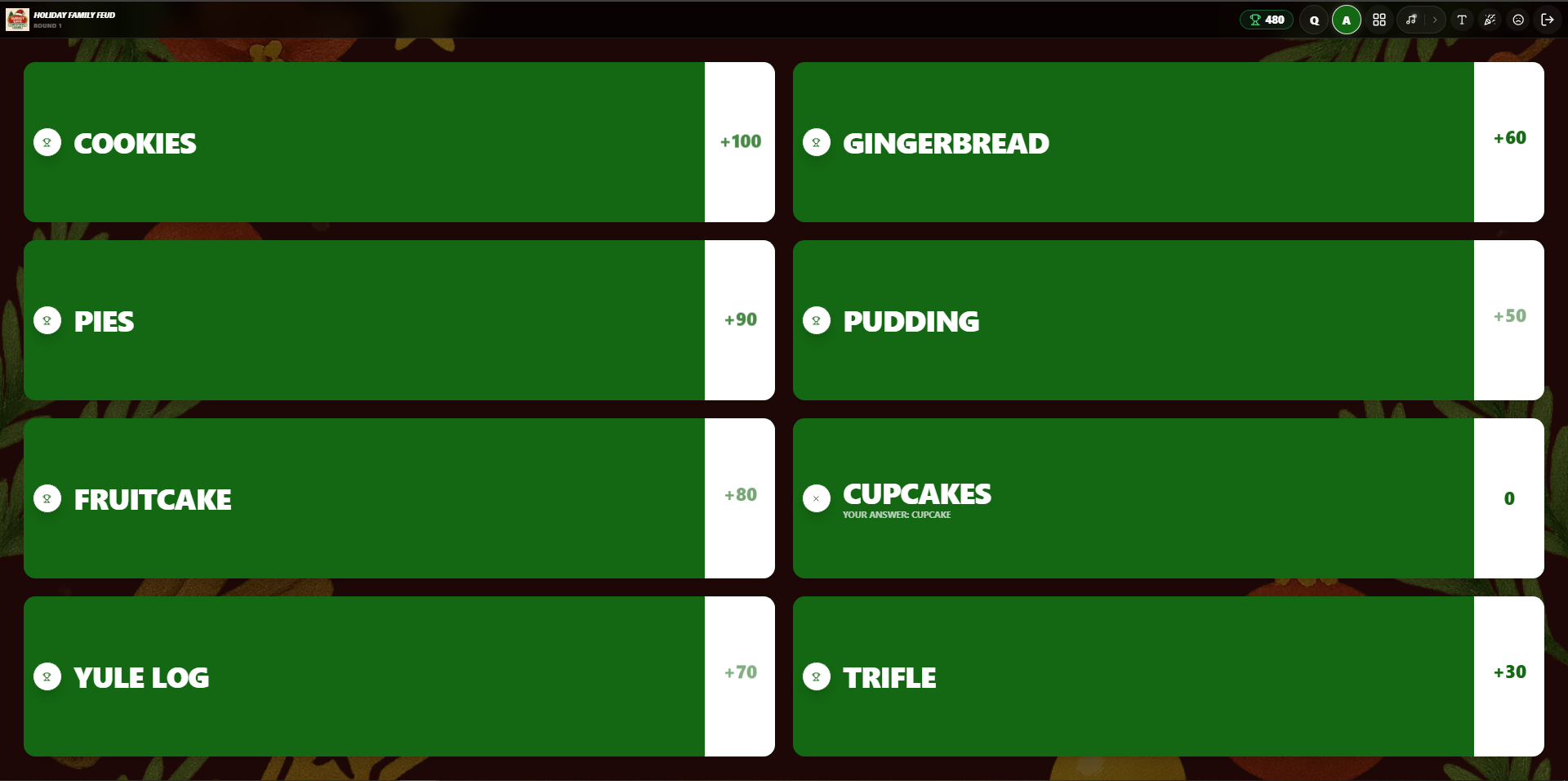 Revealed answers showing accuracy and performance breakdown
Winner Screen & Game Results
Once all rounds are completed, the final Winner Screen provides a detailed performance summary of your solo session.
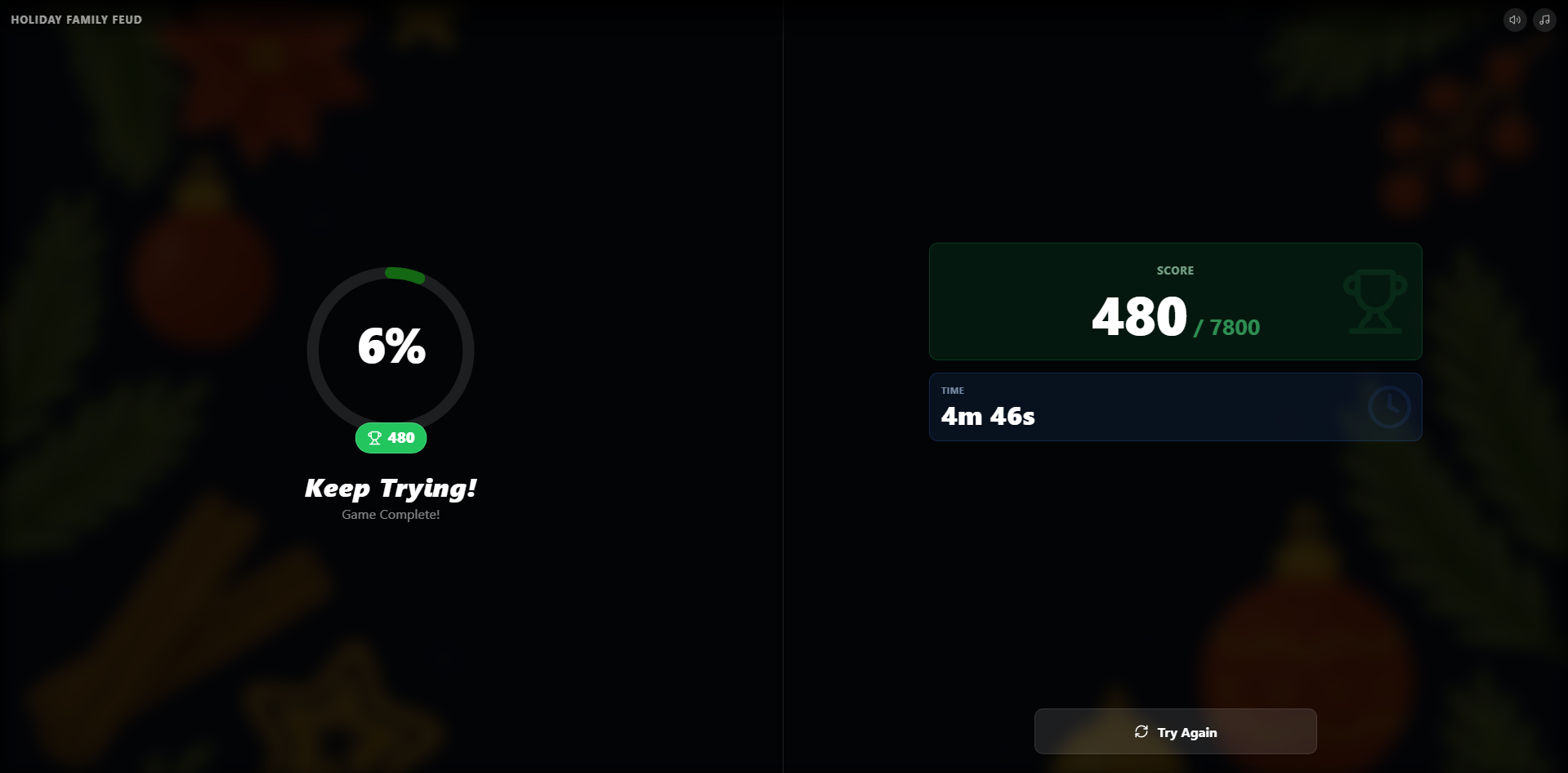 Victory standings displaying overall solo session performance stats
Solo Gameplay Controls
During a solo gameplay session, you have access to quick interactive controls in the top-right corner to manage your experience:
Play Music
Toggle background gameplay music or celebratory sound effects.
Font Size
Increase or decrease text sizes for improved readability.
Clap
Play a celebratory clapping sound effect to cheer your success.
Sad Face
Play a sad or buzzer sound effect for incorrect self-assessment.
Exit
Safely exit your solo session and return to the main dashboard.
Assignment Mode
Assignment Mode is designed for asynchronous learning. It allows you to assign a List style game to your students or team members to complete at their own pace, with a set deadline.
Assignment Dashboard
In your dashboard, you can manage all active assignments. You can see the unique Assignment Link, monitor the Expiration Date, and quickly create a New Assignment.
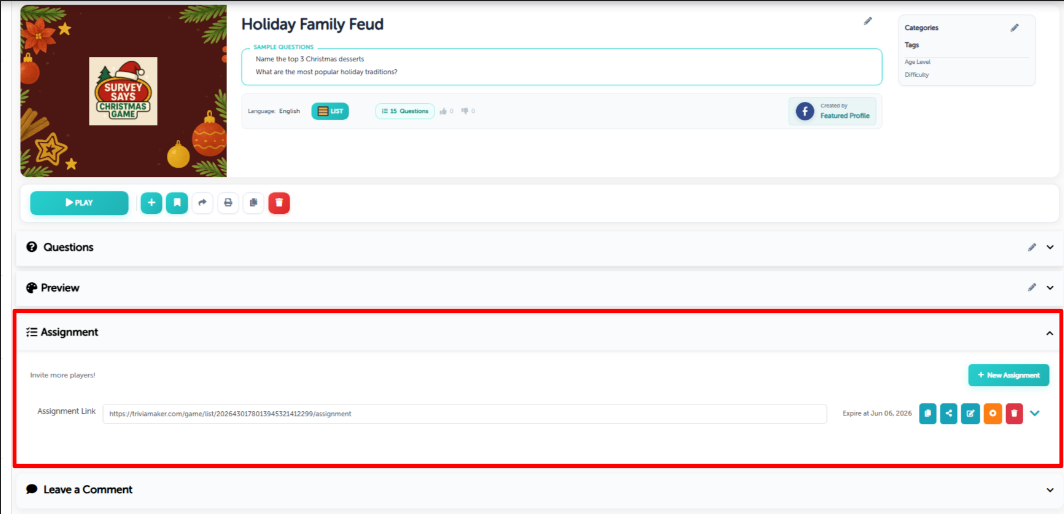 Assignment Dashboard: Create assignments and copy assignment links for participants
Player Enrollment
When players open the assignment link, they are greeted with a professional join screen. To track progress and identify players, they must enter their Full Name and Email Address before clicking Start Assignment.
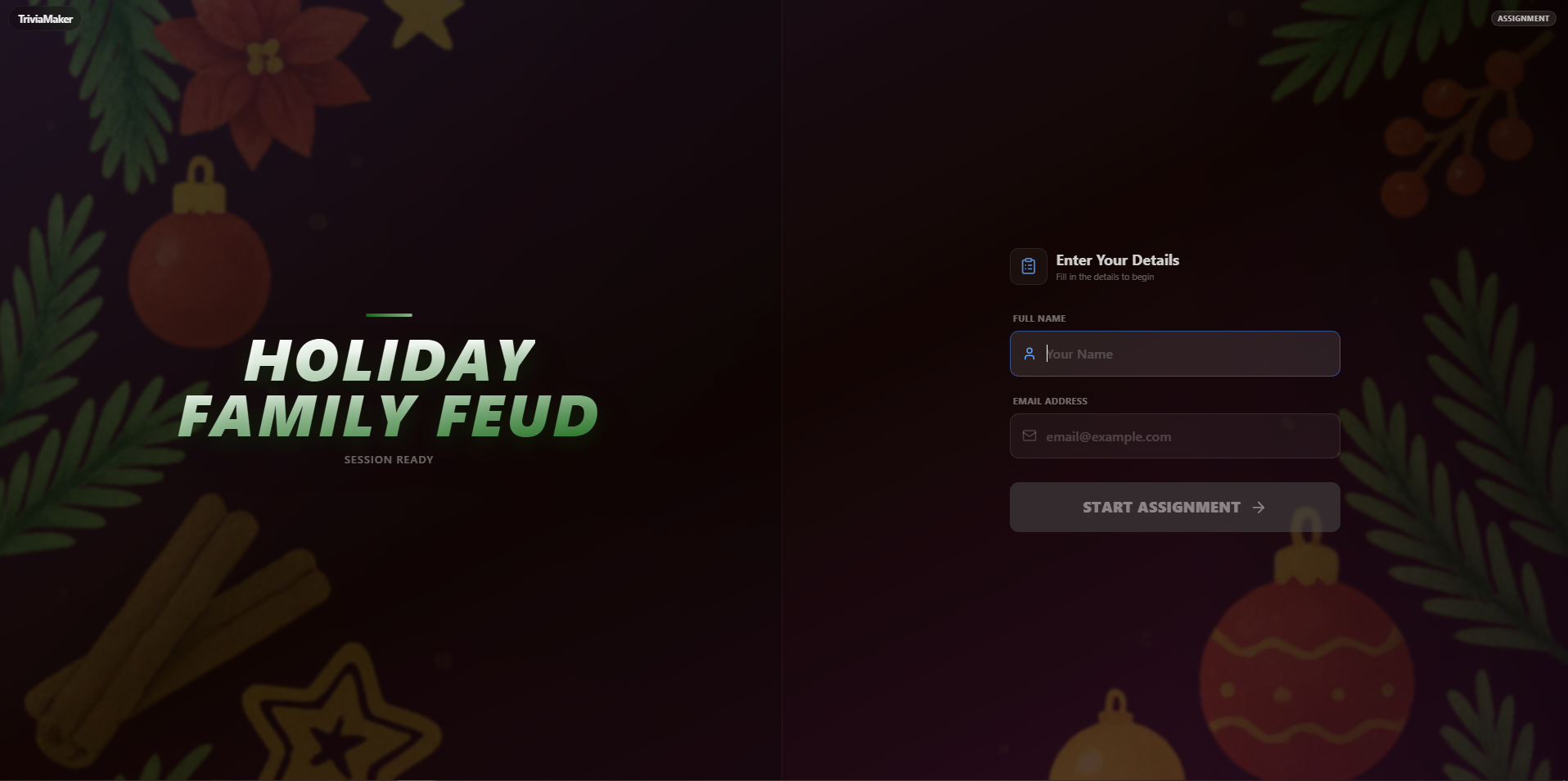 Player Join Portal: Participants enter identification info to start the assignment
Rounds Screen
The Rounds Screen displays all available rounds in the list quiz. In Assignment Mode, players can see their overall progress as they complete individual rounds.
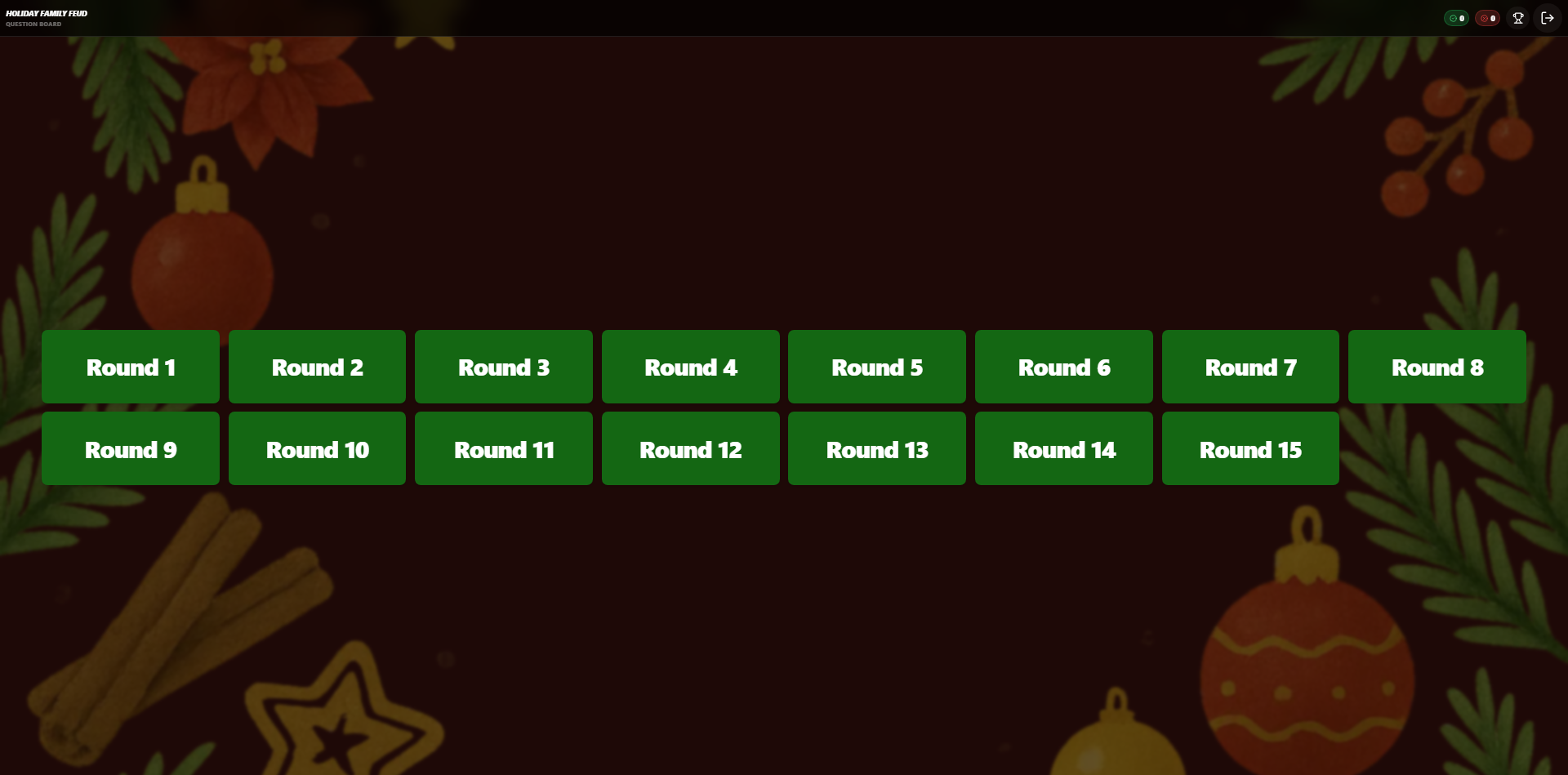 Rounds Screen: Access all rounds available in the assignment
Round Name Screen
Before entering active gameplay, the Round Name Screen highlights the title and theme of the upcoming list questions, preparing the student for the task.
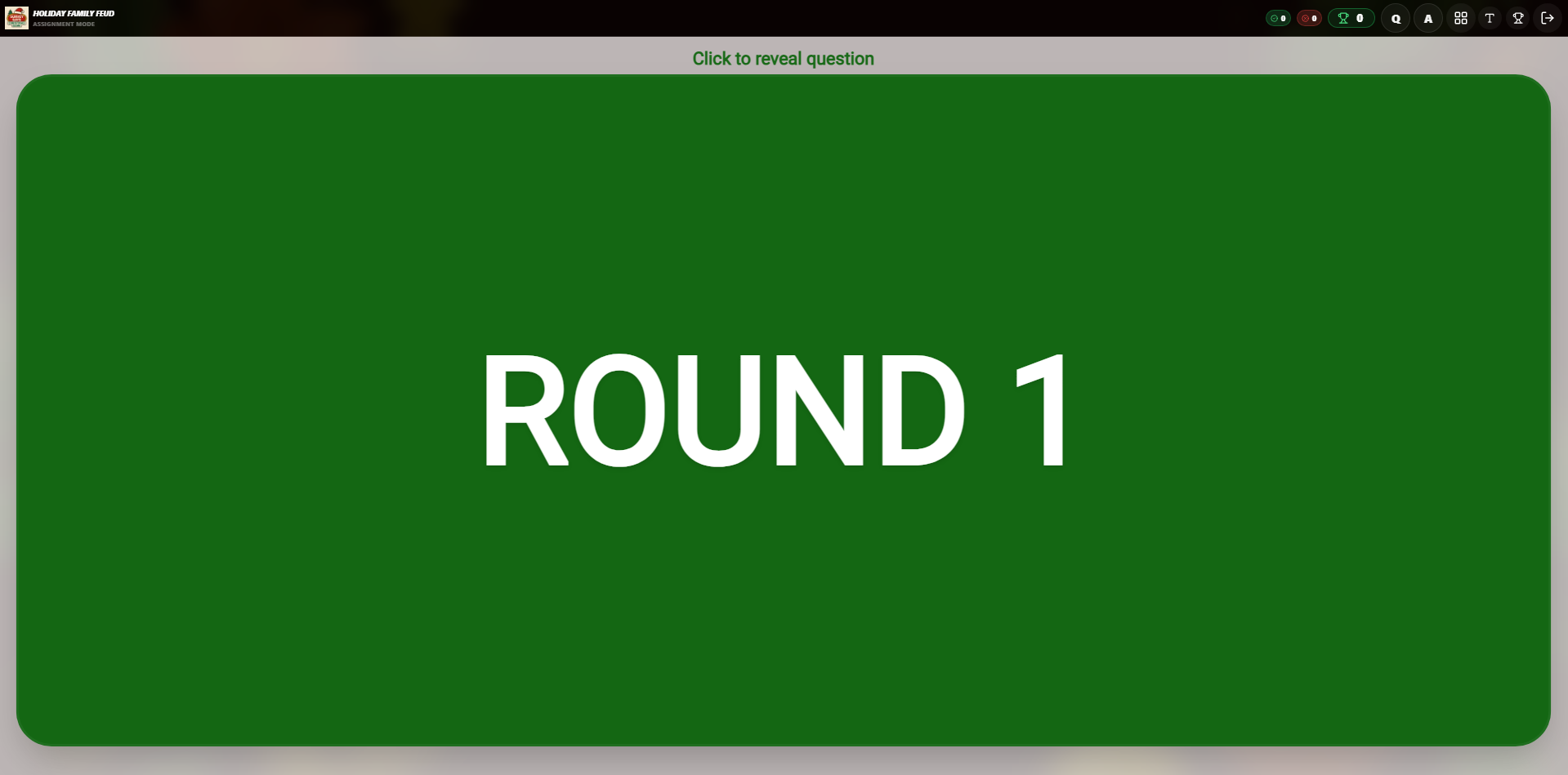 Round Name Screen: Displays active round before gameplay
Question Screen
The Question Screen lists the prompt for the player, introducing the category or primary list objective before answering begins.
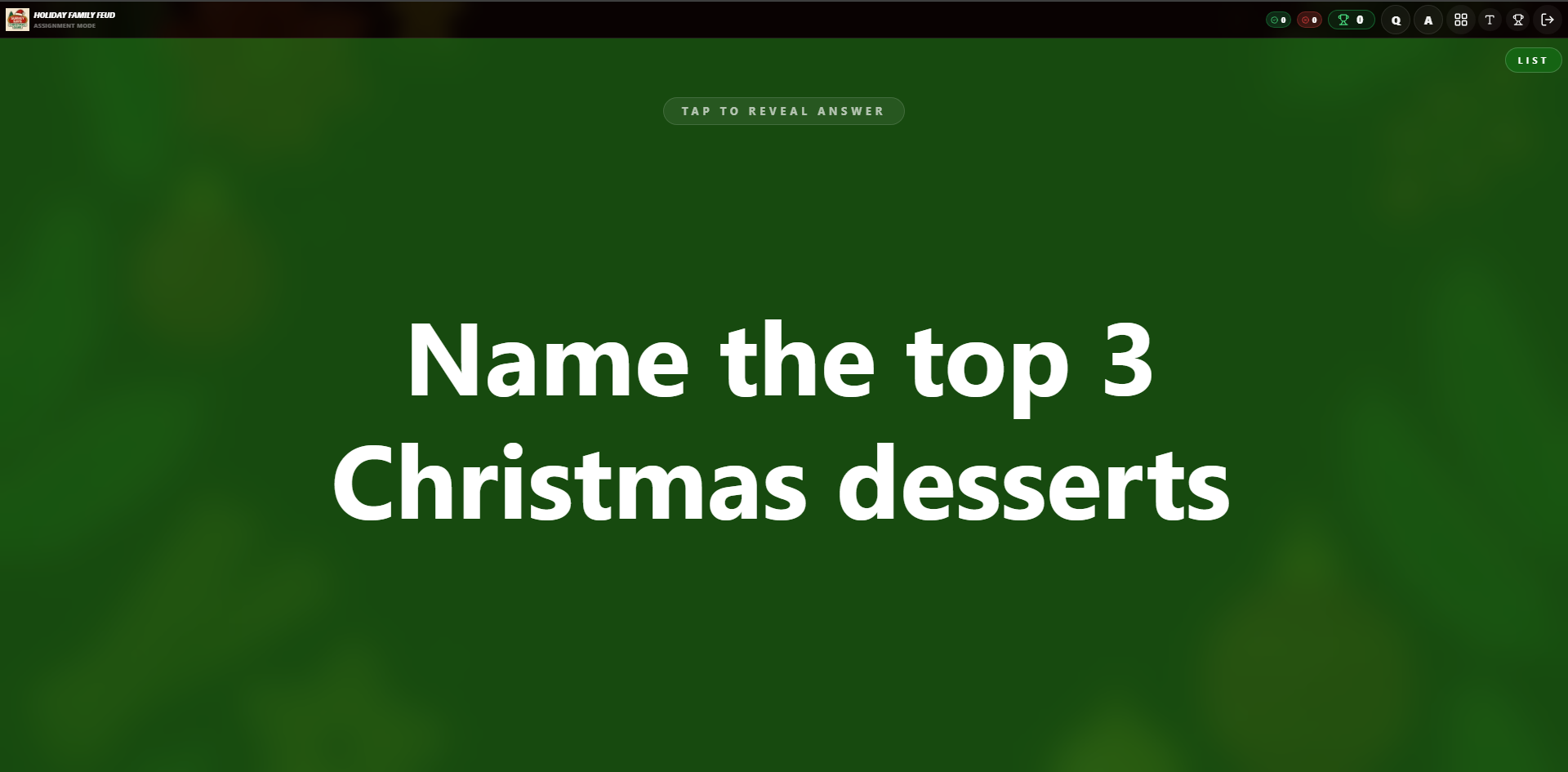 Question Screen: Displays the list prompt and items to be solved
Playing Screen
During active gameplay, players type answers one by one. Correct list items are populated on the board, encouraging critical thinking and recall speed.
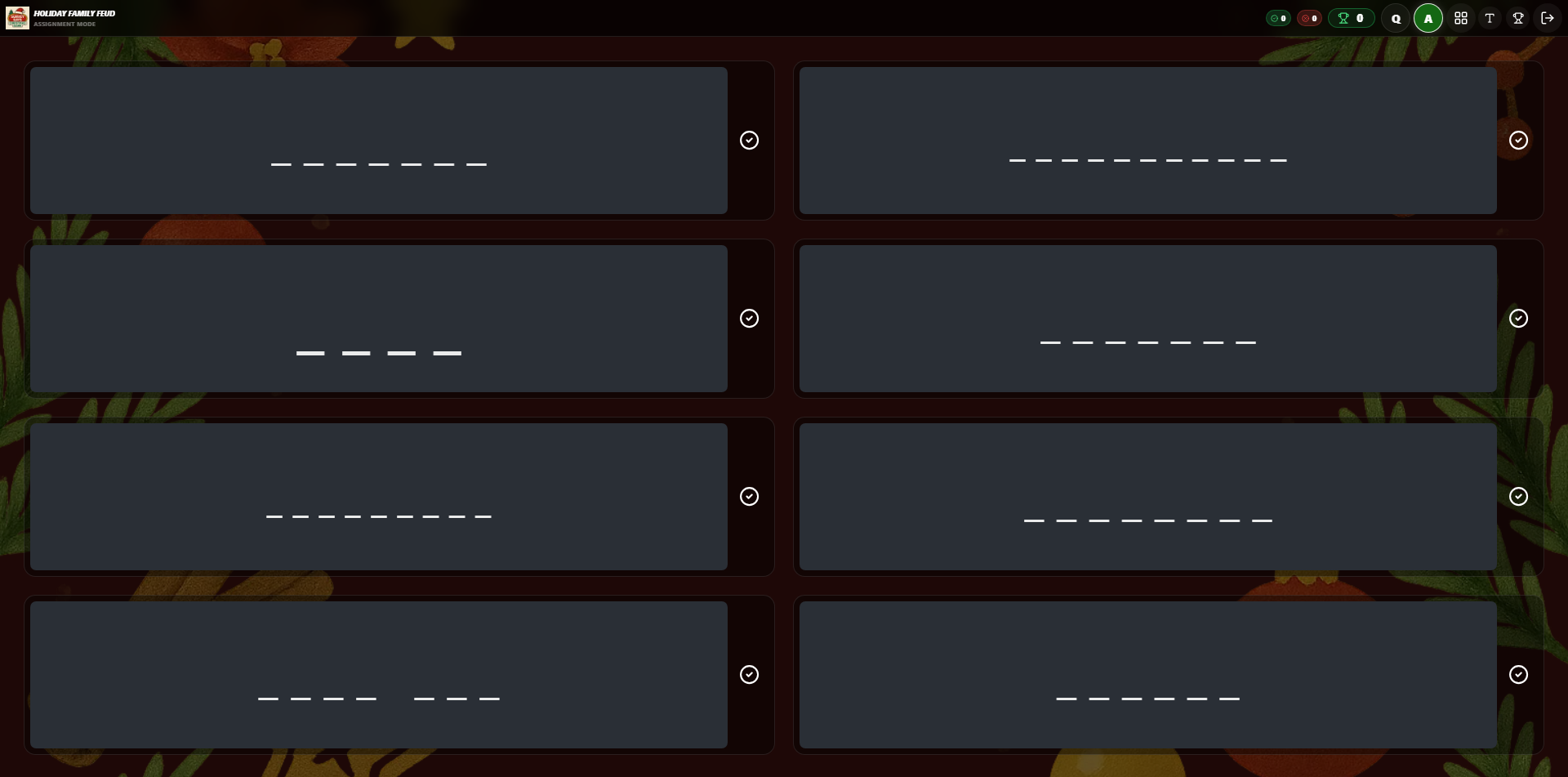 Active Playing: Typing and checking off answers on the list board
Scoreboard & Answer Reveal Screen
Once time runs out or the list is fully completed, the Scoreboard & Reveal screen displays the full set of list items, revealing correct vs missed items.
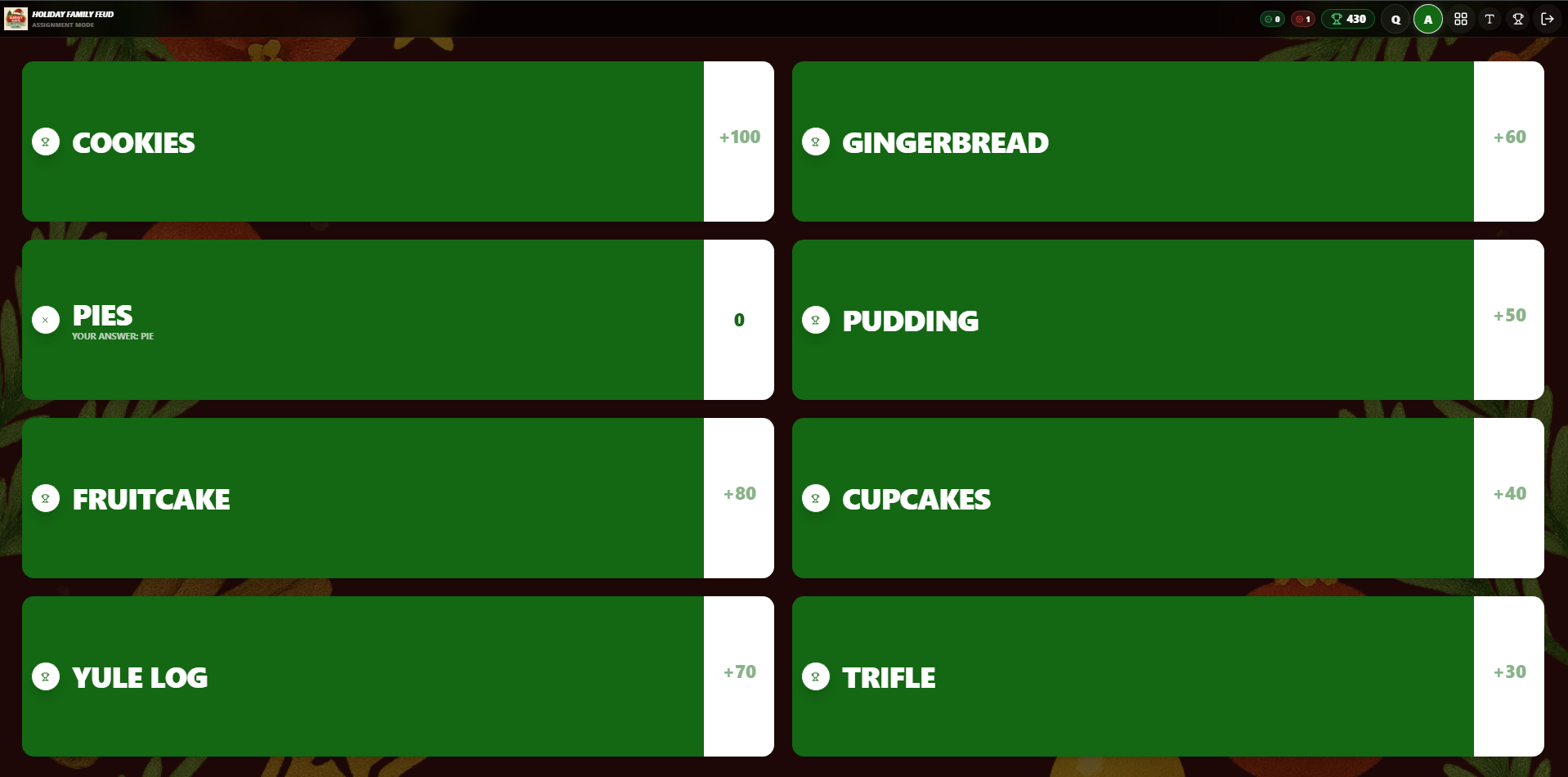 Scoreboard & Reveal: Detailed breakdown of revealed list answers
Assignment Results Screen
Upon completing the assignment, students see a comprehensive summary of their performance:
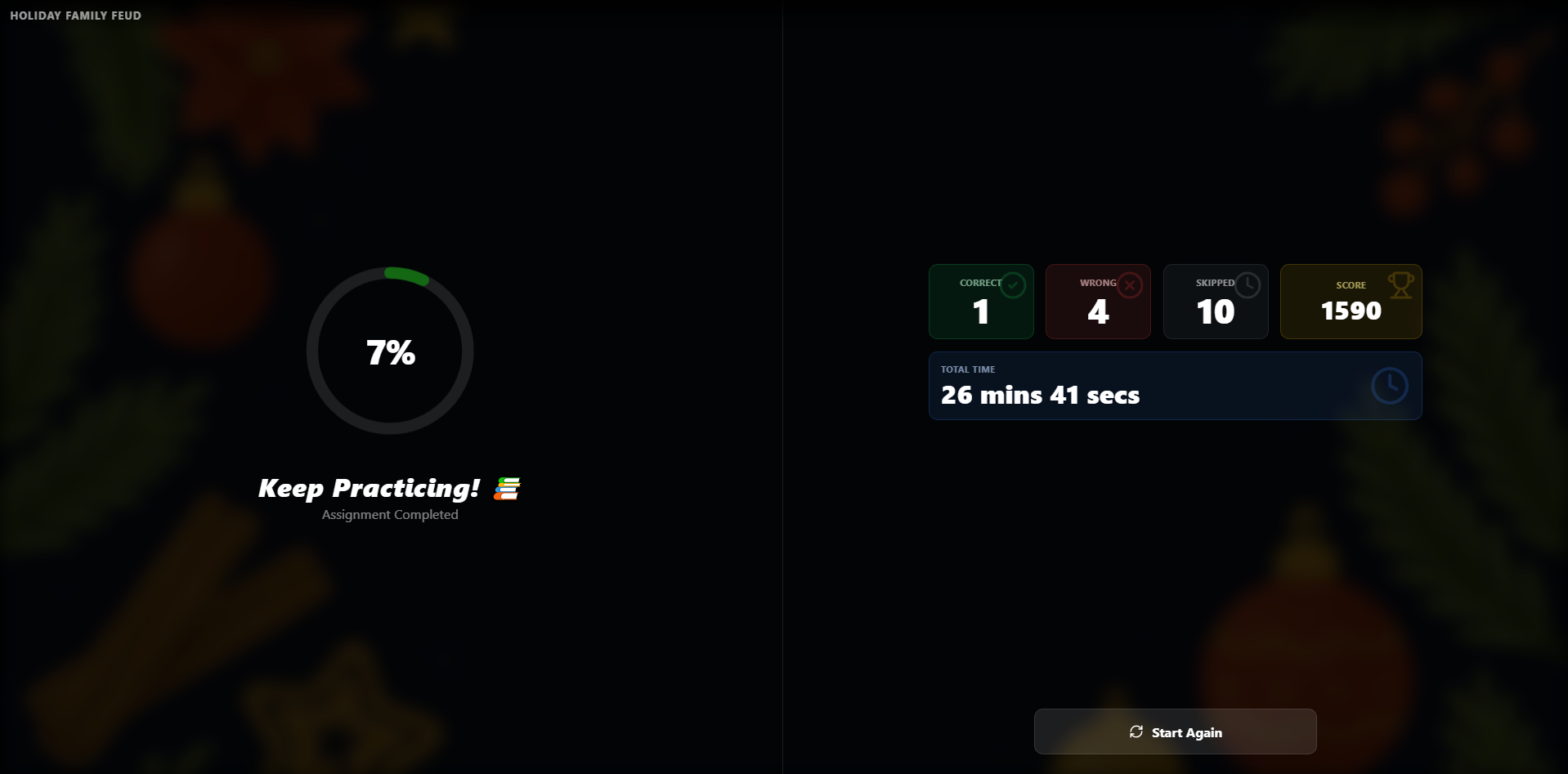 Results Summary: Detailed percentage breakdown of your performance
Completion Rate
A circular progress ring showing the percentage of correct answers.
Performance Breakdown
Counts for Correct, Wrong, and Skipped questions.
Total Time
The total duration spent on the assignment.
Start Again
Allows students to retry the assignment to improve their score.
Pro Tip: Review the assignment reports to see which categories and questions students found most difficult. This helps identify topics that may need more classroom review.